1. المقدمة
Thank you for choosing the NGTeco N3 Portable Monitor. This manual provides essential information for setting up, operating, and maintaining your new monitor. Please read it thoroughly to ensure optimal performance and longevity of your device.
المميزات الرئيسية:
- 16-inch 1200P FHD Display: Enjoy crisp visuals with a 1920x1200 resolution and a 16:10 aspect ratio.
- Ultra-Slim and Portable Design: Designed for ease of transport and use in various environments.
- التوافق الواسع: Connects to laptops, PCs, Macs, phones, Xbox, Switch, and PS4/PS5 via USB-C or HDMI.
- مكبرات الصوت المتكاملة: Provides audio output without external devices.
- Smart Cover: Offers protection and functions as a stand.

Image: The NGTeco N3 Portable Monitor in use, showcasing its display capabilities alongside a laptop.
2. الإعداد والاتصال
Follow these steps to connect your NGTeco N3 Portable Monitor to your device.
2.1 محتويات العبوة
قبل المتابعة، تأكد من وجود جميع العناصر في طردك:

Image: A visual representation of the items included in the NGTeco N3 Portable Monitor package.
- مراقب المحمولة
- غلاف واقي
- دليل المستخدم (هذا المستند)
- حامل قابل للفصل
- كابل USB-C إلى USB-C
- كابل USB-A إلى USB-C
- كابل HDMI إلى Type-C
2.2 توصيل الشاشة
The NGTeco N3 monitor supports two primary connection methods:
Option 1: USB Type-C (Full-Featured)
If your device (laptop, phone, etc.) has a full-featured USB-C port that supports video output and power delivery, you can connect the monitor with a single USB-C to USB-C cable.
- Connect one end of the USB-C to USB-C cable to your device's USB-C port.
- Connect the other end to the monitor's USB-C port.
- يجب أن تكتشف الشاشة الإشارة تلقائيًا وتقوم بتشغيل الطاقة.
Option 2: HDMI and Power Cable
If your device does not have a full-featured USB-C port, or if you prefer HDMI, you will need both an HDMI cable for video and a USB cable for power.
- Connect the HDMI to Type-C cable from your device's HDMI port to the monitor's HDMI port.
- Connect the USB-A to USB-C cable from a power source (e.g., wall adapter, laptop USB-A port) to the monitor's USB-C power input port.
- The monitor will power on and display the signal from the HDMI input.
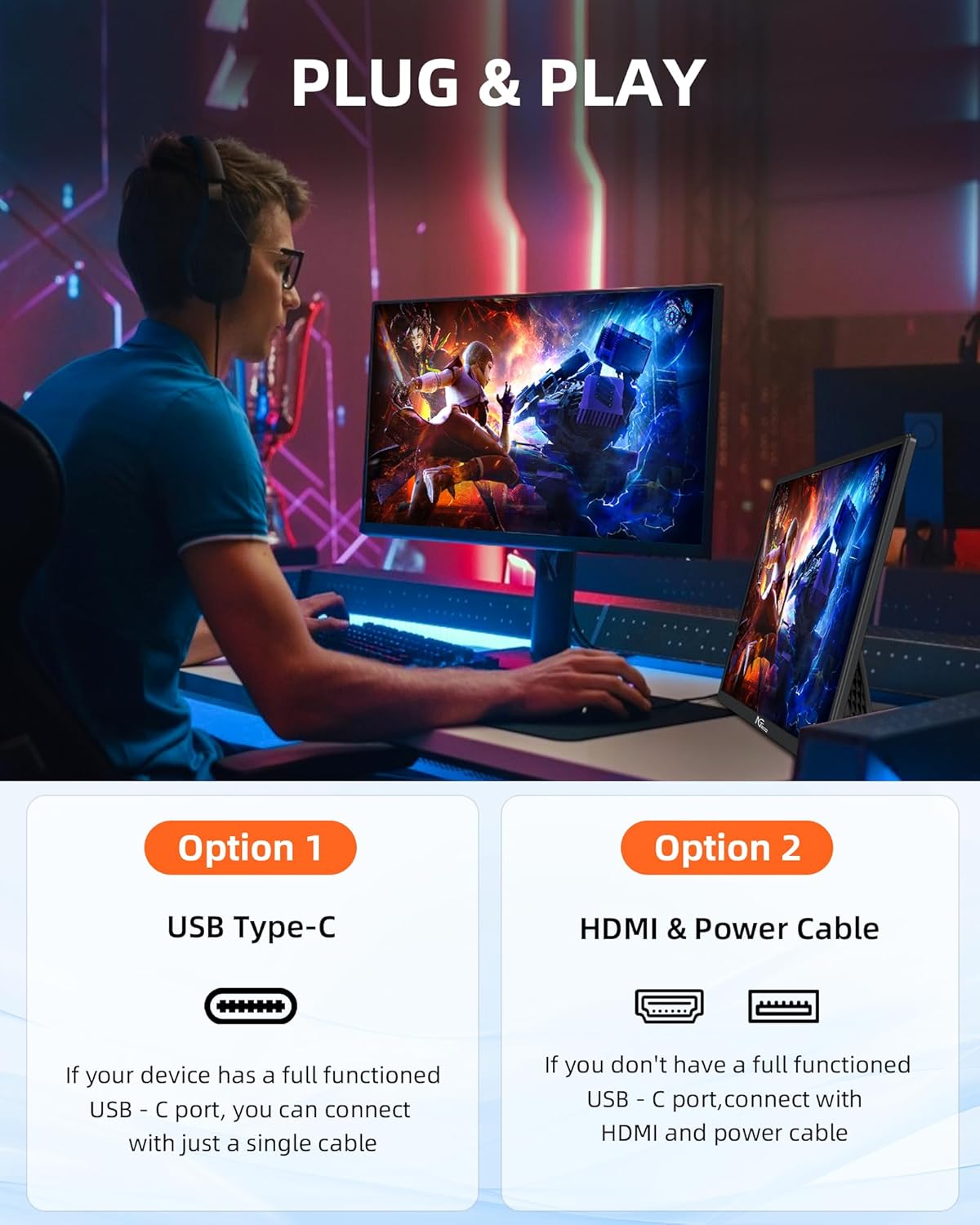
Image: Visual guide illustrating the two primary methods for connecting the NGTeco N3 Portable Monitor.
2.3 Compatibility Notes for MacBooks (M1/M2/M3 Chips)
For MacBooks equipped with M1, M2, or M3 chips, dual-screen functionality may require an H5 hub (if not included) and specific driver installation. If you encounter issues with one screen working, no signal, or screen flickering, these are often compatibility-related and can be resolved by ensuring proper drivers and accessories are used. Please refer to NGTeco Support for detailed instructions and assistance.
2.4 Using the Detachable Stand
The monitor includes a detachable stand for flexible positioning. The stand allows for 360-degree rotation and adjustable angles for both horizontal (25-80 degrees) and vertical (20-89 degrees) display modes. You may hear a gear sound when adjusting the bracket, which is normal.

Image: Instructions for installing and adjusting the detachable stand, highlighting its rotational and angle capabilities.
3. تشغيل الشاشة
3.1 Basic Display Functions
Once connected, your NGTeco N3 monitor will function as an external display. You can configure display settings (e.g., extend, duplicate, primary display) through your operating system's display settings.

Image: Key display specifications of the NGTeco N3 monitor, including resolution, brightness, and refresh rate.
3.2 قائمة العرض على الشاشة (OSD)
The monitor features an OSD menu for adjusting various settings such as brightness, contrast, color temperature, input source, and audio volume. Access the OSD menu using the physical buttons on the monitor (refer to the monitor's physical layout for button locations).
3.3 Enhanced Productivity
Utilize the NGTeco N3 as a second monitor to enhance your workflow, providing additional screen real estate for multitasking, content creation, or presentations.
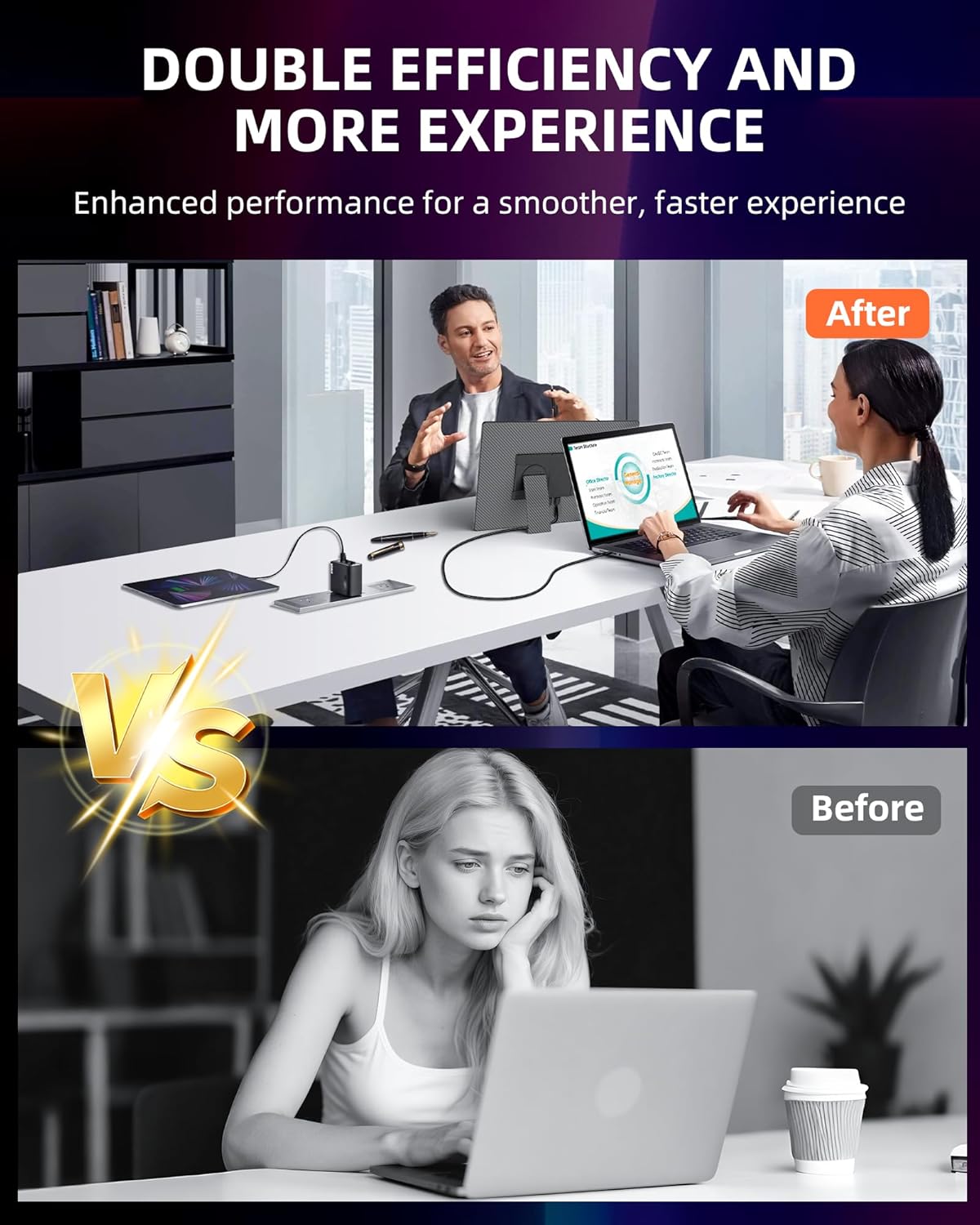
Image: A comparison illustrating how adding an external monitor can improve work efficiency and collaboration.
3.4 الألعاب والترفيه
The monitor's 1200P IPS display and 60Hz refresh rate provide a suitable experience for gaming and multimedia consumption. Connect your gaming consoles (Xbox, Switch, PS4/PS5) for an expanded view.

Image: A user engaging in gaming on the NGTeco N3 portable monitor with game controllers.
3.5 Mobile Device Projection
For compatible smartphones with full-featured USB-C ports, you can project your phone's screen onto the NGTeco N3 monitor, transforming it into a larger display for apps, videos, or presentations.

Image: Demonstrating the ability to cast a mobile phone screen to the NGTeco N3 monitor for a larger viewتجربة رائعة.
4. الصيانة
Proper care ensures the longevity and performance of your NGTeco N3 Portable Monitor.
4.1 تنظيف الشاشة
- قم دائمًا بإيقاف تشغيل الشاشة وفصلها عن مصدر الطاقة قبل التنظيف.
- Use a soft, lint-free cloth (e.g., microfiber cloth) to gently wipe the screen.
- بالنسبة للعلامات العنيدة، قم بالتدليك برفقampبلّل قطعة القماش بالماء أو بمحلول تنظيف مخصص للشاشة. لا ترش السائل مباشرة على الشاشة.
- تجنب استخدام المواد الكيميائية القاسية أو المنظفات الكاشطة أو المحاليل القائمة على الكحول، لأنها قد تتلف طبقة الشاشة.
4.2 العناية العامة
- أبقِ الشاشة بعيدة عن أشعة الشمس المباشرة والحرارة الزائدة والرطوبة.
- Avoid placing heavy objects on the monitor or applying pressure to the screen.
- When transporting, use the provided protective sleeve to prevent scratches and impacts.
- تأكد من التهوية المناسبة حول الشاشة لمنع ارتفاع درجة الحرارة.
5. استكشاف الأخطاء وإصلاحها
If you encounter issues with your NGTeco N3 Portable Monitor, refer to the following common solutions:
5.1 لا توجد إشارة / شاشة سوداء
- فحص الكابلات: Ensure all cables (USB-C, HDMI, power) are securely connected to both the monitor and your device.
- مصدر الطاقة: Verify the monitor is receiving adequate power. If using HDMI, ensure the USB power cable is connected to a sufficient power source.
- مصدر الإدخال: Use the OSD menu to manually select the correct input source (e.g., USB-C, HDMI).
- Device Output: Confirm your connected device is configured to output video to an external display. Try restarting your device.
- Compatibility (MacBooks M1/M2/M3): If using a MacBook with M1/M2/M3 chips, ensure any required H5 hub is connected and drivers are installed.
5.2 Screen Flickering / Unstable Display
- جودة الكابل: جرب استخدام كابل USB-C أو HDMI مختلف وعالي الجودة.
- مزود الطاقة: Ensure the monitor is receiving stable power. If powered by a laptop's USB port, try connecting to a dedicated wall adapter.
- معدل التحديث: Check your device's display settings to ensure the refresh rate is set appropriately (e.g., 60Hz).
- تحديثات برنامج التشغيل: Ensure your device's graphics drivers are up to date.
5.3 No Audio / Low Volume
- حجم الشاشة: Adjust the volume through the monitor's OSD menu.
- حجم الجهاز: Check the audio output settings on your connected device and ensure the volume is not muted or too low.
- جهاز إخراج: Confirm that the NGTeco monitor is selected as the audio output device in your operating system's sound settings.
5.4 One Screen Working (for dual-screen setups)
- MacBook M1/M2/M3: As noted in the setup section, specific hubs and drivers may be required for dual-screen functionality on these MacBooks.
- اعدادات العرض: Ensure your operating system's display settings are configured to 'Extend' or 'Duplicate' displays, and that both monitors are detected.
- وصلات الكابلات: Double-check that both monitors are correctly connected and receiving power.
If these steps do not resolve your issue, please contact NGTeco Support for further assistance.
6. المواصفات
| ميزة | مواصفة |
|---|---|
| نموذج | N3 |
| حجم الشاشة | 16 بوصة |
| نوع العرض | اي بي اس |
| دقة | 1920 × 1200 (1200P FHD) |
| نسبة العرض إلى الارتفاع | 16:10 |
| معدل التحديث | 60 هرتز |
| سطوع | 300 شمعة |
| نسبة التباين | 2000:1 |
| وقت الاستجابة | 0.1 ميلي ثانية |
| Viewزاوية جي | 178 درجة |
| الاتصال | اتش دي ام اي، ومنفذ يو اس بي من النوع سي |
| أبعاد المنتج | 0.15 × 3.6 × 2.35 سم؛ 1.77 كجم |
| المميزات الخاصة | Portable, Built-in Speakers, Smart Cover |
7. الضمان والدعم
7.1 معلومات الضمان
For detailed information regarding the warranty period and terms for your NGTeco N3 Portable Monitor, please refer to the warranty card included with your product or visit the official NGTeco webالموقع. احتفظ بإثبات الشراء الخاص بك لتقديم مطالبات الضمان.
7.2 دعم العملاء
If you require technical assistance, have questions about your product, or need to report an issue, please contact NGTeco Customer Support. You can typically find contact information on the NGTeco webالموقع أو داخل عبوة المنتج الخاص بك.
NGTeco Support: Visit the NGTeco Store on Amazon


