1. المقدمة
Thank you for choosing the LG 34 Inch UltraWide WQHD Curved Monitor. This manual provides essential information for the safe and efficient use of your new monitor. Please read it thoroughly before operating the device and keep it for future reference.
محتويات الحزمة
- LG 34 Inch UltraWide Curved Monitor
- حامل الشاشة (القاعدة والرقبة)
- كابل الطاقة
- كابل HDMI
- كابل ديسبلايبورت
- كابل USB-C
- دليل المستخدم وبطاقة الضمان
2. الميزات الرئيسية
- 34-inch WQHD UltraWide Curved Display: Expansive 21:9 screen (3440 x 1440) for enhanced productivity and immersive viewعمل.
- HDR Display with 99% sRGB: Delivers vibrant, natural colors and distinct image layers, supporting HDR brightness performance.
- معدل تحديث عالٍ 120 هرتز: Ensures fluid scrolling and dynamic content for a comfortable visual experience.
- 5ms (GTG) Response Time: Provides quick pixel response for smooth motion.
- LG Switch for Multitasking & Eye Care: Enables quick split-screen functionality, customizable layouts, and Reader Mode to reduce eye strain.
- حامل قابل للتعديل: Supports height, tilt, and swivel adjustments for optimal viewزوايا متعددة.
- مكبرات الصوت المدمجة: Integrated audio for convenience.
- خيارات اتصال متعددة: يتضمن مدخلات DisplayPort وHDMI.
3. الإعداد
3.1 تجميع الحامل
Carefully remove the monitor and stand components from the packaging. Follow the instructions below to attach the stand to the monitor.
- ضع الشاشة على سطح ناعم ونظيف بحيث يكون وجهها لأسفل لمنع الخدوش.
- قم بتثبيت قاعدة الحامل على اللوحة الخلفية للشاشة. تأكد من تثبيتها بإحكام في مكانها.
- Attach the stand base to the bottom of the stand neck. Tighten the screw(s) firmly to secure the base.
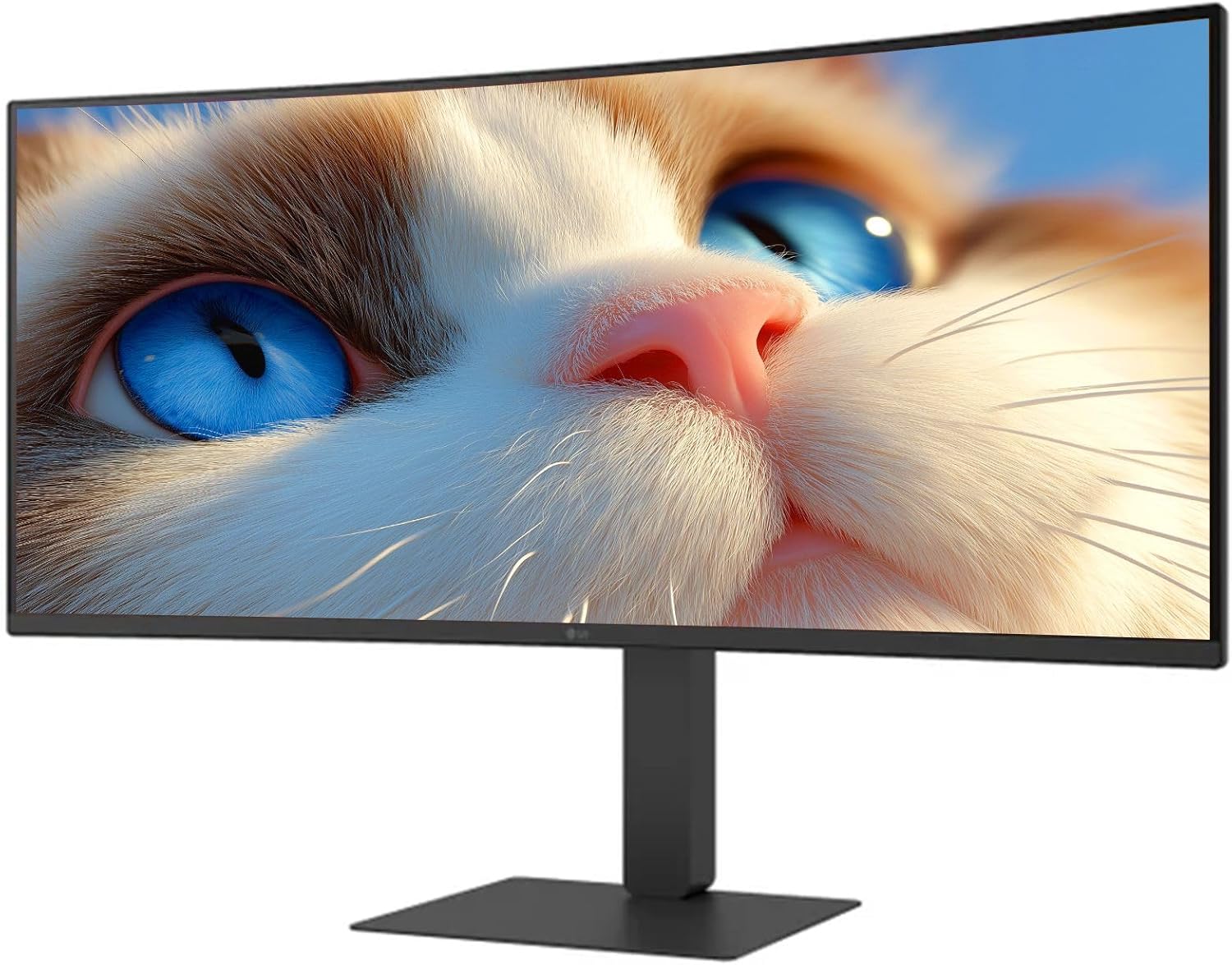
الشكل 1: الجبهة view of the LG 34 Inch UltraWide Curved Monitor with stand.

الشكل 2: الجانب view of the LG 34 Inch UltraWide Curved Monitor with stand.
3.2 توصيل الشاشة
قم بتوصيل الشاشة بجهاز الكمبيوتر الخاص بك أو بأجهزة أخرى باستخدام الكابلات المناسبة.
- قم بتوصيل كابل الطاقة بمدخل الطاقة الخاص بالشاشة ثم بمأخذ الطاقة.
- For video input, connect either an HDMI cable or a DisplayPort cable from your computer's graphics card to the corresponding port on the monitor.
- If your computer supports USB-C, you can use the provided USB-C cable for video, audio, and data transfer.

الشكل 3: خلفي view of the monitor showing available ports for connectivity.
4. تشغيل الشاشة
4.1 تشغيل/إيقاف التشغيل
Press the power button, usually located on the bottom center of the monitor, to turn the monitor on or off. The power indicator light will illuminate when the monitor is on.
4.2 قائمة العرض على الشاشة (OSD)
تتيح لك قائمة العرض على الشاشة ضبط إعدادات الشاشة المختلفة. استخدم زر عصا التحكم (الموجود عادةً في أسفل المنتصف) للتنقل في القائمة.
- وضع الصورة: Select from various preset modes (e.g., Custom, Reader, HDR Effect) or customize settings like brightness, contrast, and sharpness.
- مدخل: Manually select the input source (HDMI, DisplayPort, USB-C).
- عام: Access settings for language, OSD transparency, and power-saving options.
4.3 ضبط الحامل
The monitor stand offers ergonomic adjustments for your comfort:
- ضبط الارتفاع: ادفع أو اسحب الشاشة برفق لأعلى أو لأسفل إلى الارتفاع المطلوب.
- تعديل الميل: Hold both sides of the monitor and tilt it forwards or backwards.
- تعديل الدوران: قم بتدوير الشاشة إلى اليسار أو اليمين على قاعدتها.
5. الصيانة
5.1 تنظيف الشاشة
لضمان طول عمر شاشتك وأدائها الأمثل، اتبع إرشادات التنظيف التالية:
- افصل الشاشة دائمًا عن مأخذ الطاقة قبل التنظيف.
- استخدم قطعة قماش ناعمة وخالية من الوبر وامسحها برفق.ampاغسلها بالماء أو بمنظف الشاشة المتخصص.
- لا تقم برش المنظف مباشرة على الشاشة.
- تجنب استخدام المنظفات الكاشطة أو المذيبات أو المنتجات التي تحتوي على الأمونيا.
6. استكشاف الأخطاء وإصلاحها
إذا واجهت مشكلات مع شاشتك، فراجع الحلول الشائعة التالية:
- لا يوجد طاقة: تأكد من توصيل كابل الطاقة بإحكام بكل من الشاشة ومأخذ الطاقة. تحقق من أن مأخذ الطاقة يعمل.
- لا توجد تغطية: Verify that the video cable (HDMI, DisplayPort, or USB-C) is correctly connected to both the monitor and your computer. Ensure the correct input source is selected in the OSD menu.
- شاشة متذبذبة: Check the video cable connection. Try adjusting the refresh rate in your computer's display settings.
- تشويه الصورة: Reset the monitor to factory settings via the OSD menu. Ensure your computer's display resolution matches the monitor's native resolution (3440 x 1440).
- لا يصدر صوت من مكبرات الصوت المدمجة: Check the volume settings on both the monitor and your computer. Ensure the audio output is correctly routed to the monitor.
If the problem persists after trying these steps, please contact LG customer support.
7. المواصفات
| ميزة | مواصفة |
|---|---|
| ماركة | LG |
| رقم الموديل | 195174134092 |
| حجم الشاشة | 34 بوصة |
| الدقة القصوى | WQHD (3440 × 1440) |
| معدل التحديث | 120 هرتز |
| وقت الاستجابة | 5 مللي ثانية (GTG) |
| نسبة العرض إلى الارتفاع | 21:9 |
| مجموعة الألوان | إس آر جي 99 ٪ |
| دعم HDR | النطاق الديناميكي العالي 10 |
| Viewزاوية جي | 178 degrees (R/L), 178 degrees (U/D) |
| موصلات العرض | 1 × HDMI، 1 × DisplayPort |
| Eye Relief Features | Low blue light, Flicker-free, Anti-glare, Reader Mode |
| مكبرات صوت مدمجة | نعم |
| أبعاد المنتج (مع الحامل) | 8.7 بوصة عمق × 32.1 بوصة عرض × 19.2 بوصة ارتفاع |
| وزن المنتج (مع الحامل) | 16.8 رطل |
8. الضمان والدعم
Your LG 34 Inch UltraWide Curved Monitor comes with a standard manufacturer's warranty. Please refer to the warranty card included in your package for detailed terms and conditions.
For technical support, service, or further inquiries, please visit the official LG website or contact their customer service hotline. Keep your purchase receipt and product serial number (located on the back of the monitor) handy when contacting support.