1. المقدمة
This manual provides detailed instructions for setting up, operating, and maintaining your MINISFORUM M1 Pro-285H AI Mini PC. Please read this manual thoroughly before using the device to ensure proper functionality and to prevent damage.
The MINISFORUM M1 Pro-285H is a high-performance AI Mini PC equipped with an Intel Core Ultra 9 Processor 285H, designed for demanding tasks, content creation, light gaming, and multimedia editing. It features advanced connectivity and expansion options to enhance your computing experience.
2. انتهى المنتجview
The M1 Pro-285H features a compact and sleek design, crafted from durable aluminum alloy. It integrates powerful components within a small footprint.
2.1. المكونات والميزات
- المعالج: Intel Core Ultra 9 Processor 285H (16 Cores, 16 Threads, up to 5.4GHz) with integrated Intel Arc Graphics.
- ذاكرة: DDR5-5600GHz SODIMM, expandable up to 128 GB (supports up to 6400 MT/s).
- تخزين: Dual M.2 2280 PCIe 4.0 slots, each supporting up to 4TB capacity. Supports RAID 0 and RAID 1 configurations.
- عرض الإخراج: Supports up to 4 displays via HDMI 2.1 (4K@60Hz), DP 1.4 (up to 8K@60Hz or 4K@144Hz), and dual USB4 ports (up to 8K@60Hz).
- الاتصال: Wi-Fi 7, Bluetooth 5.4, 2.5G Ethernet port.
- الموانئ: USB4 (40Gbps, 15W output, 65-100W input), USB 3.2 Gen2 Type-A, 3.5mm Audio Jack, OCuLink.
- تبريد: Efficient heat dissipation system with phase change material, dual pure copper heat pipes, and dual large-diameter silent fans.
2.2. Physical Layout and Ports

Image: Diagram showing the front and rear ports of the MINISFORUM M1 Pro-285H Mini PC. The front includes a power button, two USB3.2 Gen2 Type-A ports, one USB4 port, a 3.5mm audio jack, and a Clear CMOS pinhole. The rear includes a DC 19V power input, a 2.5G LAN port, a DP 1.4 port, an OCuLink port, an HDMI 2.1 port, and another USB4 port.
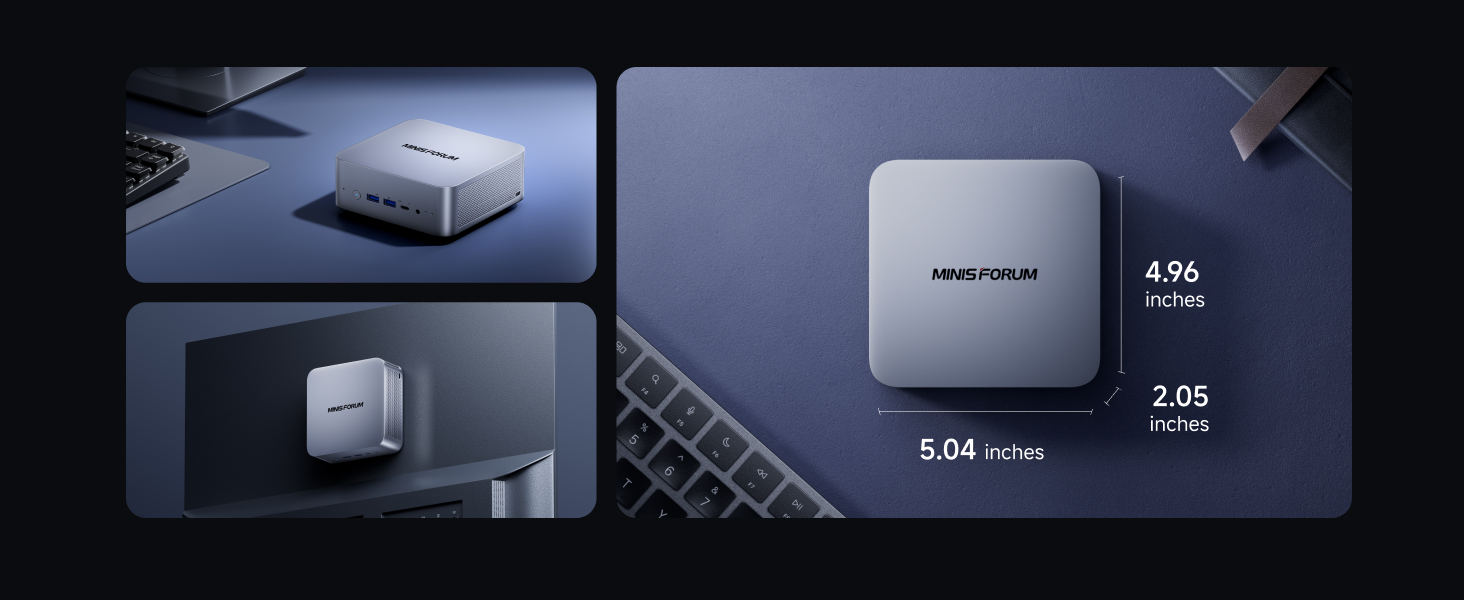
Image: The MINISFORUM M1 Pro-285H Mini PC shown from a top-down perspective, highlighting its compact dimensions of approximately 5.04 inches by 4.96 inches by 2.05 inches. Additional views show the device mounted behind a monitor and placed on a desk.
3. دليل الإعداد
3.1. توصيل الأجهزة الطرفية
- توصيل الشاشة: Connect your monitor(s) to the HDMI 2.1, DP 1.4, or USB4 ports using appropriate cables. The device supports up to four 4K displays simultaneously.
- ربط لوحة المفاتيح والماوس: Plug your USB keyboard and mouse into the available USB 3.2 Gen2 Type-A ports.
- ربط الشبكة: For wired internet, connect an Ethernet cable to the 2.5G LAN port. For wireless, ensure Wi-Fi 7 is enabled in the operating system.
- توصيل الصوت: If using external speakers or headphones, connect them to the 3.5mm audio jack.
- توصيل الطاقة: Connect the power adapter to the DC 19V input port on the rear of the Mini PC, then plug the adapter into a power outlet.
3.2. Initial Boot
- اضغط على زر الطاقة الموجود في الجزء الأمامي من الجهاز.
- The system will boot up. Follow the on-screen instructions to complete the operating system setup (if applicable).
4. تعليمات التشغيل
4.1. تهيئة العرض المتعدد

Image: A user working at a desk with four monitors connected to the MINISFORUM M1 Pro-285H Mini PC, demonstrating its quad 4K display capability for efficient multitasking. The image highlights the DP 1.4, USB4 x2, and HDMI 2.1 ports.
The M1 Pro-285H supports connecting up to four 4K displays simultaneously. To configure your displays:
- Connect your monitors to the available HDMI, DisplayPort, and USB4 ports.
- Access your operating system's display settings to arrange and extend your desktop across multiple screens.
4.2. OCuLink GPU Expansion

الصورة: لقطة مقربة view of the OCuLink port on the MINISFORUM M1 Pro-285H, with a glowing blue OCuLink cable connected, illustrating the eGPU expansion capability for faster performance. Note: OCuLink requires one M.2 2280 PCIe4.0 SSD slot.
The OCuLink port allows for external GPU expansion, providing enhanced graphics performance for demanding applications and gaming. To use OCuLink:
- Connect a compatible external GPU enclosure to the OCuLink port.
- Ensure the external GPU is properly powered and configured according to its manufacturer's instructions.
- Note: OCuLink is not hot-swappable and utilizes one M.2 2280 PCIe4.0 SSD slot.
4.3. Storage Expansion (RAID)

الصورة: تفصيلية view of the two M.2 2280 PCIe 4.0 SSD slots on the MINISFORUM M1 Pro-285H motherboard, indicating support for high-speed storage expansion.
The Mini PC supports dual M.2 2280 PCIe 4.0 SSDs, allowing for significant storage expansion and RAID configurations:
- RAID 0: Combines two drives into a single logical unit for increased performance.
- RAID 1: Mirrors data across two drives for data redundancy and protection.
- Consult your operating system or BIOS settings for instructions on configuring RAID.
4.4. USB4 Functionality

Image: A visual representation of the USB4 port on the MINISFORUM M1 Pro-285H, emphasizing its high-speed data transfer capabilities of 40Gbps, up to 8K video output, and 15W (5V 3A) power output (PD 3.0).
The dual USB4 ports offer versatile connectivity:
- نقل البيانات بسرعة عالية: Up to 40Gbps for rapid file التحويلات.
- إخراج الفيديو: Supports up to 8K@60Hz display output.
- تسليم الطاقة: Provides 15W output and supports 65-100W input for dynamic power supply to compatible devices.
5. الصيانة
5.1. التنظيف
- قم بتنظيف الجزء الخارجي من جهاز الكمبيوتر الصغير بانتظام باستخدام قطعة قماش ناعمة وجافة.
- Use compressed air to clear dust from ventilation openings to maintain optimal airflow.
- لا تستخدم المنظفات السائلة أو المذيبات مباشرة على الجهاز.
5.2. تحديثات البرامج
- Keep your operating system and drivers updated to ensure system stability and performance.
- Check the MINISFORUM official website for the latest BIOS and driver updates.
5.3. نظام التبريد

الصورة: انفجار view of the MINISFORUM M1 Pro-285H's internal cooling system, showing the dual copper heatpipes and dual fans. Performance metrics indicate a standby temperature of 47°C, full-load temperature below 86°C, and noise levels below 45dB.
The M1 Pro-285H features an advanced cooling system. To ensure its effectiveness:
- تأكد من وضع جهاز الكمبيوتر الصغير في منطقة جيدة التهوية.
- تجنب سد فتحات الهواء.
6. استكشاف الأخطاء وإصلاحها
6.1. لا قوة
- تأكد من توصيل محول الطاقة بشكل آمن بكل من جهاز الكمبيوتر الصغير ومأخذ الطاقة.
- تأكد من أن منفذ الطاقة يعمل.
- جرب منفذ طاقة أو محولًا مختلفًا إن وجد.
6.2. لا يوجد مخرج عرض
- Ensure the monitor is powered on and the correct input source is selected.
- Check all display cables (HDMI, DP, USB4) for secure connections.
- Try connecting to a different display port or monitor to isolate the issue.
6.3. مشاكل الاتصال بالشبكة
- For wired connections, ensure the Ethernet cable is properly connected and your router is functioning.
- For Wi-Fi, check if Wi-Fi is enabled in your operating system and if you are connected to the correct network.
- أعد تشغيل جهاز التوجيه والكمبيوتر الصغير.
6.4. مشاكل أداء النظام
- تأكد من أن جهاز الكمبيوتر الصغير يتمتع بتهوية كافية وأنه لا يسخن بشكل مفرط.
- أغلق التطبيقات غير الضرورية التي تعمل في الخلفية.
- Check for and install any available system or driver updates.
7. المواصفات
| ميزة | التفاصيل |
|---|---|
| المعالج | Intel Core Ultra 9 Processor 285H (16 Cores, 16 Threads, up to 5.4GHz) |
| معالج الرسوميات المساعد | رسومات إنتل آرك |
| كبش | 32 GB DDR5 (Expandable up to 128 GB DDR5-6400MHz) |
| القرص الصلب | 1 TB SSD (Dual M.2 2280 PCIe 4.0 slots, supports RAID 0/1) |
| أقصى دقة للشاشة | 7680x4320 (8K) |
| نوع لاسلكي | واي فاي 7 (802.11ax)، بلوتوث 5.4 |
| إيثرنت | 2.5 جيجا لان |
| منافذ USB | 2x USB 3.0 (USB 3.2 Gen2 Type-A), 2x USB4 (40Gbps, 15W output, 65-100W input) |
| مخرج الفيديو | 1x HDMI 2.1, 1x DP 1.4, 2x USB4 (supports Quad 4K display) |
| موانئ أخرى | OCuLink, 3.5mm Audio Jack, DC 19V Power Input |
| نظام التشغيل | OS (Pre-installed Copilot for AI productivity) |
| وزن العنصر | 2.94 رطل |
| أبعاد | 7.09 × 6.3 × 4.49 بوصة (الحزمة) |
8. فيديو المنتج الرسمي
فيديو: عرض فيديو رسمي للمنتجasing the MINISFORUM M1 Pro-285H AI Mini PC, highlighting its features and design, including internal components, connectivity, and cooling system.
9. الضمان والدعم
For warranty information, technical support, and service inquiries, please refer to the official MINISFORUM webالموقع أو تواصل مع خدمة العملاء مباشرةً. احتفظ بإيصال الشراء لطلبات الضمان.
MINISFORUM Official Webموقع: www.minisforum.com


