1. المقدمة
The ASUS ROG Strix GS-BE12000 is a high-performance tri-band WiFi 7 router designed for demanding network environments, including gaming, streaming, and smart home integration. This manual provides essential information for setting up, operating, maintaining, and troubleshooting your router to ensure optimal performance and security.

الصورة: أكثر منview of the ASUS ROG Strix GS-BE12000 Router highlighting its design and key features.
2. محتويات العبوة
تأكد من وجود جميع العناصر في عبوة المنتج الخاص بك:
- ASUS ROG Strix GS-BE12000 Tri-Band Gaming Router
- محول الطاقة
- كابل ري-شنومكس
- دليل البدء السريع
- بطاقة الضمان
3. الإعداد
Follow these steps for initial setup of your ASUS ROG Strix GS-BE12000 router:
- قم بتوصيل جهاز التوجيه:
- Connect the power adapter to the router's DC-in port and plug it into a power outlet.
- Connect one end of the provided RJ-45 cable to your modem's LAN port and the other end to the router's 2.5G WAN port.
- Optionally, connect your computer to one of the router's LAN ports using an Ethernet cable for initial configuration.
- تشغيل الطاقة: Press the power button on the router. Wait for the indicator lights to stabilize, typically indicating a successful connection.
- الترتيب الأولي:
- افتح web المتصفح على جهاز الكمبيوتر أو الجهاز المحمول المتصل بك.
- Navigate to the router's default IP address (usually
router.asus.comor192.168.1.1). - Follow the on-screen instructions in the Quick Internet Setup wizard to configure your internet connection, Wi-Fi network name (SSID), and password.

الصورة: الخلفية view of the router displaying the 2.5G WAN port and multiple 2.5G LAN ports for wired connections.
4. تعليمات التشغيل
4.1. Wi-Fi 7 Tri-Band Connectivity
The GS-BE12000 supports Wi-Fi 7 (802.11be) with tri-band operation (2.4 GHz, 5 GHz, and 6 GHz) for maximum throughput and reduced latency. It features 320 MHz channels on the 6 GHz band, Multi-Link Operation (MLO), and 4K-QAM for enhanced performance.

Image: Visual representation of Wi-Fi 7 tri-band capabilities, including 6 GHz, 5 GHz, and 2.4 GHz speeds, MLO, and 4K-QAM.
4.2. الاتصال السلكي
The router offers a robust wired capacity of up to 20G, featuring one 2.5G WAN port and seven 2.5G LAN ports. This allows for high-speed connections to multiple devices, ideal for gaming consoles, PCs, and network-attached storage (NAS).

Image: Diagram detailing the router's wired ports, including 2.5G WAN, 2.5G LAN, and dedicated gaming ports.
4.3. Game Acceleration and ROG Gaming Network
Utilize the ROG-exclusive Gaming Network for one-tap SSID game acceleration. This feature streamlines advanced network settings to prioritize gaming traffic, ensuring low ping and reduced lag. The Smart Home Master function allows for easy setup of subnetworks for IoT devices and VPNs.

Image: User interface showing options for ROG Exclusive Gaming Network and Smart Home Master for network management.
4.4. AiMesh Compatibility
The GS-BE12000 is AiMesh compatible, allowing you to create a seamless whole-home mesh Wi-Fi system by adding other AiMesh-compatible ASUS routers. This extends coverage and eliminates Wi-Fi dead zones.

Image: Diagram showing how AiMesh extends Wi-Fi coverage throughout a multi-room environment.
5. الصيانة
تضمن الصيانة الدورية طول عمر جهاز التوجيه الخاص بك وأداءه الأمثل:
- تحديثات البرامج الثابتة: Regularly check for and install the latest firmware updates via the ASUS Router app or web تتضمن تحديثات البرامج الثابتة عادةً تحسينات في الأداء، وتصحيحات أمان، وميزات جديدة.
- التنظيف المادي: Keep the router in a well-ventilated area. Periodically clean dust from the vents and surfaces using a soft, dry cloth. Avoid using liquid cleaners.
- إعادة التشغيل: إذا واجهت مشاكل في الشبكة، فحاول إعادة تشغيل جهاز التوجيه عن طريق فصله عن مأخذ الطاقة لمدة 30 ثانية ثم إعادة توصيله.
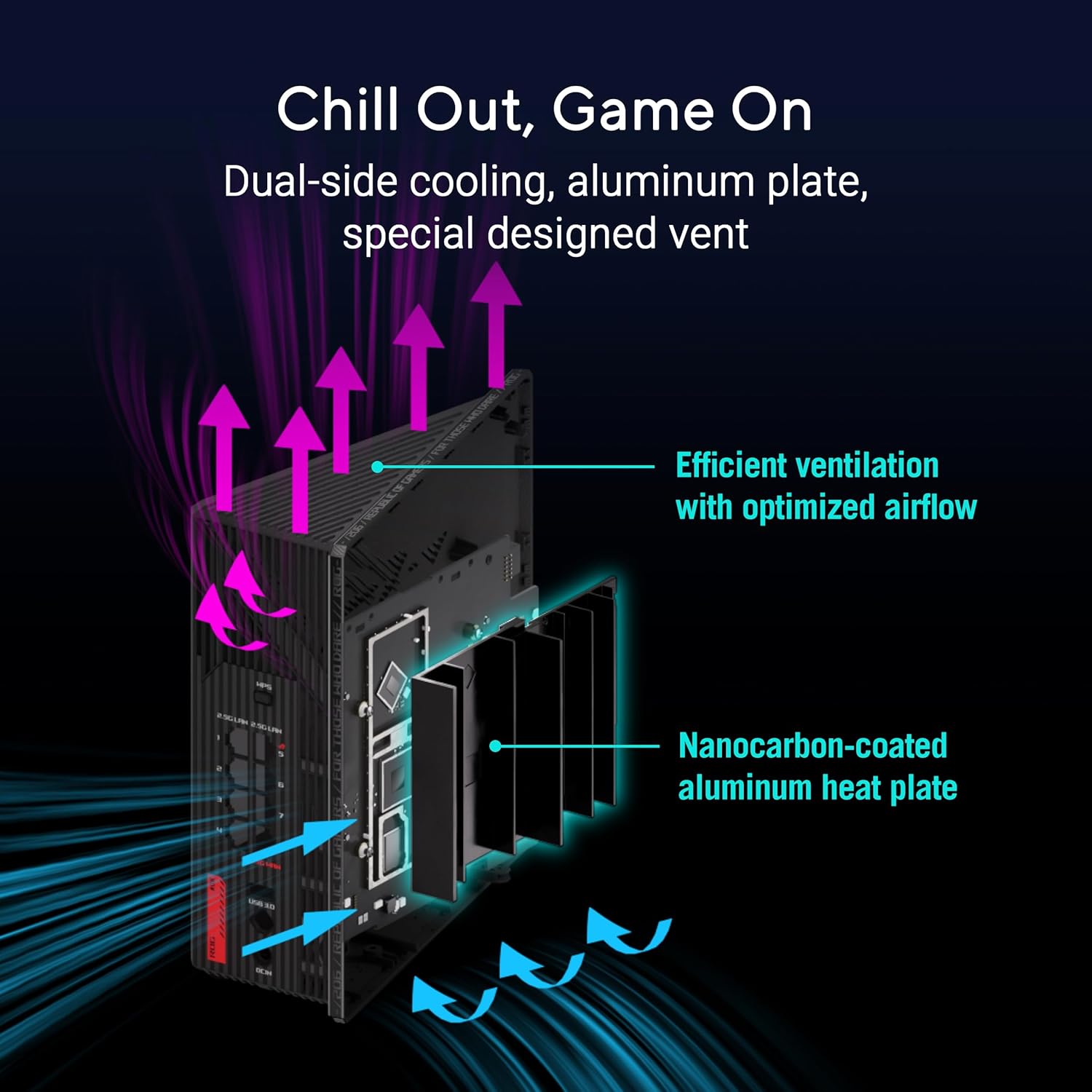
الصورة: داخلية view of the router highlighting its dual-side cooling and nanocarbon-coated aluminum heat plate for efficient heat dissipation.
6. استكشاف الأخطاء وإصلاحها
إذا واجهت مشاكل مع جهاز التوجيه الخاص بك، فراجع الحلول الشائعة التالية:
- لا يوجد اتصال بالإنترنت:
- تحقق من جميع توصيلات الكابلات (الطاقة، WAN، LAN) للتأكد من أنها آمنة.
- أعد تشغيل المودم وجهاز التوجيه الخاص بك.
- تحقق من حالة اتصالك بمزود خدمة الإنترنت (ISP).
- سرعة الواي فاي بطيئة:
- تأكد من أن أجهزتك متصلة بنطاق Wi-Fi المناسب (6 جيجاهرتز أو 5 جيجاهرتز لسرعات أعلى).
- يمكنك تقليل التداخل عن طريق نقل جهاز التوجيه بعيدًا عن الأجهزة الإلكترونية الأخرى.
- قم بتحديث البرامج الثابتة لجهاز التوجيه وبرامج تشغيل الأجهزة.
- Wi-Fi Drops:
- Check for physical obstructions or distance from the router. Consider using AiMesh nodes for extended coverage.
- Ensure the router is placed centrally in your home.
For more detailed troubleshooting or advanced issues, consult the official ASUS support webالموقع أو الاتصال بدعم العملاء.
7. المواصفات
| ميزة | وصف |
|---|---|
| ماركة | أسوس |
| اسم الموديل | GS-BE12000 |
| فئة نطاق التردد | ثلاثي النطاق (2.4 جيجاهرتز، 5 جيجاهرتز، 6 جيجاهرتز) |
| المعيار اللاسلكي | WiFi 7 (802.11be), WiFi 6 (802.11ax) |
| معدل نقل البيانات | تصل إلى 12000 ميجابايت في الثانية |
| Wired Capacity | Up to 20G (1x 2.5G WAN, 7x 2.5G LAN) |
| وحدة المعالجة المركزية | معالج رباعي النواة بسرعة 2.0 جيجاهرتز |
| كبش | 2 جيجا بايت |
| الهوائيات | 8 هوائيات داخلية |
| التغطية | تصل إلى 3000 قدم مربع. |
| بروتوكول الأمان | AiProtection Pro, WPA/WPA2/WPA3 Personal/Enterprise |
| طريقة التحكم | التطبيق، زر الضغط |
| الأبعاد (الطول × العرض × الارتفاع) | 8.9 بوصة طول × 3.5 بوصة عرض × 8.9 بوصة ارتفاع |
| وزن العنصر | 2.04 رطل |
8. الضمان والدعم
The ASUS ROG Strix GS-BE12000 comes with a ضمان لمدة 3 سنوات from the manufacturer. For warranty claims, technical support, or additional product information, please visit the official ASUS support website or the ASUS Store.
متجر أسوس: تفضل بزيارة متجر ASUS على أمازون


