1. انتهى المنتجview
This manual provides detailed instructions for the Gamrombo Wireless Controller, designed for use with Xbox One, Xbox Series X|S, PC, and Windows 10/11 operating systems. Please read this manual carefully before use.
1.1 محتويات العبوة
- Gamrombo Wireless Controller (x2)
- 2.4GHz USB Adapter (x2)
- كابل شحن USB من النوع C (x2)
- دليل المستخدم (هذا المستند)
1.2 تخطيط وحدة التحكم
The Gamrombo Wireless Controller features a standard layout with responsive buttons, joysticks, and triggers for an enhanced gaming experience.

الصورة 1.1: الجبهة view of the Gamrombo Wireless Controllers and 2.4GHz USB Adapters.

الصورة 1.2: تفصيلية view of controller buttons, joysticks, and triggers.
2. الإعداد والاتصال
2.1 Connecting to Xbox Consoles (Xbox One, Xbox Series X|S)
- تأكد من تشغيل جهاز Xbox الخاص بك.
- Insert the 2.4GHz USB adapter into an available USB port on your Xbox console.
- Press and hold the Home button on the controller for 3 seconds to power it on. The indicator light on the controller will flash rapidly.
- Once the controller connects to the adapter, the indicator light will become solid, indicating a successful connection.
2.2 Connecting to PC (Windows 10/11)
- تأكد من تشغيل جهاز الكمبيوتر الخاص بك.
- Insert the 2.4GHz USB adapter into an available USB port on your PC. The system will automatically install the necessary drivers.
- Press and hold the Home button on the controller for 3 seconds to power it on. The indicator light on the controller will flash rapidly.
- Once the controller connects to the adapter, the indicator light will become solid. You can now use the controller for PC games.

Image 2.1: Controller compatibility with various platforms.
2.3 شحن وحدة التحكم
To charge the controller, connect the included USB Type-C cable to the charging port on the controller and the other end to a USB power source (e.g., console, PC, or USB wall adapter). The indicator light will show charging status and turn off when fully charged.
3. تعليمات التشغيل
3.1 تشغيل/إيقاف التشغيل
- تشغيل الطاقة: اضغط مع الاستمرار على زر الصفحة الرئيسية لمدة 3 ثوانٍ.
- إيقاف التشغيل: Press and hold the Home button for 5-8 seconds. The controller will automatically power off after 5 minutes of inactivity.
3.2 وظيفة توربو
The Turbo function allows for rapid, repeated input of a button press, which can be beneficial in certain games.
- اضغط مع الاستمرار على زر توربو.
- While holding the Turbo button, press the desired action button (e.g., A, B, X, Y, LB, RB, LT, RT). The Turbo function is now activated for that button.
- To deactivate Turbo for a specific button, repeat the process: press and hold the Turbo button, then press the action button again.

Image 3.1: Instructions for activating the Turbo function.
3.3 اهتزاز مزدوج
The controller features dual motors for vibration feedback, providing an immersive gaming experience. Vibration intensity can vary based on game support and in-game settings.

Image 3.2: Dual-motor vibration feedback levels.
3.4 Audio Jack and Volume Control
The controller includes a standard 3.5mm stereo audio jack for connecting headsets. Volume can be adjusted directly on the controller.
- رفع الصوت: Push the volume slider to the right (+).
- اخفض الصوت: Push the volume slider to the left (-).
- صامت: Press and hold the middle of the volume slider to mute audio.

Image 3.3: Audio jack and volume control details.
4. الصيانة
- تنظيف: استخدم قطعة قماش ناعمة وجافة لتنظيف وحدة التحكم. تجنب استخدام المواد الكيميائية القاسية أو المواد الكاشطة.
- تخزين: قم بتخزين وحدة التحكم في مكان بارد وجاف بعيدًا عن أشعة الشمس المباشرة ودرجات الحرارة القصوى.
- العناية بالبطارية: To prolong battery life, avoid fully discharging the controller frequently. Charge the controller regularly, even if not in active use.
5. استكشاف الأخطاء وإصلاحها
5.1 مشاكل الاتصال
- وحدة التحكم غير متصلة: Ensure the 2.4GHz USB adapter is securely plugged into the console/PC. Make sure the controller is charged. Try re-pairing by powering off and on the controller.
- اتصال متقطع: Ensure there are no strong wireless interference sources nearby. Try moving closer to the console/PC.
5.2 Controller Firmware Upgrade
If you experience persistent connection issues, particularly with Xbox consoles, a firmware upgrade may be required. The upgrade process is performed on a Windows PC.

Image 5.1: Information regarding controller firmware upgrade for connection issues.
- Upgrade Program Download: we.tl/t-I78iIsdPhP
- Video Upgrade Steps: youtu.be/2Q_x2bhtcUU
- The upgrade typically takes 2-3 minutes and ensures continued compatibility with Xbox devices.
5.3 قضايا أخرى
- الأزرار لا تستجيب: Ensure the controller is powered on and connected. Restart the controller and try again.
- الاهتزاز لا يعمل: تحقق من إعدادات اللعبة للتأكد من تفعيل خاصية الاهتزاز.
6. المواصفات
| ميزة | التفاصيل |
|---|---|
| الاتصال | 2.4GHz اللاسلكية |
| التوافق | Xbox One, Xbox Series X|S, PC (Windows 10/11) |
| سعة البطارية | 650 مللي أمبير |
| وقت الشحن | 2-3 ساعات |
| وقت التشغيل | 8-10 ساعات |
| مقبس الصوت | ستيريو 3.5mm |
| اهتزاز | محركات مزدوجة |
| مستشعر الحركة | 6-Axis (for supported games/platforms) |
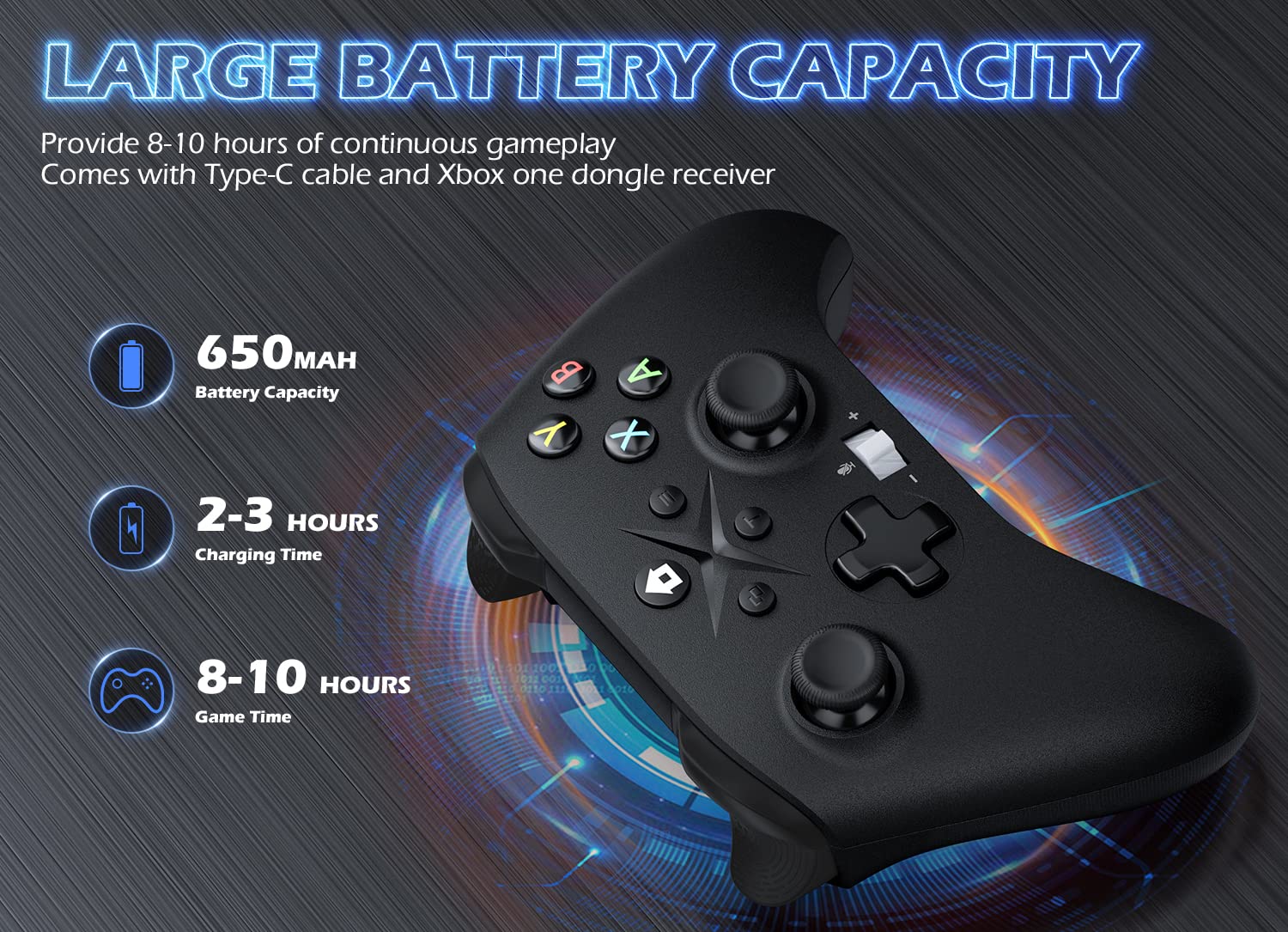
Image 6.1: Battery specifications.
7. معلومات هامة حول السلامة
- لا تعرض جهاز التحكم لدرجات الحرارة العالية أو الرطوبة أو أشعة الشمس المباشرة.
- تجنب إسقاط وحدة التحكم أو تعريضها لصدمات قوية.
- لا تحاول تفكيك أو تعديل وحدة التحكم. قد يؤدي ذلك إلى إلغاء الضمان والتسبب في تلفها.
- Keep the controller and its accessories out of reach of small children.
- استخدم فقط كابل الشحن المقدم أو ما يعادله المعتمد.
8. دعم العملاء
For further assistance or inquiries, please contact Gamrombo customer support through the retailer's platform or the official Gamrombo webموقع.


