مقدمة
This manual provides detailed instructions for the Lenovo IdeaPad Slim 3 15IRH10 Laptop. It covers initial setup, operational guidance, maintenance procedures, troubleshooting common issues, and a comprehensive list of technical specifications. Please read this manual thoroughly to ensure optimal use and longevity of your device.
المنتج انتهىview
The Lenovo IdeaPad Slim 3 15IRH10 is a high-performance laptop designed for productivity and everyday computing. Familiarize yourself with its components and layout.
أمام View
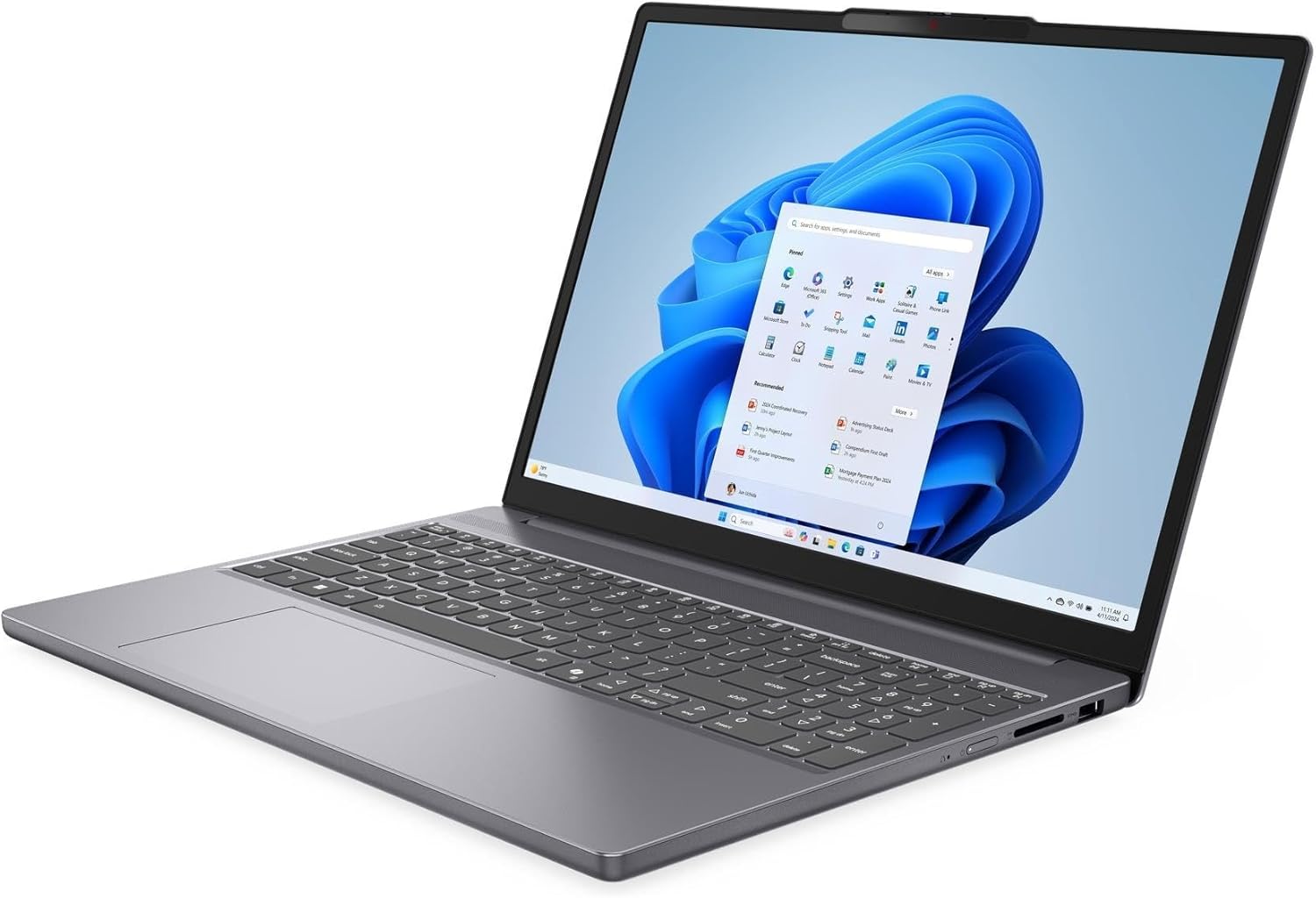
This image displays the laptop from the front, showcasing the 15.3-inch WUXGA display, keyboard with Numpad, and touchpad. The integrated 720p HD camera with a privacy shutter is visible at the top bezel of the screen.
جانب View(المنافذ والموصلات)

The sides of the laptop house various ports for connectivity. These include one USB-C 3.2 Gen 1 port (supporting Power Delivery and DisplayPort 1.4), two USB 3.2 Gen 1 ports, one HDMI v1.4 port, and a headphone/microphone combo jack. The power input port is also located on one of the sides.
مغلق View

This image shows the laptop in its closed state, highlighting its slim profile and the Lenovo branding on the lid.
يثبت
فك التعبئة
Carefully remove the laptop and all accessories from the packaging. Ensure all components listed in the packing slip are present, including the laptop, power adapter, and any documentation.
التشغيل الأولي
- Connect the power adapter to the laptop's power input port and then to an electrical outlet.
- Open the laptop lid and press the power button, typically located on the top-right side of the keyboard or on the side chassis.
- اتبع الإرشادات التي تظهر على الشاشة لإكمال الإعداد الأولي لنظام التشغيل Windows 10 Pro، بما في ذلك تحديد اللغة، واتصال الشبكة، وإنشاء حساب المستخدم.
ربط الأجهزة الطرفية
- جهاز USB:٪ s: Connect external mice, keyboards, or storage devices to the available USB 3.2 Gen 1 ports or the USB-C 3.2 Gen 1 port.
- العرض الخارجي: Use an HDMI cable to connect an external monitor or projector to the HDMI v1.4 port. The USB-C port also supports DisplayPort 1.4 for compatible displays.
- أجهزة الصوت: قم بتوصيل سماعات الرأس أو مكبرات الصوت الخارجية بمقبس سماعة الرأس/الميكروفون المدمج.
تعليمات التشغيل
إدارة الطاقة
- تشغيل/إيقاف: اضغط على زر التشغيل لتشغيل الجهاز. لإيقاف تشغيله، انقر على زر "ابدأ" في نظام Windows، ثم اختر "التشغيل" > "إيقاف التشغيل".
- وضع السكون: Close the lid or select Power > Sleep from the Start menu to put the laptop into sleep mode.
- إعادة تشغيل: Select Power > Restart from the Start menu to restart the system.
لوحة المفاتيح ولوحة اللمس

The laptop features a full-size keyboard with a Numpad for efficient data entry. The touchpad supports multi-touch gestures for navigation. Refer to Windows settings for customizing touchpad sensitivity and gestures.
- مفاتيح الوظائف (Fn): Use the Fn key in combination with the F1-F12 keys to access special functions like adjusting brightness, volume, or enabling/disabling Wi-Fi.
- لوحة الأرقام: The dedicated Numpad on the right side of the keyboard allows for quick numerical input.
إعدادات العرض
Adjust display settings to suit your preferences:
- سطوع: Use the dedicated function keys (e.g., Fn + F5/F6) or Windows display settings to adjust screen brightness.
- دقة: The native resolution is 1920 x 1200 (WUXGA). You can change display scaling and resolution through Windows Display Settings.
الاتصال بالواي فاي والبلوتوث
- واي فاي: Click the Wi-Fi icon in the taskbar, select your desired network, enter the password if prompted, and click Connect. The laptop supports Intel Wi-Fi 6 AX203 (2x2).
- بلوتوث: Go to Windows Settings > Devices > Bluetooth & other devices to pair with Bluetooth 5.2 compatible devices like headphones or speakers.
استخدام الكاميرا
The laptop is equipped with a 720p HD camera. To use it, open the Camera app in Windows or any video conferencing application. The camera features a physical privacy shutter; slide it to cover the lens when not in use to ensure privacy.
صيانة
تنظيف الكمبيوتر المحمول
- شاشة: استخدم قطعة قماش ناعمة وخالية من الوبر وامسحها برفق.ampاشطفها بالماء أو بمحلول تنظيف الشاشة. لا ترش السائل مباشرة على الشاشة.
- لوحة المفاتيح والهيكل: استخدم قطعة قماش ناعمة وجافة. بالنسبة للأوساخ العنيدة، امسحها برفق.amp يمكن استخدام القماش. تجنب استخدام المواد الكيميائية القاسية أو المواد الكاشطة.
- الفتحات: Periodically clean the ventilation openings with compressed air to prevent dust buildup, which can affect cooling performance.
العناية بالبطارية
- للحصول على عمر بطارية مثالي، تجنب تفريغ البطارية بالكامل بشكل متكرر.
- Store the laptop in a cool, dry place and avoid exposing it to extreme temperatures.
- إذا كنت ستخزن الكمبيوتر المحمول لفترة طويلة، فتأكد من شحن البطارية إلى حوالي 50-60%.
تحديثات البرامج
قم بتحديث نظام التشغيل وبرامج التشغيل الخاصة بك بانتظام لضمان الأداء والأمان والتوافق الأمثل.
- تحديثات الويندوز: Go to Windows Settings > Update & Security > Windows Update and check for available updates.
- تحديثات برنامج التشغيل: قم بزيارة موقع الدعم الرسمي لشركة Lenovo website for your specific model to download and install the latest drivers for components like graphics, Wi-Fi, and chipset.
استكشاف الأخطاء وإصلاحها
يتناول هذا القسم المشكلات الشائعة التي قد تواجهها مع الكمبيوتر المحمول الخاص بك.
المشاكل الشائعة والحلول
- لا يوجد طاقة:
- تأكد من توصيل محول الطاقة بشكل آمن بالكمبيوتر المحمول والمأخذ الكهربائي العامل.
- تأكد من أن البطارية بها شحنة كافية.
- حاول استخدام منفذ طاقة مختلف.
- Display Problems (No image, flickering):
- اضبط سطوع الشاشة باستخدام مفاتيح الوظائف.
- If using an external monitor, ensure the cable is properly connected and the correct display output is selected (Fn + F7 or Windows Display Settings).
- أعد تشغيل الكمبيوتر المحمول.
- مشكلات الاتصال بشبكة Wi-Fi:
- تأكد من تفعيل الواي فاي (تحقق من مفاتيح الوظائف أو إعدادات ويندوز).
- أعد تشغيل جهاز التوجيه والمودم.
- انسى الشبكة وأعد الاتصال بها.
- قم بتحديث برامج تشغيل Wi-Fi من دعم Lenovo webموقع.
- الأداء البطيء:
- أغلق التطبيقات غير الضرورية التي تعمل في الخلفية.
- التحقق من وجود أي تحديثات Windows معلقة وتثبيتها.
- قم بتشغيل عملية تنظيف القرص وإلغاء تجزئته (للأقراص الصلبة HDD، وليس ضرورياً للأقراص الصلبة SSD).
- فحص بحثًا عن البرامج الضارة أو الفيروسات.
تحديد
| ميزة | مواصفة |
|---|---|
| اسم الموديل | ايديا باد سليم 3 15IRH10 |
| المعالج | معالج Intel Core i7-13620H من الجيل الثالث عشر (10 نواة، تصل سرعته إلى 4.9 جيجاهرتز) |
| الرسومات | رسومات Intel Iris Xe (متكاملة) |
| عرض | 15.3-inch WUXGA (1920 x 1200) LED-backlit Anti-glare 300 nits 45% NTSC, 60Hz |
| كبش | ذاكرة الوصول العشوائي DDR5 SDRAM سعة 24 جيجابايت بسرعة 4800 ميجاهرتز |
| تخزين | قرص SSD NVMe M.2 بسعة 2 تيرابايت |
| نظام التشغيل | ويندوز 10 برو |
| لوحة المفاتيح | بالحجم الكامل مع Numpad |
| Webكاميرا | كاميرا عالية الدقة 720 بكسل مع مصراع الخصوصية |
| الاتصال اللاسلكي | Intel Wi-Fi 6 AX203 (2x2)، Bluetooth 5.2 |
| الموانئ | 1x USB-C 3.2 Gen 1 (PD, DP 1.4, 5Gbps), 2x USB 3.2 Gen 1 (5Gbps), 1x HDMI v1.4, 1x Headphone/Microphone Combo Jack |
| بطارية | 50Wh ليثيوم أيون (حتى 6 ساعات) |
| الأبعاد (الطول × العرض × الارتفاع) | 13.54 × 9.54 × 0.71 بوصة |
| وزن | 6.97 pounds (Note: Product description states 3.51 lbs, using specification data for consistency) |
| لون | لونا جراي |
الضمان والدعم
The Lenovo IdeaPad Slim 3 15IRH10 Laptop comes with a 12-month warranty, as specified by the manufacturer. For technical support, warranty claims, or service inquiries, please visit the official Lenovo support website or contact their customer service. It is recommended to keep your purchase receipt and the laptop's model number (83K100R3IN) readily available when contacting support.
يمكنك العثور على موارد دعم إضافية ومعلومات الاتصال على الموقع الإلكتروني. دعم Lenovo Webموقع.


