1. المقدمة
This manual provides essential information for the safe and efficient operation of your Sceptre E345W-QU120D 34-inch Ultrawide Monitor. Please read this manual thoroughly before using the product and retain it for future reference. This monitor features a 34-inch 3440x1440 display, up to 115Hz refresh rate, 103% sRGB color gamut, and multiple connectivity options including DisplayPort and HDMI, along with built-in speakers.
2. معلومات السلامة
Observe the following safety precautions to ensure proper operation and prevent damage to the monitor or injury to yourself.
- لا تضع الشاشة على عربة أو حامل أو طاولة غير مستقرة.
- لا تعرض الشاشة للمطر أو الرطوبة لتجنب مخاطر الحريق أو الصدمات الكهربائية.
- لا تفتح الشاشةasinز. لا توجد قطع غيار قابلة للصيانة من قِبل المستخدم. يُرجى إحالة جميع أعمال الصيانة إلى فنيي صيانة مؤهلين.
- تأكد من التهوية الجيدة. لا تسد أي فتحات تهوية.
- استخدم فقط سلك الطاقة والمحول المرفق مع الشاشة.
- افصل قابس الطاقة من المقبس إذا لم يتم استخدام الشاشة لفترة طويلة.
3. محتويات العبوة
تأكد من أن جميع العناصر موجودة وفي حالة جيدة عند فك التعبئة.
- Sceptre E345W-QU120D Ultrawide Monitor
- حامل الشاشة (القاعدة والرقبة)
- محول الطاقة وسلك الطاقة
- كابل ديسبلايبورت
- Screwdriver (for stand assembly)
- دليل المستخدم (هذا المستند)
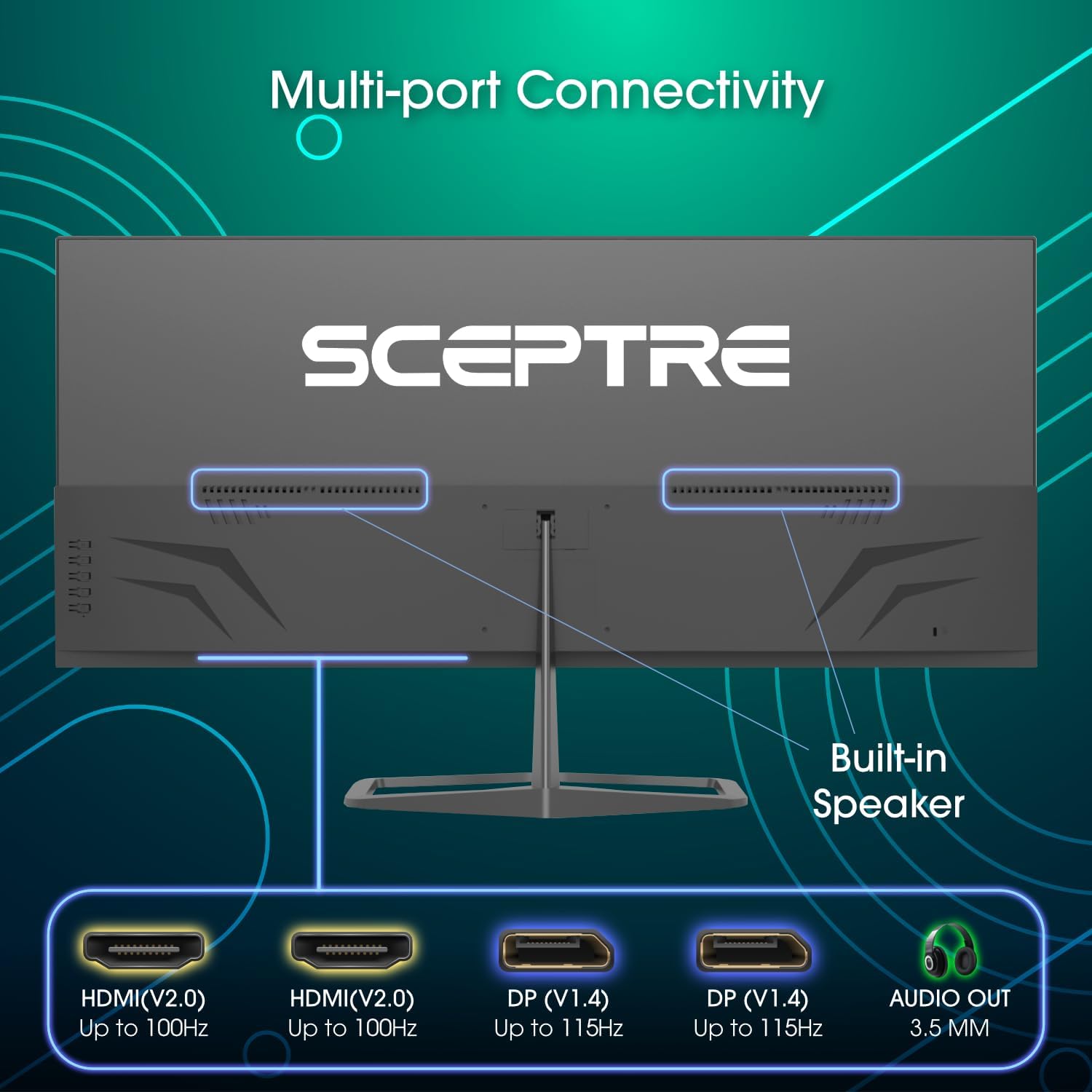
Image: Diagram illustrating the multi-port connectivity options on the Sceptre E345W-QU120D monitor, including HDMI, DisplayPort, and Audio Out. This image helps identify the various ports available on the monitor.
4. الإعداد
4.1 تجميع الحامل
- ضع الشاشة بعناية بحيث يكون وجهها لأسفل على سطح ناعم ونظيف لمنع الخدوش.
- قم بتثبيت قاعدة الحامل على الشاشة باستخدام البراغي المرفقة.
- Connect the stand base to the neck, securing it with the remaining screws. Use the included screwdriver for assembly.
- تأكد من إحكام ربط جميع البراغي قبل وضع الشاشة في وضع مستقيم.
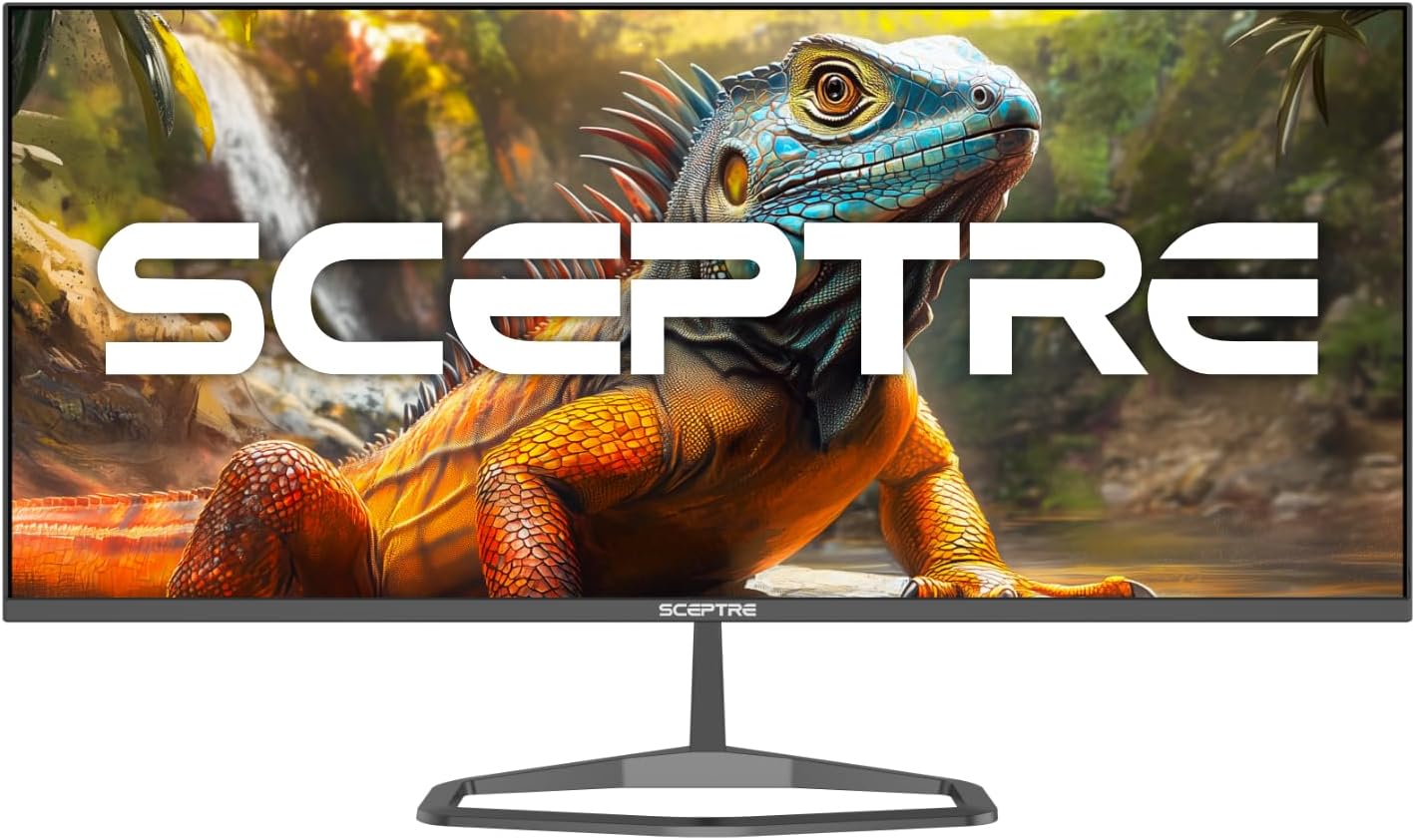
Image: The Sceptre E345W-QU120D Ultrawide Monitor displayed from the front, including its stable desktop stand. This image provides a visual reference for the assembled monitor.
4.2 التوصيل بجهاز كمبيوتر
- تأكد من إيقاف تشغيل كل من الشاشة وجهاز الكمبيوتر.
- Connect one end of the DisplayPort cable (included) or an HDMI cable (not included) to the corresponding port on your computer's graphics card.
- Connect the other end of the cable to an available DisplayPort or HDMI input on the monitor. The monitor supports two DisplayPort (v1.4) inputs for up to 115Hz refresh rate and two HDMI (v2.0) inputs for up to 100Hz refresh rate.
- For audio output, you can use the 3.5mm Audio Out jack on the monitor to connect external speakers or headphones.
- قم بتوصيل محول الطاقة بمدخل الطاقة الخاص بالشاشة، ثم قم بتوصيل سلك الطاقة بمأخذ الحائط.
الصورة: الخلفية view of the Sceptre E345W-QU120D Ultrawide Monitor, highlighting the input ports and VESA mount area. This image assists in locating the various connection points.
5. تشغيل الشاشة
5.1 تشغيل/إيقاف التشغيل
Press the power button, typically located on the back or bottom right side of the monitor, to turn the monitor on or off. The power indicator light will illuminate when the monitor is on.
5.2 قائمة العرض على الشاشة (OSD)
تتيح لك قائمة OSD ضبط إعدادات الشاشة المختلفة. استخدم أزرار التحكم (الموجودة عادةً في الجزء الخلفي أو السفلي من الشاشة) للتنقل عبر القائمة.
- مصدر الإدخال: Select between DisplayPort 1, DisplayPort 2, HDMI 1, or HDMI 2.
- إعدادات الصورة: اضبط السطوع والتباين والحدة ودرجة حرارة اللون.
- إعدادات الألوان: Fine-tune color balance and gamma. The monitor features 103% sRGB color gamut for accurate color reproduction.
- إعدادات الصوت: Adjust volume for the built-in speakers or connected audio devices.
- إعدادات OSD: قم بضبط لغة العرض على الشاشة، والشفافية، والمهلة الزمنية.
- الإعدادات المتقدمة: Enable or disable features like AMD FreeSync and Blue-Light Shift.

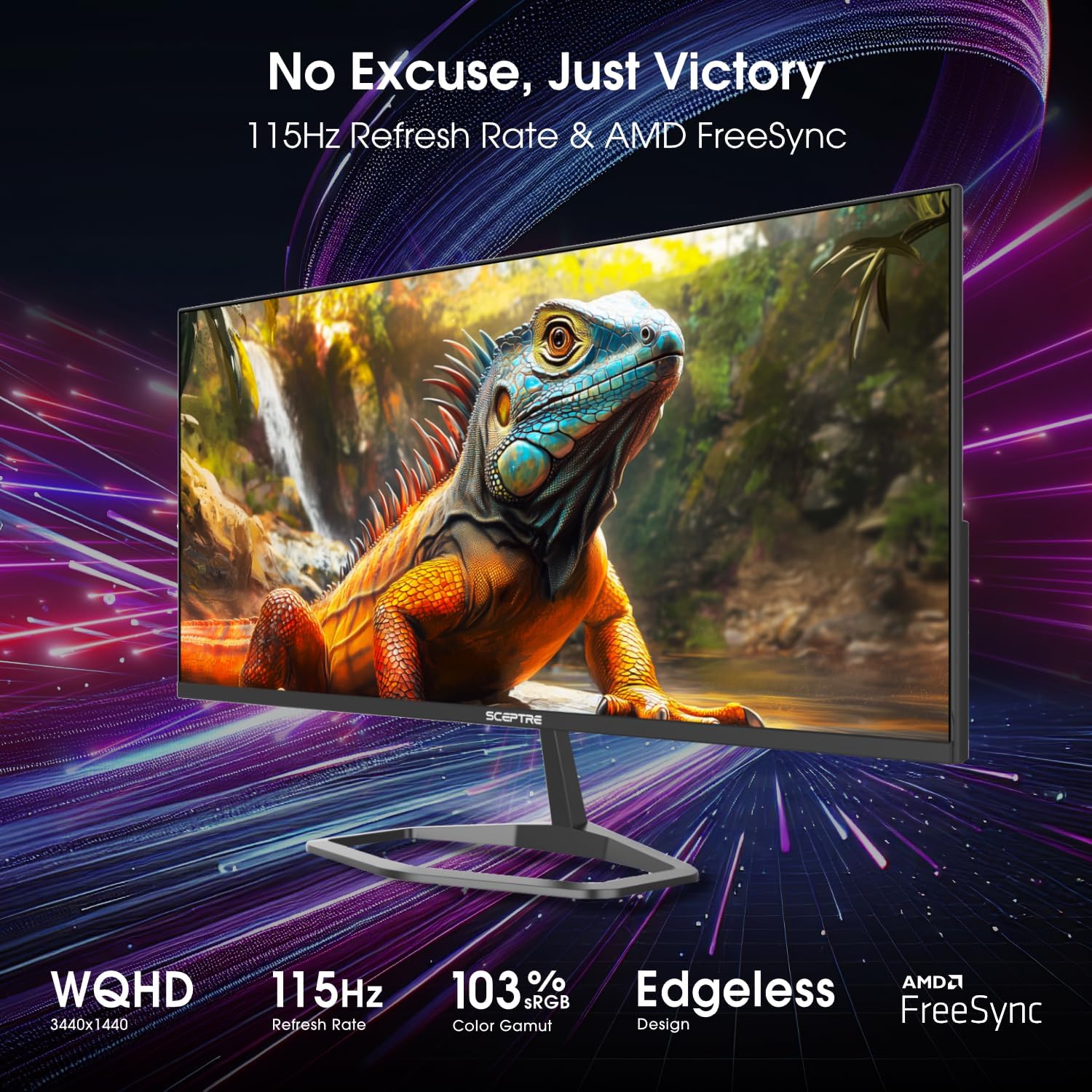
الصورة: الجبهة view of the Sceptre E345W-QU120D 34-inch Ultrawide Monitor, showcasing its edgeless design and wide display. This image provides a general view of the monitor during operation.
5.3 الميزات الرئيسية
- ارتفاع معدل التحديث: Up to 115Hz via DisplayPort and 100Hz via HDMI for smoother visuals.
- تقنية AMD FreeSync: Synchronizes the monitor's refresh rate with your graphics card's frame rate to eliminate screen tearing and stuttering. Enable this feature in the OSD menu and your graphics card settings.
- Blue-Light Shift: Reduces harmful blue light emissions to alleviate eye strain during prolonged use. This can be adjusted or enabled/disabled via the OSD menu.
- مكبرات الصوت المتكاملة: يوفر مخرج صوت دون الحاجة إلى مكبرات صوت خارجية.
6. الصيانة
6.1 تنظيف الشاشة
- افصل الشاشة دائمًا عن مأخذ الطاقة قبل التنظيف.
- استخدم قطعة قماش ناعمة وخالية من الوبر برفق دampاغسلها بالماء أو بمنظف شاشة غير كاشط.
- Do not spray cleaner directly onto the screen or into any openings.
- امسح الشاشة بلطف لإزالة الغبار والبقع.
- للشاشة جasinج، استخدم قطعة قماش ناعمة وجافة.
6.2 العناية العامة
- تجنب وضع أشياء ثقيلة على الشاشة أو كابلاتها.
- احتفظ بالشاشة بعيدًا عن أشعة الشمس المباشرة ومصادر الحرارة والغبار الزائد.
- Ensure adequate space around the monitor for proper ventilation.
7. استكشاف الأخطاء وإصلاحها
If you encounter issues with your monitor, refer to the following troubleshooting guide.
| مشكلة | السبب المحتمل | حل |
|---|---|---|
| لا يوجد طاقة | كابل الطاقة غير موصول؛ مأخذ الطاقة لا يعمل؛ زر تشغيل الشاشة مطفأ. | تأكد من توصيل كابل الطاقة بالشاشة ومأخذ التيار الكهربائي بإحكام. اختبر مأخذ التيار بجهاز آخر. اضغط على زر تشغيل الشاشة. |
| لا يوجد إشارة | كابل الفيديو غير متصل؛ تم اختيار مصدر إدخال غير صحيح؛ الكمبيوتر لا يُخرج إشارة. | Check video cable connections (DisplayPort/HDMI) to both monitor and computer. Select correct input source via OSD menu. Restart computer. |
| تذبذب الصورة أو تشوهها | Loose video cable; Incorrect resolution/refresh rate; Graphics card driver issues. | Secure video cable. Adjust resolution and refresh rate in computer display settings. Update graphics card drivers. |
| لا يصدر صوت من مكبرات الصوت المدمجة | مستوى الصوت منخفض جدًا؛ تم كتم الصوت؛ تم تحديد إخراج صوتي غير صحيح على الكمبيوتر. | Increase monitor volume via OSD. Check computer's audio settings to ensure monitor is selected as output device. |
| HDMI ports feel hot | Potential overheating; Cable issue. | Ensure proper ventilation around ports. Try a different HDMI cable. If problem persists, contact support. |
8. المواصفات
| ميزة | التفاصيل |
|---|---|
| رقم الموديل | E345W-QU120D |
| حجم الشاشة | 34 بوصة |
| دقة | 3440 × 1440 (WQHD) |
| Max Refresh Rate (DisplayPort) | 115 هرتز |
| Max Refresh Rate (HDMI) | 100 هرتز |
| نسبة العرض إلى الارتفاع | 21:9 |
| مجموعة الألوان | 103% إس آر جي بي |
| الاتصال | 2x HDMI (v2.0), 2x DisplayPort (v1.4), 1x Audio Out (3.5mm) |
| مكبرات صوت مدمجة | نعم |
| جبل متوافق | نعم |
| وزن العنصر | 9.7 رطل (حوالي 4.4 كجم) |
| أبعاد المنتج (الطول × العرض × الارتفاع) | 32 × 9 × 21 بوصة (حوالي 81.3 × 22.9 × 53.3 سم) |
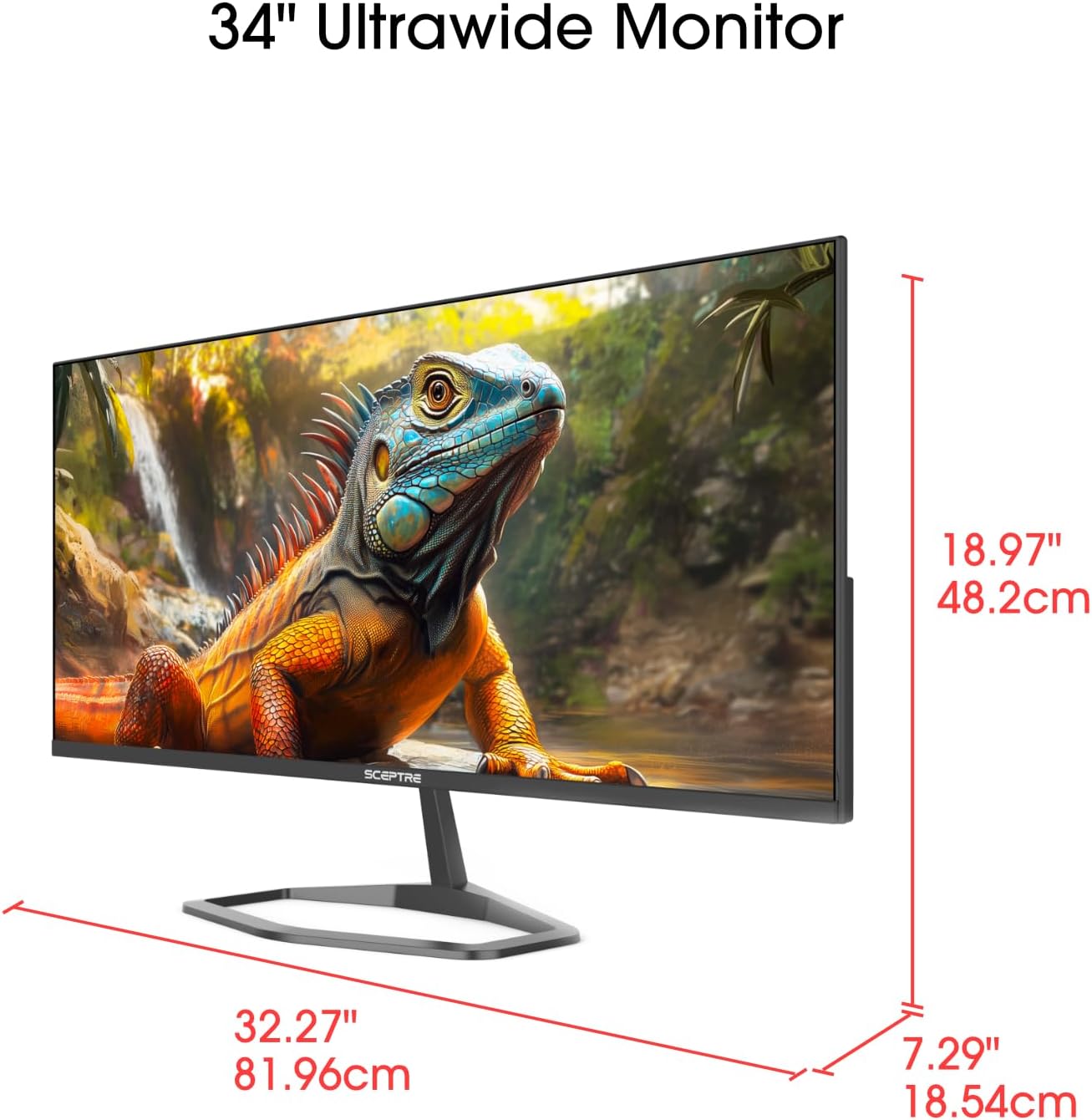
Image: This image displays the physical dimensions (height, width, and depth) of the Sceptre E345W-QU120D 34-inch Ultrawide Monitor, providing precise measurements for placement and setup.
9. معلومات الضمان
Sceptre products are covered by a limited warranty. For detailed warranty terms, conditions, and registration information, please refer to the official Sceptre webالموقع أو بطاقة الضمان المرفقة مع المنتج. احتفظ بإيصال الشراء للمطالبة بالضمان.
10. دعم العملاء
If you require further assistance or have questions not covered in this manual, please contact Sceptre customer support.
- الدعم عبر الإنترنت: Visit the official Sceptre webالموقع الخاص بالأسئلة الشائعة وتنزيلات برامج التشغيل وموارد الدعم.
- معلومات الاتصال: Refer to the Sceptre website or your product packaging for the most current contact details (phone, email).
- Sceptre Store: يمكنك أيضًا زيارة Sceptre Store on Amazon للحصول على معلومات عن المنتج والملحقات.


