1. المقدمة
The TABWEE 10.1 Inch WiFi Digital Calendar, Model P10, is an interactive touchscreen display designed to streamline family organization. It integrates calendars, task management, meal planning, and digital photo frame capabilities into a single device. This manual provides detailed instructions to help you set up and utilize all features of your new digital calendar.

الصورة 1.1: The TABWEE Digital Calendar in use, showcasing its calendar interface and mobile app synchronization.
2. معلومات السلامة
- تأكد من وضع الجهاز على سطح مستوٍ وثابت لمنع السقوط العرضي.
- استخدم فقط محول الطاقة المرفق. قد يؤدي استخدام محولات غير معتمدة إلى تلف الجهاز وإبطال الضمان.
- احفظ الجهاز بعيدًا عن الماء والرطوبة ودرجات الحرارة القصوى.
- Do not attempt to open or repair the device yourself. Refer to qualified service personnel for any maintenance or repair needs.
- Keep out of reach of small children to prevent accidental ingestion of small parts or damage to the device.
3. محتويات العبوة
تأكد من وجود جميع العناصر في العبوة:
- TABWEE 10.1 Inch WiFi Digital Calendar (Model P10)
- محول الطاقة
- دليل المستخدم (هذا المستند)
4. انتهى المنتجview
Familiarize yourself with the physical components of your TABWEE Digital Calendar.

الصورة 4.1: Technical details and component layout of the TABWEE Digital Calendar.
- زر التشغيل / الإيقاف: Located on the side for turning the device on or off.
- أزرار رفع / خفض الصوت: Adjust the device's audio output.
- مستشعر الضوء: يقوم تلقائيًا بضبط سطوع الشاشة بناءً على الإضاءة المحيطة.
- حامل الدعم: Integrated stand for desk placement.
5. الإعداد
5.1 التشغيل الأولي
- Connect the provided power adapter to the device's power port.
- Plug the adapter into a standard electrical outlet. The device will automatically power on.
- اتبع التعليمات التي تظهر على الشاشة لتحديد اللغة والمنطقة الخاصة بك.
5.2 اتصال الشبكة
- On the initial setup screen, select your Wi-Fi network from the list.
- Enter your Wi-Fi password and tap 'Connect'.
- Ensure the device is connected to a stable internet connection for full functionality.
5.3 تثبيت التطبيق وإنشاء الحساب
To fully utilize the calendar's features, download and set up the companion 'eCalendar' app on your smartphone (iOS or Android).

الصورة 5.1: Steps for downloading and creating an account on the eCalendar app.
- Scan the QR code displayed on the calendar screen or search for 'eCalendar' in your device's app store (Google Play Store for Android, Apple App Store for iOS).
- تنزيل التطبيق وتثبيته.
- Open the eCalendar app and follow the prompts to create a new account or log in if you already have one.
- Agree to the User Agreement and Privacy Policy.
5.4 Device Linking
Link your TABWEE Digital Calendar to your eCalendar app account.

الصورة 5.2: Linking the calendar device to the eCalendar app and setting up your unique calendar email.
- In the eCalendar app, select the option to 'Add Device' or 'Activate a new eCalendar Frame'.
- Follow the on-screen instructions to pair your device. This may involve scanning a QR code displayed on the calendar or entering a pairing code.
- Once linked, you can set up your unique calendar email address within the app.
6. التشغيل
6.1 الملاحة الأساسية
The TABWEE Digital Calendar features a responsive touchscreen. Navigate through menus and features by tapping, swiping, and pinching as you would on a tablet device.
6.2 إدارة التقويم
The core function of your device is calendar management, allowing for seamless synchronization and event organization.
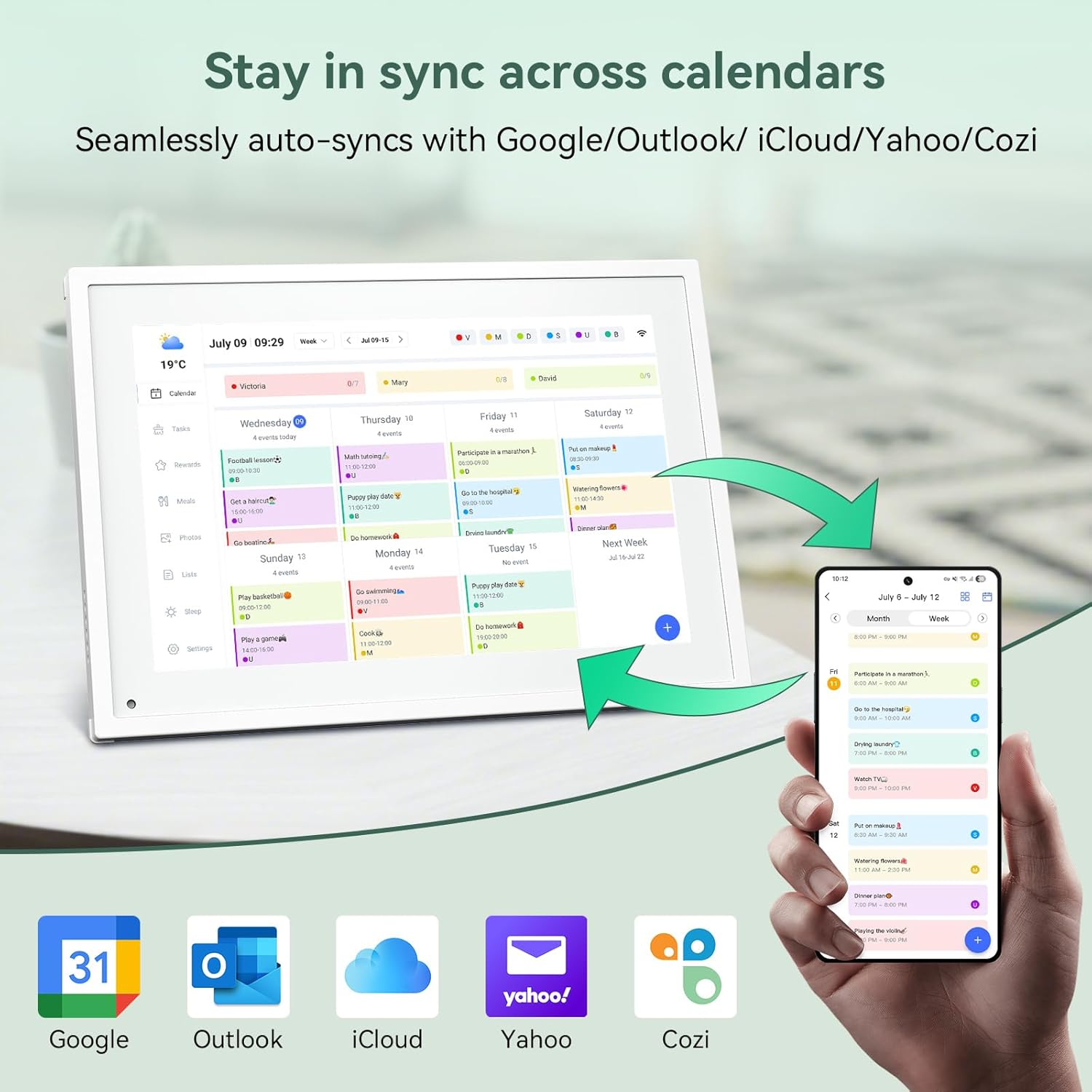
الصورة 6.1: Seamless synchronization of the digital calendar with various external calendar services.
- Syncing External Calendars: Within the eCalendar app settings, you can link your Google, Apple, Outlook, Yahoo, or Cozi calendars. Events from these linked accounts will automatically appear on your TABWEE Digital Calendar.
- Adding/Editing Events: Tap on a date or time slot on the calendar display or use the eCalendar app to add new events. You can specify event details, set reminders, and assign participants.
- مخصص Views: Switch between day, week, or month views directly on the device or through the app.
6.3 Task Management (Chore Chart)
Organize tasks and chores for family members with a built-in reward system.
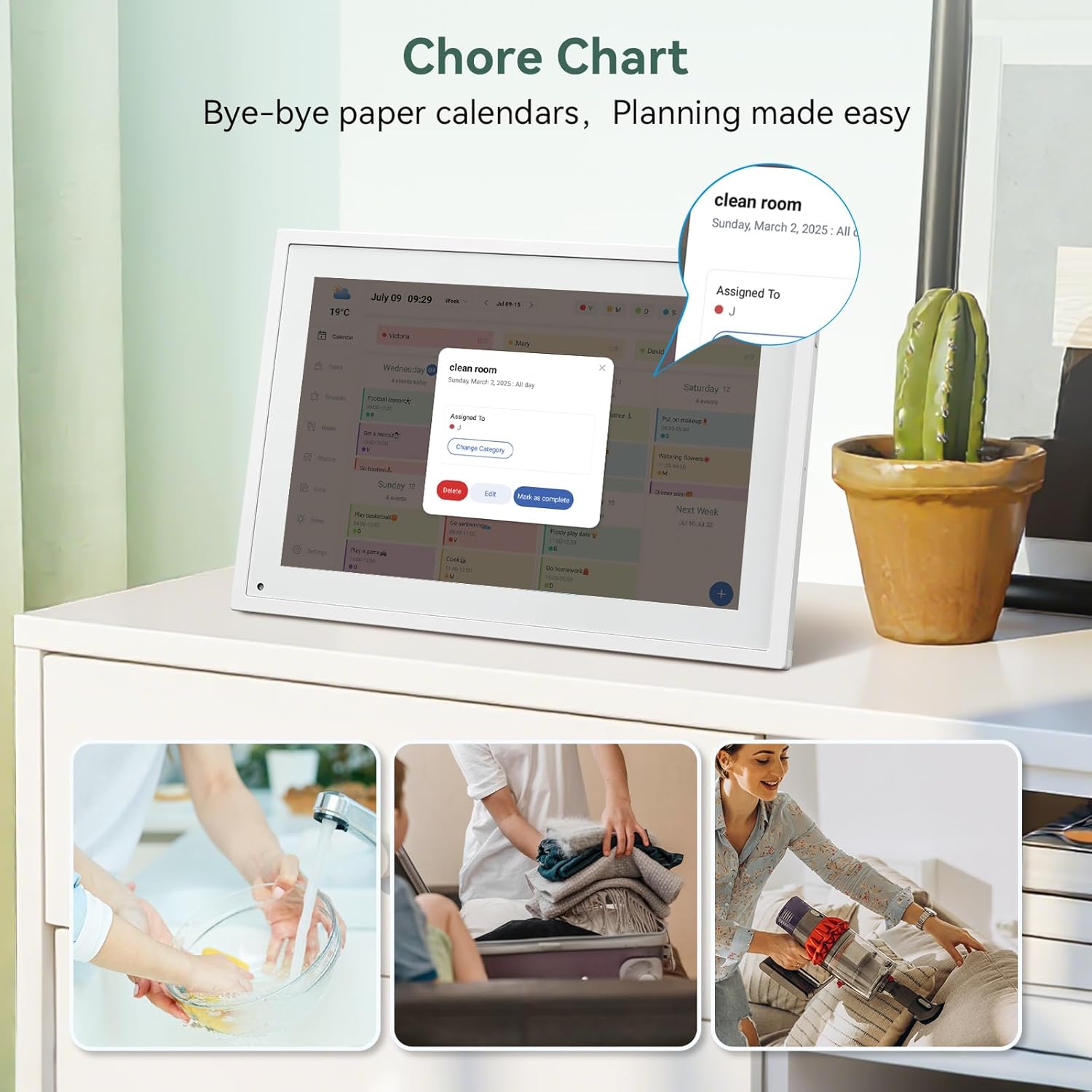
الصورة 6.2: Managing tasks and chores on the digital calendar interface.
- إنشاء المهام: Use the 'Tasks' section on the device or app to create new tasks. Assign them to specific individuals, set due dates, and configure recurring tasks.
- تتبع التقدم: Users can mark tasks as complete. The system tracks completion and can be configured to award points.
- نظام المكافآت: Set up a star-point reward system within the app. Points earned from completed tasks can be redeemed for custom rewards, encouraging participation.

الصورة 6.3: The task manager and rewards interface, designed for engaging users.
6.4 Meal Planning
Plan your meals directly on the device or through the app.

الصورة 6.4: Visual meal planning interface on the digital calendar.
- Create Meal Plans: Access the 'Meals' section to plan breakfasts, lunches, dinners, and snacks for the week.
- وصفات مخصصة: Upload and store your favorite recipes.
- Grocery Lists: Generate grocery lists based on your meal plans.
6.5 Digital Photo Frame Functionality
The device can also function as a digital photo frame.

الصورة 6.5: The digital calendar switching between calendar and photo frame modes, in both landscape and portrait orientations.
- أوضاع التحويل: Navigate to the 'Photos' section on the device or app to activate the digital photo frame mode.
- تحميل الصور: Upload your favorite memories directly from your smartphone via the eCalendar app.
- توجيه: The device supports both landscape and portrait orientations, automatically adjusting the display.
6.6 ميزات أخرى
The TABWEE Digital Calendar includes additional smart features to enhance usability.
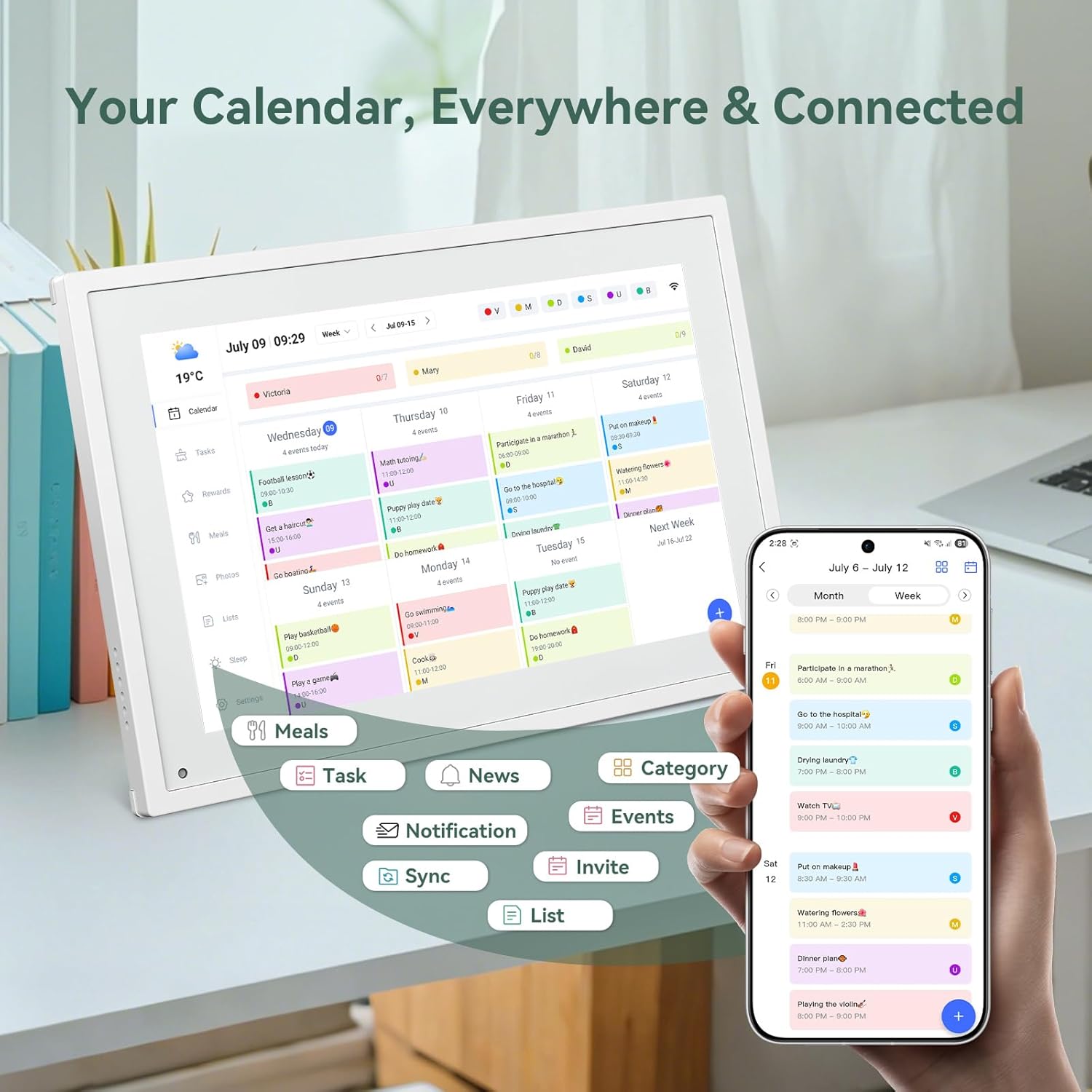
الصورة 6.6: زيادةview of smart features and app connectivity.
- Live Weather Forecasts: Displays current weather conditions and forecasts.
- سطوع السيارات: The built-in light sensor automatically adjusts screen brightness for optimal viewعمل.
- وضع السكون: Configure scheduled times for the device to enter a low-power sleep mode.
- Custom Lists: Create and manage various lists (e.g., shopping lists, packing lists).
- لون الترميز: Assign different colors to events or tasks for easy visual identification.
7. الصيانة
7.1 تنظيف الجهاز
- امسح الشاشة برفق بقطعة قماش ناعمة وخالية من الوبر. بالنسبة للبقع العنيدة، افركها قليلاًampبللي قطعة القماش بالماء أو بمحلول تنظيف الشاشات.
- تجنب استخدام المواد الكيميائية القاسية أو المواد الكاشطة أو بخاخات الرذاذ مباشرة على الجهاز.
- تأكد من إيقاف تشغيل الجهاز وفصله قبل التنظيف.
7.2 تحديثات البرامج
The device may receive periodic software updates to improve performance and add new features. Ensure your device is connected to Wi-Fi to receive these updates. You will typically be notified on-screen when an update is available.
8. استكشاف الأخطاء وإصلاحها
| مشكلة | السبب المحتمل | حل |
|---|---|---|
| الجهاز لا يعمل. | محول الطاقة غير متصل أو معيب. | تأكد من توصيل محول الطاقة بالجهاز ومأخذ الطاقة العامل بشكل آمن. |
| لا يمكن الاتصال بشبكة Wi-Fi. | كلمة المرور غير صحيحة، أو خارج النطاق، أو مشكلة في الشبكة. | Verify Wi-Fi password. Move the device closer to the router. Restart your router. |
| Calendar events are not syncing. | App not linked, external calendar not connected, or internet issue. | Check app-device linking. Ensure external calendars are correctly linked in the eCalendar app. Verify internet connection. |
| الشاشة لا تستجيب. | خلل مؤقت في البرنامج. | أعد تشغيل الجهاز عن طريق الضغط على زر الطاقة حتى يتم إيقاف تشغيله، ثم قم بتشغيله مرة أخرى. |
9. المواصفات
| ميزة | التفاصيل |
|---|---|
| رقم الموديل | ص10 |
| حجم الشاشة | 10.1 بوصة |
| نوع العرض | شاشة تعمل باللمس |
| الاتصال | واي فاي |
| أبعاد المنتج | 10.51 × 0.91 × 7.32 بوصة (26.7 × 2.3 × 18.6 سم) |
| وزن العنصر | 2.58 رطل (1.17 كجم) |
| نوع التركيب | Desk Mount (not wall-mountable) |
| مصدر الطاقة | Plug-in (no internal battery) |
| لون | أبيض |
10. الضمان والدعم
The TABWEE Digital Calendar comes with a standard manufacturer's warranty. For specific warranty terms and conditions, please refer to the warranty card included in your product packaging or visit the official TABWEE webموقع.
For technical support, troubleshooting assistance, or any inquiries regarding your product, please contact TABWEE customer service through their official webالموقع أو معلومات الاتصال المقدمة في وثائق المنتج الخاص بك.


