1. المقدمة
Thank you for choosing the Acer AOPEN 16PM1Q 15.6" Full HD Portable Monitor. This monitor is designed to enhance your productivity and entertainment on the go, offering a vibrant display and versatile connectivity in an ultra-slim, lightweight package. This manual provides essential information for setting up, operating, and maintaining your new portable monitor.
2. محتويات العبوة
يرجى التحقق من الحزمة للعناصر التالية:
- Acer AOPEN 16PM1Q Portable Monitor
- USB-C to USB-C Cable (for power, video, and data)
- Mini HDMI to HDMI Cable (for video input)
- دليل المستخدم (هذا المستند)
3. مواصفات المنتج
- Vivid Full HD Clarity: Enjoy sharp, true-to-life visuals on a 15.6-inch IPS display with 1920 x 1080 resolution. In-Plane Switching (IPS) technology ensures consistent colors and wide 170° viewing angles, ideal for sharing content.
- Ultra-Slim & Lightweight Portability: Designed for mobility, this monitor features an ultra-thin 0.52" profile and weighs only 1.43 lbs, making it easy to carry in laptop bags for a seamless dual-monitor setup anywhere.
- Single-Cable Connectivity: Simplify your workspace with the USB Type-C port (DisplayPort Alt Mode) for video, data, and power delivery via a single cable. A Mini HDMI port is also included for broad compatibility with various devices.
- متكيف Viewالراحة: The integrated tilt-adjustable stand allows you to set the perfect ergonomic angle between 0° and 180°. AOPEN VisionCare technologies, including BlueLightShield and Flickerless, help reduce eye strain during extended use.
- كفاءة التوصيل والتشغيل: No drivers or complex software installations are required. Expand your screen real estate instantly for multitasking, remote work, or gaming with 60Hz refresh rates and a responsive 6ms (GtG) performance.
4. الإعداد والاتصالات
4.1 الإفراط الجسديview
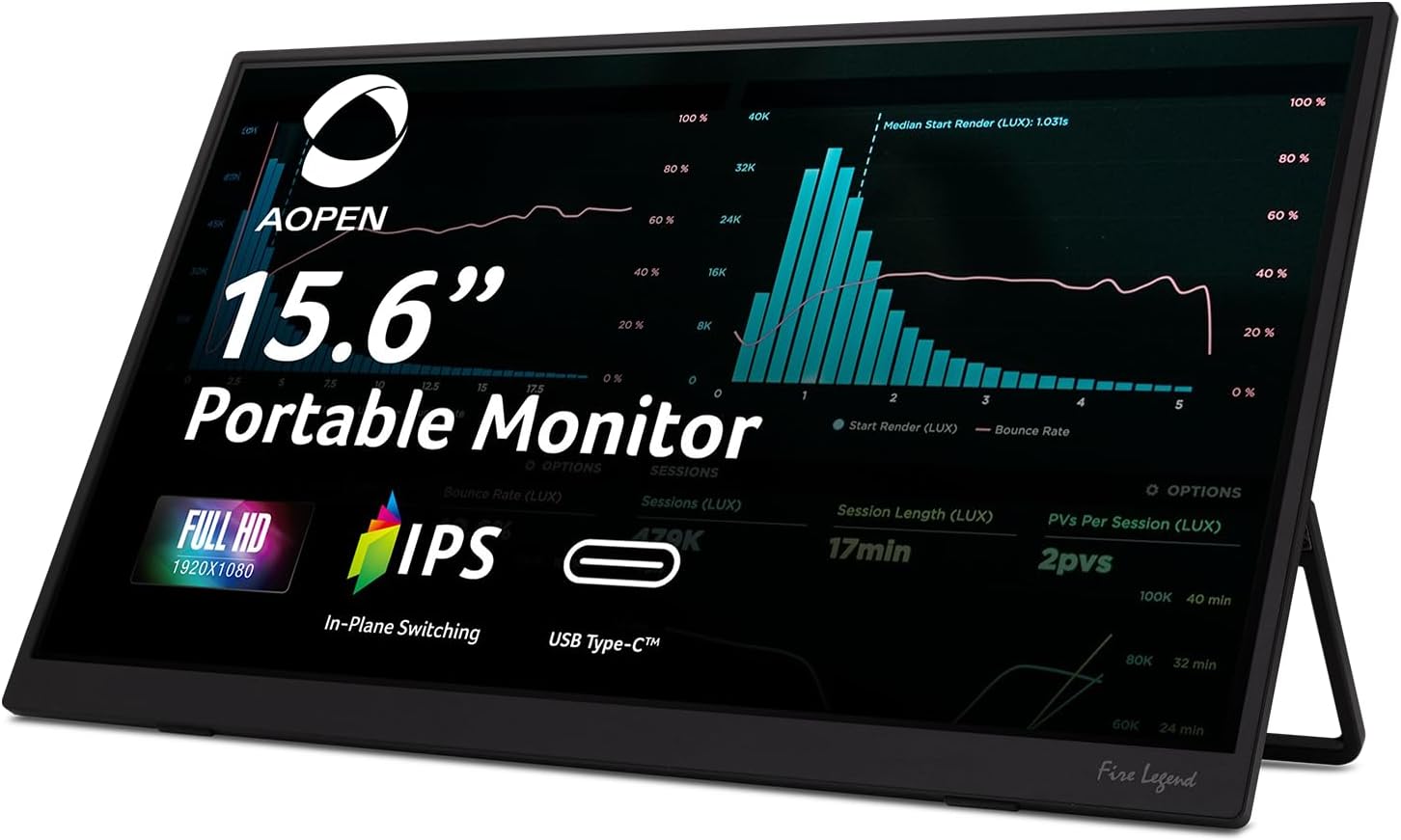
أمام view of the Acer AOPEN 16PM1Q Portable Monitor.

مؤخرة view with the integrated tilt-adjustable stand.
4.2 تخطيط المنافذ
تتميز الشاشة بمنافذ متعددة لتوفير اتصال متعدد الاستخدامات:
- منافذ USB-C (x2): Located on one side, these ports support DisplayPort Alt Mode for video, data, and power delivery via a single cable. One port can be used for power input, and the other for video/data.
- منفذ HDMI صغير (x1): Located on the same side as the USB-C ports, this port is for video input from devices like game consoles or older laptops.
- 3.5mm Audio Jack (x1): Located on the opposite side, for connecting headphones or external speakers.

USB-C and Mini HDMI ports.

Control buttons and 3.5mm audio jack.
4.3 توصيل جهازك
- Using USB-C (Recommended): Connect one end of the provided USB-C to USB-C cable to a compatible USB-C port on your laptop, smartphone, or other device. Connect the other end to one of the USB-C ports on the monitor. This single cable will provide power, video, and data. The monitor will automatically detect the input.
- Using Mini HDMI: Connect one end of the provided Mini HDMI to HDMI cable to the Mini HDMI port on the monitor. Connect the HDMI end to your device. ملحوظة: When using Mini HDMI, the monitor requires external power. Connect a USB-C power adapter (not included) to one of the monitor's USB-C ports for power.
5. تعليمات التشغيل
5.1 تشغيل/إيقاف التشغيل
Press the Power button located on the side of the monitor to turn it on or off. A green LED indicator will show when the monitor is powered on.
5.2 قائمة العرض على الشاشة (OSD)
The OSD menu allows you to adjust various display settings. Use the navigation buttons (up/down) and the selection button (often the power button or a dedicated menu button) to navigate and select options.
خيارات قائمة العرض على الشاشة الشائعة:
- صورة: Adjust brightness, contrast, sharpness, and other image quality settings.
- لون: تعديل درجة حرارة اللون، وجاما، ومستويات RGB الفردية.
- صوتي: Control volume and mute the built-in speakers. The monitor includes two 1-watt speakers, which provide basic audio output. For higher quality audio, connect external headphones or speakers via the 3.5mm audio jack.
- أداء: Adjust response time (e.g., 6ms GtG) and other performance-related settings.
- OSD: Customize OSD menu display time and transparency.
- نظام: General system settings, including input source selection (though the monitor often auto-detects).
- معلومة: View current display resolution, refresh rate, and other monitor details.
6. المواصفات
| ميزة | مواصفة |
|---|---|
| حجم الشاشة | 15.6 بوصة |
| دقة | 1920 × 1080 (دقة عالية كاملة) |
| نوع اللوحة | اي بي اس |
| معدل التحديث | 60 هرتز |
| وقت الاستجابة | 6 مللي ثانية (جي تي جي) |
| نسبة العرض إلى الارتفاع | 16:9 |
| سطوع | 250 شمعة لكل متر مربع |
| الاتصال | 2x USB-C (DisplayPort Alt Mode, Power Delivery), 1x Mini HDMI |
| صوتي | Built-in Speakers (2x 1W), 3.5mm Audio Jack |
| الأبعاد (الطول × العرض × الارتفاع) | 14 × 8.7 × 0.4 بوصة |
| وزن العنصر | 1.48 رطل |
| سطح الشاشة | مطفي |
7. استكشاف الأخطاء وإصلاحها
- لا يوجد عرض / شاشة سوداء:
- Ensure the USB-C or Mini HDMI cable is securely connected to both the monitor and your device.
- If using Mini HDMI, confirm that a separate USB-C power source is connected to the monitor.
- Check if your device's display output is enabled or extended to the portable monitor.
- جرب كابلًا أو منفذًا مختلفًا إن أمكن.
- لا يوجد طاقة:
- Verify the USB-C cable is connected to a power-delivery enabled port on your device or a dedicated USB-C power adapter.
- Ensure the power button on the monitor is pressed.
- Poor Audio Quality / No Sound:
- اضبط مستوى الصوت في قائمة العرض على الشاشة وعلى جهازك المتصل.
- Check if the monitor's audio is muted in the OSD settings.
- For better audio, use the 3.5mm audio jack to connect headphones or external speakers.
- تذبذب الصورة:
- Ensure the display cable is not damaged and is properly connected.
- Check for driver updates for your device's graphics card.
8. معلومات السلامة
- لا تعرض الشاشة للمطر أو الرطوبة.
- لا تقم بتفكيك الشاشة. قم بإحالة جميع أعمال الصيانة إلى فنيين مؤهلين.
- تجنب وضع الشاشة في ضوء الشمس المباشر أو بالقرب من مصادر الحرارة.
- استخدم فقط الكابلات المرفقة أو الموصى بها من قبل الشركة المصنعة.
- Clean the screen with a soft, lint-free cloth. Do not use liquid cleaners or aerosol sprays directly on the screen.
9. الضمان والدعم
Your Acer AOPEN 16PM1Q Portable Monitor comes with a limited warranty. For detailed warranty information, please refer to the warranty card included in your package or visit the official Acer support website. For technical assistance, troubleshooting, or service inquiries, please contact Acer customer support.


