1. انتهى المنتجview
The Thunderobot Storm 15 4050 is a high-performance gaming laptop designed for demanding applications and immersive gaming experiences. It features a 15.6-inch Full HD display with a 165Hz refresh rate, an Intel Core i7-13620H processor, and NVIDIA GeForce RTX 4050 graphics. This laptop is equipped with 32GB DDR4 RAM and a 1TB PCIe M.2 SSD for fast boot times and efficient multitasking.
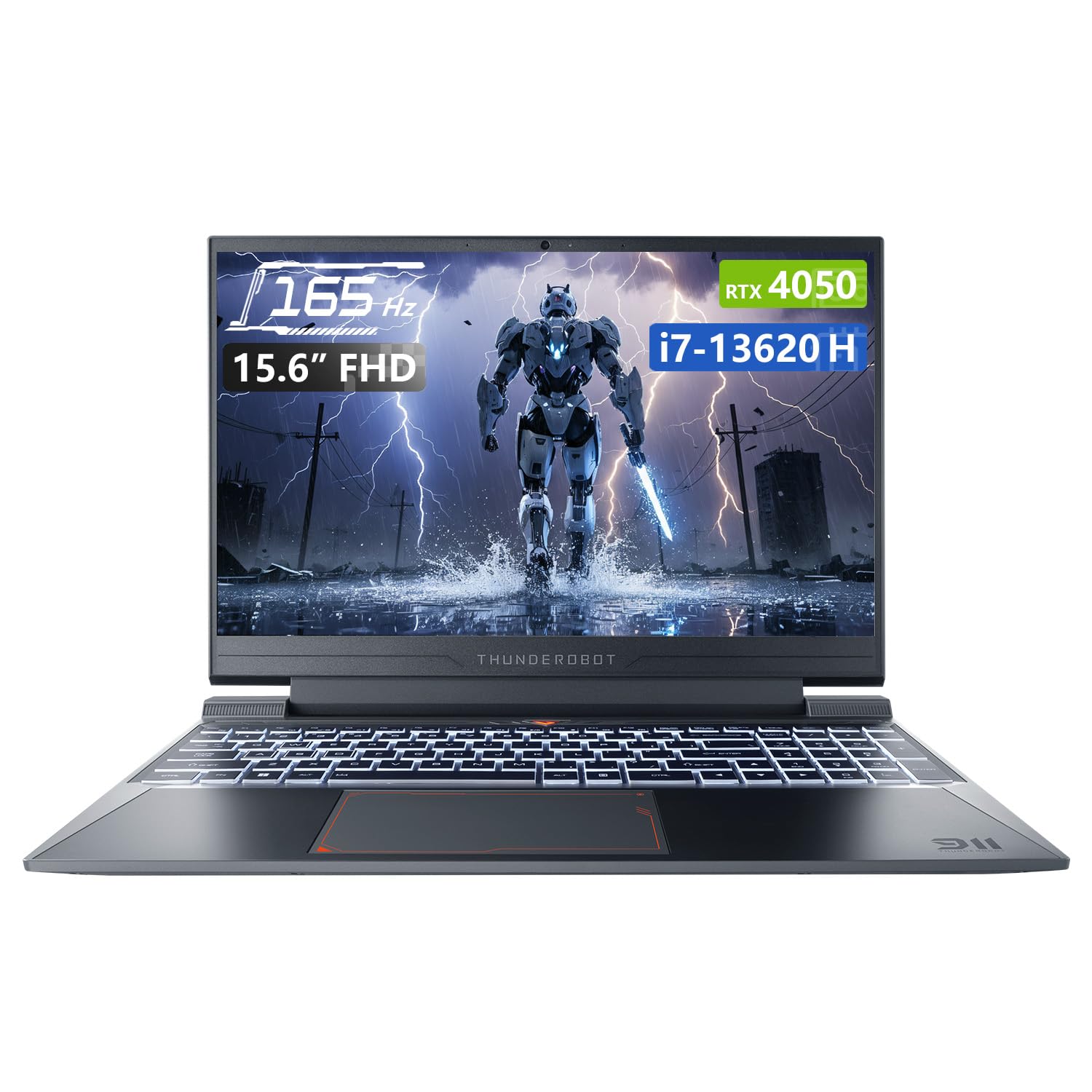
Image: Thunderobot Storm 15 4050 Gaming Laptop, front view with screen on.
المميزات الرئيسية:
- ذاكرة وتخزين عالي السرعة: 32GB DDR4 RAM and 1TB PCIe M.2 SSD for quick boot times and seamless multitasking.
- أداء قوي: Intel Core i7-13620H processor and NVIDIA GeForce RTX 4050 GPU for fast processing and stunning visuals.
- شاشة عرض كاملة الوضوح بتردد 165 هرتز: 15.6-inch screen with a 165Hz refresh rate for ultra-smooth motion and clear visuals.
- نظام تبريد فعال: Frost Cooling System with dual heat pipes, an 80-blade turbine fan, and 126 copper fins for stable performance.
- الاتصال: USB-A, USB-C, HDMI, RJ-45, and Wi-Fi for comprehensive peripheral support.
- لوحة مفاتيح ذات إضاءة خلفية: RGB backlit keyboard with a numeric pad for enhanced usability.

Image: Diagram illustrating the performance capabilities of the RTX 4050 GPU and Intel Core i7-13620H CPU.
2. دليل الإعداد
2.1 إخراج الجهاز من العلبة والتشغيل الأولي
- قم بإزالة الكمبيوتر المحمول وجميع الملحقات من العبوة بعناية.
- قم بتوصيل محول الطاقة بمنفذ إدخال الطاقة الخاص بالكمبيوتر المحمول، ثم قم بتوصيله بمأخذ كهربائي.
- افتح غطاء الكمبيوتر المحمول واضغط على زر الطاقة، والذي يوجد عادةً فوق لوحة المفاتيح أو على الجانب.
- اتبع التعليمات التي تظهر على الشاشة لإكمال الإعداد الأولي لنظام التشغيل Windows 11 Home.
2.2 توصيل الأجهزة الطرفية
The Thunderobot Storm 15 offers various ports for connecting external devices.

Image: Diagram showing the various ports and slots on the Thunderobot Storm 15 laptop.
- جهاز USB:٪ s: Connect external mice, keyboards, or storage devices to the available USB 3.1 Type-A or USB 3.1 Gen 2 Type-C ports.
- العرض الخارجي: استخدم منفذ HDMI لتوصيل شاشة خارجية أو تلفزيون.
- إتصال شبكة: For a stable wired internet connection, plug an Ethernet cable into the RJ-45 Ethernet port.
- صوتي: قم بتوصيل سماعات الرأس أو مكبرات الصوت الخارجية بمقبس الصوت المدمج مقاس 3.5 ملم.
3. تعليمات التشغيل
3.1 إدارة الطاقة
- تشغيل الطاقة: اضغط على زر الطاقة.
- وضع السكون: أغلق الغطاء أو حدد "السكون" من قائمة ابدأ في نظام التشغيل Windows.
- اغلق: حدد "إيقاف التشغيل" من قائمة ابدأ في Windows.
- إعادة تشغيل: اختر "إعادة التشغيل" من قائمة ابدأ في نظام التشغيل ويندوز.
3.2 وظائف لوحة المفاتيح
The laptop features a full-size backlit keyboard with a numeric pad.

الصورة: عن قرب view of the Thunderobot Storm 15's full-size backlit keyboard.
- التحكم في الإضاءة الخلفية: Use the dedicated function keys (Fn + [key]) to adjust keyboard backlight brightness or toggle it on/off.
- لوحة رقمية: The integrated numeric pad allows for efficient data entry.
- مفاتيح الوظائف: Utilize the Fn key in combination with F1-F12 for various system controls like volume, screen brightness, and Wi-Fi toggle.
3.3 إعدادات العرض
The 15.6-inch FHD display supports a 165Hz refresh rate.

Image: The 15.6-inch FHD 165Hz display of the Thunderobot Storm 15 laptop.
- معدل التحديث: To ensure optimal gaming performance, verify the display refresh rate is set to 165Hz in Windows Display Settings.
- سطوع: Adjust screen brightness using the dedicated function keys or through Windows Display Settings.
3.4 إعدادات الصوت
The laptop features professional sound certification and high-specification speakers.

Image: Laptop displaying sound waves, indicating wide range audio capabilities.
- التحكم في مستوى الصوت: Adjust volume using the function keys or the Windows volume mixer.
- الصوت الخارجي: Connect headphones or external speakers to the 3.5mm combo jack for private listening or enhanced audio output.
3.5 Using the Control Center
The Control Center software allows you to customize performance modes, fan speed, and lighting settings.

Image: Screenshots of the Thunderobot Control Center interface, showing performance modes, fan adjustment, and lighting settings.
- أوضاع الأداء: Switch between 'Berserk mode' (full performance), 'Game mode' (speed and smooth), and 'Audio and video office' (battery life optimized) based on your needs.
- ضبط المروحة: Manually adjust fan speeds for optimal cooling or quieter operation.
- إعدادات الإضاءة: Customize the RGB keyboard backlight effects and colors.
- ملحوظة: System mode switching in Control Center requires the device to be connected to a power source.
4. الصيانة
4.1 تنظيف الكمبيوتر المحمول
- شاشة: استخدم قطعة قماش ناعمة وخالية من الوبر برفق دampاغسلها بالماء أو بمنظف الشاشة. تجنب المواد الكيميائية القاسية.
- لوحة المفاتيح والهيكل: Use a soft cloth to wipe surfaces. A can of compressed air can remove dust from between keys and vents.
- الفتحات: Regularly check and clean the cooling vents to prevent dust buildup, which can hinder airflow and lead to overheating.

Image: Diagram illustrating the highly efficient air cooling system of the Thunderobot Storm 15.
4.2 Software and Driver Updates
- تحديثات الويندوز: قم بالتحقق بانتظام من تحديثات نظام التشغيل Windows وتثبيتها لضمان استقرار النظام وأمانه.
- تحديثات برنامج التشغيل: Keep graphics drivers (NVIDIA) and other system drivers updated for optimal performance and compatibility. Visit the Thunderobot support website or NVIDIA's official webموقع للحصول على أحدث برامج التشغيل.
4.3 العناية بالبطارية
- تجنب تفريغ البطارية بالكامل بشكل متكرر.
- قم بتخزين الكمبيوتر المحمول في مكان بارد وجاف إذا لم تستخدمه لفترات طويلة.
- For prolonged use while plugged in, consider using battery management software (if available) to limit charging to 80% to extend battery lifespan.
5. استكشاف الأخطاء وإصلاحها
5.1 No Power / Does Not Turn On
- تأكد من توصيل محول الطاقة بشكل آمن بالكمبيوتر المحمول ومأخذ الطاقة العامل.
- تأكد من أن منفذ الطاقة يعمل عن طريق توصيل جهاز آخر.
- If the battery is completely drained, allow the laptop to charge for at least 15-30 minutes before attempting to power it on.
5.2 مشاكل العرض
- شاشة فارغة: Try connecting an external monitor to check if the issue is with the laptop's display or the graphics card.
- صورة متذبذبة/مشوهة: قم بتحديث برامج تشغيل بطاقة الرسومات. اضبط معدل تحديث الشاشة في إعدادات ويندوز.
- شاشة خافتة: Adjust brightness using function keys or Windows settings.
5.3 تأخر الأداء
- Check the Control Center to ensure the laptop is in an appropriate performance mode (e.g., 'Game mode' or 'Berserk mode') when running demanding applications.
- أغلق التطبيقات الخلفية غير الضرورية.
- Ensure the cooling vents are clear and the laptop is not overheating.
- Update drivers, especially graphics drivers.
5.4 مشاكل الصوت
- Check volume levels in Windows and ensure speakers are not muted.
- Verify that the correct audio output device is selected in Windows Sound Settings.
- قم بتحديث برامج تشغيل الصوت.
- If using external audio devices, ensure they are properly connected.
6. المواصفات
| ميزة | مواصفة |
|---|---|
| اسم الموديل | العاصفة 15 |
| حجم الشاشة | 15.6 بوصة |
| دقة الشاشة | 1920 × 1080 بكسل (FHD) |
| أقصى دقة للشاشة | 1920 × 1080 بكسل |
| المعالج | معالج Intel Core i7-13620H (4.9 جيجاهرتز) |
| كبش | 32 جيجابايت DDR4 (3200 ميجاهرتز) |
| القرص الصلب | محرك أقراص الحالة الصلبة PCIe M.2 بسعة 1 تيرابايت |
| معالج الرسوميات المساعد | بطاقة معالجة الرسوميات NVIDIA GeForce RTX 4050 للكمبيوتر المحمول |
| نظام التشغيل | ويندوز 11 هوم |
| نوع لاسلكي | 801.11ac (واي فاي) |
| منافذ USB 3.0 | 3 |
| ميزة خاصة | لوحة مفاتيح بإضاءة خلفية، لوحة مفاتيح رقمية |
| وزن العنصر | 12 رطل |
| أبعاد المنتج | 14.12 × 10.14 × 0.94 بوصة |
7. الضمان والدعم
Every Thunderobot laptop includes a ضمان لمدة 12 شهرًانقدم دعمًا متخصصًا، وتشخيصًا دقيقًا، وقطع غيار أصلية في حال الحاجة إلى إصلاح. بالإضافة إلى ذلك، ضمان لمدة 90 يومًا is provided on all warranty replacement parts, ensuring hassle-free repairs. Your complete satisfaction is our commitment.

Image: Graphic detailing Thunderobot's warranty and service commitment.
For technical support, warranty claims, or further assistance, please visit the official Thunderobot support webالموقع أو الاتصال بخدمة العملاء الخاصة بهم.