1. المقدمة
This manual provides detailed instructions for setting up, operating, and maintaining your Totolink X18 AX1800 Wi-Fi 6 Mesh Router System. This 3-pack system is designed to deliver extensive and reliable Wi-Fi coverage throughout your home, utilizing advanced Wi-Fi 6 technology for high-speed and efficient network performance.
The Totolink X18 system supports dual-band operation (2.4GHz and 5GHz), MU-MIMO, WPA3 security, and EasyMesh technology, ensuring a secure and seamless internet experience for multiple devices.
2. محتويات العبوة
- 3 x Totolink X18 Mesh Routers
- 3 × محولات الطاقة
- شنومكس x إيثرنت كابل
- 1 x Quick Installation Guide (this manual serves as a comprehensive guide)
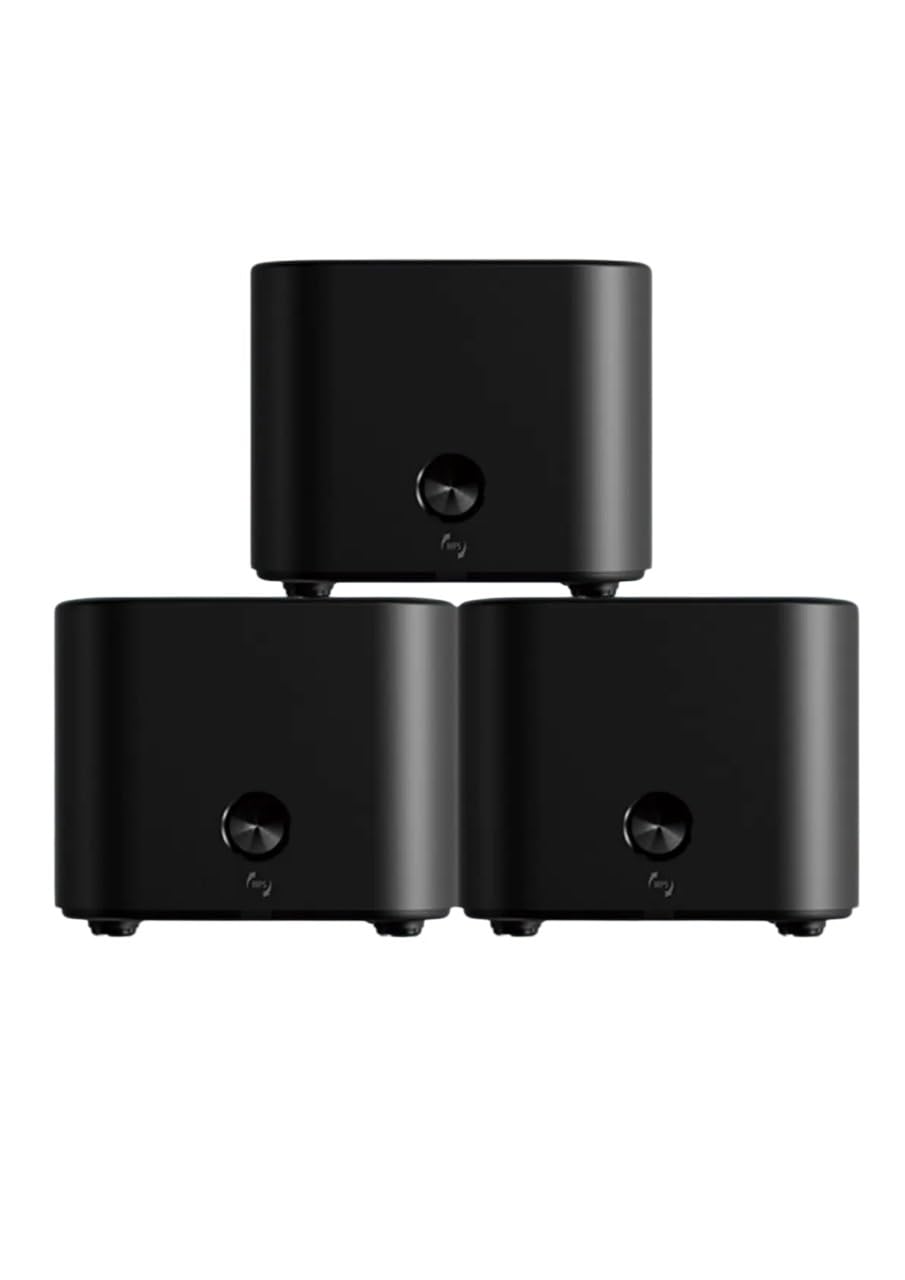
Image: The Totolink X18 Mesh Router system, showing three units and their compact design. This image represents the typical components included in the package.
3. انتهى المنتجview
Each Totolink X18 mesh router unit features a compact design with essential ports and indicators for easy management.
3.1 اللوحة الأمامية
- مؤشر LED: Displays the status of the router (e.g., power, internet connection, mesh status).
- زر الاتصال: Used for WPS or EasyMesh pairing.
3.2 اللوحة الخلفية
- منفذ WAN (أصفر): يتصل بجهاز المودم الخاص بك أو بمعدات مزود خدمة الإنترنت (ISP).
- منافذ الشبكة المحلية (برتقالية): Connects to wired devices such as computers, smart TVs, or gaming consoles. (Typically 2 LAN ports per unit).
- مدخلات طاقة التيار المستمر: يتصل بمحول الطاقة المرفق.
- زر إعادة الضبط: يستخدم لاستعادة إعدادات المصنع الافتراضية (عادةً ما يكون زرًا صغيرًا ذو ثقب صغير).

الصورة: الخلفية view of a Totolink X18 mesh router unit, highlighting the WAN (yellow), LAN (orange), and DC power input ports. This illustrates the connectivity options available on each unit.
4. دليل الإعداد
Follow these steps to set up your Totolink X18 Mesh Router System.
4.1 Initial Router Setup (Main Unit)
- أفرغ: Remove all three X18 units and power adapters from the packaging.
- موضع: Place one X18 unit near your modem or internet service entry point. This will be your main router.
- الاتصال بالمودم: Connect one end of the provided Ethernet cable to the WAN port (yellow) of the main X18 unit and the other end to your modem's LAN port.
- تشغيل الطاقة: Connect the power adapter to the DC power input of the main X18 unit and plug it into a power outlet. The LED indicator will light up.
- انتظر حتى يتم تشغيل النظام: Wait for the LED indicator to turn solid blue (or green, depending on model) which indicates a successful internet connection. This may take a few minutes.
4.2 Connecting Satellite Units (Mesh Pairing)
After setting up the main unit, you can add the other two units to create your mesh network.
- Position Satellite Units: Place the other two X18 units in locations where you need extended Wi-Fi coverage, ensuring they are within range of the main unit or another satellite unit.
- تشغيل الطاقة: Connect the power adapters to the satellite X18 units and plug them into power outlets.
- الاقتران التلقائي: The satellite units are designed to automatically detect and pair with the main unit. The LED indicator on the satellite units will change color (e.g., from blinking to solid blue/green) once successfully connected to the mesh network. This process may take a few minutes.
- الاقتران اليدوي (إذا لزم الأمر): If automatic pairing fails, press the "Connect" button on the main unit, then within two minutes, press the "Connect" button on the satellite unit. The LEDs will flash during pairing and turn solid upon successful connection.
4.3 الاتصال الأولي بشبكة Wi-Fi
- البحث عن اسم الشبكة (SSID): On your computer or smartphone, search for available Wi-Fi networks. The default SSID and password are usually printed on a label on the bottom of each X18 unit.
- يتصل: Select your network name and enter the default password.
- وصول Web الواجهة: افتح web المتصفح والنوع
http://itotolink.netor192.168.0.1into the address bar. Log in with the default username and password (usuallyadmin(لكلا الطرفين). - تخصيص الاعدادات: Follow the on-screen wizard to change your Wi-Fi name (SSID) and password for better security. It is highly recommended to change the default login credentials for the router's web interface as well.
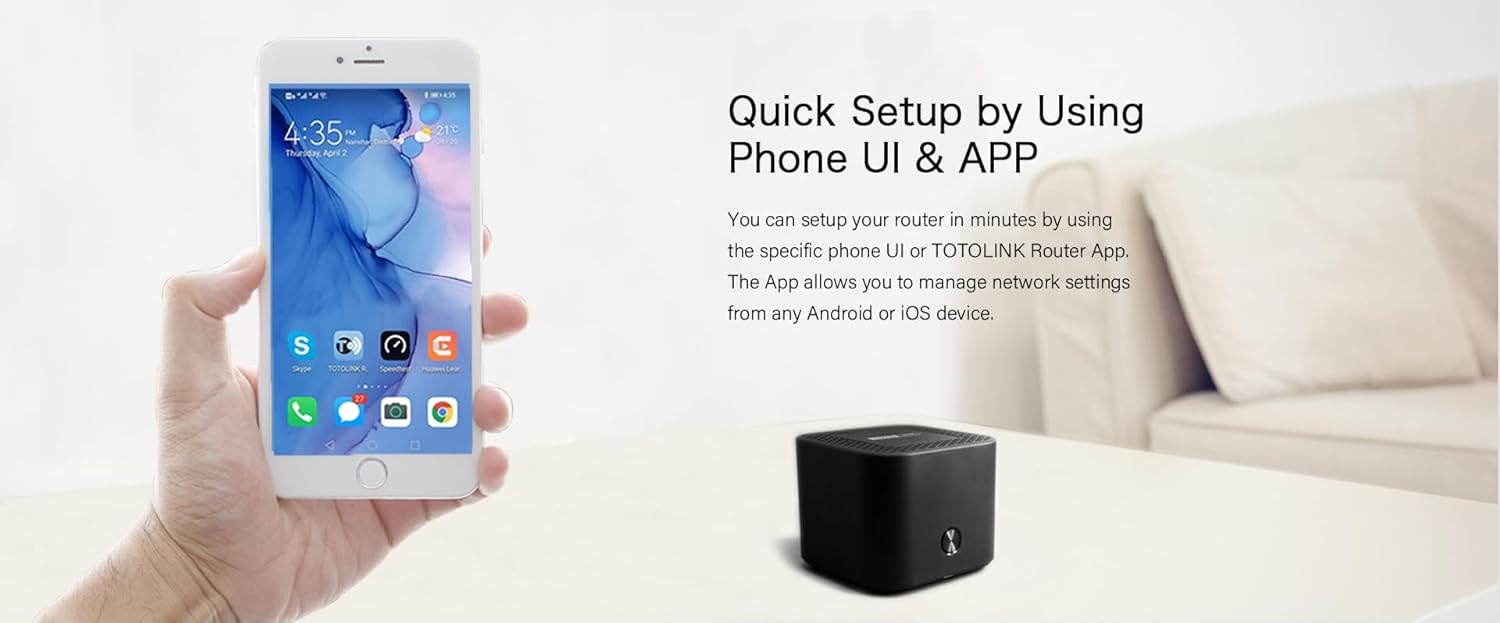
Image: A smartphone screen showing the Totolink router application, illustrating the quick setup process via a mobile app. This app allows for convenient network management from Android or iOS devices.
5. تعليمات التشغيل
Once your mesh network is set up, you can manage and optimize it using the web واجهة المستخدم أو تطبيق الهاتف المحمول المخصص.
5.1 Web إدارة الواجهة
الوصول إلى web interface by opening a browser and navigating to http://itotolink.net or 192.168.0.1. Log in with your administrator credentials.
- إعدادات الشبكة: Configure WAN connection type (DHCP, Static IP, PPPoE), LAN settings, and DHCP server.
- الإعدادات اللاسلكية: Change Wi-Fi name (SSID), password, security type (WPA2/WPA3), and channel settings.
- شبكة ضيف: Create a separate Wi-Fi network for guests with isolated access.
- الرقابة الأبوية: إدارة أوقات الوصول إلى الإنترنت وحظر بعض الأنشطة المحددة webالمواقع للأجهزة المتصلة.
- جودة الخدمة (QoS): إعطاء الأولوية لحركة المرور على الشبكة لتطبيقات أو أجهزة محددة.
- أدوات النظام: Update firmware, backup/restore configuration, change login password, and view سجلات النظام.
5.2 إدارة تطبيقات الهاتف المحمول
Download the "TOTOLINK Router App" from your device's app store (Android or iOS). The app provides a user-friendly interface for common network management tasks.
- لوحة القيادة: View network status, connected devices, and internet speed.
- اعدادات الواي فاي: Easily modify Wi-Fi name and password.
- إدارة الأجهزة: See connected devices, block unwanted devices, and set parental controls.
- Mesh Status: Monitor the connection status of your mesh units.
6. الميزات المتقدمة
The Totolink X18 system incorporates several advanced technologies to enhance your network experience.
- واي فاي 6 (802.11ax): Provides faster speeds (up to 1800Mbps), increased capacity, and improved efficiency, especially in device-dense environments.
- أداء النطاق المزدوج: Operates on both 2.4GHz (for wider coverage) and 5GHz (for higher speeds) frequencies, automatically steering devices to the optimal band.
- MU-MIMO: Multi-User, Multiple-Input, Multiple-Output technology allows the router to communicate with multiple devices simultaneously, reducing latency and improving overall network efficiency.
- أمان WPA3: The latest Wi-Fi security protocol offering enhanced encryption and protection against brute-force attacks, ensuring a more secure network.
- دعم IPv6: Supports the latest internet protocol, providing a larger address space and improved security features.
- تقنية إيزي ميش: Ensures seamless roaming and simplified network management across all mesh units, compatible with other EasyMesh certified devices.
- وقت الاستيقاظ المستهدف (TWT): An energy-saving feature of Wi-Fi 6 that allows devices to negotiate when and how often they will wake up to send or receive data, prolonging battery life for connected devices.

Image: A visual representation comparing the speed capabilities of AX1800 Wi-Fi 6 (up to 1775Mbps) against AC1200, demonstrating the significant performance improvement offered by Wi-Fi 6 technology for activities like 4K streaming and online gaming.

Image: A Totolink X18 unit accompanied by text explaining the energy-efficient aspects of Wi-Fi 6, specifically mentioning Target Wake Time (TWT) which helps devices conserve power and extend battery life.
7. الصيانة
Regular maintenance ensures optimal performance and security for your mesh network.
7.1 تحديثات البرامج الثابتة
Firmware updates often include performance improvements, new features, and security patches. It is recommended to keep your router's firmware up to date.
- التحقق من التحديثات: تسجيل الدخول إلى web الواجهة (
http://itotolink.net) and navigate to "System Tools" > "Firmware Upgrade". - تنزيل البرامج الثابتة: If a new version is available, download it from the official Totolink webموقع على جهاز الكمبيوتر الخاص بك.
- Upload and Upgrade: قم بتحميل البرنامج الثابت الذي تم تنزيله file من خلال web interface and follow the on-screen instructions. Do not power off the router during the upgrade process.
7.2 إعادة ضبط المصنع
A factory reset will erase all custom settings and restore the router to its default configuration. This can be useful for troubleshooting or when reconfiguring your network.
- الطريقة الأولى (الزر): With the router powered on, use a paperclip or pin to press and hold the "Reset" button (usually a small pinhole on the rear panel) for approximately 5-10 seconds until the LED indicator flashes rapidly. Release the button and wait for the router to restart.
- الطريقة الثانية (Web الواجهة): تسجيل الدخول إلى web interface and navigate to "System Tools" > "Factory Defaults" or "Backup & Restore". Select the option to restore factory settings.
8. استكشاف الأخطاء وإصلاحها
This section addresses common issues you might encounter with your Totolink X18 Mesh Router System.
8.1 عدم وجود اتصال بالإنترنت
- فحص الكابلات: Ensure the Ethernet cable from your modem is securely connected to the WAN port (yellow) of the main X18 unit.
- حالة المودم: تأكد من أن جهاز المودم يعمل بشكل صحيح وأن لديه اتصالاً نشطاً بالإنترنت. أعد تشغيل المودم إذا لزم الأمر.
- مؤشر LED لجهاز التوجيه: Check the LED indicator on the main X18 unit. If it's not solid blue/green, there might be an issue with the internet connection or router configuration.
- إعدادات مزود خدمة الإنترنت: Confirm your WAN connection type (DHCP, Static IP, PPPoE) in the router's web interface matches your ISP's requirements.
8.2 ضعف إشارة الواي فاي أو المناطق الميتة
- وضع الوحدة: Adjust the placement of your satellite X18 units. Ensure they are not too far from the main unit or other satellite units. Avoid placing them near large metal objects, concrete walls, or interference sources (e.g., microwaves, cordless phones).
- تدخل: Change the Wi-Fi channel in the router's wireless settings to avoid interference from neighboring networks.
- Mesh Status: Check the mesh status in the mobile app or web interface to ensure all units are properly connected.
8.3 لا يمكن الوصول Web الواجهة
- عنوان IP: Ensure your device is connected to the X18's Wi-Fi network or via an Ethernet cable to a LAN port. Try accessing
http://itotolink.netor192.168.0.1. - ذاكرة التخزين المؤقت للمتصفح: قم بمسح ذاكرة التخزين المؤقت وملفات تعريف الارتباط الخاصة بالمتصفح لديك، أو جرب متصفحًا آخر.
- جدار الحماية/مكافحة الفيروسات: قم بتعطيل أي جدار حماية أو برنامج مكافحة فيروسات على جهاز الكمبيوتر الخاص بك مؤقتًا والذي قد يمنع الوصول.
- اعدادات المصنع: إذا فشلت كل المحاولات الأخرى، فقم بإجراء إعادة ضبط المصنع (انظر القسم 7.2) وحاول الوصول إلى الواجهة باستخدام بيانات الاعتماد الافتراضية.
9. المواصفات
| ميزة | مواصفة |
|---|---|
| اسم الموديل | إكس 18 |
| واي فاي القياسية | IEEE 802.11ax (واي فاي 6) |
| سرعة الواي فاي | AX1800 (1201 ميجابت في الثانية على نطاق 5 جيجاهرتز، 573.5 ميجابت في الثانية على نطاق 2.4 جيجاهرتز) |
| نطاق التردد | النطاق المزدوج (2.4 جيجاهرتز و 5 جيجاهرتز) |
| منافذ إيثرنت | 1 x WAN, 2 x LAN (per unit) |
| حماية | WPA2/WPA3 |
| المميزات الخاصة | Dual Band, EasyMesh, MU-MIMO, Wi-Fi 6, WPA3, IPv6, TWT |
| التغطية | Up to 600 square meters (with 3 units) |
| أبعاد | 12 x 12 x 15 cm (per unit) |
| لون | أسود |
| الأجهزة المتوافقة | All Networks, Laptops, Smart Home Devices, Smartphones |
10. معلومات السلامة
- استخدم فقط محول الطاقة المرفق بالجهاز.
- لا تعرض الجهاز للماء أو النار أو الرطوبة أو البيئات الحارة.
- لا تحاول تفكيك الجهاز أو إصلاحه أو تعديله.
- احتفظ بالجهاز بعيدًا عن المجالات الكهرومغناطيسية القوية.
- تأكد من التهوية المناسبة حول الجهاز لمنع ارتفاع درجة الحرارة.
- يحفظ بعيدًا عن متناول الأطفال.
11. الضمان والدعم
For warranty information and technical support, please refer to the official Totolink webالموقع أو تواصل مع التاجر المحلي. احتفظ بإيصال الشراء لطلبات الضمان.
الموارد المتاحة على الإنترنت:
- Official Totolink Webموقع: www.totolink.net (Please verify the actual official webموقع للدعم)
- Support Email/Phone: Refer to the webموقع للحصول على معلومات الاتصال الإقليمية.


