مقدمة
This manual provides comprehensive instructions for the setup, operation, and maintenance of your ZEBRONICS Glassy 10 Wireless Mouse. Designed for comfort and efficiency, this mouse features dual-mode connectivity (2.4GHz and Bluetooth), adjustable DPI up to 1600, silent operation, and convenient Type-C charging. Please read this manual thoroughly before using the product to ensure optimal performance and longevity.
محتويات الحزمة
- فأرة - وحدة واحدة
- جهاز استقبال نانو - وحدة واحدة
- كابل شحن - وحدة واحدة
- Quick user Guide - 1 unit
تعليمات الإعداد
1. شحن الماوس
The ZEBRONICS Glassy 10 mouse features a built-in rechargeable battery and Type-C charging. Connect the provided Type-C charging cable to the mouse's charging port and to a USB power source (e.g., computer, wall adapter). The LED indicator will show charging status and turn off when fully charged.

2. تشغيل/إيقاف الطاقة واختيار الوضع
Locate the Mode/Power switch on the underside of the mouse. Slide the switch to turn the mouse ON or OFF, and to select between 2.4GHz wireless mode and Bluetooth mode.
3. Connecting via 2.4GHz Wireless Mode
- Take out the USB Nano Receiver from its storage slot on the underside of the mouse.
- Plug the USB Nano Receiver into an available USB port on your computer or laptop.
- Slide the Mode/Power switch on the mouse to the 2.4GHz position.
- يجب أن يتصل الماوس بجهازك تلقائيًا.
4. Connecting via Bluetooth Mode
- Slide the Mode/Power switch on the mouse to the Bluetooth position.
- The mouse will enter pairing mode (an indicator light may flash).
- على جهاز الكمبيوتر أو الجهاز الخاص بك، افتح إعدادات البلوتوث.
- بحث عن new devices and select "ZEB-Glassy 10" (or similar) from the list.
- Confirm pairing on your device. The mouse will connect once paired.

تعليمات التشغيل
1. Mouse Buttons
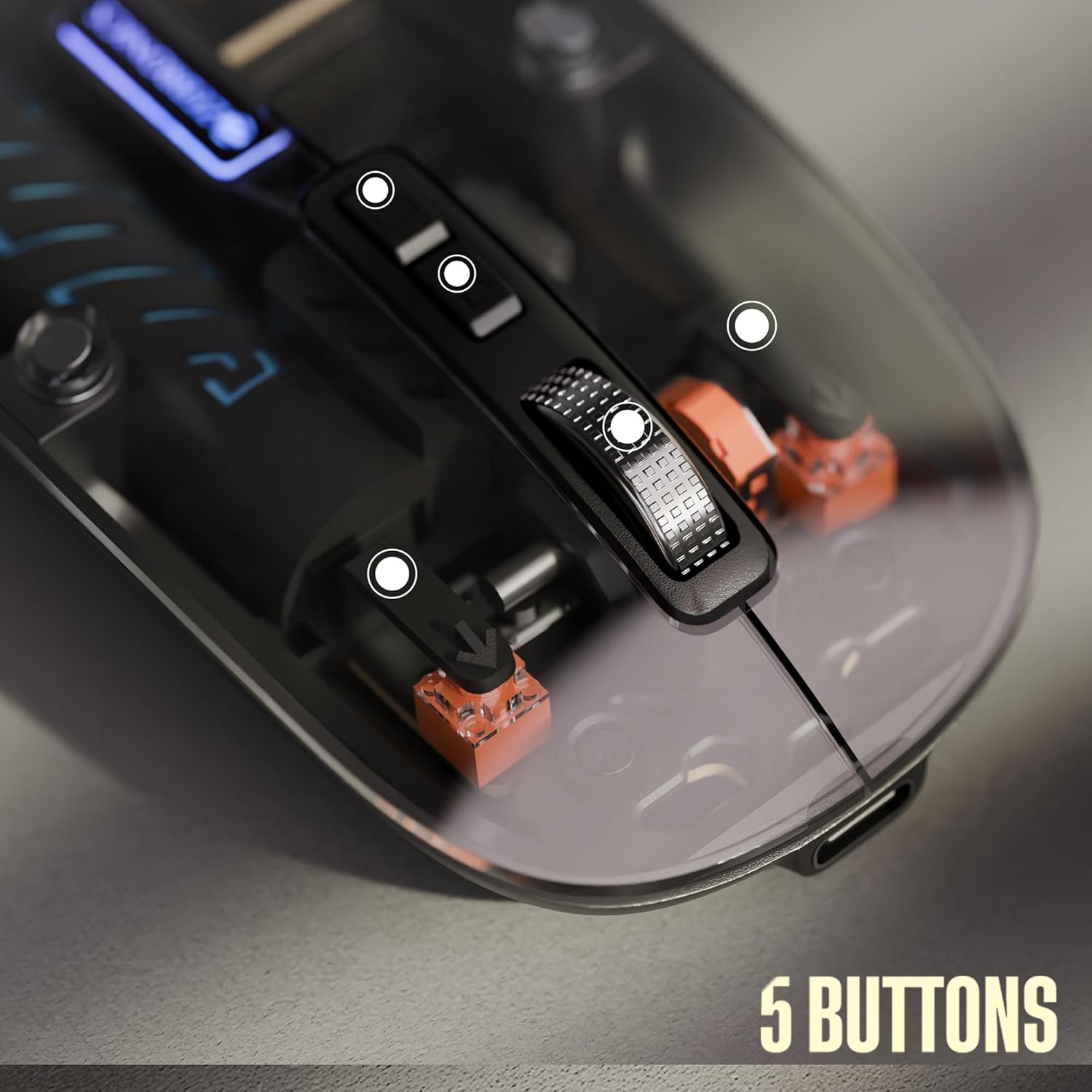
The ZEBRONICS Glassy 10 mouse is equipped with 5 buttons for enhanced functionality:
- الزر الأيسر: الاختيار والتفعيل القياسيان.
- انقر على اليمين: الوصول إلى قائمة السياق.
- عجلة التمرير الوسطى: للتصفح بين المستندات و web pages. Can also be clicked for additional functions depending on software.
- زر التحكم في DPI: ضبط حساسية الماوس (DPI).
- Dedicated Desktop Button: Provides quick access to the desktop or other programmed functions.

2. ضبط DPI
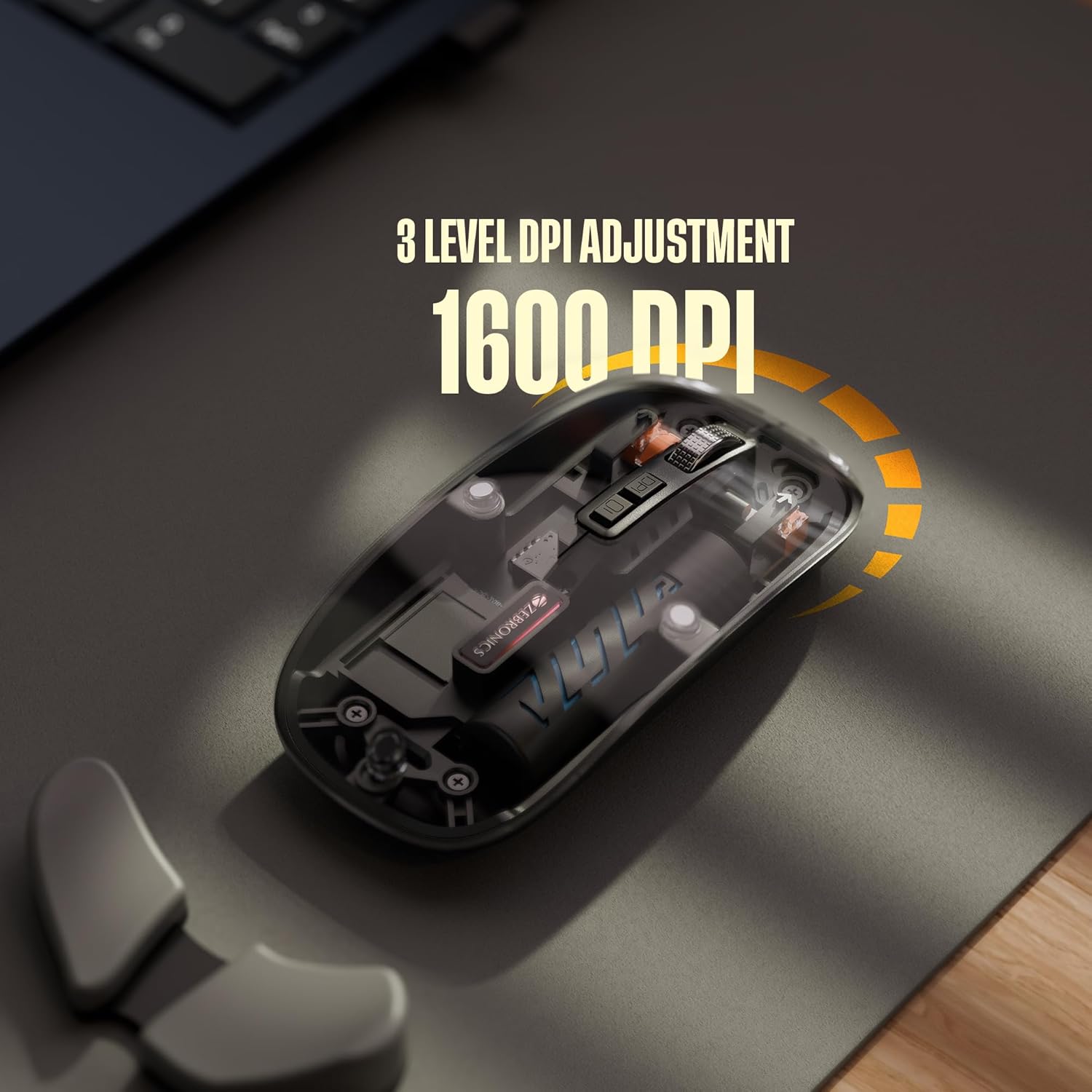
The mouse features 3 levels of DPI adjustment, up to 1600 DPI. Press the DPI control button to cycle through the available sensitivity settings. A higher DPI setting results in faster cursor movement across the screen with less physical mouse movement.
3. التشغيل الصامت
The ZEBRONICS Glassy 10 mouse is designed for silent operation, minimizing click sounds. This feature is beneficial in quiet environments, ensuring a less disruptive user experience.

4. توافق السطح
The mouse is ergonomically designed to function effectively on various surfaces, including mouse pads, plain tables, and wooden surfaces, providing consistent tracking performance.
صيانة
- تنظيف: استخدم قطعة قماش ناعمة وجافة لتنظيف الفأرة. تجنب استخدام المواد الكيميائية القاسية أو المواد الكاشطة.
- تخزين: When not in use, store the mouse in a cool, dry place. If storing for an extended period, ensure the mouse is turned off to preserve battery life.
- العناية بالبطارية: Recharge the battery regularly. Avoid completely draining the battery frequently to prolong its lifespan.
استكشاف الأخطاء وإصلاحها
| مشكلة | الحل المحتمل |
|---|---|
| الماوس لا يستجيب |
|
| تأخر أو انقطاع الاتصال |
|
| Cursor movement is too fast/slow |
|
| قضية الشحن |
|
تحديد
| ميزة | التفاصيل |
|---|---|
| ماركة | الزبرونيك |
| نموذج | Glassy 10 |
| تكنولوجيا الاتصال | Dual Mode (2.4GHz Wireless, Bluetooth) |
| مستويات DPI | Up to 1600 DPI (3-level adjustable) |
| أزرار | 5 (Left, Right, Scroll Wheel, DPI, Dedicated Desktop) |
| عملية | النقر الصامت |
| الشحن | Type-C, Built-in Rechargeable Battery |
| توافق نظام التشغيل | Mac OS (and generally Windows, Linux compatible) |
| الأبعاد (الطول × العرض × الارتفاع) | 11.3 × 5.7 × 0.1 سم |
| وزن العنصر | 70 جرام |
الضمان والدعم
للحصول على معلومات الضمان والدعم الفني، يرجى الرجوع إلى بطاقة الضمان المرفقة بالعبوة أو زيارة موقع ZEBRONICS الرسمي. webالموقع. احتفظ بإيصال الشراء الخاص بك كإثبات للشراء في حالة مطالبات الضمان.
الشركة المصنعة: شركة زيبرونيكس إنديا الخاصة المحدودة
عنوان: No.13/7, Smith Road, Royapettah, Chennai - 600 002, India


