1. المقدمة وما فوقview
The ZWO ASIAIR Plus is a smart device designed to streamline your astrophotography imaging sessions. It is an integrated solution developed by ZWO for astrophotography, representing the world's first large-scale commercial product in this category. The ASIAIR Plus is a newly upgraded third edition, wireless intelligent controller.
Building on the success of previous ASIAIR generations, the ASIAIR Plus is capable of powering and controlling your camera, mount, autofocus, guiding, filter wheel, dew heaters, and other astrophotography accessories. It wirelessly connects to any Apple or Android smartphone or tablet, allowing you to control and power your telescope rig with ease.
The ASIAIR Plus connects the necessary equipment for astrophotography through its body, installs the ASIAIR app on a mobile phone or tablet for wireless control, and completes various photographic creation processes, such as image Plate Solving, Scope Focus, Polar Align, Auto Guiding, Auto-run (unmanned imaging), Plan (multi-target/mosaic imaging), Live Stacking, and Video (planetary imaging).

Figure 1: ZWO ASIAIR Plus 256GB Wi-Fi Smart Camera Controller, top view with antenna.
2. الميزات الرئيسية
- Wirelessly control your entire telescope rig with your phone or tablet.
- Controls and powers compatible cameras, mounts, autofocusers, filter wheels, dew heaters, and more.
- Plan and execute your entire night of imaging in advance with highly-customizable automation.
- Handles polar alignment, autofocus, plate solving, and guiding.
- Equipped with 256GB internal storage.
- Works with ZWO cameras and many DSLR & mirrorless cameras.
- Supports all ASI USB 3.0 and Mini series professional astronomical cameras.
- Supports a selection of nearly 100 Canon and Nikon SLR and mirrorless cameras.
- Supports ZWO EAF, EFW.
- Supports more than 400 common equatorial or partial alt-azimuth mounts on the market.
3. ماذا يوجد في الصندوق
عند فتح العبوة، يرجى التأكد من تضمين جميع المكونات التالية:
- ASiAir Plus Body
- 2x DC 0.5m Male Cable
- 2x DC 1m Male Cable
- DC 1.5m Male-Female Extension Cable
- USB 3.0 0.75m Type-B Data Cable
- دليل التنشيط
Kindly note that the power adapter is not included and must be purchased separately.
4. مواصفات المنتج

Figure 2: Technical drawing and dimensions of the ASIAIR Plus.
| يصف | قيمة |
|---|---|
| أبعاد المنتج | 6 × 5 × 5 بوصة (15.24 × 12.7 × 12.7 سم) |
| وزن العنصر | 8.5 أونصة (241 جرامًا) |
| اسم الموديل | Asiair Plus 256gb |
| نوع التركيز | التركيز اليدوي |
| مصدر الطاقة | تيار مستمر 12 فولت |
| finderscope | رد الفعل |
| الأجهزة المتوافقة | Astronomy Equipment, Telescopes, ZWO ASI Cameras |
| التخزين الداخلي | 256 جيجا بايت |
تكوين المنفذ:
- 1x 12V 5A DC 5.5x2.1mm Power Input port with indicator light
- 4x 12V 3A DC 5.5x2.1mm Power Output ports with power indicator lights
- 2 منافذ USB 2.0
- 2 منافذ USB 3.0
- 1 × منفذ يو اس بي سي
- 1 × منفذ جيجابت إيثرنت
- 1x DSLR SNAP Shutter Release cable port
- 1x Coaxial port for connecting the Wi-Fi antenna (included)

Figure 3: Feature comparison between ASIAIR Plus and ASIAIR Mini.
5. دليل الإعداد
5.1 متطلبات مصدر الطاقة
The recommended power supply is 11V-15V @ 2A-5A. If the voltage is lower than 9V or higher than 15V, the ASIAIR Plus cannot be turned on for security reasons. Ensure you use a compatible 12V DC power supply (not included).
5.2 Connecting Your Equipment
- توصيل الطاقة: Plug a compatible 12V DC power supply into the 12V 5A DC input port on the ASIAIR Plus. The indicator light will illuminate.
- Attach Wi-Fi Antenna: Screw the included Wi-Fi antenna into the coaxial port.
- ربط الكاميرات: Connect your ZWO ASI cameras or compatible DSLR/mirrorless cameras to the USB 2.0 or USB 3.0 ports.
- Connect Mount: Connect your equatorial or alt-azimuth mount to the appropriate USB port.
- ربط الملحقات: Connect autofocusers, filter wheels, dew heaters, and other accessories to the remaining USB ports or 12V DC output ports as needed.
- DSLR Shutter Release: If using a DSLR, connect the DSLR SNAP Shutter Release cable to the dedicated port.

الشكل 4: الجزء العلوي view of ASIAIR Plus showing power input and output ports.
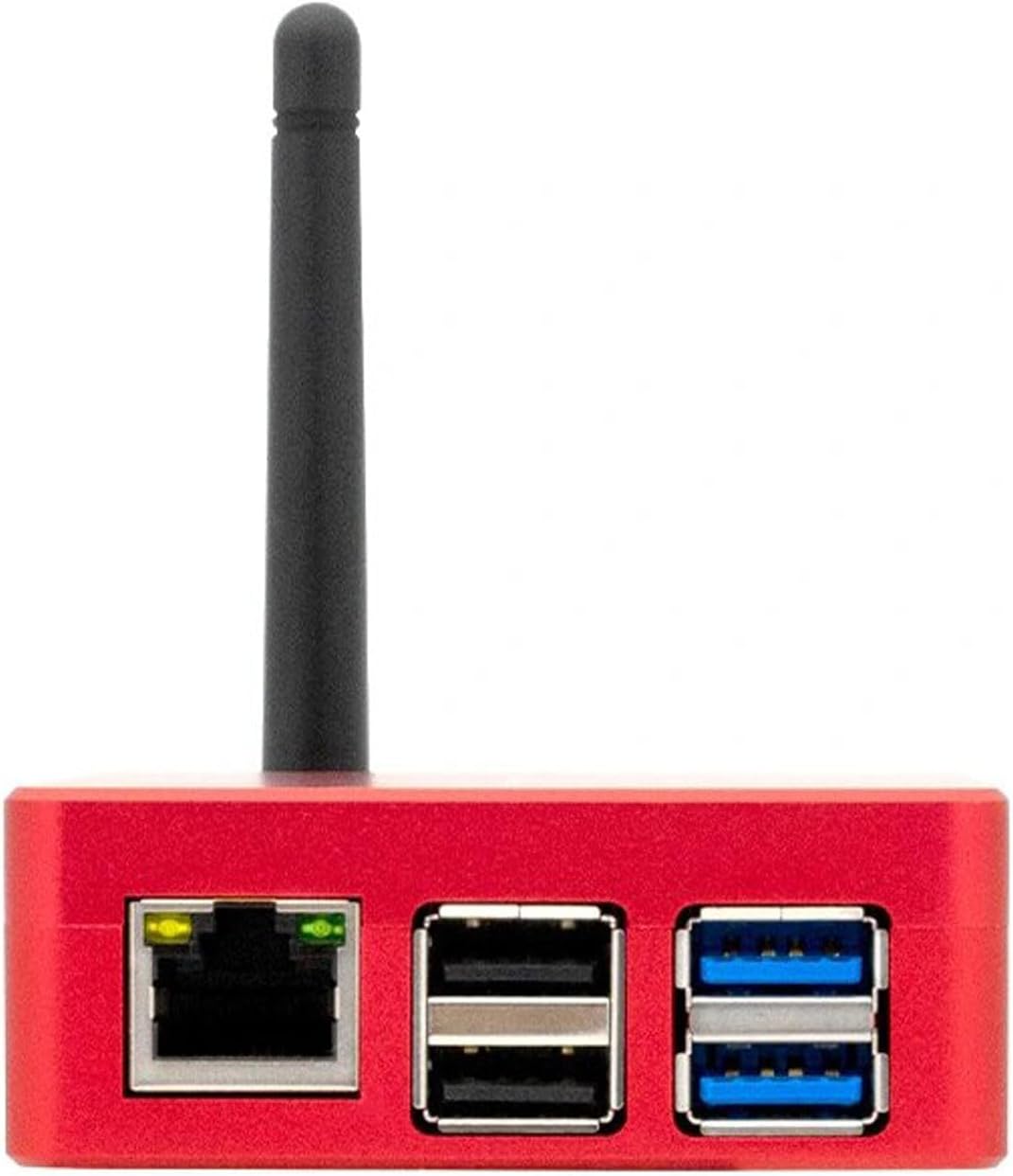
الشكل 5: الجانب view of ASIAIR Plus showing Ethernet and USB ports.
5.3 App Download and Firmware Update
You can search for the keyword "ASIAIR" in all major app stores (Apple App Store, Google Play Store) to download, install, and update the application. After connecting to the ASIAIR Wi-Fi, you can upgrade the firmware with a new app version.
5.4 External Storage and USB-C Port
The ASIAIR Plus supports external USB storage, such as USB drives and SSDs. The recommended storage capacity is 512GB, with a maximum of 1TB. It currently supports three file system formats: NTFS, FAT32, and exFAT.
The Type-C port is only used to connect the ASIAIR Plus to a computer and export files from internal storage. A data cable with Type-C ports at both ends is not supported for this function.
5.5 اتصال البلوتوث
The ASIAIR Plus 256GB supports Bluetooth connection to ZWO AM5N and AM3 mounts.
6. تعليمات التشغيل
The ASIAIR Plus is controlled wirelessly via its dedicated mobile application. Once connected to the ASIAIR's Wi-Fi network, you can access a wide range of functions for your astrophotography session.
6.1 الاتصال الأولي
- Power on the ASIAIR Plus.
- On your smartphone or tablet, go to Wi-Fi settings and connect to the ASIAIR's Wi-Fi network (SSID typically starts with 'ASIAIR_'). The default password can be found in the Activation Guide.
- Open the ASIAIR app. The app should automatically detect and connect to your ASIAIR Plus device.
6.2 الوظائف الأساسية
- إدارة الأجهزة: Within the app, you can configure and control all connected devices, including cameras, mounts, filter wheels, and focusers.
- المحاذاة القطبية: Utilize the built-in polar alignment routine for precise telescope setup.
- Plate Solving: Accurately determine your telescope's current sky coordinates for precise GoTo and framing.
- Auto Guiding: Connect a guide camera and scope to enable precise tracking for long-exposure imaging.
- التركيز: Control electronic focusers for sharp images.
- Imaging Plan: Create detailed imaging sequences, including exposure times, number of frames, and filter changes.
- Live Stacking: View real-time stacked images for quick visual feedback during observation or setup.
- وضع الفيديو: Capture high-frame-rate video for planetary imaging.
7. الصيانة
- تنظيف: Keep the ASIAIR Plus unit clean and free from dust. Use a soft, dry cloth for cleaning. Avoid liquid cleaners.
- تخزين: When not in use, store the ASIAIR Plus in a dry, cool environment, away from direct sunlight and extreme temperatures.
- إدارة الكابلات: تأكد من أن جميع الكابلات منظمة بشكل أنيق وغير معرضة للضغط لمنع تلف المنافذ أو الكابلات.
- تحديثات البرامج الثابتة: Regularly check for and install firmware updates via the ASIAIR app to ensure optimal performance and access to new features.
8. استكشاف الأخطاء وإصلاحها
- الجهاز لا يعمل:
- Verify that the 12V DC power supply meets the 11V-15V @ 2A-5A requirement.
- Check all power connections for secure fit.
- Ensure the power switch on the ASIAIR Plus is in the 'ON' position.
- Cannot Connect to ASIAIR Wi-Fi:
- Ensure the ASIAIR Plus is powered on and the Wi-Fi antenna is securely attached.
- تأكد من إدخال كلمة مرور الواي فاي الصحيحة.
- Try restarting both the ASIAIR Plus and your mobile device.
- Ensure your mobile device's Wi-Fi is enabled and not in airplane mode.
- App Not Detecting ASIAIR Plus:
- Confirm your mobile device is connected to the ASIAIR's Wi-Fi network.
- Close and reopen the ASIAIR app.
- تأكد من تحديث التطبيق إلى الإصدار الأحدث.
- Connected Device Not Recognized:
- Ensure the device is properly connected to the correct USB or DC output port.
- Check if the device requires external power and if it is supplied.
- Verify device compatibility with ASIAIR Plus.
- حاول توصيل الجهاز بمنفذ USB مختلف.
- Slow Data Transfer / External Storage Issues:
- Ensure external storage is formatted to NTFS, FAT32, or exFAT.
- Check the USB cable for damage.
- If using the USB-C port for data export, ensure you are using a standard USB-A to USB-C cable, not a Type-C to Type-C cable.
9. الضمان والدعم
للحصول على معلومات الضمان والدعم الفني، يرجى الرجوع إلى موقع ZWO الرسمي. website or contact ZWO customer service directly. The latest support resources, FAQs, and contact details can typically be found on their official product support pages.
يمكنك زيارة ZWO Store on Amazon لمزيد من المعلومات والموارد حول المنتج.


