مقدمة
This manual provides detailed instructions for setting up and using your Rapoo 9360M Wireless Keyboard and Mouse Combo. This combo offers versatile connectivity, supporting up to four devices across multiple operating systems, enhancing your productivity and workspace efficiency.

Image: The Rapoo 9360M wireless keyboard and mouse combo, featuring a sleek black design.
محتويات الحزمة
- لوحة مفاتيح لاسلكية رابو 9360M
- Rapoo M300G Silent Wireless Mouse
- مستقبل USB بتردد 2.4 جيجاهرتز
- بطاريتان AAA (للوحة المفاتيح)
- بطارية AA واحدة (للفأرة)
- دليل البدء السريع (هذا الدليل)
تعليمات الإعداد
1. تركيب البطارية
- لوحة المفاتيح: افتح غطاء حجرة البطاريات الموجودة أسفل لوحة المفاتيح. أدخل بطاريتين من نوع AAA، مع التأكد من صحة القطبية (+/-). أغلق الغطاء.
- الفأر: Open the battery compartment on the underside of the mouse. Insert one AA battery, ensuring correct polarity (+/-). Close the compartment. The USB 2.4GHz receiver is typically stored inside the mouse's battery compartment for convenience.
2. خيارات الاتصال
The Rapoo 9360M combo supports connection via a 2.4GHz USB receiver or Bluetooth 5.0/4.0, allowing connection to up to four devices simultaneously.
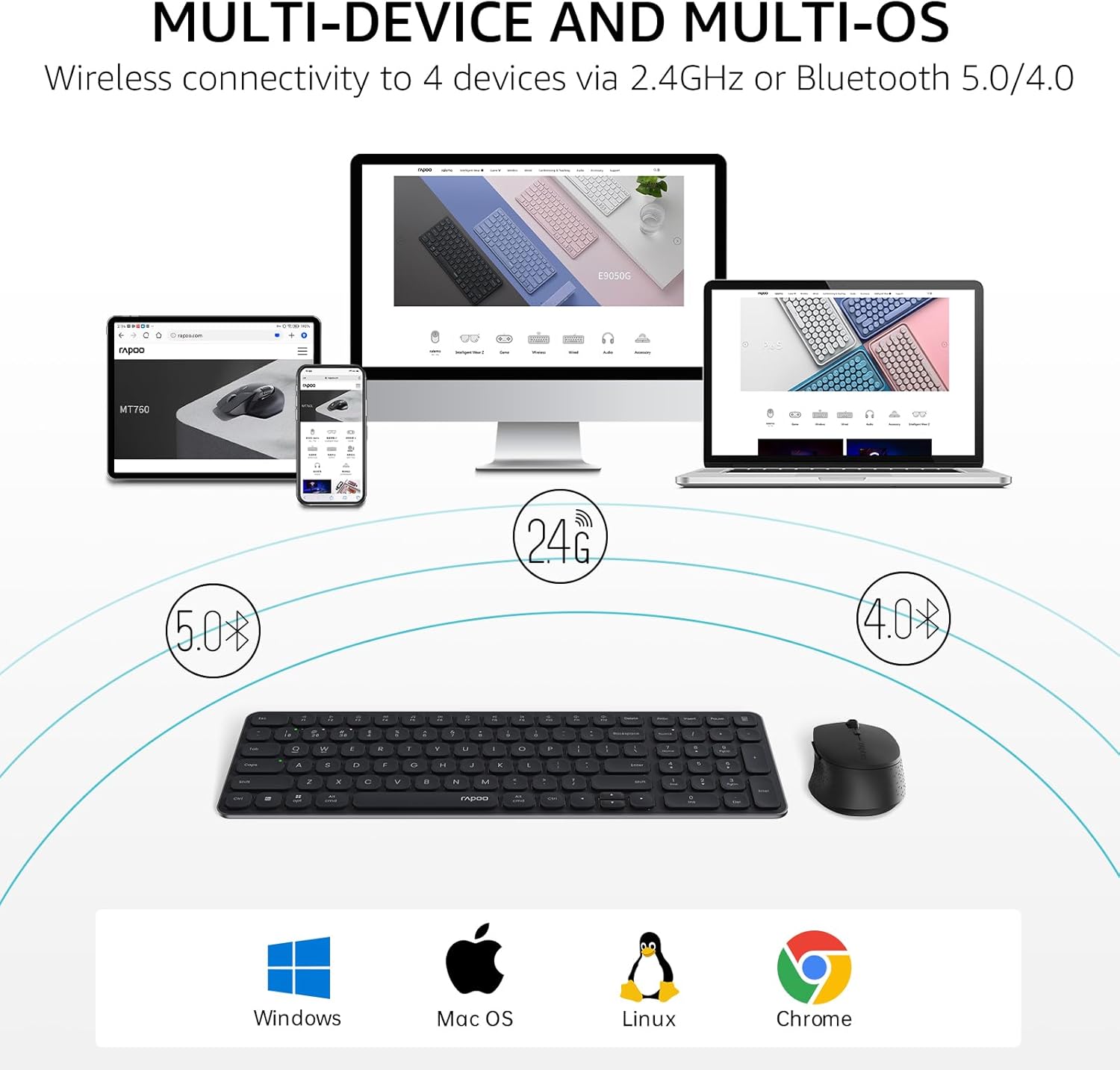
Image: Multi-device and multi-OS connectivity diagram for the Rapoo 9360M combo.
2.1. 2.4GHz USB Receiver Connection
- Remove the USB 2.4GHz receiver from the mouse's battery compartment.
- قم بتوصيل جهاز الاستقبال بمنفذ USB متاح على جهاز الكمبيوتر الخاص بك.
- ينبغي أن تتصل لوحة المفاتيح والماوس بجهازك تلقائيًا.
2.2. اقتران بلوتوث
The keyboard and mouse can each pair with up to three Bluetooth devices (BT1, BT2, BT3).
Keyboard Bluetooth Pairing:
- اضغط مع الاستمرار على Fn + 1, Fn + 2، أو Fn + 3 key combination for 3 seconds to select a Bluetooth channel. The indicator light above the '1', '2', or '3' key will flash slowly.
- اضغط مع الاستمرار على نفسه الجبهة الوطنية + 1/2/3 key combination again for 3 seconds until the indicator light flashes rapidly. This indicates the keyboard is in pairing mode.
- On your device (computer, tablet, phone), go to Bluetooth settings and search for new devices.
- Select "Rapoo BT3.0 Keyboard" or "Rapoo BT5.0 Keyboard" from the list and follow the on-screen prompts to complete pairing.
Mouse Bluetooth Pairing:
- Press the Bluetooth button on the underside of the mouse to switch between BT1, BT2, or BT3 channels. The indicator light will flash slowly.
- Press and hold the Bluetooth button for 3 seconds until the indicator light flashes rapidly. This indicates the mouse is in pairing mode.
- على جهازك، انتقل إلى إعدادات البلوتوث وابحث عن أجهزة جديدة.
- Select "Rapoo BT3.0 Mouse" or "Rapoo BT5.0 Mouse" from the list and follow the on-screen prompts to complete pairing.
تعليمات التشغيل
1. التبديل بين الأجهزة المتعددة
The keyboard and mouse allow seamless switching between connected devices.
- لوحة المفاتيح: يضعط Fn + 1, Fn + 2, Fn + 3 to switch between Bluetooth devices, or Fn + 4 to switch to the 2.4GHz USB receiver connection. The corresponding indicator light will illuminate.
- الفأر: Press the Bluetooth button on the underside of the mouse to cycle through BT1, BT2, BT3, and 2.4GHz connections. The indicator light will show the active channel.
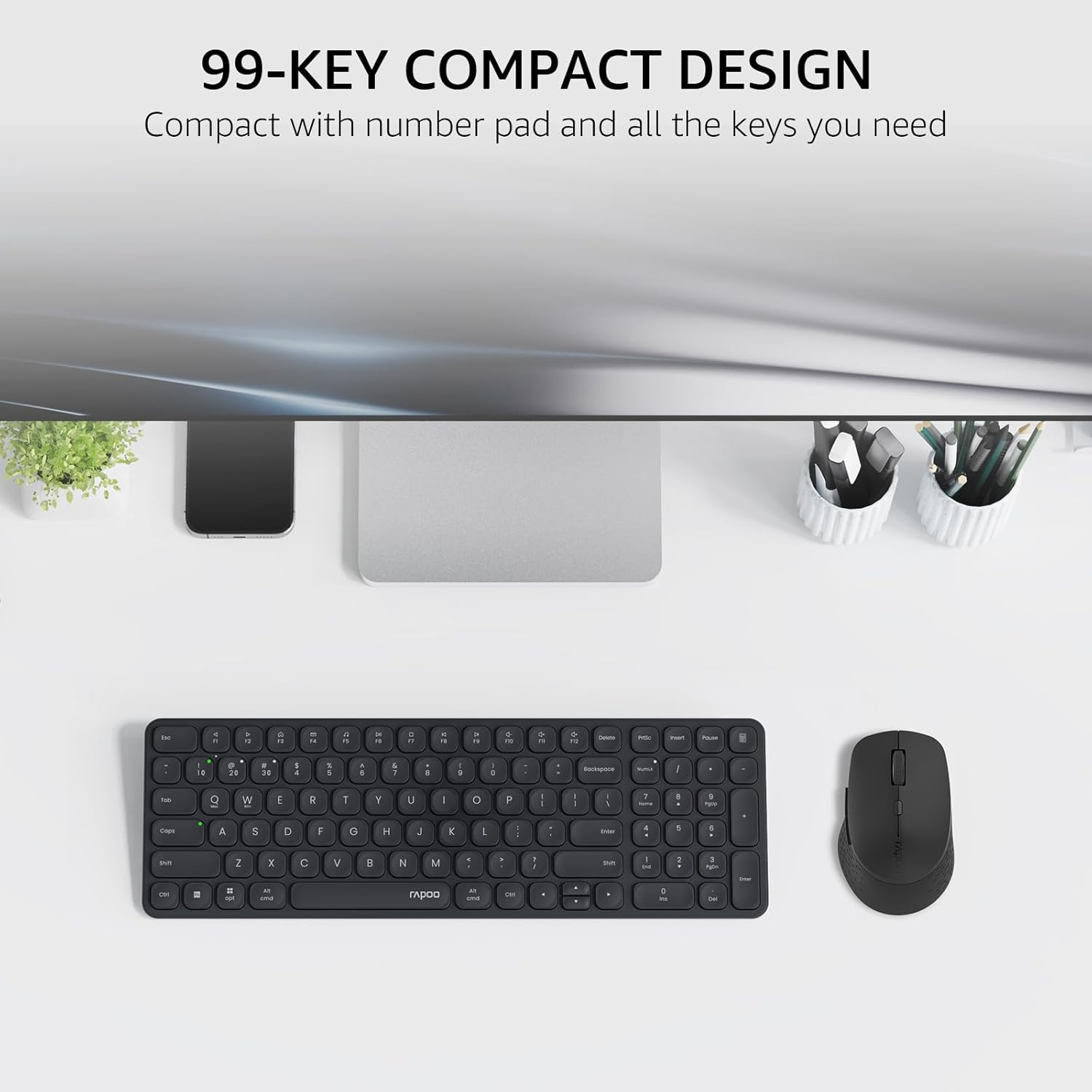
Image: The compact 99-key design of the Rapoo 9360M keyboard and mouse.
2. مفاتيح الوسائط المتعددة
The keyboard features dual-system multimedia keys for quick access to common functions.
- To use multimedia functions (e.g., play/pause, volume control), press the Fn key simultaneously with the desired F-key (F1-F12).
- The keyboard supports both Windows and Mac OS shortcuts.
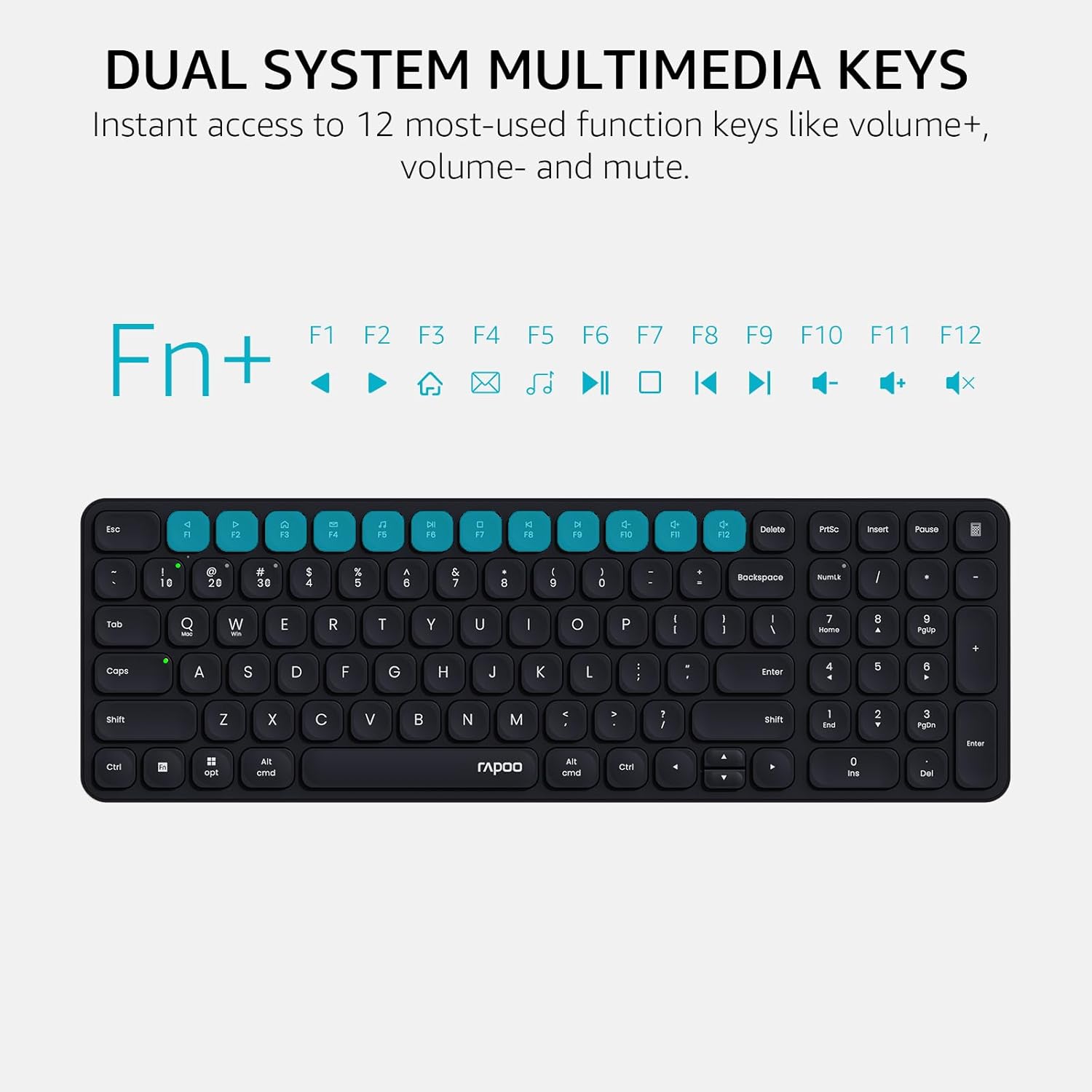
Image: Dual system multimedia keys on the Rapoo 9360M keyboard.
3. Mouse DPI Adjustment
The M300G mouse offers 5 adjustable DPI settings for precise cursor control.
- Press the DPI button located on the top of the mouse (usually behind the scroll wheel) to cycle through the preset DPI values: 800, 1000, 1200, 1600, and 2400.
- Select the DPI setting that best suits your preference and screen resolution.
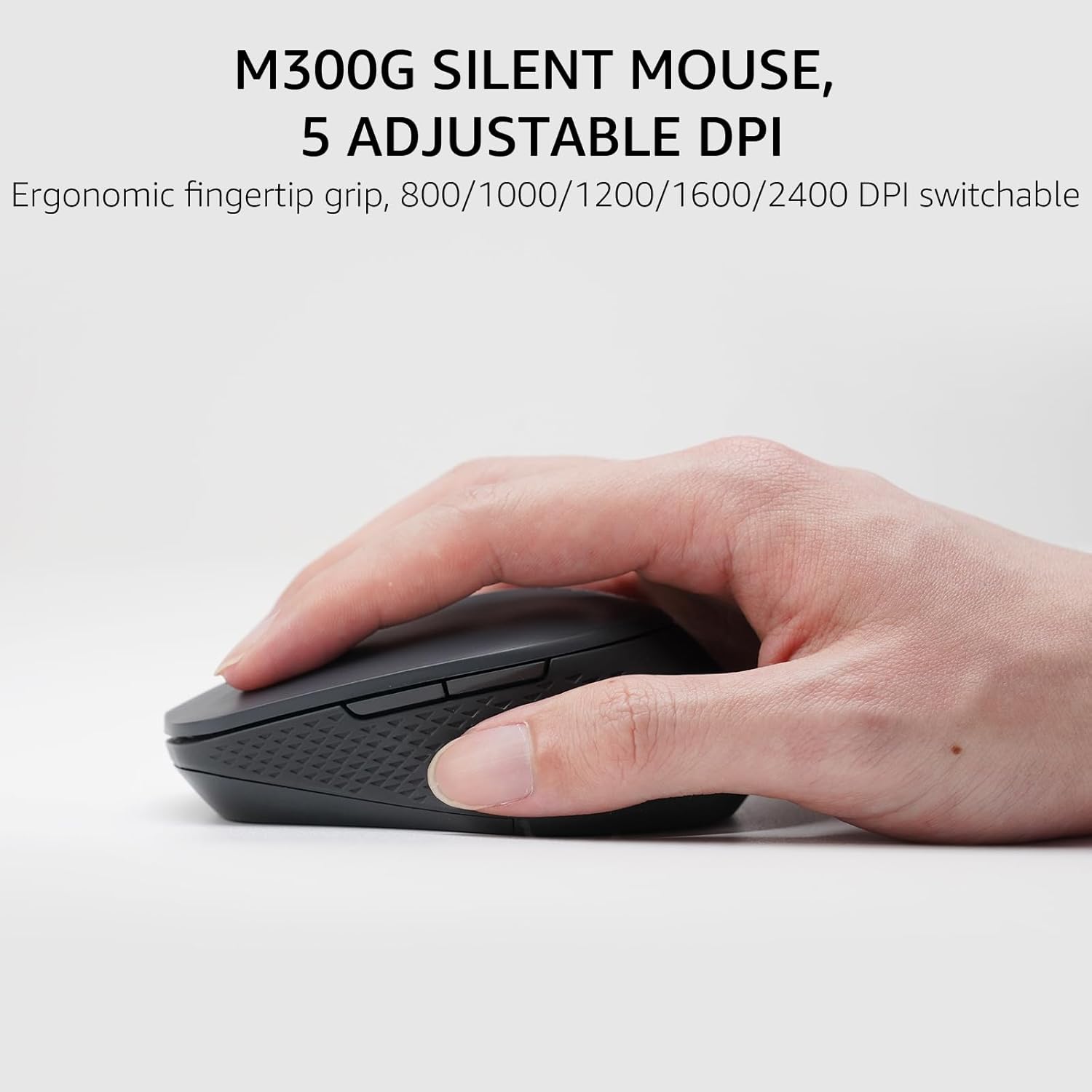
Image: The M300G Silent Mouse with 5 adjustable DPI settings.
4. مصابيح المؤشر
The keyboard includes indicator lights for device connection and capitalization status.
- مؤشر الجهاز: Located above the '1', '2', '3', and '4' keys, these lights indicate which device channel is currently active.
- مؤشر Caps Lock: A dedicated light indicates when Caps Lock is active.
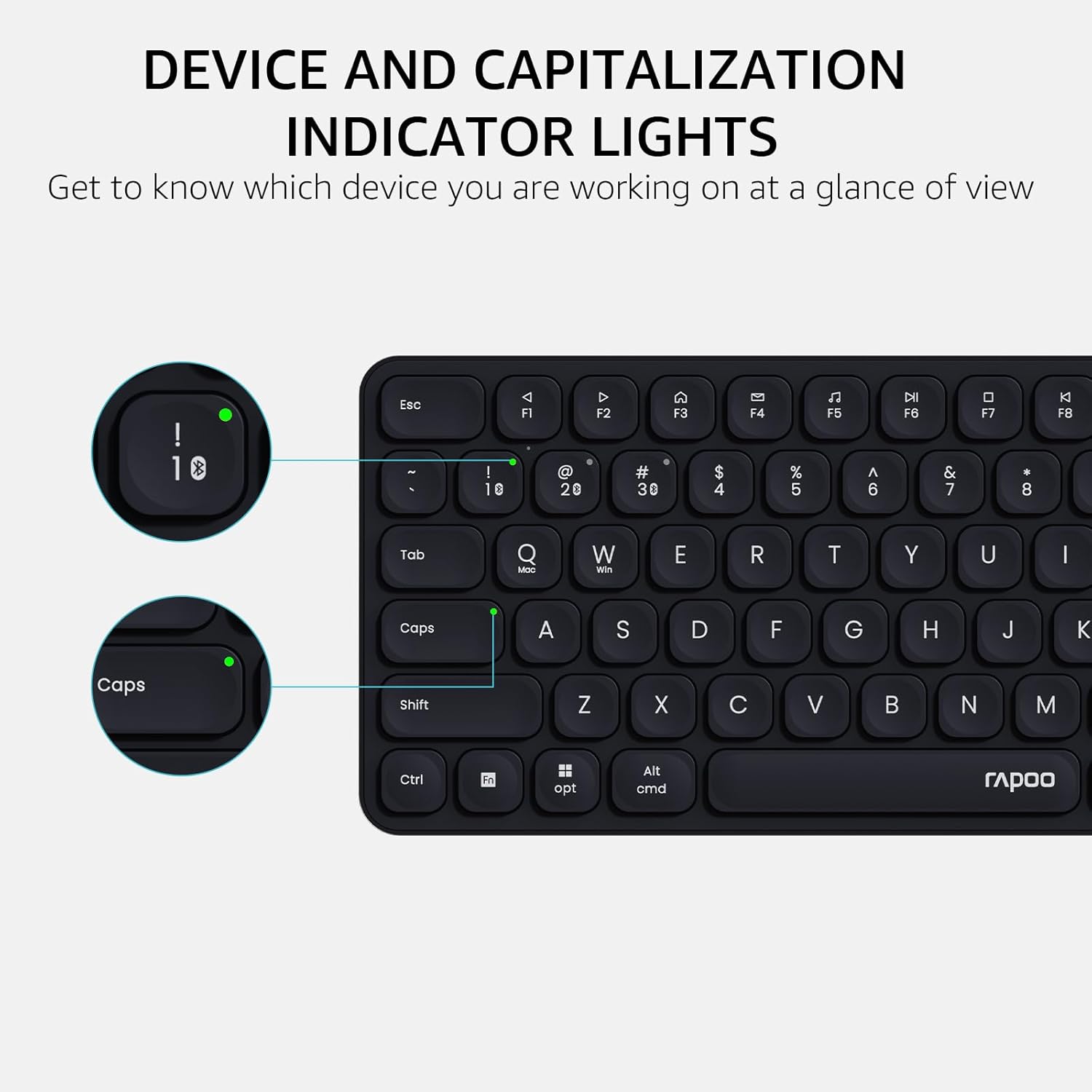
Image: Device and capitalization indicator lights on the keyboard.
صيانة
- تنظيف: استخدم قطعة قماش ناعمة وجافة لتنظيف لوحة المفاتيح والفأرة. لإزالة الأوساخ العنيدة، امسحها برفق بقطعة قماش جافة.amp يمكن استخدام قطعة قماش مع صابون خفيف، لضمان عدم دخول السوائل إلى الأجهزة.
- استبدال البطارية: Replace batteries when the low battery indicator appears or when performance degrades. Ensure to use the correct battery types (AAA for keyboard, AA for mouse) and dispose of old batteries responsibly.
- تخزين: عند عدم الاستخدام لفترات طويلة، قم بإزالة البطاريات لمنع التسرب. يُحفظ في مكان بارد وجاف.
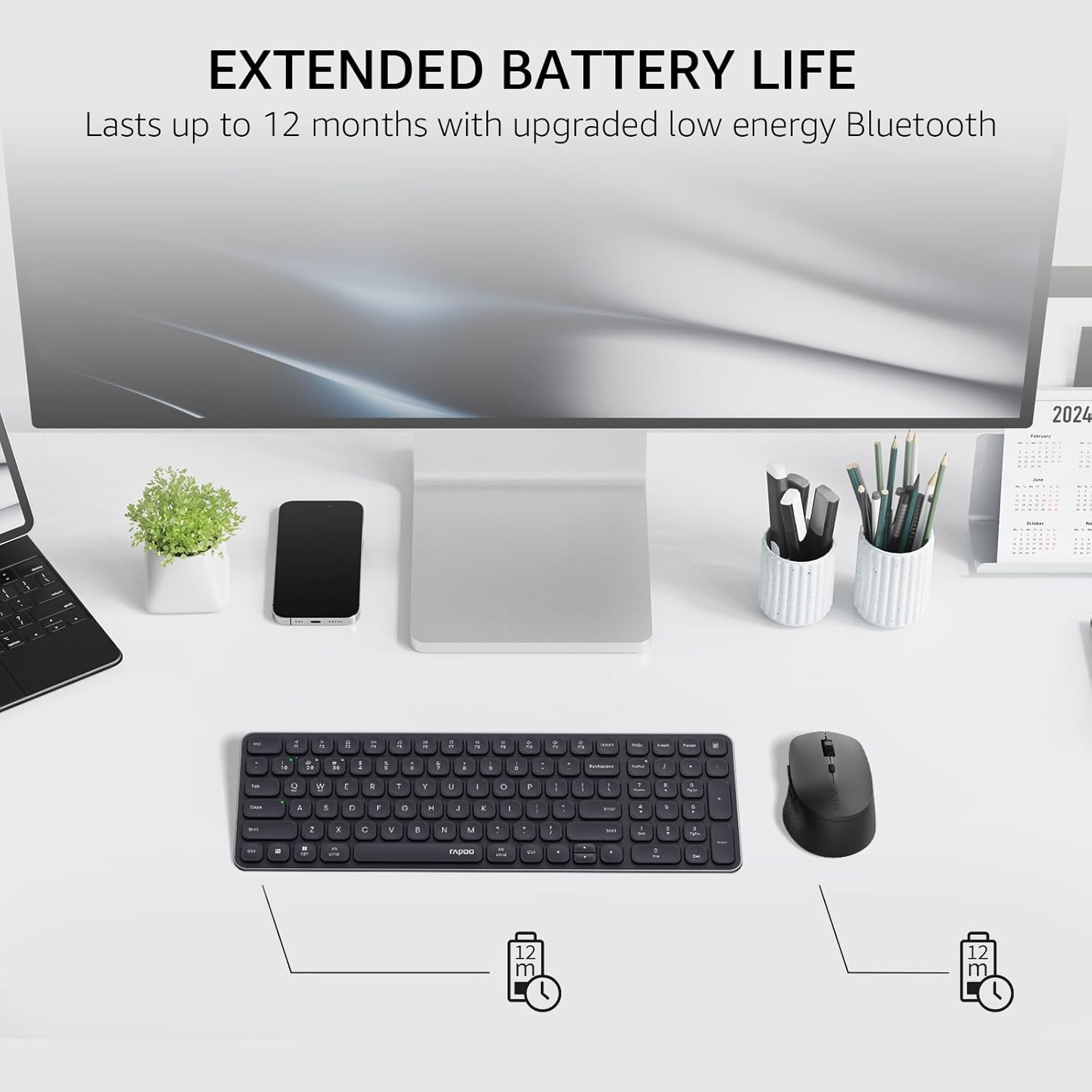
Image: Illustration of extended battery life for the keyboard and mouse.
استكشاف الأخطاء وإصلاحها
- الجهاز غير متصل:
- تأكد من تثبيت البطاريات بشكل صحيح ووجود شحنة كافية بها.
- For 2.4GHz connection, ensure the USB receiver is securely plugged into a working USB port.
- For Bluetooth connection, ensure Bluetooth is enabled on your device and the keyboard/mouse are in pairing mode. Try re-pairing the devices.
- Switch to a different channel (Fn + 1/2/3/4 for keyboard, button on mouse) to ensure you are on the correct connection mode.
- اتصال متقطع أو متقطع:
- قم بتقريب لوحة المفاتيح/الماوس من جهاز الاستقبال أو جهاز البلوتوث.
- تجنب استخدام الأجهزة بالقرب من مصادر التداخل القوية (مثل أجهزة توجيه الواي فاي، والأجهزة اللاسلكية الأخرى).
- استبدل البطاريات إذا كانت منخفضة.
- Keys or mouse buttons unresponsive:
- التحقق من مستويات البطارية.
- Ensure the device is connected to the correct channel.
- أعد تشغيل الكمبيوتر أو الجهاز.
تحديد
| ميزة | التفاصيل |
|---|---|
| رقم الموديل | 9360 مليون |
| تخطيط لوحة المفاتيح | 99-key with number pad and arrow keys |
| نموذج الفأر | M300G Silent Mouse |
| الاتصال | Bluetooth 5.0/4.0, 2.4GHz Radio Frequency |
| دعم متعدد الأجهزة | يدعم ما يصل إلى 4 أجهزة (جهاز واحد بتردد 2.4 جيجاهرتز، و3 أجهزة بتقنية البلوتوث) |
| أنظمة التشغيل المتوافقة | Windows, Mac OS, Linux, Chrome |
| بطارية لوحة المفاتيح | بطاريات آا شينومكس x (وشملت) |
| بطارية الفأرة | بطارية 1 × AA (مضمنة) |
| إعدادات الماوس DPI | 800/1000/1200/1600/2400 (adjustable) |
| أبعاد لوحة المفاتيح | 14.29 × 4.69 × 0.79 بوصة (36.3 × 11.9 × 2 سم) |
| أبعاد الماوس | 4.09 × 2.57 × 1.47 بوصة (10.39 × 6.54 × 3.73 سم) |
| وزن العنصر | 13.9 ounces (keyboard and mouse combined) |
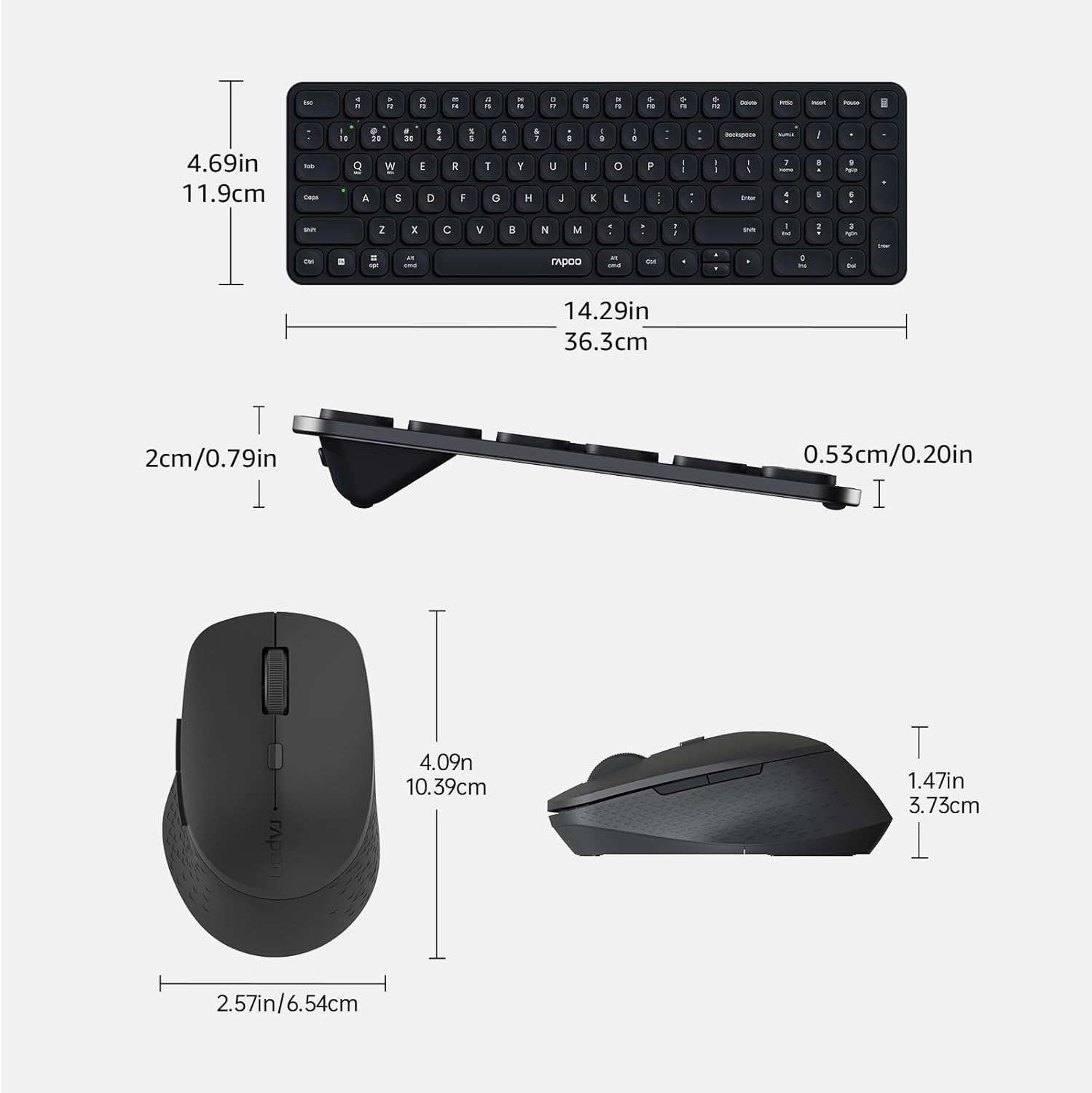
Image: Dimensions of the Rapoo 9360M keyboard and M300G mouse.
الضمان والدعم
For warranty information and technical support, please refer to the official Rapoo webالموقع أو تواصل مع التاجر المحلي. احتفظ بإيصال الشراء لطلبات الضمان.


