1. المقدمة
This manual provides essential information for the safe and efficient operation of your Machenike Machcreator N17A laptop. Please read this manual thoroughly before using the device and retain it for future reference.
2. محتويات العبوة
تأكد من وجود جميع العناصر في العبوة:
- كمبيوتر محمول Machenike Maccreator N17A
- محول الطاقة
- دليل المستخدم (هذا المستند)
3. انتهى المنتجview
The Machenike Machcreator N17A is a 17.3-inch laptop designed for daily computing tasks. It features an Intel N100 Processor, 8GB DDR5 RAM, and a 256GB PCIe SSD for responsive performance. The 17.3" Full HD 120Hz display provides clear visuals, and the laptop runs on Windows 11 Home.
3.1. مكونات الكمبيوتر المحمول

الشكل 3.1: الجبهة view of the Machenike Machcreator N17A laptop.
This image shows the overall design of the Machenike Machcreator N17A laptop, highlighting its large 17.3-inch display and sleek chassis.

Figure 3.2: The 17.3-inch Full HD 120Hz display.
تفصيلية view of the laptop's 17.3-inch Full HD display, emphasizing its narrow bezels and 120Hz refresh rate for smooth visuals.

الشكل 3.3: لوحة مفاتيح بإضاءة خلفية ولوحة لمس.
This image highlights the backlit keyboard and the spacious touchpad, designed for comfortable typing and navigation.
3.2. المنافذ والموصلات
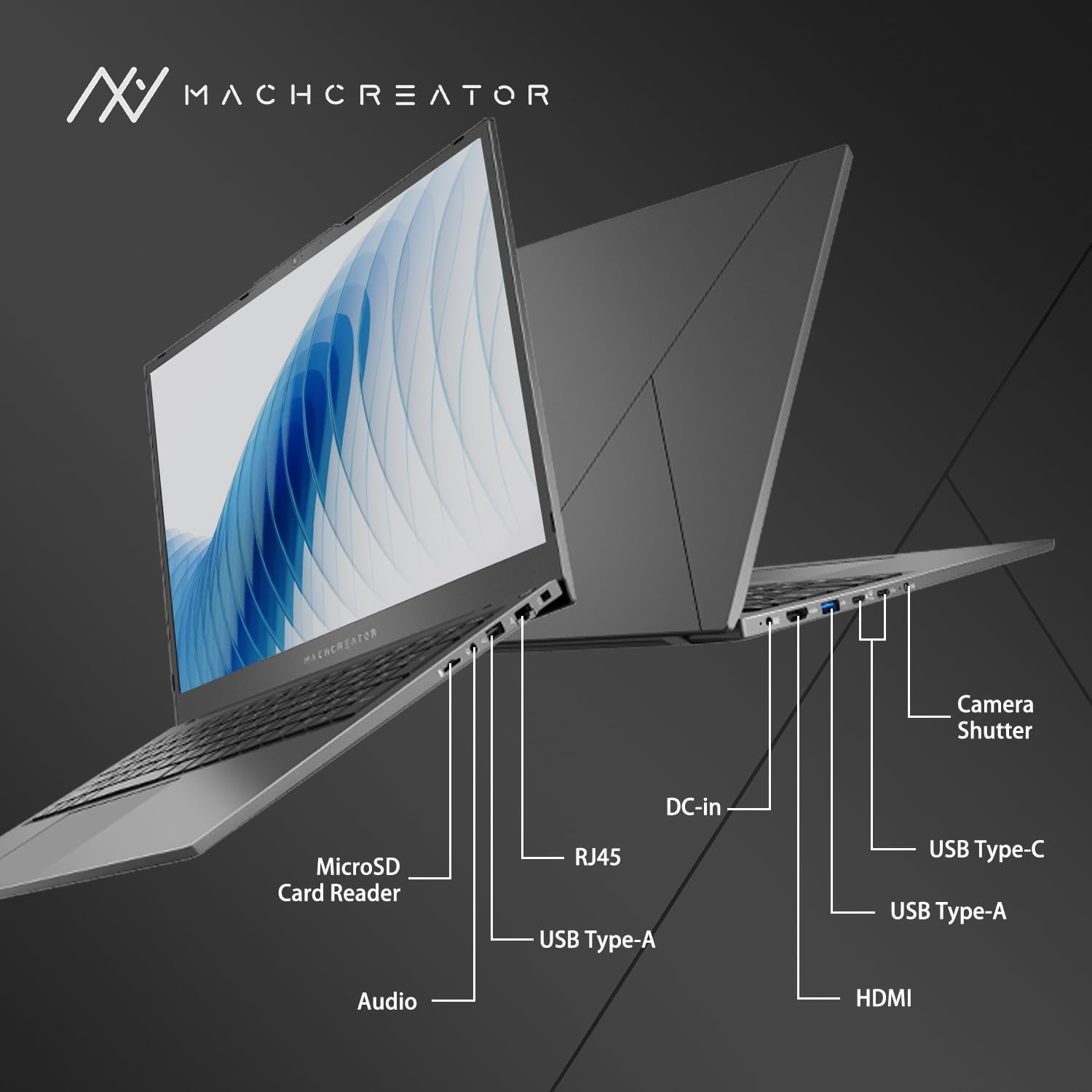
الشكل 3.4: الجانب view with port labels.
An illustration detailing the various input/output ports available on the laptop, including USB, HDMI, and the SD card reader.
- قارئ بطاقات MicroSD: For reading and writing data to MicroSD cards.
- التيار المباشر الداخل: Connect the power adapter for charging and power supply.
- ثندربولت 4 (x2): نقل البيانات بسرعة عالية، وإخراج الفيديو، وتوصيل الطاقة.
- USB 2.0 من النوع A (x2): قم بتوصيل أجهزة USB.
- HDMI: الاتصال بالشاشات أو أجهزة العرض الخارجية.
- آر جيه 45: منفذ إيثرنت للاتصال بالشبكة السلكية.
- مقبس الصوت: قم بتوصيل سماعات الرأس أو مكبرات الصوت الخارجية.
4. الإعداد
4.1. التشغيل الأولي
- قم بإخراج الكمبيوتر المحمول وجميع الملحقات من الصندوق.
- قم بتوصيل محول الطاقة بمنفذ DC-in الموجود على الكمبيوتر المحمول ثم بمأخذ الطاقة.
- افتح غطاء الكمبيوتر المحمول.
- اضغط على زر الطاقة الموجود على لوحة المفاتيح لتشغيل الكمبيوتر المحمول.
- اتبع التعليمات التي تظهر على الشاشة لإكمال عملية تثبيت نظام التشغيل Windows 11 Home. يتضمن ذلك اختيار منطقتك ولغتك وإعداد حساب المستخدم الخاص بك.
4.2. الاتصال بشبكة Wi-Fi
- During the Windows setup, you will be prompted to connect to a Wi-Fi network. Select your desired network from the list.
- Enter the Wi-Fi password if prompted and click "Connect".
- If you skip this step, you can connect later via Windows Settings: Go to يبدأ > إعدادات > الشبكات والانترنت > واي فاي.
5. تعليمات التشغيل
5.1. استخدام لوحة المفاتيح ولوحة اللمس
The laptop features a full-size keyboard with a numeric keypad and a large touchpad. The keyboard is backlit, which can be activated or adjusted using the function keys (e.g., Fn + F5).
الشكل 5.1: تخطيط لوحة المفاتيح ولوحة اللمس.
This image illustrates the keyboard and touchpad, showing the key layout and the size of the touchpad for user interaction.
5.2. توصيل الأجهزة الخارجية
استخدم المنافذ المتاحة لتوصيل الأجهزة الخارجية:
- جهاز USB:٪ s: Plug USB drives, mice, or keyboards into the USB Type-A or Thunderbolt 4 (USB-C) ports.
- العرض الخارجي: Connect an external monitor or TV using the HDMI port or one of the Thunderbolt 4 ports (with an appropriate adapter, if needed).
- بطاقات SD: Insert a MicroSD card into the MicroSD Card Reader slot to access its contents.
- شبكة سلكية: Connect an Ethernet cable to the RJ45 port for a stable wired internet connection.
5.3. Adjusting the Display Angle
The laptop screen can be adjusted up to a 170-degree angle, providing flexibility for various viewing positions, presentations, or collaborative work.
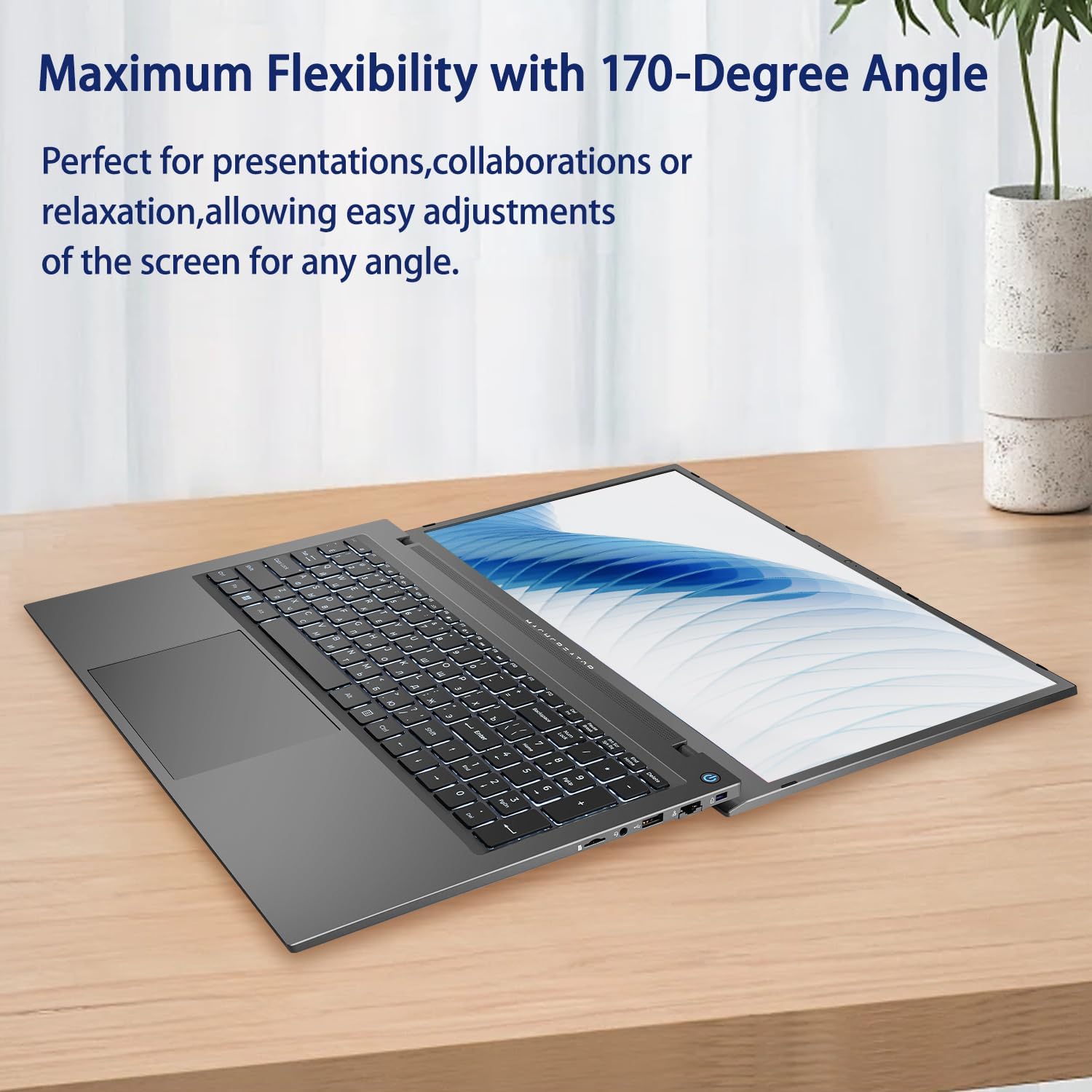
Figure 5.2: Laptop display at 170-degree angle.
This image demonstrates the laptop's ability to open its screen to a wide 170-degree angle, useful for various viewسيناريوهات.
5.4. Charging the Laptop
Connect the provided power adapter to the DC-in port. The laptop also supports fast charging via its USB-C (Thunderbolt 4) ports with a compatible USB-C Power Delivery charger.
6. الصيانة
6.1. التنظيف
- استخدم قطعة قماش ناعمة وخالية من الوبر لتنظيف الشاشة. بالنسبة للبقع العنيدة، امسح برفقampبللي قطعة القماش بالماء أو بمحلول تنظيف الشاشات.
- Wipe the keyboard and chassis with a soft, dry cloth. Avoid using harsh chemicals or abrasive materials.
- تأكد من إيقاف تشغيل الكمبيوتر المحمول وفصله عن التيار الكهربائي قبل التنظيف.
6.2. العناية بالبطارية
- تجنب تفريغ البطارية بالكامل بشكل متكرر.
- لا تعرض الكمبيوتر المحمول لدرجات حرارة عالية.
- إذا كنت ستخزن الكمبيوتر المحمول لفترة طويلة، فاشحن البطارية إلى حوالي 50-70% قبل إيقاف تشغيله.
6.3. تحديثات البرامج
قم بتحديث نظام التشغيل ويندوز وبرامج التشغيل بانتظام لضمان الأداء الأمثل والأمان. انتقل إلى يبدأ > إعدادات > تحديث الويندوز للتحقق من التحديثات.
7. استكشاف الأخطاء وإصلاحها
| مشكلة | الحل المحتمل |
|---|---|
| الكمبيوتر المحمول لا يعمل. |
|
| لا يوجد اتصال Wi-Fi. |
|
| الشاشة فارغة أو تومض. |
|
| الإضاءة الخلفية للوحة المفاتيح لا تعمل. |
|
8. المواصفات
| ميزة | التفاصيل |
|---|---|
| اسم الموديل | Machenike Machcreator N17A |
| المعالج | Intel N100 (4 Cores, up to 3.4 GHz) |
| كبش | 8 جيجابايت DDR5 (4800 ميجاهرتز) |
| تخزين | قرص SSD PCIe بسعة 256 جيجابايت |
| الرسومات | رسومات Intel UHD (متكاملة) |
| عرض | شاشة IPS مقاس 17.3 بوصة بدقة FHD (1920x1080)، ومعدل تحديث 120 هرتز |
| نظام التشغيل | ويندوز 11 هوم |
| الموانئ | 2x Thunderbolt 4, 2x USB 2.0 Type-A, 1x HDMI, 1x RJ45, 1x MicroSD Card Reader, 1x Audio Jack, 1x DC-in |
| الاتصال اللاسلكي | واي فاي (802.11n) |
| المميزات الخاصة | لوحة مفاتيح بإضاءة خلفية، لوحة مفاتيح رقمية |
| الأبعاد (الطول × العرض × الارتفاع) | 15.6 × 10.32 × 1.02 بوصة |
| وزن | 5.78 رطل |
| لون | رمادي |
9. الضمان والدعم
For warranty information and technical support, please refer to the documentation provided with your purchase or visit the official Machenike webالموقع. احتفظ بإثبات الشراء الخاص بك لتقديم مطالبات الضمان.
الموارد المتاحة على الإنترنت:
- مسؤول ماشينيكي Webموقع: www.machenike.com (ملاحظة: هذا عنصر نائب URL, please refer to your product's specific warranty card for the correct support contact.)
10. فيديو توضيحي للمنتج
Video 10.1: Machcreator N17A Laptop Overview.
يوفر هذا الفيديو عرضًا مرئيًاview of the Machenike Machcreator N17A laptop, showcasing its design, key features, and various ports. It demonstrates the unboxing experience, the backlit keyboard, and the available connectivity options.


