مقدمة
The MCHOSE V9 PRO Wireless Gaming Headset delivers an immersive audio experience with 7.1 surround sound, low-latency wireless connectivity, and an AI noise-canceling microphone. This manual provides detailed instructions for setup, operation, and maintenance to ensure optimal performance.
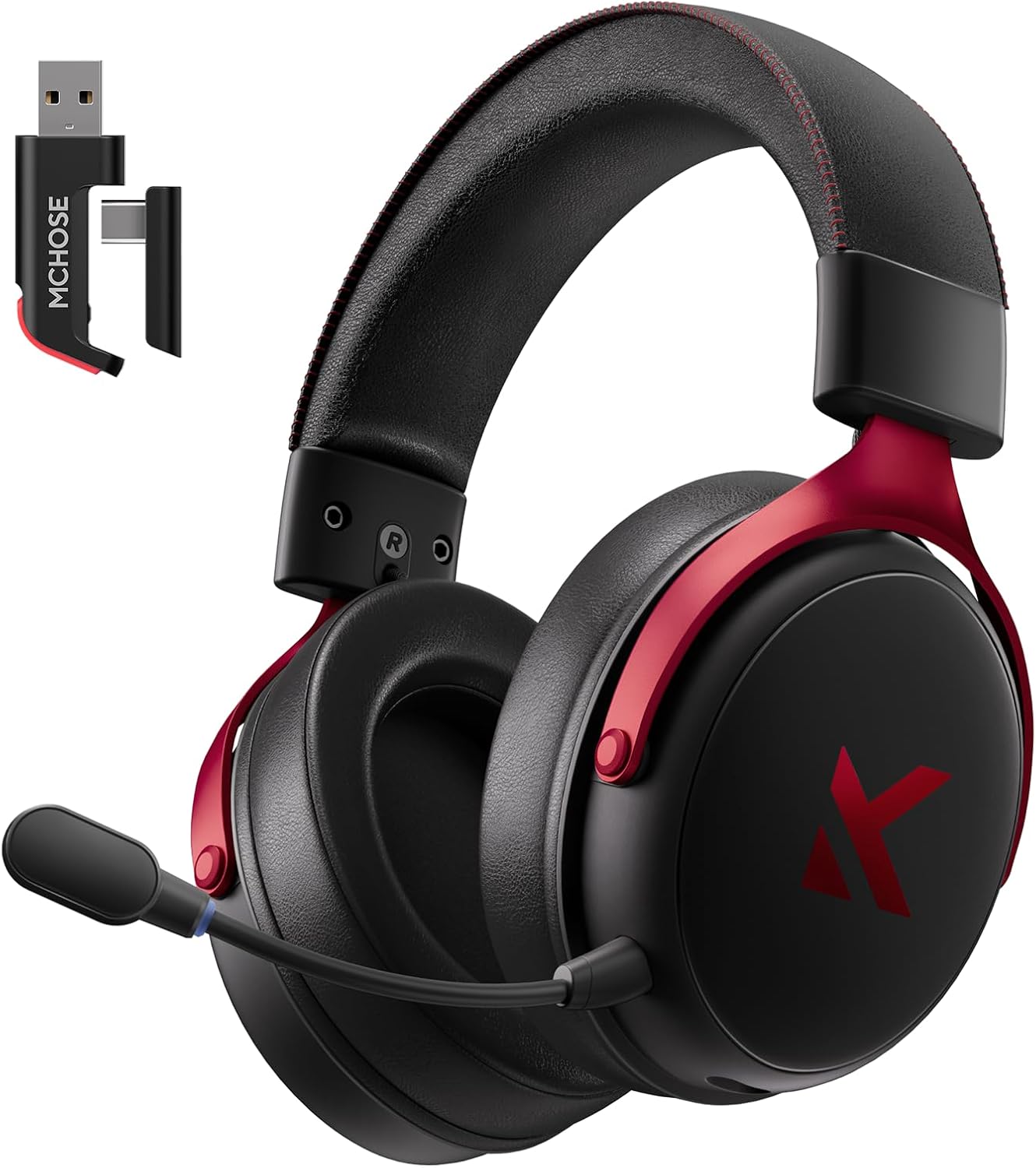
Image: MCHOSE V9 PRO Wireless Gaming Headset with its 2.4GHz USB receiver.
محتويات الحزمة
تأكد من تضمين جميع العناصر المدرجة أدناه في الحزمة الخاصة بك:
- MCHOSE V9 PRO Wireless Gaming Headset
- 2.5GHz Receiver (USB-A & Type-C compatible)
- كابل شحن USB-C
- ميكروفون قابل للفصل
- Foam Windscreen (pre-installed on microphone)
- دليل المستخدم

Image: Diagram illustrating the headset, receiver, cables, microphone, and user manual.
المنتج انتهىview
الضوابط والمؤشرات

Image: Handy guide showing the location and function of buttons and indicator lights on the headset.
- زر الطاقة: Long press for approximately 3 seconds to power on/off.
- تبديل وضع الاتصال: Double-click the power button to switch between 2.4GHz wireless, Bluetooth, and wired modes.
- تبديل وضع اللعبة/الموسيقى: Triple-click the power button to switch between Game Mode 1, Game Mode 2, and Music Mode.
- تشغيل/إيقاف مؤقت: انقر مرة واحدة على زر الطاقة.
- الرد/إنهاء المكالمة: انقر مرة واحدة على زر الطاقة.
- رفض المكالمة: Long press the power button for approximately 1.5 seconds.
- زر الميكروفون: نقرة واحدة لتبديل تشغيل/إيقاف الميكروفون.
- عجلة الحجم: Slide upwards to increase volume, slide downwards to decrease volume.
أضواء المؤشر
- Bluetooth (BT) Waiting for Connection: تومض الأضواء الحمراء والزرقاء بالتناوب.
- 2.4G Waiting for Connection: Red and green lights flash alternately.
- الشحن: يبقى الضوء الأحمر قيد التشغيل.
- مشحونة بالكامل: الضوء الأزرق يبقى مضاءً.
- 2.4G Mode Active: ضوء اخضر.
- Bluetooth Mode Active: ضوء أزرق.
- Microphone Active: Blue light on microphone tip.
الإعداد والاتصال
2.4GHz Wireless Connection (PC, PS5, PS4, Switch)
- Remove the 2.4GHz USB receiver from its storage slot on the headset.
- Plug the 2.4GHz receiver into an available USB-A port on your computer or gaming console. For devices with only USB-C ports, detach the USB-A adapter from the receiver and plug in the USB-C end.
- Press and hold the power button on the headset for approximately 3 seconds to power it on.
- Double-click the power button to ensure the headset is in 2.4GHz wireless mode (indicated by a green light). The headset should automatically connect to the receiver.
Bluetooth Wireless Connection (Mobile Phone, Tablet, PC, Switch)
- Press and hold the power button on the headset for approximately 3 seconds to power it on.
- Double-click the power button to switch the headset to Bluetooth mode (indicated by a blue light flashing alternately with red).
- On your device (phone, tablet, PC, Switch), navigate to Bluetooth settings and search for "MCHOSE V9 PRO".
- Select the headset to pair. Once connected, the blue light will remain steady.
Wired Connection (PC, PS5, PS4, Switch, Mobile Phone, Tablet)
The headset supports a wired connection via the included USB-C cable. This mode is primarily for charging and can also be used for audio if wireless options are not preferred or available.
- Connect the USB-C cable to the headset's charging port.
- قم بتوصيل الطرف الآخر من كابل USB-C بجهازك.
- The headset will function as a wired device.
إعداد الميكروفون
- Plug the detachable microphone into the designated port on the left earcup of the headset. Ensure it is securely inserted.
- Adjust the microphone's position for optimal voice pickup.
- Single-click the microphone button on the headset to toggle the microphone on or off. A blue light on the microphone tip indicates it is active.
Video: This video demonstrates the initial setup of the MCHOSE V9 PRO Wireless Gaming Headset, including connecting the 2.4GHz receiver, powering on, switching modes, and attaching the microphone.
Software Installation and Customization (MCHOSE HUB)
The MCHOSE HUB software allows for advanced customization of your headset's audio settings. It is compatible with Windows 10 and above.
خطوات التثبيت
- قم بزيارة موقع MCHOSE الرسمي webموقع (mchose.store).
- Navigate to the 'Support' section and click on 'Drivers & Firmwares'.
- Locate the 'V9 / V9 Pro Driver' and download the desktop driver.
- Before installing the driver, ensure the 2.4GHz receiver is plugged into your computer.
- Install the downloaded driver and follow the on-screen instructions.
- Once installed, open the MCHOSE HUB application. You can switch the application language to English from the settings.
Video: This video guides you through the process of connecting and installing the MCHOSE desktop driver for your headset.
Audio Equalizer Customization
The MCHOSE HUB features a customizable equalizer to fine-tune your audio output.
- In the MCHOSE HUB, right-click on 'Speakers' and select 'Equalizer'.
- Enable the equalizer.
- Adjust the frequency bands as needed to create your desired sound profile.
- You can save your custom settings as a preset or choose from official presets like Dance, Rap, Metal, Jazz, etc.
- You can also restore the default equalizer settings.

Image: Screenshot of the MCHOSE HUB software interface displaying the audio equalizer settings.
صوت محيطي 7.1
Enable 7.1 surround sound for enhanced spatial awareness in games and movies.
- In the MCHOSE HUB, right-click on 'Speakers' and select 'Xear Surround Headphone'.
- Enable Xear Surround.
- Choose between 'Music/Gaming mode' or 'Movie mode' based on your content.
- Adjust the 'Room Size' for optimal effect.

Image: Visual representation of 7.1 surround sound technology with the MCHOSE V9 PRO headset.
Voice Effects (Magic Voice)
The software includes various voice effects for fun or specific communication needs.
- In the MCHOSE HUB, right-click on 'Mic' and select 'Xear Magic Voice'.
- Enable 'Magic Voice' and choose from different voice effects.
AI Noise Reduction for Microphone
Enhance microphone clarity by enabling AI noise reduction.
- In the MCHOSE HUB, right-click on 'Mic' and select 'AI NoiseReduction'.
- Enable 'AI NoiseReduction' to filter out background noise.
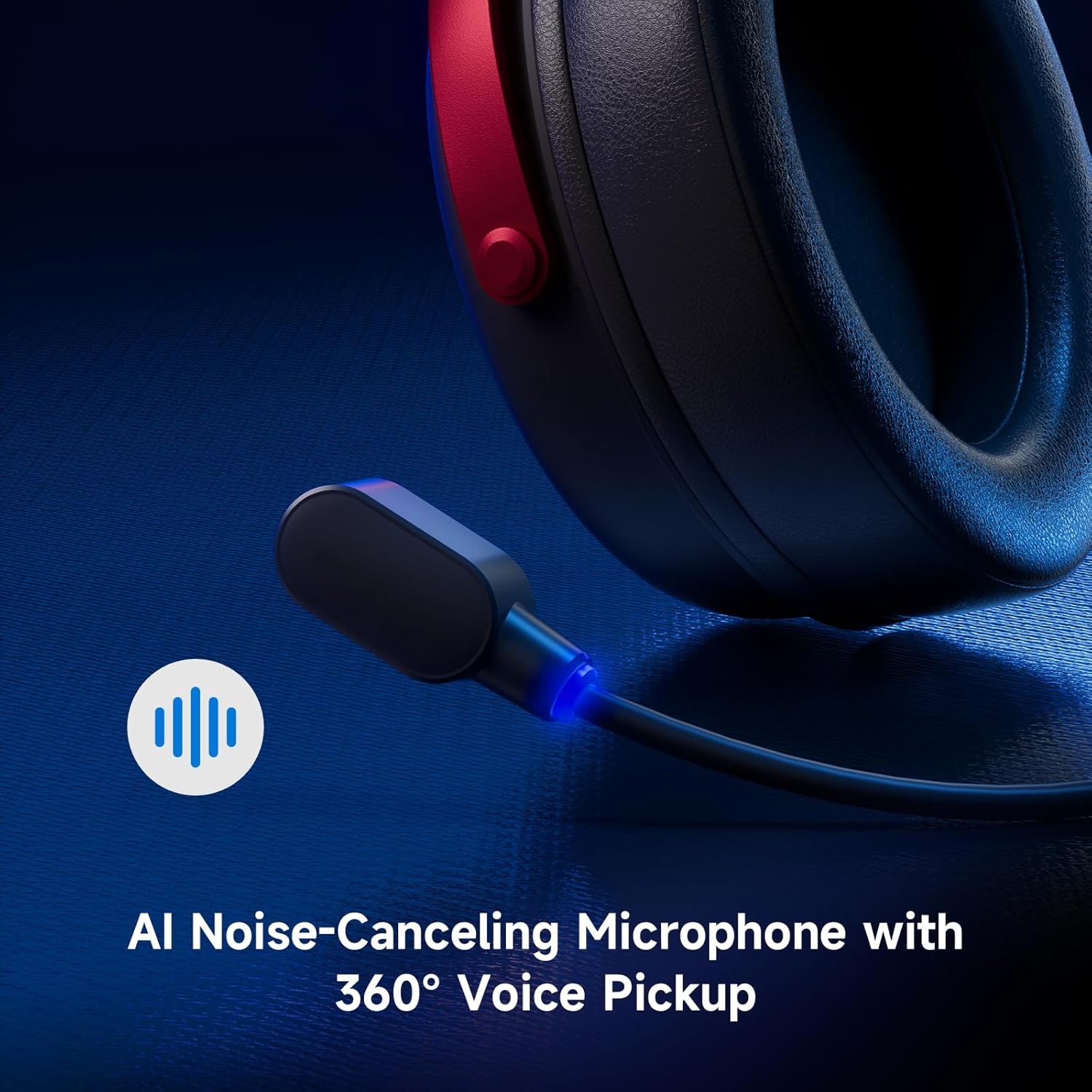
Image: Close-up of the AI Noise-Canceling Microphone on the MCHOSE V9 PRO headset.
تعليمات التشغيل
تشغيل/إيقاف الطاقة
To power on the headset, press and hold the power button for approximately 3 seconds. To power off, repeat the action.
تبديل الأوضاع
Double-click the power button to cycle through 2.4GHz wireless, Bluetooth, and wired connection modes. The indicator light color will change accordingly (Green for 2.4GHz, Blue for Bluetooth).
Triple-click the power button to switch between Game Mode 1, Game Mode 2, and Music Mode, optimizing audio profiles for different content.
التحكم في مستوى الصوت
Use the volume wheel located on the earcup to adjust the audio output level. Slide up to increase volume, slide down to decrease volume.
كتم صوت الميكروفون
Single-click the microphone button to mute or unmute the microphone. The blue light on the microphone tip indicates its active status.
صيانة
- تنظيف: استخدم قطعة قماش ناعمة وجافة لتنظيف سماعة الرأس. تجنب استخدام المواد الكيميائية القاسية أو المواد الكاشطة.
- تخزين: قم بتخزين سماعة الرأس في مكان بارد وجاف بعيدًا عن أشعة الشمس المباشرة ودرجات الحرارة القصوى.
- العناية بالبطارية: For optimal battery life, avoid fully discharging the headset frequently. Charge it regularly.
- ميكروفون: Handle the detachable microphone carefully. Ensure the foam windscreen is properly seated.
استكشاف الأخطاء وإصلاحها
- لا يوجد صوت/مستوى صوت منخفض:
- Check headset volume wheel and device volume settings.
- Ensure the headset is correctly connected (2.4GHz receiver, Bluetooth, or wired).
- تأكد من تحديد جهاز إخراج الصوت الصحيح في إعدادات الصوت بجهاز الكمبيوتر الخاص بك.
- الميكروفون لا يعمل:
- Ensure the microphone is securely plugged into the headset.
- Check if the microphone is muted (blue light on tip should be on).
- تأكد من تحديد جهاز إدخال الميكروفون الصحيح في إعدادات الصوت بجهازك.
- If using MCHOSE HUB, check AI Noise Reduction settings.
- Connection Issues (2.4GHz/Bluetooth):
- Ensure the headset is in the correct connection mode (green light for 2.4GHz, blue for Bluetooth).
- For 2.4GHz, try plugging the receiver into a different USB port.
- For Bluetooth, try unpairing and re-pairing the headset with your device.
- تأكد من شحن سماعة الرأس.
- Software Not Detecting Headset:
- Ensure the 2.4GHz receiver is plugged into the computer before launching the MCHOSE HUB.
- Restart the MCHOSE HUB application and/or your computer.
تحديد
| اسم الموديل | في 9 برو |
| ماركة | مشوز |
| تكنولوجيا الاتصال | 2.4GHz Wireless, Bluetooth (BT 5.1), Wired |
| برامج تشغيل الصوت | 53mm Neodymium Drivers with Bio-cellulose Diaphragm |
| الصوت المحيطي | صوت محيطي 7.1 |
| ميكروفون | AI Noise-Canceling Microphone with 360° Voice Pickup |
| زمن الوصول اللاسلكي | 15ms (TOPSPEED 2.4GHz) |
| عمر البطارية | تصل مدة اللعب إلى 250 ساعة |
| نسخة البلوتوث | 5.1 |
| مدى البلوتوث | حتى 40 أمتار |
| الأجهزة المتوافقة | PC, Laptop, Switch, PS5, PS4, Mobile Phone, Tablet |
| وزن | 0.60 رطل (حوالي 275 جرام) |
| مادة | Metal, Plastic, Polyurethane (PU) |
| وضع الأذن | فوق الأذن |
الضمان والدعم
MCHOSE products are designed for quality and reliability. For warranty information, technical support, or to contact customer service, please visit the official MCHOSE webالموقع في mchose.store. You can find detailed warranty policies and support contact information in the 'Support' section of the webموقع.


