1. المقدمة
Thank you for choosing the IRONZON Fingerprint Door Lock with Mini G2 Gateway. This smart lock system provides advanced security and convenient access for various environments, including homes, hotels, offices, and apartments. It integrates multiple unlocking methods, including fingerprint recognition, passcodes, traditional keys, and smart app control via the included Mini G2 Gateway.
This manual will guide you through the installation, setup, operation, and maintenance of your new smart door lock, ensuring optimal performance and security.

Image 1.1: The IRONZON Fingerprint Door Lock, Mini G2 Gateway, and a smartphone displaying the control app.
2. محتويات العبوة
يرجى التأكد من وجود جميع المكونات في العبوة قبل المتابعة في عملية التثبيت:
- Front Handle Assembly (with fingerprint sensor and keypad)
- مجموعة المقبض الخلفي
- مزلاج قابل للتعديل
- لوحة الإضراب وصندوق الإضراب
- Mounting Screws and Spindles
- شنومكس x مفاتيح ميكانيكية
- Mini G2 Gateway
- USB-C Power Cable for Gateway
- دليل المستخدم (هذا المستند)

الصورة 2.1: انتهىview of the IRONZON Fingerprint Door Lock and its included accessories.
3. الميزات الرئيسية
- طرق فتح متعددة: Access your door using fingerprint, passcode, mechanical key, or the smart app.
- Fast Biometric Recognition: Unlock the door in under 1 second with advanced fingerprint technology.
- Remote Control & Monitoring: The included Mini G2 Gateway enables remote control and real-time status monitoring via the Tuya Smart App (2.4G Wi-Fi required).
- رموز الوصول المؤقتة: Generate and manage temporary passcodes for guests or service personnel.
- سجل النشاط: View a detailed history of who accessed the door and when through the app.
- بناء متين: All-metal design ensures longevity and blends with modern decor.
- مزلاج قابل للتعديل: Compatible with most standard door preparations.
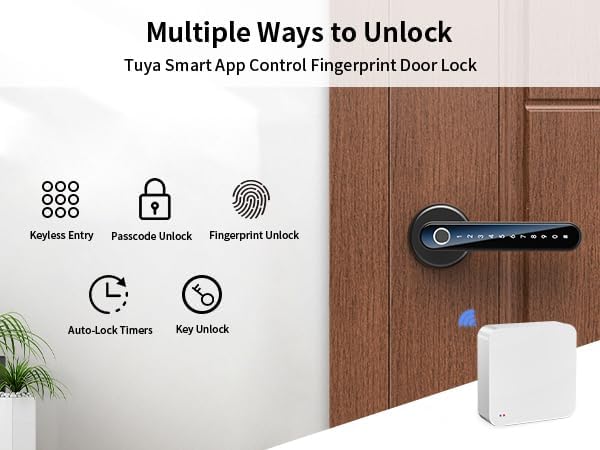
Image 3.1: Visual representation of the various unlocking methods available with the smart door lock.

Image 3.2: The Mini G2 Gateway enables remote control of the door lock from anywhere via the app.
4. دليل الإعداد
4.1. التثبيت
Before installation, ensure your door thickness is between 1⅜ inches (35mm) and 1¾ inches (45mm) and the backset distance is between 2⅜ inches (60mm) and 2¾ inches (70mm).
- جهز الباب: If replacing an existing lock, remove it. Ensure the door boreholes are clean and correctly sized.
- تثبيت المزلاج: Insert the adjustable latch into the door edge. Ensure the latch bolt faces the correct direction (slanted side towards the door frame). Secure with screws.
- Install the Front Handle: Insert the spindle through the latch. Position the front handle assembly on the exterior side of the door, ensuring the cable passes through the borehole.
- Install the Rear Handle: Connect the cable from the front handle to the rear handle assembly. Align the rear handle with the spindle and mounting posts. Secure with mounting screws from the interior side.
- أدخل البطاريات: Open the battery cover on the rear handle. Insert 4 AAA batteries (not included), ensuring correct polarity. Close the battery cover.
- عملية الاختبار: Manually test the handle and latch to ensure smooth operation.

Image 4.1: Detailed installation guide and applicable door dimensions for the smart lock.
4.2. App Download and Setup
The IRONZON Fingerprint Door Lock uses the Tuya Smart App for smart features.
- تحميل التطبيق: بحث عن "Tuya Smart" in your smartphone's app store (iOS or Android) and download it.
- التسجيل/تسجيل الدخول: افتح التطبيق وقم بتسجيل حساب جديد أو قم بتسجيل الدخول إذا كان لديك حساب بالفعل.
- إضافة جهاز: Tap the "+" icon in the top right corner or select "Add Device." Choose "Security & Video Surveillance" > "Smart Lock" or use the auto-scan feature.
- قفل الزوج: Follow the on-screen instructions to put the lock into pairing mode (usually by pressing a button on the interior handle or entering a specific code on the keypad). The app will detect and connect to the lock via Bluetooth.
- تعيين المسؤول: Once connected, you will be prompted to set up the administrator fingerprint and passcode. This is crucial for initial access and managing other users.
4.3. Mini G2 Gateway Pairing
The Mini G2 Gateway enables remote control and monitoring of your lock via Wi-Fi.
- Power On Gateway: Connect the Mini G2 Gateway to a power source using the provided USB-C cable. The indicator light will flash.
- Add Gateway to App: In the Tuya Smart App, tap "+" to add a new device. Select "Gateway" > "Wireless Gateway (Wi-Fi)" or use auto-scan.
- الاتصال بشبكة Wi-Fi: Follow the app instructions to connect the gateway to your 2.4GHz Wi-Fi network.
- Link Lock to Gateway: Once the gateway is online, navigate to your lock's settings within the Tuya Smart App. Select the option to link it to the newly added gateway. Ensure the gateway is within Bluetooth range of the lock for initial linking.

Image 4.2: Specifications and physical dimensions of the Mini G2 Gateway.
5. تعليمات التشغيل
5.1. طرق فتح القفل
- فتح القفل ببصمة الإصبع: ضع إصبعك المسجل بإحكام على مستشعر بصمة الإصبع. سيتم فتح القفل إذا تم التعرف على بصمة الإصبع.
- Passcode Unlocking: Enter your registered passcode on the keypad, followed by the '#' key. The lock will unlock if the passcode is correct.
- Mechanical Key Unlocking: Insert the mechanical key into the keyhole located on the front handle and turn to unlock. This is a backup method for emergencies or battery depletion.
- App Unlocking: Open the Tuya Smart App, select your lock, and tap the unlock icon. This can be done via Bluetooth (close range) or remotely via the Mini G2 Gateway (Wi-Fi).

Image 5.1: The Tuya Smart App provides multiple options for unlocking and managing the door lock.
5.2. User Management (via Tuya Smart App)
The app allows you to manage users, add/delete fingerprints and passcodes, and set access schedules.
- إضافة مستخدم: In the app, navigate to your lock's settings and select "Member Management" or "Users." Follow the prompts to add new users, assigning them fingerprints or passcodes.
- Generate Temporary Codes: Select "Temporary Code" to create time-limited or one-time access codes for guests.
- View سجل النشاط: Access the "Log" section to review a chronological record of all lock and unlock events, including the method used and the user.
- جهاز التحكم عن بعد: With the gateway connected, you can lock/unlock the door remotely, modify user access, and receive notifications.

Image 5.2: The app allows for remote monitoring of door status, viewing activity logs, and managing access.
6. الصيانة
6.1. استبدال البطارية
The lock requires 4 AAA batteries. When the battery level is low, the lock will provide an audible warning. Replace batteries promptly to avoid loss of function.
- Locate the battery cover on the interior handle.
- قم بإزالة المسمار الذي يثبت غطاء البطارية.
- Remove the old batteries and insert 4 new AAA batteries, ensuring correct polarity.
- استبدل غطاء البطارية وثبته بالمسمار.
ملحوظة: If batteries completely deplete, you can use the mechanical key or connect a USB-C power bank to the emergency power port on the exterior handle to temporarily power the lock for entry.
6.2. التنظيف
To maintain the appearance and functionality of your lock:
- امسح سطح القفل بقطعة قماش ناعمة وجافة.
- تجنب استخدام المنظفات الكاشطة أو المذيبات أو المواد الكيميائية القاسية، حيث يمكن أن تؤدي إلى إتلاف الطبقة النهائية والمكونات الإلكترونية.
- حافظ على نظافة مستشعر بصمة الإصبع ولوحة المفاتيح وخلوها من الأوساخ للحصول على أفضل أداء.
7. استكشاف الأخطاء وإصلاحها
| مشكلة | السبب المحتمل | حل |
|---|---|---|
| القفل لا يستجيب. | البطاريات الميتة. | Replace batteries. Use mechanical key or emergency USB-C power. |
| لم يتم التعرف على بصمة الإصبع. | Finger is wet/dirty, sensor is dirty, or fingerprint not properly registered. | Ensure finger and sensor are clean and dry. Re-register fingerprint, trying different angles. |
| رمز المرور لا يعمل. | Incorrect passcode entered, or passcode not registered. | Verify passcode. Ensure '#' is pressed after the code. Register passcode via app. |
| لا يمكن الاتصال بالتطبيق. | Bluetooth/Wi-Fi off, lock/gateway out of range, or pairing issue. | Ensure Bluetooth is on. Move closer to the lock/gateway. Check Wi-Fi connection (2.4GHz only). Re-pair device in app. |
| البوابة لا تتصل بشبكة الواي فاي. | كلمة مرور Wi-Fi غير صحيحة، أو شبكة 5 جيجاهرتز، أو إشارة ضعيفة. | Verify Wi-Fi password. Ensure you are connecting to a 2.4GHz network. Move gateway closer to router. |
| Lock makes unexpected sounds or locks automatically. | Auto-lock feature enabled, or internal error. | Check auto-lock settings in the app. If persistent, perform a factory reset (refer to app instructions for reset procedure). |
8. المواصفات
| ميزة | التفاصيل |
|---|---|
| ماركة | IRONZON |
| اسم الموديل | LOC191GWBUSIR |
| نوع القفل | القياسات الحيوية (بصمة الإصبع) |
| طرق فتح القفل | Fingerprint, Passcode, Key, App (Bluetooth/Wi-Fi via Gateway) |
| طريقة التحكم | التطبيق، عن بعد |
| مزود الطاقة | 4 بطاريات AAA (غير مدرجة) |
| الطاقة الطارئة | منفذ USB-C |
| سمك الباب | 1.38 - 1.77 بوصة (35 مم - 45 مم) |
| Backset Distance | 2.36 - 2.75 بوصة (60 مم - 70 مم) |
| أبعاد العنصر (الطول × العرض × الارتفاع) | 6.3 × 2.3 × 2.3 بوصة |
| وزن العنصر | 1.94 جنيه (0.88 كيلوجرام) |
| شبكة البوابة | واي فاي 2.4G |
| Gateway Power Interface | USB من النوع C (تيار مستمر 5 فولت/1 أمبير) |
| Gateway Bluetooth | بلوتوث 4.2 منخفض الطاقة |
9. الضمان والدعم
IRONZON products are designed for reliability and performance. This product comes with a standard manufacturer's warranty against defects in materials and workmanship. Please refer to the warranty card included in your package for specific terms and conditions, including the warranty period and coverage details.
For technical support, troubleshooting assistance, or warranty claims, please contact IRONZON customer service through the following channels:
- بريد إلكتروني: Refer to your product packaging or the IRONZON official webللحصول على أحدث بريد إلكتروني للتواصل، تفضل بزيارة الموقع.
- الدعم عبر الإنترنت: Visit the IRONZON official webالموقع الخاص بالأسئلة الشائعة ومقالات الدعم ونماذج الاتصال.
When contacting support, please have your product model number (LOC191GWBUSIR) and purchase information readily available.


