مقدمة
This manual provides detailed instructions for the Phomemo PM-248-WF WiFi Thermal Label Printer. It covers initial setup, operational procedures, maintenance guidelines, and troubleshooting steps to ensure optimal performance and longevity of your device. Please read this manual thoroughly before using the printer.

Image: The Phomemo PM-248-WF printer demonstrating its WiFi capability with a printed label.
محتويات الحزمة
تأكد من تضمين جميع العناصر المذكورة أدناه في طردك. في حال وجود أيٍّ منها مفقودًا أو تالفًا، يُرجى التواصل مع خدمة العملاء.
- 1x Phomemo 248-WF Wi-Fi Label Printer
- 1x Power Cord & Adapter
- 1 × كابل يو اس بي
- 1 × محول USB-C
- دليل مستخدم شنومكس
- 10 sheets of 4x6 Label Paper

Image: A visual representation of all components included in the Phomemo 248-WF product package.
البدء: الإعداد
1. توصيل الطاقة
- Connect the power adapter to the printer's power port.
- قم بتوصيل سلك الطاقة بمأخذ كهربائي قياسي.
- Press the power button to turn on the printer. The indicator light will illuminate.
2. تحميل العلامات
- افتح غطاء الطابعة.
- Adjust the label guides to match the width of your labels (supports 1 to 4.6 inches).
- Insert the labels with the print side facing up. Ensure the labels are fed smoothly into the printer.
- أغلق غطاء الطابعة. ستقوم الطابعة تلقائيًا باكتشاف حجم الملصق ومعايرته.

Image: The printer's adjustable label guides, accommodating various label widths.
3. تثبيت البرامج والاتصال
Mobile Device Setup (Labelife App)
- Download the "Labelife" app from the App Store (iOS) or Google Play Store (Android).
- تأكد من تفعيل خاصية البلوتوث والواي فاي في هاتفك.
- Open the Labelife app and connect to the printer (PM-248-WF).
- Follow the in-app instructions for network configuration, entering your Wi-Fi password when prompted.
- Once connected, you can import and print labels directly from the app.

Image: Step-by-step guide for connecting the printer via the Labelife mobile application.
Computer Setup (Printer Setting Tool)
- Download the Printer Setting Tool for Windows or macOS from the official Phomemo webالموقع أو aimotech.com/labelife/analysis.html.
- Connect your computer to the printer via the provided USB cable.
- Launch the Printer Setting Tool. Select your Wi-Fi network and enter the password to configure the printer's Wi-Fi connection.
- After initial Wi-Fi setup, the printer will automatically connect to the configured network upon power-on. USB connection is also available for printing.

Image: Instructions for configuring the printer's Wi-Fi network using the computer-based Printer Setting Tool.
اتصال لاسلكي (واي فاي)
The PM-248-WF supports 5GHz Wi-Fi for stable and fast wireless printing from iOS, Android, iPad, macOS, and Windows devices. Ensure your device is connected to the same Wi-Fi network as the printer.
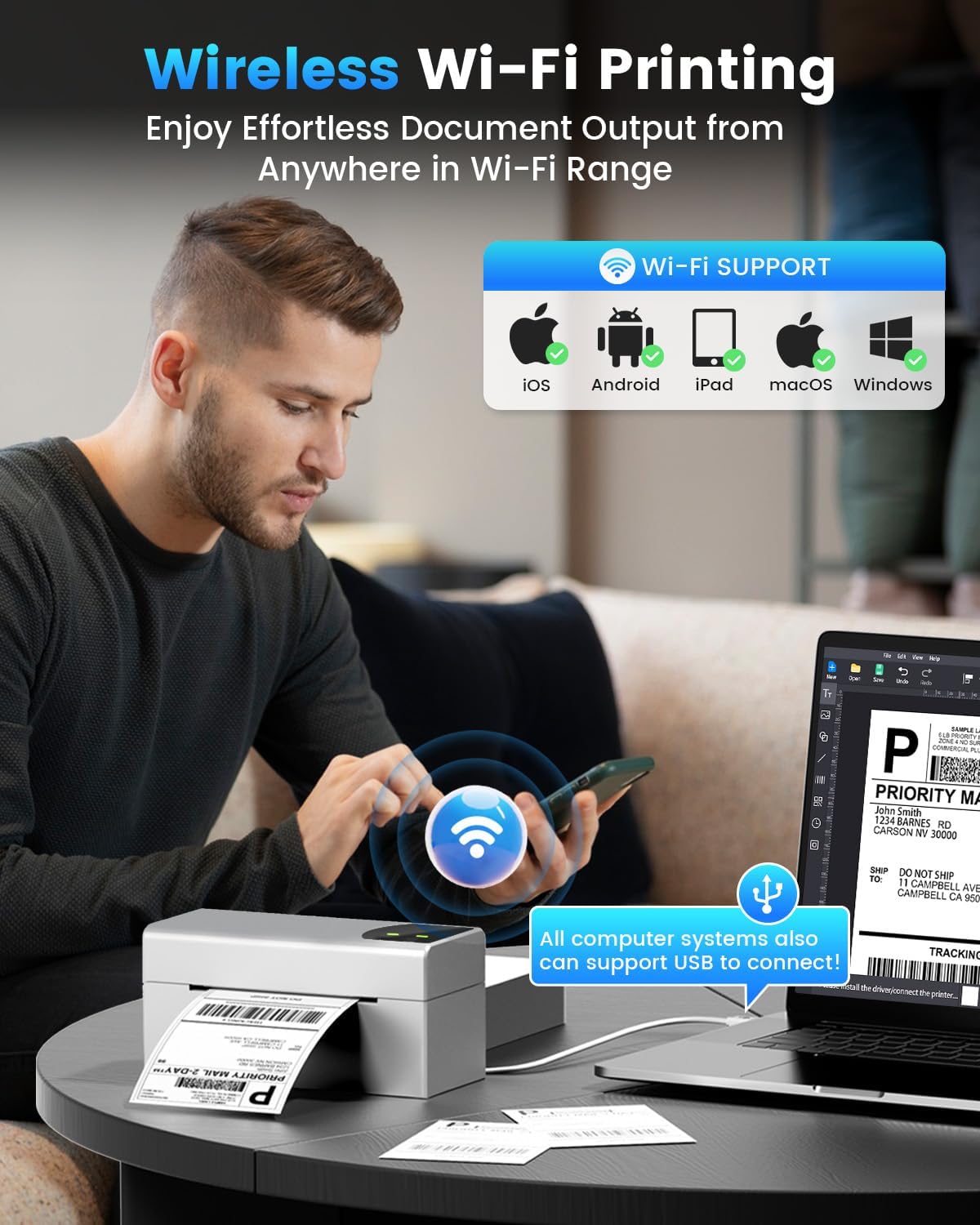
Image: Demonstrates wireless printing from various devices to the Phomemo printer.
اتصال USB
For direct connection, use the provided USB cable. The printer is compatible with ChromeOS, Linux, macOS, and Windows systems via USB. This offers an alternative to wireless printing.
عملية
1. طباعة الملصقات
Once the printer is set up and labels are loaded, you can initiate printing from your connected device or computer. The printer features a speed of 150 mm/s, capable of producing up to 72 sheets of 4x6 labels per minute with 203 DPI resolution.

Image: The printer's high-speed printing capability, highlighting its efficiency.
2. Supported Platforms and Label Types
The Phomemo PM-248-WF is compatible with major shipping platforms and marketplaces, including FedEx, UPS, USPS, ShipStation, Shopify, Amazon, Etsy, eBay, and more. It supports various label sizes from 1 to 4.6 inches, allowing for printing of shipping labels, barcodes, product labels, and custom stickers.

Image: The printer's broad compatibility with various e-commerce and shipping platforms.

Image: Printer in use for shipping packages.

Image: Printer used for custom labels on jars.
صيانة
Regular maintenance ensures the longevity and performance of your thermal label printer.
- تنظيف رأس الطباعة: استخدمي قطعة قطنية برفقampened with isopropyl alcohol to gently wipe the print head. Ensure the printer is off and cooled down before cleaning. Allow it to dry completely before use.
- تنظيف أسطوانة الطباعة: Rotate the platen roller and wipe it with a damp cloth to remove any dust or adhesive residue.
- التنظيف الخارجي: امسح الجزء الخارجي من الطابعة بقطعة قماش ناعمة وجافة. تجنب استخدام المواد الكيميائية القاسية أو المنظفات الكاشطة.
- No Ink or Toner Required: As a thermal printer, it does not require ink cartridges or toner, simplifying maintenance.
استكشاف الأخطاء وإصلاحها
يرجى الرجوع إلى الجدول التالي للتعرف على المشكلات الشائعة وحلولها.
| مشكلة | السبب المحتمل | حل |
|---|---|---|
| الطابعة لا تعمل | كابل الطاقة مفصول؛ مشكلة في مأخذ الطاقة | تحقق من توصيلات كابل الطاقة؛ جرب منفذًا كهربائيًا مختلفًا. |
| Cannot connect via Wi-Fi | Incorrect Wi-Fi password; printer not on same network; 5GHz compatibility issue | Verify Wi-Fi password; ensure printer and device are on the same 5GHz network; reconfigure Wi-Fi using the app or computer tool. |
| Printer not detected by computer/app | Software not installed; USB cable issue; Bluetooth/Wi-Fi off | Install Labelife app or Printer Setting Tool; check USB cable connection; ensure Bluetooth/Wi-Fi is enabled on your device. |
| جودة طباعة رديئة (باهتة، ضبابية) | Print head dirty; low-quality labels; incorrect print density settings | Clean the print head; use high-quality thermal labels; adjust print density in software settings. |
| عدم تغذية الملصقات بشكل صحيح | Labels loaded incorrectly; label guides not adjusted; paper sensor issue | Reload labels correctly (print side up); adjust label guides snugly; clean paper sensor if accessible. |
| تتوقف الطابعة عن الطباعة في منتصف المهمة | Connectivity interruption; out of labels; overheating | Check Wi-Fi/USB connection; replace label roll; allow printer to cool down. |
المواصفات الفنية
| ميزة | مواصفة |
|---|---|
| اسم الموديل | PM-248-WF |
| تكنولوجيا الطباعة | حراري |
| تكنولوجيا الاتصال | منفذ USB، واي فاي (5 جيجاهرتز) |
| أقصى سرعة للطباعة (أحادية اللون) | 150 mm/s (72 sheets of 4x6 labels per minute) |
| أقصى دقة طباعة | 203 نقطة في البوصة |
| الحد الأقصى لحجم الوسائط | 4 × 6 بوصة |
| عرض الملصقات المدعومة | 1" - 4.6" |
| الأجهزة المتوافقة | iOS, Android, iPad, macOS, Windows (Wi-Fi); ChromeOS, Linux, macOS, Windows (USB) |
| أبعاد المنتج | 7.16 بوصة عمق × 3.54 بوصة عرض × 3.5 بوصة ارتفاع |
| وزن العنصر | 1.58 رطل |
| المميزات الخاصة | Portable, Wireless Wi-Fi & USB Connection, No Ink, Auto Detection, Auto Paper Return, Intelligent Self-Test |
الضمان والدعم
The Phomemo PM-248-WF Thermal Label Printer comes with a limited warranty. For specific details regarding warranty coverage and duration, please refer to the warranty card included in your package or visit the official Phomemo webموقع.
For technical assistance, troubleshooting, or any product-related inquiries, please contact Phomemo customer support. Contact information can typically be found in the user guide or on the manufacturer's webموقع.


