1. انتهى المنتجview
The Darmoshark M5PRO is a lightweight, tri-mode wireless gaming mouse designed for precision and versatility. It features a PAW3950 optical sensor, up to 30000 DPI, and 5 programmable buttons. The mouse supports 8K wireless, Bluetooth, and wired connections.

Image 1.1: The Darmoshark M5PRO mouse (red) and its 8K wireless receiver.

Image 1.2: Key features of the M5PRO mouse, including its sensor, polling rate, and microcontroller.
فيديو 1.1: أكثر منview of the Darmoshark M5PRO Wireless Gaming Mouse, showcasing its design and various color options.
2. تعليمات الإعداد
2.1 شحن الماوس
Before initial use, ensure the mouse is fully charged. Connect the provided USB-C cable to the mouse and a power source (e.g., computer USB port, USB wall adapter). The LED indicator will show charging status.

Image 2.1: The M5PRO mouse is equipped with a 300mAh lithium battery for extended use.
2.2 أوضاع الاتصال
The M5PRO mouse supports three connection modes: 8K wireless, Bluetooth, and wired USB-C.
2.2.1 8K Wireless Connection
- Connect the 8K wireless receiver to an available USB port on your computer.
- Turn on the mouse and select the 8K wireless mode using the switch on the bottom of the mouse.
- يجب أن يتصل الماوس بالجهاز المستقبل تلقائيًا.

Image 2.2: The 8K wireless receiver provides a high-speed connection for the M5PRO mouse.
2.2.2 اتصال البلوتوث
- Turn on the mouse and select the Bluetooth mode using the switch on the bottom of the mouse.
- على جهاز الكمبيوتر الخاص بك أو جهازك، انتقل إلى إعدادات البلوتوث وابحث عن أجهزة جديدة.
- Select "Darmoshark M5PRO" from the list of available devices to pair.
2.2.3 اتصال سلكي
- Connect the USB-C cable to the mouse and the other end to a USB port on your computer.
- سيتحول الماوس تلقائيًا إلى الوضع السلكي ويبدأ الشحن.
3. تعليمات التشغيل
3.1 وظائف الأزرار
The M5PRO mouse features 5 programmable buttons:
- زر النقر الأيسر
- انقر بزر الماوس الأيمن
- عجلة التمرير (قابلة للنقر)
- زر التقدم (الجانبي)
- زر الرجوع للخلف (الجانبي)
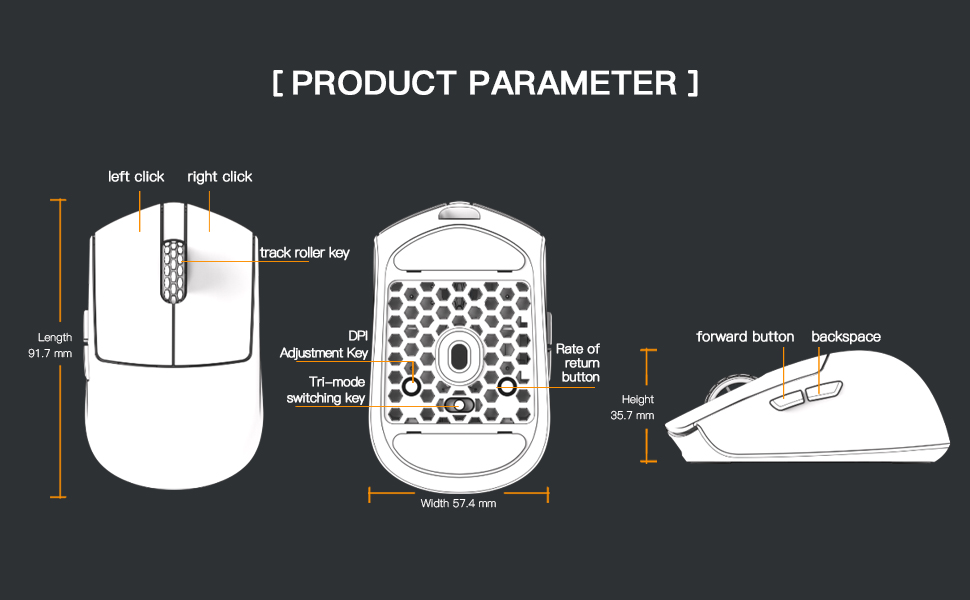
Image 3.1: Diagram illustrating the button layout and dimensions of the M5PRO mouse.
3.2 ضبط DPI
The DPI (Dots Per Inch) sensitivity can be adjusted using the dedicated DPI adjustment key located on the bottom of the mouse. Press the button to cycle through preset DPI levels. The current DPI level may be indicated by an LED color change (refer to software for specific mappings).
3.3 تبديل الوضع
Use the switch on the bottom of the mouse to select between 8K wireless, Bluetooth, and wired modes.
3.4 تخصيص البرامج
For advanced customization, including button remapping, macro creation, and DPI fine-tuning, download the proprietary drivers from the official Darmoshark website. The software allows for personalized settings to optimize your experience.
Image 3.2: The proprietary driver software allows for extensive customization of mouse settings.
4. الصيانة
4.1 التنظيف
لتنظيف الفأرة، استخدم قطعة قماش ناعمة وجافة. أما للأوساخ المستعصية، فاستخدم قطعة قماش مبللة قليلاً.amp cloth can be used, but ensure no moisture enters the mouse. Avoid using harsh chemicals or abrasive materials.
4.2 التخزين
عند عدم استخدام الفأرة لفترات طويلة، احفظها في مكان بارد وجاف بعيدًا عن أشعة الشمس المباشرة ودرجات الحرارة القصوى. تأكد من إيقاف تشغيل الفأرة للحفاظ على عمر البطارية.

الصورة 4.1: انفجرت view of the M5PRO mouse, highlighting its internal structure and lightweight components.
5. استكشاف الأخطاء وإصلاحها
5.1 الماوس لا يستجيب
- التحقق من البطارية: Ensure the mouse is charged. Connect it via USB-C cable to charge.
- تحقق من اتصال: Verify the correct mode (8K wireless, Bluetooth, or wired) is selected on the mouse.
- Receiver/Cable: For 8K wireless, ensure the receiver is securely plugged into a working USB port. For wired, ensure the cable is properly connected.
- إعادة إقران البلوتوث: If using Bluetooth, try removing the device from your computer's Bluetooth settings and re-pairing it.
5.2 مشاكل حركة المؤشر
- مستشعر نظيف: Ensure the optical sensor on the bottom of the mouse is clean and free from debris.
- سطح: Use the mouse on a suitable surface, preferably a mouse pad, for optimal tracking.
- إعداد DPI: Adjust the DPI sensitivity to a comfortable level.
5.3 عدم اكتشاف البرنامج للماوس
- الاتصال السلكي: Connect the mouse via USB-C cable to ensure the software can detect it.
- إعادة تثبيت البرنامج: Try uninstalling and reinstalling the proprietary drivers.
- تحديث البرامج الثابتة: Check the Darmoshark website for any available firmware updates for the mouse.
6. المواصفات
| ميزة | مواصفة |
|---|---|
| ماركة | دارموشارك |
| نموذج | م5برو |
| تكنولوجيا الاتصال | 8K Wireless, Bluetooth, Wired (USB-C) |
| تقنية كشف الحركة | مستشعر بصري PAW3950 |
| الحد الأقصى للنقطة في البوصة | 30000 نقطة في البوصة |
| معدل التصويت | Up to 8KHz (8K wireless mode) |
| عدد الأزرار | 5 (قابلة للبرمجة) |
| وزن | حوالي 38 جرام |
| بطارية | 1 بطارية ليثيوم أيون (مضمنة) |
| التوافق | ويندوز، أبل ماك |
Image 6.1: The PAW3950 optical sensor is a core component for precise tracking.
7. الضمان والدعم
For warranty information and technical support, please refer to the official Darmoshark webالموقع أو تواصل مع خدمة العملاء. احتفظ بإثبات الشراء لطلبات الضمان.
Official Darmoshark Webموقع: Darmoshark Store


