1. المقدمة
This manual provides comprehensive instructions for the MEETION BTM001 Wireless Mouse. It covers setup, operation, maintenance, and troubleshooting to ensure optimal performance and user experience. Please read this manual thoroughly before using the device.
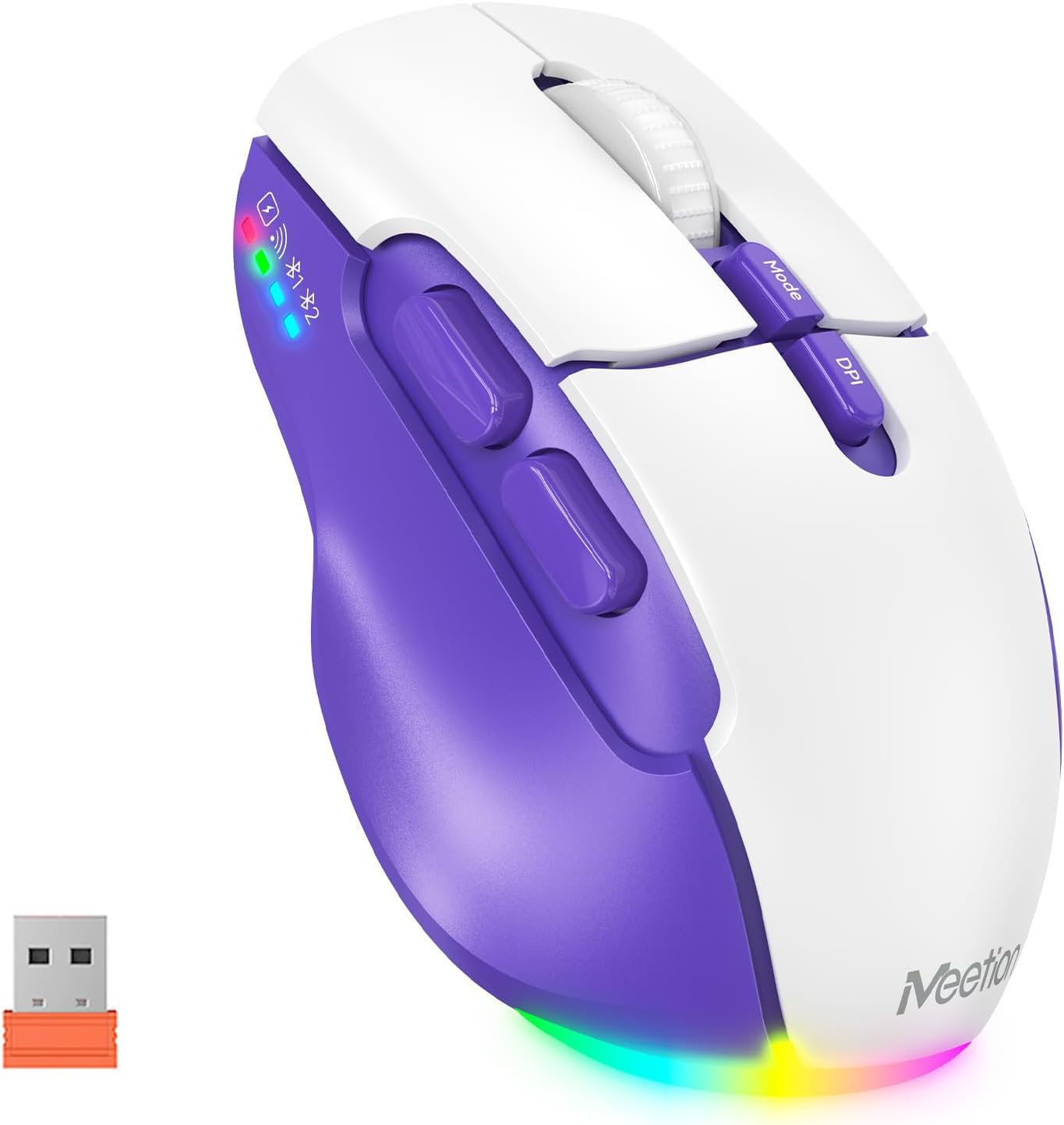
Image 1.1: The MEETION BTM001 Wireless Mouse, showcasing its purple and white design along with the included USB receiver.
2. انتهى المنتجview
The MEETION BTM001 is an ergonomic wireless mouse designed for versatile use across multiple devices. It features dual connectivity options (USB 2.4GHz and Bluetooth), adjustable DPI settings, and a rechargeable battery.
2.1 الميزات الرئيسية
- الاتصال المزدوج: Supports 2.4GHz USB wireless and dual Bluetooth (BT1, BT2) for seamless switching between up to three devices.
- DPI قابل للتعديل: Four DPI settings (800, 1200, 1600, 2400) for precise cursor control.
- بطارية قابلة لإعادة الشحن: Built-in lithium polymer battery, rechargeable via USB-C, with support for use while charging.
- تصميم مريح: Contoured shape with supportive finger rests for comfortable extended use.
- النقرات الصامتة: Designed for quiet operation to minimize disturbance.
- إضاءة RGB: Bottom lighting for aesthetic enhancement, with an option to toggle on/off.
2.2 مكونات

Image 2.1: Detailed diagram illustrating the various buttons and ports on the MEETION BTM001 Wireless Mouse, including the Left Button, Right Button, Scroll Wheel, Forward Button, Backward Button, Mode Switching Button, DPI Speed Switch Button, Type-C Charging Port, Power Switch (ON/OFF), Tail Light Switch, and USB Receiver compartment.
- الزر الأيسر: وظيفة النقر بزر الماوس الأيسر القياسية.
- الزر الأيمن: وظيفة النقر بزر الماوس الأيمن القياسية.
- عجلة التمرير: For vertical scrolling. Can be tilted right for auto-scroll mode.
- زر للأمام: يتنقل للأمام في web المتصفحات أو file المستكشفون.
- زر الرجوع: يتنقل للخلف في web المتصفحات أو file المستكشفون.
- زر تبديل الوضع: Cycles between 2.4GHz USB, Bluetooth 1, and Bluetooth 2 connections.
- DPI Speed Switch Button: Adjusts cursor sensitivity (800/1200/1600/2400 DPI).
- منفذ شحن من النوع C: لإعادة شحن بطارية الماوس.
- مفتاح الطاقة (تشغيل/إيقاف): Turns the mouse power on or off.
- Tail Light Switch: Toggles the RGB bottom lighting on or off.
- مستقبل USB: Stores the 2.4GHz USB dongle.
3. الإعداد
The MEETION BTM001 mouse offers flexible connectivity options. Follow these steps to connect your mouse to your device.

Image 3.1: Visual guide for connecting the mouse via USB receiver or Bluetooth to various devices like laptops, desktops, tablets, and smartphones.
3.1 2.4GHz USB Wireless Connection
- حدد موقع مستقبل USB الموجود في الحجرة الموجودة أسفل الماوس.
- Plug the USB receiver into an available USB-A port on your computer or device. If your device only has USB-C ports, use a suitable adapter (not included).
- Turn on the mouse using the Power Switch on the bottom.
- Press the Mode Switching Button until the indicator light for 2.4GHz (often represented by a Wi-Fi-like icon) is active.
- ينبغي أن يتصل الماوس تلقائيًا.
3.2 اتصال البلوتوث (BT1 / BT2)
The mouse supports two separate Bluetooth connections, allowing you to pair with two different Bluetooth-enabled devices.
- Turn on the mouse using the Power Switch on the bottom.
- Press the Mode Switching Button to select either Bluetooth 1 (BT1) or Bluetooth 2 (BT2). The corresponding indicator light will flash.
- على جهازك (كمبيوتر محمول، جهاز لوحي، هاتف ذكي)، انتقل إلى إعدادات البلوتوث وقم بتمكين البلوتوث.
- بحث عن new devices. The mouse should appear as "MEETION BTM001" or similar.
- Select the mouse to pair. The indicator light on the mouse will stop flashing and remain solid once connected.
- Repeat these steps for the second Bluetooth channel (BT2) if you wish to connect to another device.
3.3 التبديل بين الأجهزة
To switch between connected devices (USB, BT1, BT2), simply press the Mode Switching Button on the top of the mouse. The indicator lights will show which connection is currently active.

Image 3.2: The MEETION BTM001 mouse demonstrating its ability to connect and switch between a laptop, tablet, and desktop computer using both Bluetooth and 2.4GHz USB connections.
4. تعليمات التشغيل
4.1 Adjusting DPI (Cursor Speed)
The mouse offers four adjustable DPI settings to control cursor sensitivity. Press the زر تبديل سرعة DPI located on the top of the mouse to cycle through the settings:
- 800 DPI (Slowest)
- 1200 DPI (Standard)
- 1600 DPI (Faster)
- 2400 DPI (Fastest)

Image 4.1: Illustration of the four adjustable DPI settings (800, 1200, 1600, 2400) and the DPI button on the MEETION BTM001 mouse.
4.2 الأزرار الجانبية
The Forward and Backward buttons on the left side of the mouse provide quick navigation in web المتصفحات، file المستكشفات، والتطبيقات الأخرى التي تدعم هذه الوظائف.
4.3 Scroll Wheel Functions
- Vertical Scrolling: Rotate the scroll wheel up or down.
- Auto-Scroll Mode: Push the scroll wheel to the right to activate auto-scroll. You can adjust the scrolling speed by moving the mouse slightly up or down while in this mode. Push the scroll wheel again or click any button to exit auto-scroll.
4.4 التحكم في إضاءة RGB
The mouse features a customizable RGB backlight at its base. To toggle the lighting on or off, use the مفتاح ضوء الذيل located on the bottom of the mouse.
5. الشحن والبطارية
The MEETION BTM001 mouse is equipped with a rechargeable lithium polymer battery.
5.1 شحن الماوس
- Connect the included USB-C charging cable to the Type-C Charging Port on the front of the mouse.
- قم بتوصيل الطرف الآخر من الكابل بمصدر طاقة USB (مثل منفذ USB في الكمبيوتر، أو محول USB الجداري).
- يمكن استخدام الماوس أثناء شحنه.

Image 5.1: The MEETION BTM001 mouse connected to a power source via its USB-C charging cable, indicating its rechargeable capability.
5.2 Battery Saving Features
To conserve battery life, the mouse incorporates intelligent power-saving features:
- وضع الاستعداد: After approximately 20 minutes of inactivity, the mouse will enter standby mode.
- وضع السكون التلقائي: If left inactive for an extended period, the mouse will enter a deeper auto-sleep mode.
- To reactivate the mouse from standby or auto-sleep, simply move the mouse or click any button.

Image 5.2: Illustration depicting the mouse's power states: Working, Standby (after 20 minutes), Auto Sleep, and how to activate it by clicking.
6. الصيانة
To ensure the longevity and optimal performance of your MEETION BTM001 Wireless Mouse, follow these maintenance guidelines:
- تنظيف: استخدم قطعة قماش ناعمة وجافة لمسح سطح الفأرة. لإزالة الأوساخ العنيدة، امسحها برفق.ampامسح بقطعة قماش مبللة بالماء أو بمحلول تنظيف خفيف. تجنب المواد الكيميائية القاسية أو المواد الكاشطة.
- العناية بالمستشعر: حافظ على نظافة المستشعر البصري الموجود في الجزء السفلي من الماوس وخلوه من الغبار أو الحطام لضمان التتبع الدقيق.
- تخزين: عند عدم استخدام الماوس لفترات طويلة، قم بإيقاف تشغيله لتوفير طاقة البطارية. خزّنه في مكان بارد وجاف بعيدًا عن أشعة الشمس المباشرة ودرجات الحرارة القصوى.
- تجنب القطرات: Protect the mouse from drops and impacts, which can damage internal components.
7. استكشاف الأخطاء وإصلاحها
If you encounter issues with your MEETION BTM001 Wireless Mouse, refer to the following troubleshooting steps:
| مشكلة | السبب المحتمل | حل |
|---|---|---|
| Mouse not responding/pointer not moving | Low battery; Mouse is off; Incorrect connection mode; USB receiver not connected; Bluetooth not paired. | Charge the mouse; Turn on the mouse; Press the Mode button to select the correct connection (USB, BT1, BT2); Ensure USB receiver is securely plugged in; Re-pair Bluetooth. |
| تأخر أو انقطاع في الاتصال | التداخل؛ المسافة من جهاز الاستقبال/الجهاز؛ انخفاض مستوى البطارية. | Move closer to the receiver/device; Ensure no large metal objects are between mouse and receiver; Charge the mouse; Try a different USB port. |
| إعداد DPI لا يتغير | لم يتم الضغط على زر DPI بشكل صحيح. | Ensure a firm press on the DPI Speed Switch Button. |
| إضاءة RGB لا تعمل | Tail Light Switch is off. | Toggle the Tail Light Switch on the bottom of the mouse. |
| لا يتم شحن الماوس | Charging cable faulty; USB power source not active. | Try a different USB-C cable; Try a different USB port or wall adapter. |
8. المواصفات
| ميزة | التفاصيل |
|---|---|
| رقم الموديل | بي تي ام 001 |
| تكنولوجيا الاتصال | 2.4GHz Wireless (USB), Bluetooth 5.2/3.0 |
| تقنية كشف الحركة | بصري |
| إعدادات DPI | 800، 1200، 1600، 2400 |
| نوع البطارية | بوليمر الليثيوم (متضمن) |
| منفذ الشحن | يو إس بي من النوع سي |
| المميزات الخاصة | Ergonomic Design, LED Lights, Lightweight, Portable, Rechargeable |
| وزن العنصر | 6.4 أونصة (حوالي 181 جرامًا) |
| أبعاد الحزمة | 5.24 × 3.74 × 2.05 بوصة |
| التوافق | ويندوز، ماك، أندرويد، آي أو إس |
9. الضمان والدعم
For warranty information and customer support, please refer to the documentation included with your purchase or visit the official MEETION webالموقع. احتفظ بإثبات الشراء الخاص بك لاستخدامه في أي مطالبات بالضمان.


