مقدمة
Thank you for choosing the Tibuta K7 Kids Tablet. This device is designed to provide a safe and engaging digital experience for children, featuring parental controls, educational content, and entertainment options. This manual will guide you through the initial setup, operation, and maintenance to ensure optimal performance and longevity of your tablet.
ماذا يوجد في الصندوق
يرجى التأكد من وجود جميع العناصر في الحزمة:
- Tibuta K7 Kids Tablet
- Drop-proof Silicone Protective Case
- كابل من النوع C
- شاحن
- دليل المستخدم

Image: Contents of the Tibuta K7 Kids Tablet package. This image displays the tablet, its protective case, a USB-C charging cable, a power adapter, and the user manual, illustrating all items included with the product.
المنتج انتهىview
The Tibuta K7 Kids Tablet features a 7-inch HD display, a durable silicone protective case, and an Android 12 Go operating system. It is equipped with dual cameras and supports Wi-Fi connectivity.

الصورة: الأمامية والخلفية view of the Tibuta K7 Kids Tablet. The tablet is shown in a pink protective case with a handle and kickstand, displaying a colorful children's cartoon on its screen.
مكونات التابلت

Image: Diagram of the Tibuta K7 Kids Tablet's external features. This illustration points out the front camera, 3.5mm headphone port, TF card slot, USB 2.0 OTG port, rear camera, volume buttons, power ON/OFF/Reset button, and speaker.
- الكاميرا الأمامية: لإجراء مكالمات الفيديو والتقاط صور السيلفي.
- منفذ سماعة الرأس 3.5 ملم: لتوصيل سماعات الرأس.
- فتحة بطاقة TF: For expanding storage with a microSD card (up to 128GB).
- USB 2.0 OTG Port (Type-C): للشحن ونقل البيانات.
- الكاميرا الخلفية: لالتقاط الصور والفيديوهات.
- أزرار التحكم في الصوت: ضبط مستوى الصوت.
- Power ON/OFF/Reset Button: Powers the tablet on/off or performs a reset.
- المتحدث: لإخراج الصوت.
دليل الإعداد
1. الشحن الأولي
Before first use, fully charge the tablet. Connect the provided Type-C cable to the tablet's USB port and the charger to a power outlet. The charging indicator will show the charging status.
2. تشغيل / إيقاف التشغيل
- لتشغيل: اضغط مع الاستمرار على زر التشغيل حتى تضيء الشاشة.
- لإيقاف التشغيل: اضغط مع الاستمرار على زر الطاقة، ثم حدد "إيقاف التشغيل" من الخيارات.
- لإعادة التشغيل: اضغط مع الاستمرار على زر الطاقة، ثم حدد "إعادة التشغيل" من الخيارات.
3. اتصال واي فاي
- اذهب الى إعدادات > الشبكات والانترنت > واي فاي.
- تبديل Wi-Fi On.
- حدد شبكة Wi-Fi المطلوبة من القائمة.
- أدخل كلمة مرور الشبكة إذا طُلب منك ذلك، ثم انقر فوق يتصل.
4. Kidoz Parental Control App Setup
The tablet comes pre-installed with the Kidoz parental control application. This app allows you to manage content, screen time, and access for your child.
- إطلاق Kidoz app from the home screen.
- Follow the on-screen instructions to create a parent account and set up child profiles.
- Configure settings such as screen time limits, content filtering, and application access.

Image: Parents setting up the Kidoz parental control app on the Tibuta K7 Kids Tablet. The image illustrates a family interacting with the tablet, highlighting features like screen time limits and content filtering.
تعليمات التشغيل
ملاحة
- شاشة اللمس: Tap, swipe, and pinch to navigate the interface.
- الشاشة الرئيسية: الوصول إلى التطبيقات والأدوات المستخدمة بكثرة.
- إشعارات: اسحب لأسفل من أعلى الشاشة إلى view الإشعارات والإعدادات السريعة.
Using Kidoz and Applications
The Kidoz app provides a child-friendly interface and access to pre-approved content. Parents can manage available applications and content through the parental control settings.
- الوصول إلى التطبيقات: Within the Kidoz environment, children can access approved games, educational apps, and media.
- تنزيل تطبيقات جديدة: Parents can download additional applications from the Google Play Store, which can then be added to the child's approved list within Kidoz.
- تصفية المحتوى: Kidoz allows for filtering of inappropriate content, ensuring a safe browsing and viewتجربة رائعة.
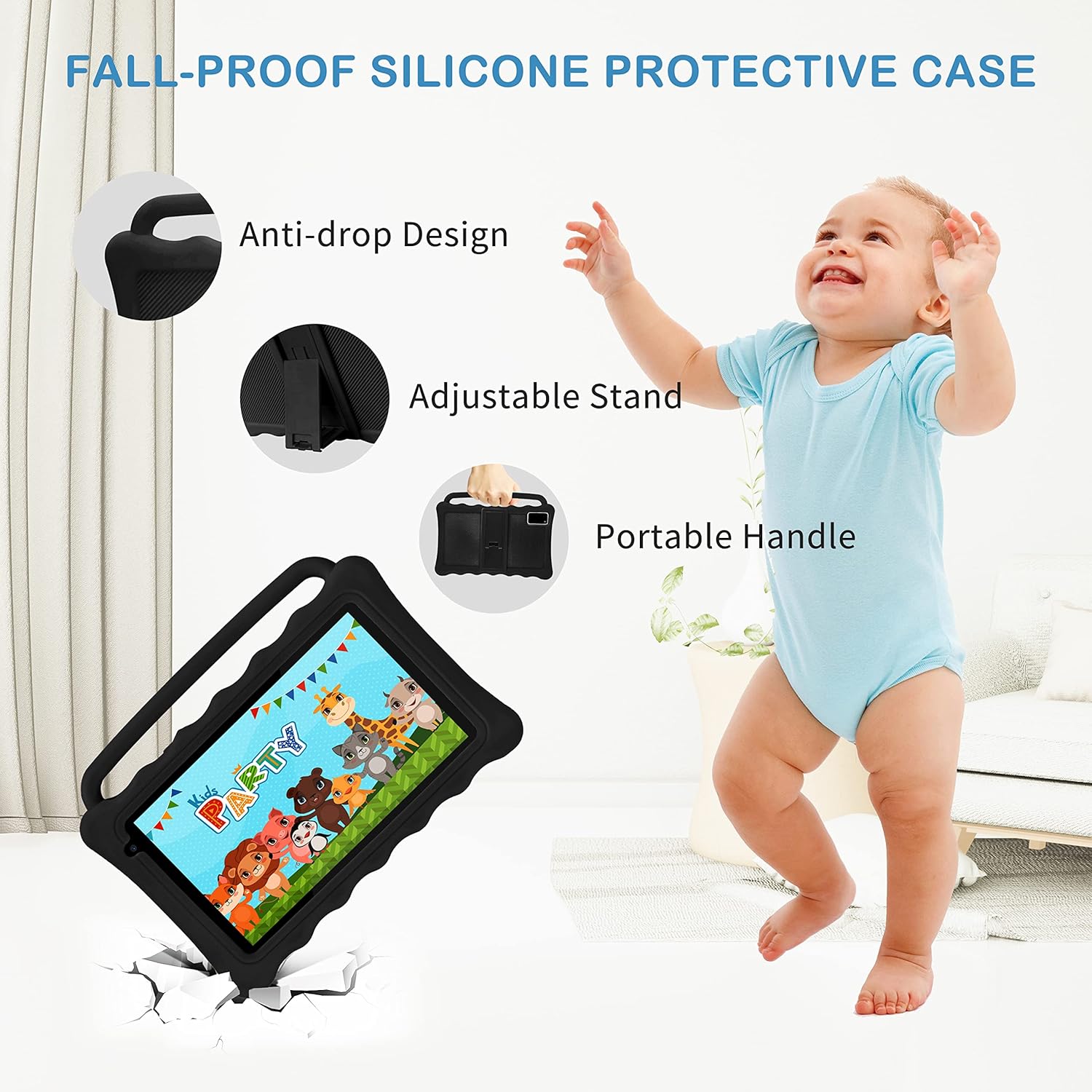
Image: The Tibuta K7 Kids Tablet showcasing its multi-functional capabilities for children. This image highlights pre-installed applications like ABCMouse, YouTube, Netflix, Google Play, and various games, books, and art tools.
وضع حماية العين
The 7-inch LCD screen is equipped with Low Blue Light technology to protect children's eyes. Activate the reading mode in settings to reduce screen flicker and harmful blue light, providing a more comfortable viewتجربة رائعة.

Image: Two children using the Tibuta K7 Kids Tablet, demonstrating the eye protection feature. The image emphasizes the 1024x600 HD screen and its low blue light technology for comfortable viewعمل.
استخدام الكاميرا
The tablet features a 2MP front camera and a 5MP rear camera for capturing photos and videos.
- افتح آلة تصوير طلب.
- اضغط على زر الغالق لالتقاط صورة أو بدء/إيقاف تسجيل الفيديو.
- Switch between front and rear cameras using the camera icon on the screen.

Image: Children smiling and looking into the Tibuta K7 Kids Tablet camera. This image highlights the tablet's dual cameras (2MP front, 5MP rear) for capturing fun moments.
صيانة
تنظيف الجهاز اللوحي
- استخدم قطعة قماش ناعمة وخالية من الوبر لتنظيف الشاشة وجسم الجهاز اللوحي.
- بالنسبة للبقع العنيدة، استخدمي القليل منampانقع قطعة القماش في الماء أو في منظف الشاشة المخصص للإلكترونيات.
- تجنب استخدام المواد الكيميائية القاسية، أو المنظفات الكاشطة، أو البخاخات الهوائية.
العناية بالبطارية
- Charge the tablet regularly, but avoid leaving it fully charged or fully depleted for extended periods.
- Use only the provided charger and cable to prevent damage to the battery.
- تجنب تعريض الجهاز اللوحي لدرجات حرارة قصوى، لأن ذلك قد يؤثر على عمر البطارية.
حافظة حماية
The silicone protective case is designed to safeguard the tablet from drops and impacts. Ensure the tablet is properly seated within the case at all times. The adjustable stand and portable handle enhance usability and portability.

Image: The Tibuta K7 Kids Tablet in a red protective case. This image highlights the anti-drop design, adjustable stand, and portable handle of the silicone case, demonstrating its protective and ergonomic features.
استكشاف الأخطاء وإصلاحها
- الجهاز اللوحي لا يعمل:
- Ensure the tablet is fully charged. Connect it to the charger and wait a few minutes before attempting to power it on again. If unresponsive, press and hold the Power button for 10-15 seconds to force a restart.
- الشاشة لا تستجيب:
- Restart the tablet. If the issue persists, ensure the screen is clean and free of debris. If the problem continues, a factory reset might be necessary (data will be lost).
- مشاكل الاتصال بشبكة Wi-Fi:
- Check if Wi-Fi is enabled in settings. Restart your Wi-Fi router. Forget the network on the tablet and reconnect. Ensure you are within range of the Wi-Fi signal.
- Kidoz app not working correctly:
- Ensure the Kidoz app is updated to the latest version. Clear the app's cache and data in إعدادات > التطبيقات > Kidoz > تخزين. If problems persist, reinstall the app or contact Kidoz support.
- Tablet runs slowly or freezes:
- Close unnecessary background applications. Clear cache for frequently used apps. Consider uninstalling unused apps to free up storage. If the issue is severe, a factory reset may resolve it.
تحديد
| ميزة | التفاصيل |
|---|---|
| ماركة | تيبوتا |
| اسم الموديل | K7 |
| نظام التشغيل | أندرويد 12 جو |
| ماركة المعالج | الفائز الأول |
| حجم الشاشة | 7 بوصة |
| دقة الشاشة | 1024 × 600 بكسل |
| كبش | 2 جيجا بايت |
| سعة التخزين | 32 جيجابايت (قابلة للتوسيع حتى 128 جيجابايت عبر بطاقة Micro SD) |
| الاتصال | واي فاي (802.11g)، بلوتوث |
| الكاميرات | Front: 2MP, Rear: 5MP |
| عمر البطارية | Over 5 hours (usage dependent) |
| لون | Rose (as per product listing, other colors may vary) |