1. المقدمة
Thank you for choosing the Darmoshark N3PRO 8K Wireless Gaming Mouse. This manual provides detailed instructions for setting up, operating, and maintaining your new gaming mouse. Please read this manual thoroughly before use to ensure optimal performance and longevity of the product.
2. محتويات العبوة
- Darmoshark N3PRO Wireless Gaming Mouse
- كابل شحن USB-C إلى USB-A
- جهاز استقبال يو اس بي 2.4 جيجا
- دليل المستخدم

Image: The Darmoshark N3PRO wireless gaming mouse shown with its accompanying 2.4G USB receiver.
3. انتهى المنتجview
The Darmoshark N3PRO features a lightweight, ergonomic design with multiple connectivity options and programmable buttons.
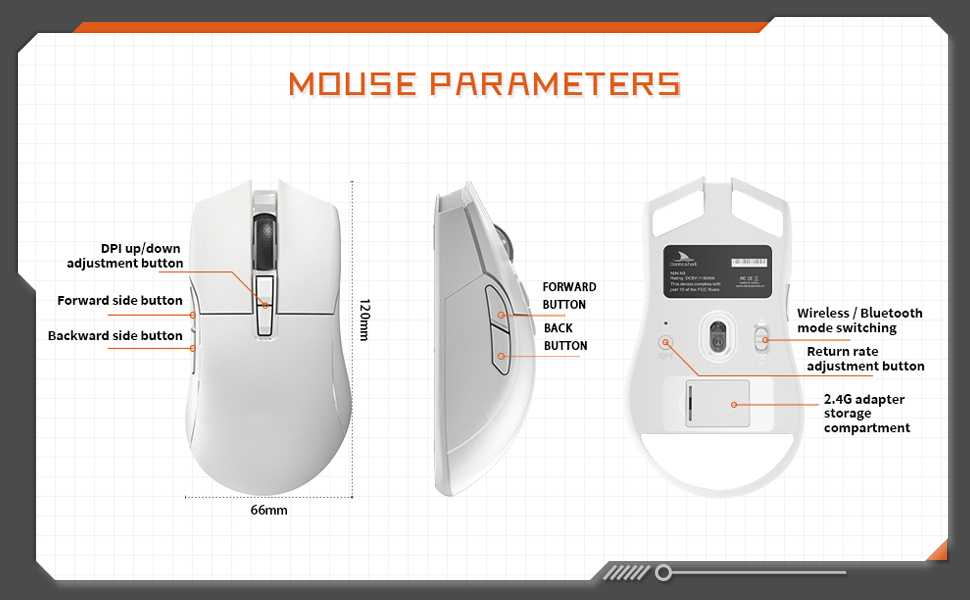
Image: A diagram illustrating the Darmoshark N3PRO mouse from top, side, and bottom views, with labels for buttons and dimensions. Key labels include DPI up/down adjustment button, forward side button, backward side button, forward button, back button, wireless/Bluetooth mode switching, return rate adjustment button, and 2.4G adapter storage compartment.
وظائف الأزرار:
- زر النقر الأيسر: وظيفة زر الفأرة الأيسر القياسية.
- زر النقر بالزر الأيمن: وظيفة زر الفأرة الأيمن القياسية.
- عجلة التمرير: Scroll up/down, and middle click function.
- DPI Up/Down Adjustment Buttons: Adjust the mouse's sensitivity (DPI) levels.
- Forward Side Button: Default function is 'Forward' in web browsers/applications.
- Backward Side Button: Default function is 'Back' in web browsers/applications.
- Mode Switch (Bottom): Toggles between 2.4G wireless and Bluetooth modes.
- Return Rate Adjustment Button (Bottom): Adjusts the polling rate.
4. الإعداد
The Darmoshark N3PRO supports three connection modes: Wired (USB-C), 2.4G Wireless, and Bluetooth 5.0. You can connect up to 3 devices simultaneously.

Image: The Darmoshark N3PRO mouse connected to a laptop via a 2.4G receiver, to a device via USB-C cable, and wirelessly to a smartphone via Bluetooth 5.0, illustrating its tri-mode connectivity.
4.1 اتصال سلكي
- قم بتوصيل طرف USB-C الخاص بكابل الشحن بالماوس.
- قم بتوصيل طرف USB-A الخاص بكابل الشحن بمنفذ USB متاح على جهاز الكمبيوتر الخاص بك.
- The mouse will be automatically detected and ready for use. This mode also charges the mouse.
4.2 اتصال لاسلكي 2.4G
- Locate the 2.4G USB receiver, typically stored in a compartment on the underside of the mouse.
- قم بتوصيل جهاز الاستقبال USB 2.4G بمنفذ USB المتاح على جهاز الكمبيوتر الخاص بك.
- Slide the mode switch on the bottom of the mouse to the 2.4G position.
- سيتم توصيل الماوس تلقائيًا.
4.3 اتصال البلوتوث
- Slide the mode switch on the bottom of the mouse to the Bluetooth position.
- على جهاز الكمبيوتر أو الجهاز الخاص بك، افتح إعدادات البلوتوث.
- بحث عن new devices and select "Darmoshark N3PRO" from the list.
- اتبع أي مطالبات تظهر على الشاشة لإكمال عملية الاقتران.
5. تعليمات التشغيل
5.1 ضبط DPI
The mouse features a PAW3395 optical sensor with adjustable DPI settings up to 26000 DPI. Use the dedicated DPI adjustment buttons on the top of the mouse to cycle through preset DPI levels. The current DPI level may be indicated by an LED color change or through the software.
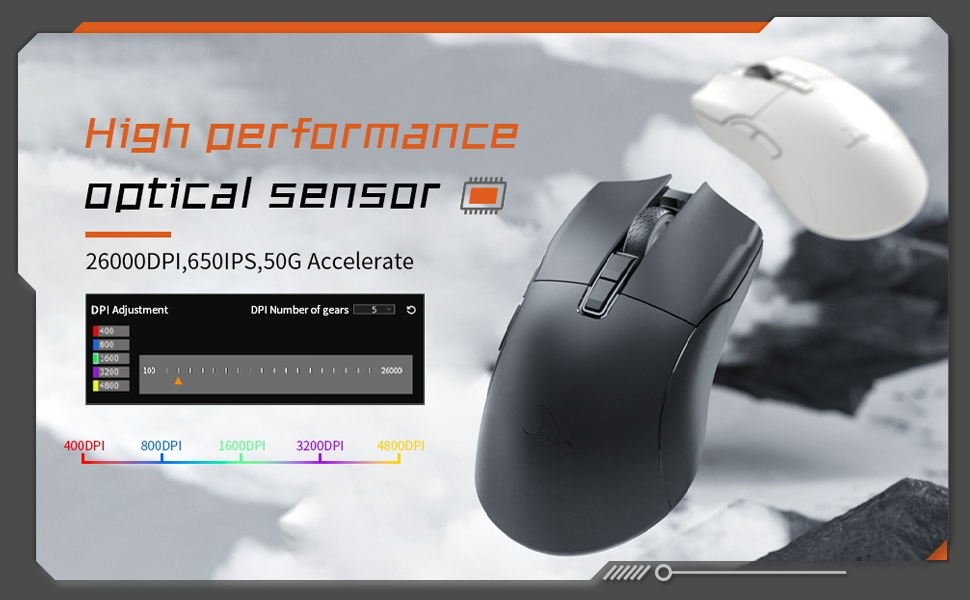
Image: The Darmoshark N3PRO mouse with a blue glowing light, highlighting its adjustable DPI (up to 26000) and IPS (650) settings for precision and speed.
5.2 تعديل معدل الاقتراع
The polling rate can be adjusted using the button on the underside of the mouse or through the customization software. The N3PRO supports polling rates up to 8000Hz for ultra-responsive tracking.
5.3 Programmable Buttons and Software Customization
The Darmoshark N3PRO features 7 programmable buttons. To customize button functions, DPI settings, macros, and other advanced features, download the official Darmoshark software from the manufacturer's website. The software allows for personalized configurations to suit your preferences.
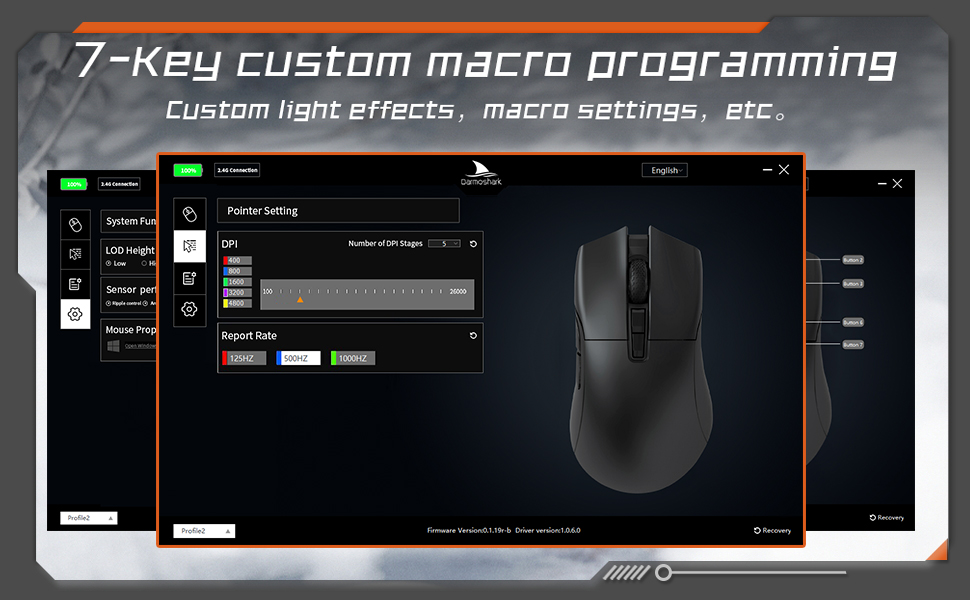
Image: A screenshot of the Darmoshark N3PRO customization software interface, showing options for DPI settings, polling rate, and button assignments, with a visual representation of the mouse.
5.4 شحن الماوس
Connect the mouse to your computer using the provided USB-C cable. The mouse will charge automatically. A full charge provides approximately 80 hours of battery life (depending on usage and polling rate). The mouse is equipped with a 300mAh Lithium Ion battery.

Image: A close-up of the Darmoshark N3PRO mouse, indicating its 300mAh battery capacity.
6. الصيانة
- تنظيف: استخدم قطعة قماش ناعمة وجافة لتنظيف الفأرة. لإزالة الأوساخ العنيدة، امسحها برفق بقطعة قماش جافة.amp cloth can be used, ensuring no liquid enters the mouse.
- المستشعر: Keep the optical sensor on the underside of the mouse clean and free from dust or debris for accurate tracking.
- تخزين: عند عدم استخدام الماوس لفترات طويلة، قم بتخزينه في مكان جاف وبارد.
- العناية بالبطارية: تجنب تفريغ البطارية بالكامل بشكل متكرر. اشحن الماوس عندما يكون مؤشر البطارية منخفضًا.
7. استكشاف الأخطاء وإصلاحها
| مشكلة | حل |
|---|---|
| الفأرة لا تستجيب (سلكيًا) |
|
| Mouse not responding (2.4G Wireless) |
|
| الماوس لا يستجيب (بلوتوث) |
|
| تتبع غير دقيق أو تأخر المؤشر |
|
| الأزرار لا تعمل كما هو متوقع |
|
8. المواصفات
- نموذج: N3PRO
- الاتصال: Tri-Mode (2.4G Wireless, Bluetooth 5.0, USB-C Wired)
- المستشعر: مستشعر بصري PAW3395
- نقطة لكل بوصة: تصل إلى 26000 نقطة في البوصة
- سرعة التتبع: 650 IPS
- تسريع: 50 جيجا
- معدل التصويت: Up to 8000Hz (wired/2.4G, depending on settings)
- أزرار: 7 أزرار قابلة للبرمجة
- وزن: حوالي 64 جرام
- أبعاد: 120mm x 66mm x 40mm (Length x Width x Height)
- بطارية: بطارية ليثيوم أيون 300 مللي أمبير (قابلة لإعادة الشحن)
- Keystroke Lifespan: 60 million clicks (approx.)
- التوافق: PC, Laptop, Windows, Linux (Bluetooth for various devices)
9. الضمان والدعم
Darmoshark products are designed for reliability and performance. For warranty information, technical support, or to download the latest software and drivers, please visit the official Darmoshark webالموقع أو تواصل مع خدمة العملاء. احتفظ بإثبات الشراء لطلبات الضمان.
ملاحظة: تخضع مواصفات المنتج وميزاته للتغيير دون إشعار مسبق.


