1. المقدمة
This manual provides essential information for setting up, operating, maintaining, and troubleshooting your Acer Swift Go 14" Touch Slim Laptop. Please read this guide thoroughly to ensure proper use and to maximize the performance and longevity of your device.

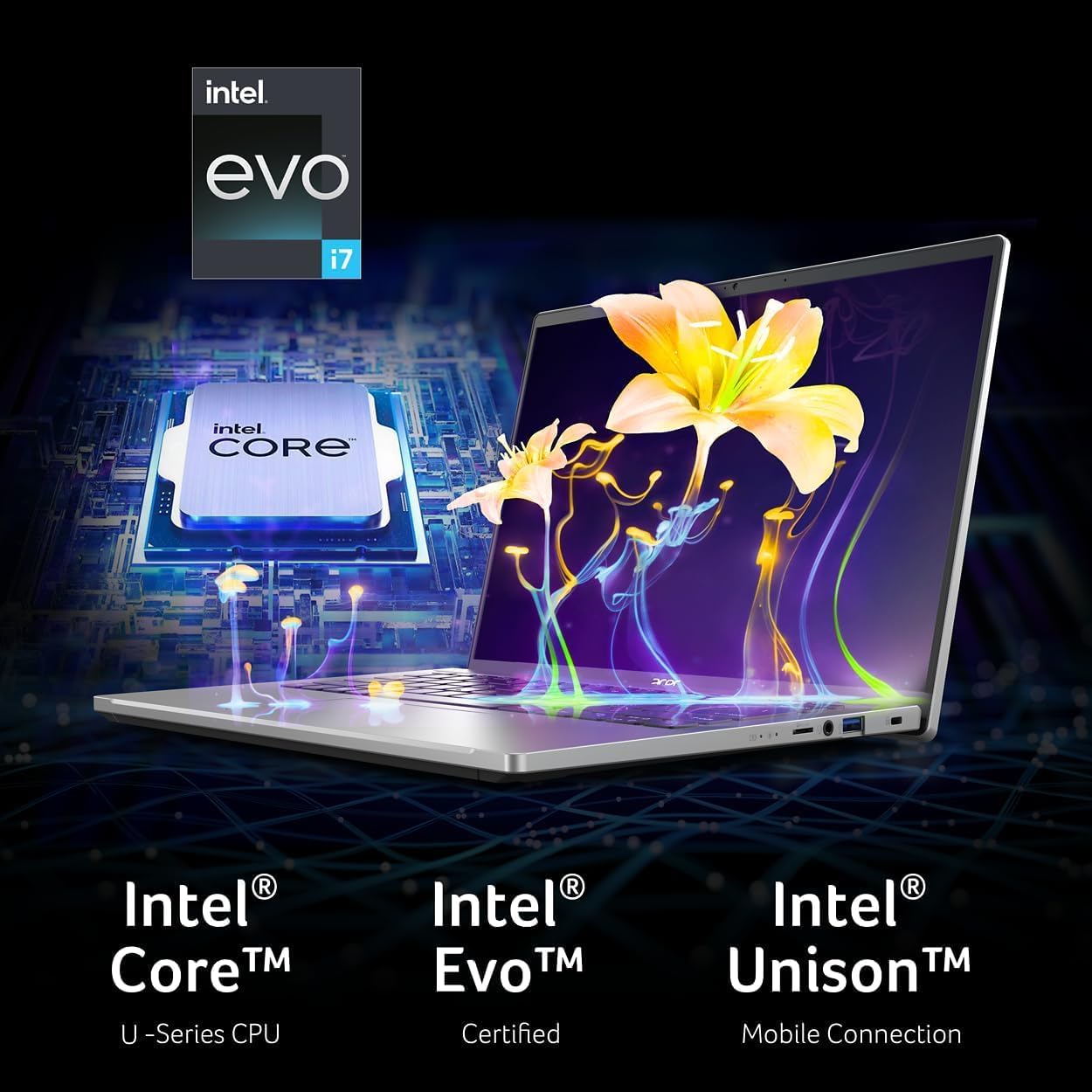
The Acer Swift Go 14 is a portable laptop designed for productivity and entertainment, featuring a 14-inch touchscreen display, Intel EVO Core i7 processor, Intel Iris Xe Graphics, and Windows 11 Home operating system.
2. الإعداد
2.1 فك العبوة والفحص الأولي
Carefully remove the laptop and all accessories from the packaging. Verify that all components are present and undamaged. The package should include the laptop, power adapter, and this instruction manual.
2.2 توصيل محول الطاقة
Before first use, connect the power adapter to the laptop's USB-C port (Thunderbolt 4 compatible) and then to a power outlet. Allow the battery to charge fully before initial use, though you can begin using the laptop while it charges.
2.3 التشغيل الأول وإعداد Windows
Open the laptop lid. The laptop may power on automatically, or you may need to press the power button located on the keyboard. Follow the on-screen instructions to complete the Windows 11 Home setup process. This includes selecting your region, connecting to a Wi-Fi network, and creating a user account.
2.4 إعداد قارئ بصمات الأصابع
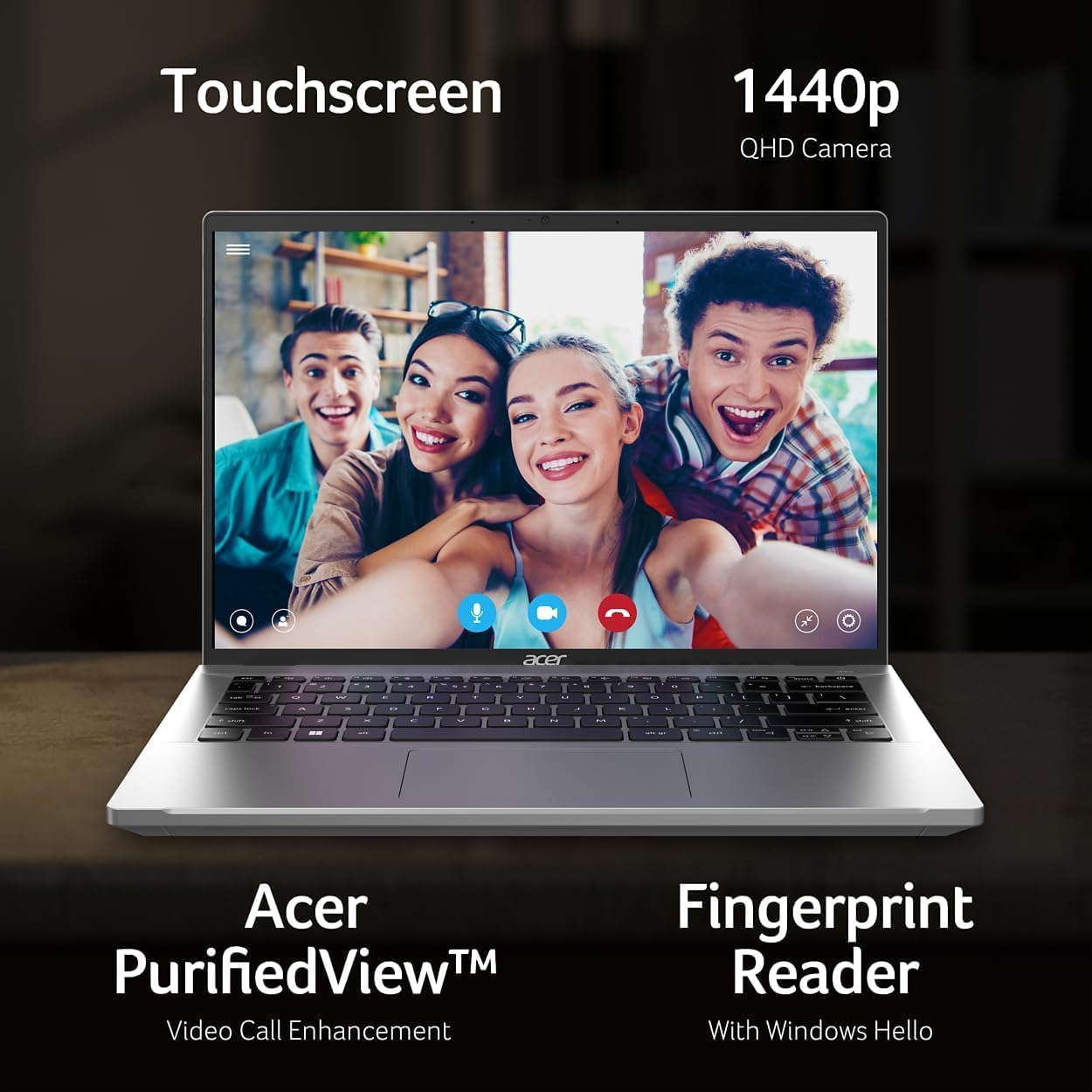
During or after the initial Windows setup, you can configure the fingerprint reader for secure login using Windows Hello. Navigate to الإعدادات > الحسابات > خيارات تسجيل الدخول لإعداد بصمة إصبعك.
2.5 Wi-Fi 6E Connection
To connect to a wireless network, click the Wi-Fi icon in the taskbar, select your desired network, and enter the password if prompted. The laptop supports Wi-Fi 6E for faster and more reliable wireless connectivity.
3. تشغيل الكمبيوتر المحمول
3.1 استخدام شاشة اللمس
The 14-inch WUXGA (1920 x 1200) touchscreen allows for intuitive interaction with Windows 11. Use gestures such as tap, swipe, pinch-to-zoom, and scroll directly on the display.

3.2 لوحة المفاتيح ولوحة اللمس
The laptop features a backlit keyboard for comfortable typing in various lighting conditions. The OceanGlass Touchpad provides precise cursor control and supports multi-touch gestures. Refer to Windows settings for customizing touchpad gestures.
3.3 توصيل الأجهزة الخارجية
يحتوي جهاز الكمبيوتر المحمول الخاص بك على منافذ متنوعة لتوصيل الأجهزة الطرفية:
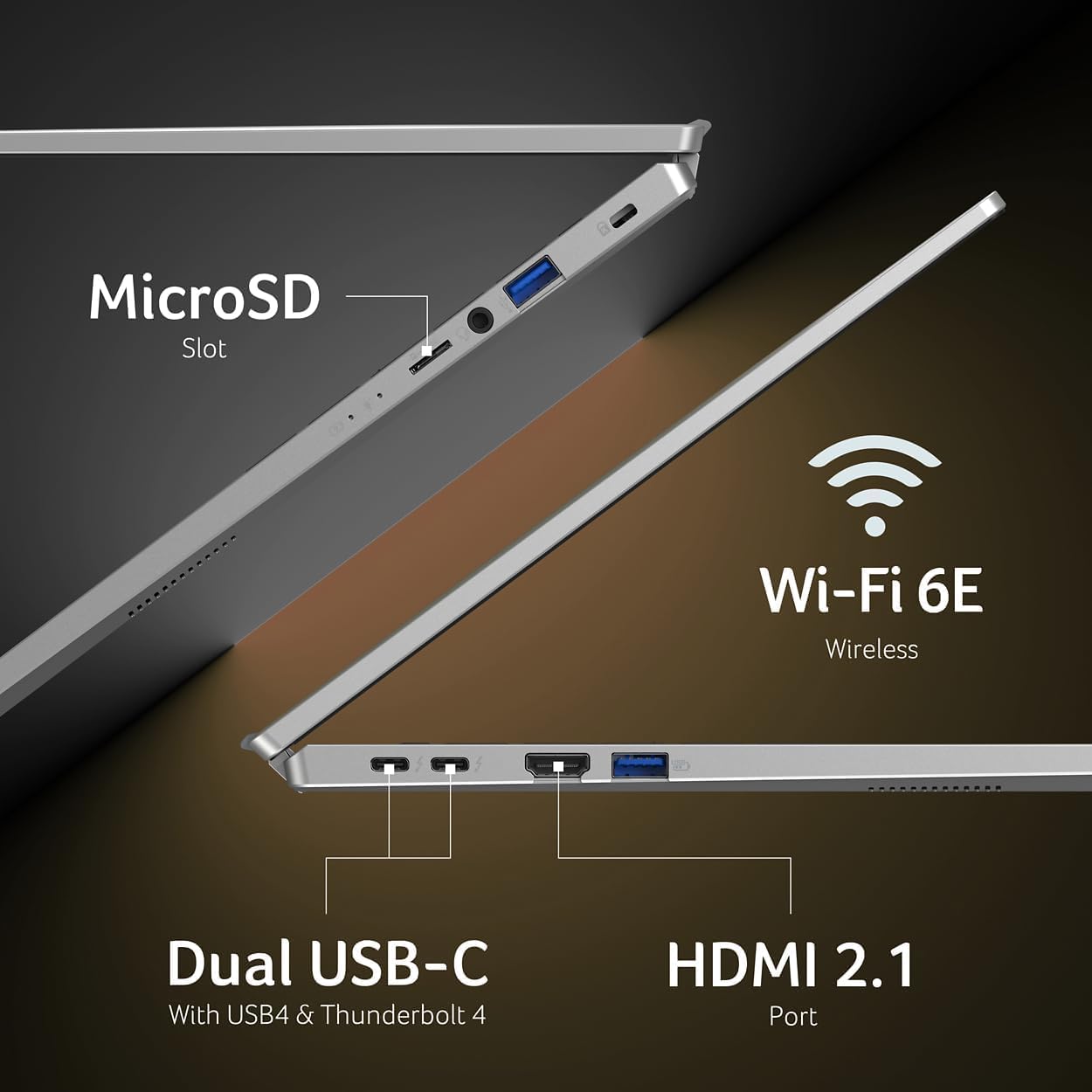
- منفذ USB من النوع C (Thunderbolt 4): Two ports supporting USB4 (up to 40 Gbps), Thunderbolt 4, USB Charging, and Power Delivery (Up to 100W). Use these for high-speed data transfer, external displays, and charging.
- USB 3.2 الجيل الثاني: Two ports, one with power-off charging capability.
- HDMI 2.1: للاتصال بالشاشات الخارجية أو أجهزة التلفاز.
- Headphone/Microphone-in Jack: لإدخال/إخراج الصوت.
- فتحة MicroSD: لتوسيع مساحة التخزين أو النقل fileمن بطاقات الذاكرة.

3.4 باستخدام ملف Webكاميرا
The integrated 1440p QHD Webcam is suitable for video calls and online meetings. Acer PurifiedView™ technology enhances video call quality. Ensure proper lighting for best results.
4. الصيانة
4.1 تنظيف الكمبيوتر المحمول
- شاشة: استخدم قطعة قماش ناعمة وخالية من الوبر برفق دampيُنظف بالماء أو بمحلول تنظيف الشاشات. تجنب استخدام المواد الكيميائية القاسية.
- لوحة المفاتيح والهيكل: Use a soft cloth. For dust, use compressed air. Do not spray liquids directly onto the keyboard.
4.2 العناية بالبطارية
To prolong battery life, avoid extreme temperatures. It is recommended to occasionally discharge the battery below 20% and then fully recharge it. If storing the laptop for an extended period, charge it to about 50%.
4.3 تحديثات البرامج
Regularly check for and install Windows updates and Acer driver updates to ensure optimal performance and security. Go to الإعدادات > تحديث Windows to check for OS updates.
5. استكشاف الأخطاء وإصلاحها
5.1 مشاكل الطاقة
- الكمبيوتر المحمول لا يعمل: تأكد من توصيل محول الطاقة بإحكام وأن البطارية مشحونة بشكل كافٍ. حاول الضغط باستمرار على زر التشغيل لمدة 10-15 ثانية لإجراء إعادة ضبط كاملة.
- البطارية لا تشحن: تأكد من عدم تلف محول الطاقة والكابل. جرب منفذ طاقة آخر.
5.2 مشاكل العرض
- لا يوجد عرض: Connect an external monitor to check if the issue is with the laptop's screen. If the external monitor works, the laptop screen may require service.
- شاشة متذبذبة: قم بتحديث برامج تشغيل بطاقة الرسومات. اضبط معدل تحديث الشاشة في إعدادات ويندوز.
5.3 مشاكل الاتصال
- عدم الاتصال بشبكة Wi-Fi: Restart your router and laptop. Ensure Wi-Fi is enabled in Windows settings. Update wireless drivers.
- جهاز البلوتوث غير مقترن: Ensure the device is in pairing mode and within range. Restart Bluetooth on your laptop.
5.4 أداء النظام
- الأداء البطيء: Close unnecessary applications. Check for malware. Ensure sufficient free storage space.
- ارتفاع درجة الحرارة: تأكد من خلو فتحات التهوية من أي عوائق. استخدم الكمبيوتر المحمول على سطح صلب ومستوٍ.
6. المواصفات
| ميزة | مواصفة |
|---|---|
| ماركة | أيسر |
| اسم الموديل | Acer Swift Go |
| حجم الشاشة | 14 بوصة |
| دقة العرض | 1920 س 1200 (WUXGA) |
| المعالج | Intel EVO Core i7-1355U (13th Gen, 10 Cores, 1.5 GHz up to 2.01 GHz) |
| الرسومات | رسومات Intel Iris Xe (متكاملة) |
| ذاكرة الوصول العشوائي (RAM) | 16 جيجا بايت LPDDR5 |
| تخزين | 512 جيجا بايت SSD |
| نظام التشغيل | ويندوز 11 هوم |
| الموانئ | 2x USB Type-C (Thunderbolt 4), 2x USB 3.2 Gen 1, 1x HDMI 2.1, 1x Headphone/Microphone Jack, 1x MicroSD Slot |
| الاتصال اللاسلكي | Wi-Fi 6E (IEEE 802.11ax), Bluetooth 5.1 |
| Webكاميرا | 1440p QHD Webكاميرا |
| المميزات الخاصة | Touchscreen, Fingerprint Reader, Backlit Keyboard |
| وزن العنصر | 2.76 رطل |
| بطارية | Lithium Ion, 43 Watt Hours |
7. الضمان والدعم
7.1 ضمان المنتج
Your Acer Swift Go 14" Touch Laptop comes with a ضمان محدود لمدة سنة واحدة from the date of purchase. This warranty covers manufacturing defects and hardware malfunctions under normal use. Please retain your proof of purchase for warranty claims.
7.2 الدعم الفني
للحصول على المساعدة الفنية أو تنزيلات برامج التشغيل أو المزيد من الدعم، يرجى زيارة موقع دعم Acer الرسمي website. You can typically find support resources by searching for "Acer Support" and your specific model name (Swift Go 14) online.
When contacting support, have your laptop's serial number and proof of purchase readily available.


