1. المقدمة
The EazeID M950 is a versatile label maker designed for home, office, and school use. It offers two primary printing modes: direct input via its integrated QWERTY keyboard and wireless control through the 'Print Master' mobile application via Bluetooth. Featuring a rechargeable battery and a backlit LCD screen, the M950 provides convenience and clarity for all your labeling needs. This manual provides detailed instructions for setting up, operating, and maintaining your device.
2. محتويات العبوة
يرجى التأكد من أن جميع العناصر المدرجة أدناه متضمنة في الحزمة الخاصة بك:
- 1 x EazeID M950 Label Maker
- 1 x 3M21 Black on White Label tape (12mm*4M)
- كابل بيانات واحد من النوع C
- 1 × صندوق التعبئة والتغليف
- 1 × دليل المستخدم (هذه الوثيقة)

Figure 2.1: EazeID M950 Label Maker package contents.
3. انتهى المنتجview
The EazeID M950 Label Maker features a compact design with an integrated QWERTY keyboard and a backlit LCD screen for ease of use. It utilizes thermal printing technology, eliminating the need for ink or toner.

الشكل 3.1: الجبهة view of the EazeID M950 Label Maker and accessories.

Figure 3.2: Key features and components of the EazeID M950 Label Maker.
4. الإعداد
4.1 شحن الجهاز
The M950 Label Maker is equipped with a built-in 1200mAh rechargeable lithium battery. Before first use, or when the battery is low, charge the device using the provided Type-C USB cable.
- Connect the Type-C end of the cable to the charging port on the side of the label maker.
- Connect the USB-A end of the cable to a 5V-2A charging adapter (not included) or a compatible USB port.
- The device will indicate charging status on the LCD screen. A full charge typically takes 1-2 hours.
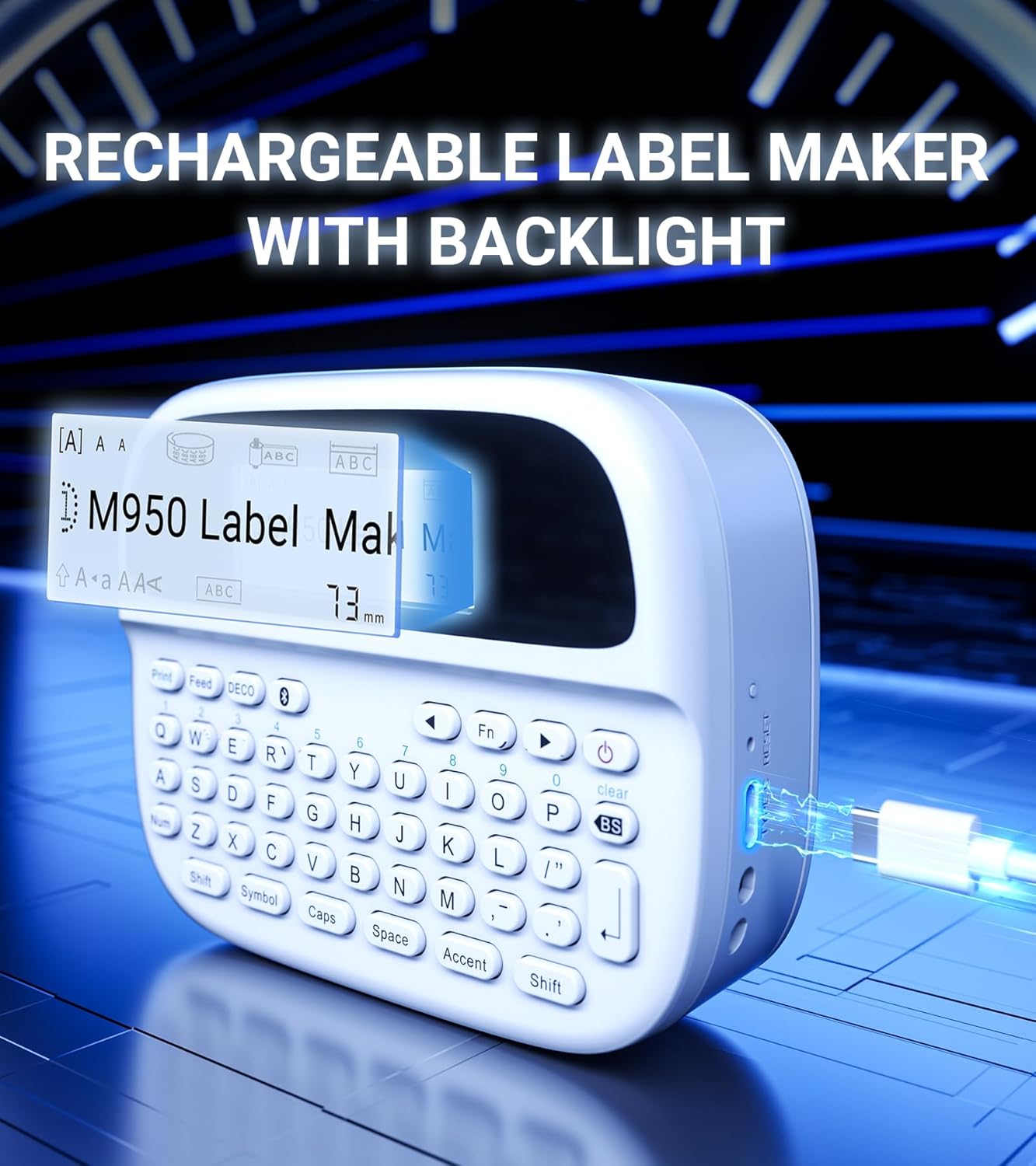
Figure 4.1: Charging the EazeID M950 Label Maker.
4.2 Installing Label Tape
To install or replace the label tape cassette:
- Ensure the label maker is powered off.
- Locate the tape compartment cover on the top of the device. Gently open the cover.
- Insert the label tape cassette into the compartment, ensuring it clicks into place. The tape should feed smoothly out of the slot.
- Close the tape compartment cover securely.

الشكل 4.2: داخلي view of the M950 label maker showing tape cassette placement.
5. تعليمات التشغيل
5.1 تشغيل/إيقاف التشغيل
- لتشغيل الجهاز: اضغط مع الاستمرار على قوة button (usually marked with a power symbol) until the LCD screen illuminates.
- لإيقاف التشغيل: اضغط مع الاستمرار على قوة اضغط على الزر مرة أخرى حتى يتم إيقاف تشغيل الشاشة.
5.2 Direct Printing via QWERTY Keyboard
The M950 features an ergonomic QWERTY keyboard for direct label creation.
- تشغيل الطاقة: Turn on the label maker.
- نص الإدخال: Use the QWERTY keyboard to type your desired label text. The text will appear on the backlit LCD screen.
- Formatting Options: Use the function keys (e.g., Fn, رمز, قبعات, لهجة) to access various fonts, sizes, symbols, and other formatting options.
- مطبعة: اضغط على مطبعة زر لإنشاء الملصق.
- يقطع: Use the built-in cutter to cleanly separate the printed label from the tape roll.

Figure 5.1: Using the QWERTY keyboard for direct label printing.
5.3 Bluetooth App Printing (Print Master App)
For advanced features and customization, connect your M950 to the 'Print Master' app via Bluetooth.
- تحميل التطبيق: Download the 'Print Master' app from your device's app store (available on Android and iOS).
- تشغيل الطاقة والبلوتوث: Turn on the label maker and ensure Bluetooth is enabled on both the label maker and your smartphone.
- يتصل: Open the 'Print Master' app. The app will search for nearby EazeID label makers. Select 'EazeID M950' from the list to connect.
- Design Label: Use the app's interface to create your label. The app offers a vast library of customizable templates, over 1000 patterns, 100+ frames, 100+ fonts, barcodes, and QR codes.
- مطبعة: Once your label is designed, tap the 'Print' icon in the app.
- يقطع: Use the built-in cutter on the label maker to separate the printed label.

Figure 5.2: The EazeID M950 supports both keyboard and Bluetooth app printing modes.

Figure 5.3: Connecting to the 'Print Master' app via Bluetooth.
6. الصيانة
6.1 تنظيف الجهاز
To ensure optimal performance and longevity of your label maker:
- أوقف تشغيل الجهاز قبل التنظيف.
- استخدم قطعة قماش ناعمة وجافة لمسح الجزء الخارجي من جهاز طباعة الملصقات.
- For the print head, gently wipe with a cotton swab lightly dampمعقم بالكحول الأيزوبروبيلي. اتركه ليجف تماماً قبل الاستخدام.
- لا تستخدم المنظفات أو المذيبات الكاشطة.
6.2 العناية بالبطارية
لزيادة عمر البطارية:
- تجنب تفريغ البطارية بالكامل بشكل متكرر.
- اشحن الجهاز بانتظام حتى لو لم يكن قيد الاستخدام المستمر.
- قم بتخزين الجهاز في مكان بارد وجاف عندما لا يكون قيد الاستخدام لفترات طويلة.
7. استكشاف الأخطاء وإصلاحها
If you encounter issues with your EazeID M950 Label Maker, refer to the following common problems and solutions:
| مشكلة | السبب المحتمل | حل |
|---|---|---|
| الجهاز لا يعمل | انخفاض مستوى البطارية؛ عطل في الجهاز | اشحن الجهاز لمدة 30 دقيقة على الأقل. إذا استمر عدم الاستجابة، فاتصل بالدعم الفني. |
| No print or faint print | Tape installed incorrectly; Print head dirty; Low battery | Reinstall tape cassette. Clean the print head. Charge the device. |
| فشل اتصال البلوتوث | Bluetooth off; App not updated; Device too far | Ensure Bluetooth is enabled on both devices. Update 'Print Master' app. Move label maker closer to smartphone. Restart both devices. |
| Labels are difficult to peel | Specific label tape characteristic | Ensure you are using genuine EazeID label tape. Try bending the label backing slightly to separate. |
8. المواصفات
Technical specifications for the EazeID M950 Label Maker:
- اسم الموديل: EazeID M950 Label Maker
- تكنولوجيا الطباعة: حراري
- دقة الطباعة: 203 نقطة في البوصة
- الاتصال: بلوتوث، منفذ USB من النوع C
- أقصى حجم للوسائط: 12 ملم (0.47 بوصة)
- بطارية: بطارية ليثيوم أيون 1200 مللي أمبير (قابلة لإعادة الشحن، مرفقة)
- طريقة التحكم: App (Print Master), QWERTY Keyboard
- المميزات الخاصة: Backlit LCD Screen, Built-in Cutter, Portable
- أبعاد المنتج: حوالي 1 × 1 × 1 بوصة
- وزن السلعة: 1.06 رطل
- المكونات المتضمنة: Label maker, tape, USB-C cable, user manual

Figure 8.1: EazeID M950 Label Maker dimensions and key features.
9. الضمان والدعم
The EazeID M950 Label Maker comes with a limited warranty. For specific warranty terms and conditions, please refer to the warranty card included in your product packaging or visit the official EazeID webموقع.
For technical support, troubleshooting assistance, or inquiries about replacement parts and accessories, please contact EazeID customer service through the contact information provided on the official webالموقع أو منصة الشراء الخاصة بك.


