مقدمة
The Logitech MX Brio 705 for Business is a high-performance 4K webcam designed for professional use. It features advanced imaging technology, intelligent video capabilities, and robust audio capture to enhance virtual meetings and presentations. This manual provides instructions for setting up, operating, maintaining, and troubleshooting your webكام.
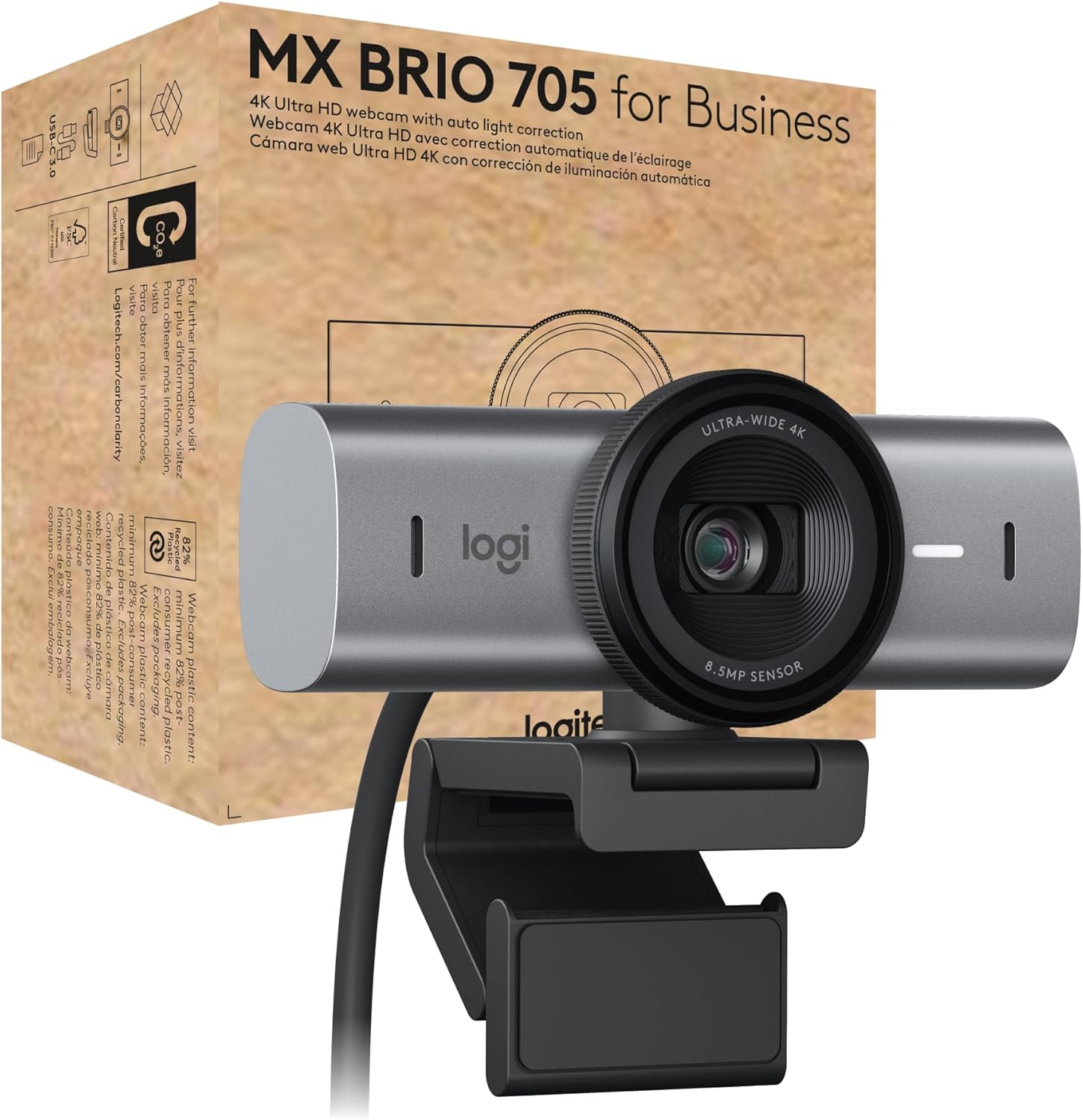
Image: Logitech MX Brio 705 for Business 4K Webكاميرا، عرضasing the device and its retail packaging.
ماذا يوجد في الصندوق
تأكد من وجود جميع المكونات في العبوة:
- MX Brio 705 for Business webكاميرا
- USB-C 3.0 cable (1.5 meters)
- Mount clip with removable mount adapter
- وثائق المستخدم

Image: An illustration showing the MX Brio 705 webcam, its USB-C cable, and the monitor mount, representing the items included in the product box.
يثبت
- تركيب Webكام:
قم بإرفاق webcam to your monitor or laptop screen using the integrated mount clip. Ensure the clip is securely fastened and the webcam is stable. The mount adapter is removable if you prefer to use a tripod (not included) with the standard 1/4-inch thread.

Image: A detailed diagram highlighting the various components of the MX Brio 705 webcam, such as the privacy shutter, 4K Ultra HD lens, LED activity light, USB-C connectivity, dual beamforming mics, and magnetic mount.
- الاتصال بالكمبيوتر الخاص بك:
Connect the provided USB-C 3.0 cable to the USB-C port on the webcam and then to an available USB-C port on your computer. If your computer only has USB-A ports, a USB-C to USB-A adapter (not included) may be required.
- التعرف الأولي:
يجب أن يكتشف جهاز الكمبيوتر الخاص بك تلقائيًا ملف webcam. For optimal performance and access to advanced features, download and install the Logitech Logi Options+ software from the official Logitech webموقع.
تعليمات التشغيل
الاستخدام الأساسي
- تشغيل/إيقاف التشغيل: ال webcam powers on automatically when connected to your computer and recognized by an application.
- Activity Light: An LED activity light on the webcam illuminates when the camera is active and in use.
- التوافق: The MX Brio 705 is certified for Microsoft Teams, Zoom, and Google Meet, and works with Chromebook, Windows, macOS, and most popular video calling platforms.

Image: The MX Brio 705 webcam positioned on a monitor in an office environment, with logos indicating its certification for Microsoft Teams, Zoom, Google Meet, and compatibility with Chromebook.
الميزات المتقدمة
- 4K Ultra HD Video Quality: ال webcam features an advanced image sensor and custom-designed lens for crystal-clear 4K video resolution.
- تصحيح الإضاءة التلقائي: AI-powered image enhancement automatically adjusts lighting conditions to ensure you appear natural and well-lit, even in challenging environments. This feature provides accurate skin tones and facial tracking.
- التأطير التلقائي: This intelligent feature keeps you centered in the frame, even if you move slightly during a call, ensuring you remain the focus of the video.
- عرض الوضع: Easily present physical objects or documents on your desk by tilting the webcam downwards. This mode optimizes the view for sharing content directly from your workspace.

Image: A user's hand interacting with a notebook on a desk, illustrating the webcam's Show Mode and auto-framing capabilities, designed to keep the subject and presented items in focus.
- ستارة خصوصية مدمجة: For privacy and security, the webcam includes an integrated physical privacy shutter. Rotate the lens ring to open or close the shutter, providing a clear visual indication of its status.
- Dual Beamforming Microphones: The built-in dual beamforming microphones are designed to reduce background noise and enhance your voice, ensuring clear audio transmission during calls.

Image: The MX Brio 705 webcam with graphic overlays depicting sound waves, emphasizing the functionality of its dual beamforming microphones for superior audio clarity.
Logitech Sync for Remote Management
For IT professionals, the MX Brio 705 for Business can be remotely updated and managed using Logitech Sync software. This platform allows for secure boot design and prevents unauthorized actions, streamlining device management across an organization.
صيانة
- تنظيف: استخدم قطعة قماش ناعمة وجافة لتنظيف webعدسة الكاميرا وجسمها. تجنب استخدام المنظفات الكاشطة أو المذيبات التي قد تتلف الأسطح.
- تخزين: عندما لا تكون قيد الاستخدام ، قم بتخزين ملف webcam in a clean, dry environment. Utilize the integrated privacy shutter to protect the lens from dust and scratches.
- العناية بالكابلات: Avoid bending or crimping the USB-C cable excessively to prevent internal damage.
استكشاف الأخطاء وإصلاحها
- Webلم يتم اكتشاف الكاميرا:
- تأكد من توصيل كابل USB-C بإحكام بكل من webالكاميرا وجهاز الكمبيوتر الخاص بك.
- حاول توصيل webcam to a different USB port on your computer.
- أعد تشغيل الكمبيوتر الخاص بك.
- Check your operating system's privacy settings to ensure camera access is enabled for applications.
- جودة الفيديو رديئة:
- تأكد من أن العدسة نظيفة وخالية من البقع.
- Check your internet connection speed, as low bandwidth can affect video quality in calls.
- Verify that your video conferencing software is set to use the MX Brio 705 and that its video resolution settings are appropriate (e.g., 1080p or 4K if supported by the platform).
- تأكد من وجود إضاءة كافية في محيطك.
- لا يوجد صوت/صوت ضعيف:
- Confirm that the MX Brio 705 is selected as the microphone input device in your computer's sound settings and your video conferencing application.
- Check the volume levels on your computer and in the application.
- تأكد من webcam's microphones are not obstructed.
تحديد
| ميزة | مواصفة |
|---|---|
| رقم الموديل | 960-001529 |
| أقصى دقة للشاشة | UHD (Ultra High Definition) |
| دقة التقاط الفيديو | 4K |
| مؤخرة Webقرار الكاميرا | 8 ميجا بكسل |
| تكنولوجيا الاتصال | يو اس بي-سي |
| ميزة خاصة | Microphone Input, Auto Light Correction, Auto-Framing, Show Mode, Privacy Shutter |
| وزن العنصر | 6.1 أونصات |
| أبعاد المنتج (الطول × العرض × الارتفاع) | 2.1 × 3.9 × 2.4 بوصة |
| لون | الجرافيت |
| الشركة المصنعة | لوجيتك |
معلومات بيئية
The Logitech MX Brio 705 for Business is designed with sustainability in mind:
- البلاستيك المعاد تدويره: Plastic components contain a minimum of 82% post-consumer recycled plastic.
- Low-Carbon Aluminum: The camera housing is constructed from solid milled, low-carbon aluminum.
- Responsible Packaging: Packaging is designed to be responsible and minimize environmental impact.
- Certified Carbon Neutral: The product is certified carbon neutral, reflecting efforts to reduce its carbon footprint.
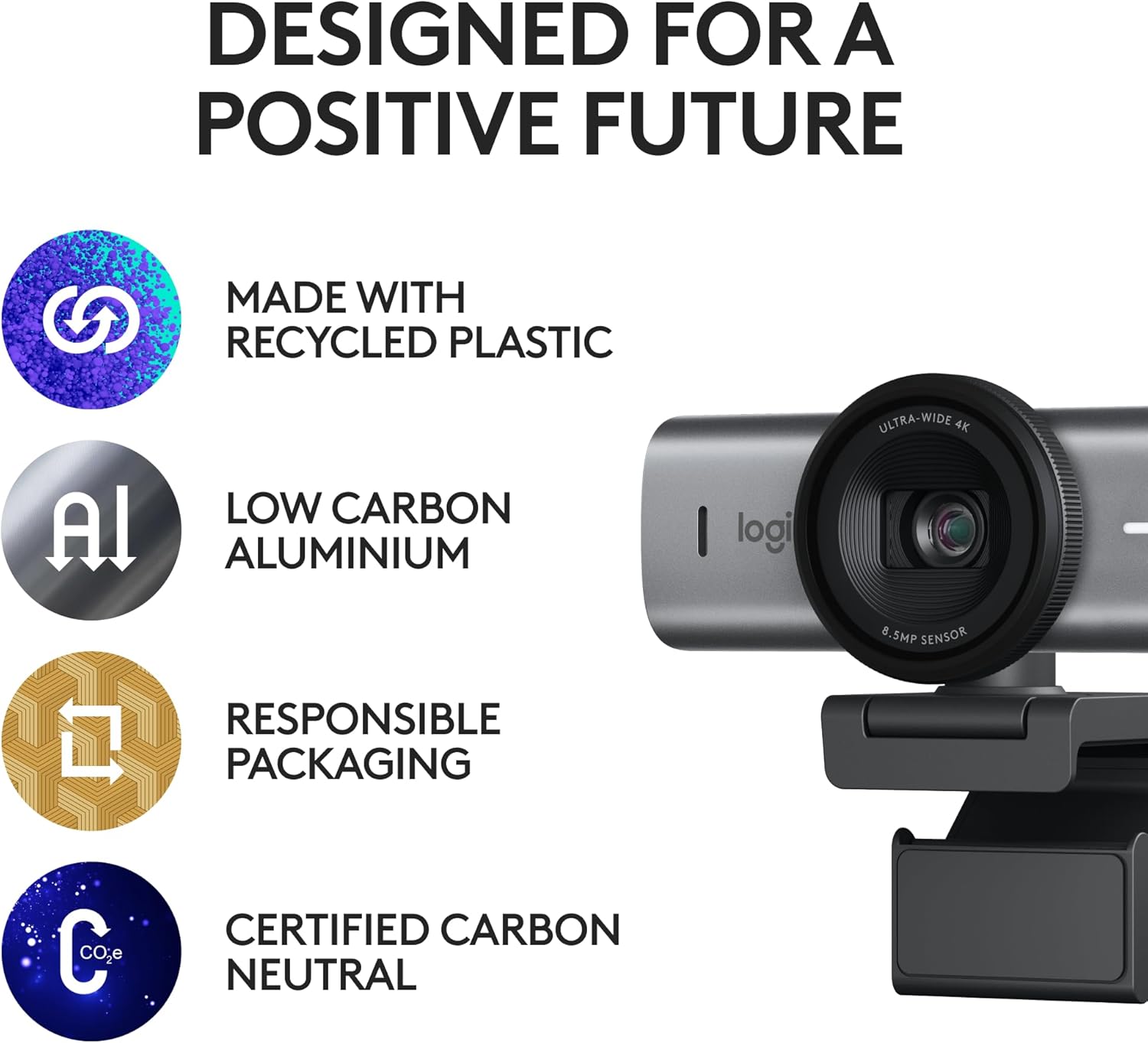
Image: The MX Brio 705 webcam accompanied by icons symbolizing its sustainable design, including the use of recycled plastic, low-carbon aluminum, responsible packaging, and carbon neutrality.
الضمان والدعم
للحصول على معلومات الضمان والدعم الفني والموارد الإضافية، يرجى زيارة موقع دعم Logitech الرسمي website. User documentation is also available online for further assistance.
يمكنك العثور على مزيد من المعلومات والدعم على: دعم لوجيتك


