1. المقدمة
This manual provides detailed instructions for the installation, operation, and maintenance of your Kolink Unity Solar ARGB Mesh Midi Tower Case. Please read this manual thoroughly before beginning installation to ensure proper setup and safe usage. This case is designed to house standard PC components, offering efficient cooling and customizable ARGB lighting.
2. معلومات السلامة
- افصل دائمًا مصدر الطاقة من مأخذ الحائط قبل تثبيت أو إزالة أي مكونات.
- Handle all components with care to prevent damage from electrostatic discharge (ESD). Consider using an anti-static wrist strap.
- Avoid placing the case in direct sunlight, near heat sources, or in environments with excessive dust or humidity.
- لا تحاول تعديل الهيكل أو مكوناته. قد تؤدي التعديلات غير المصرح بها إلى إلغاء الضمان وتُشكل مخاطر على السلامة.
- Keep small parts, such as screws, away from children.
3. محتويات العبوة
تأكد من وجود جميع العناصر في العبوة:
- Kolink Unity Solar ARGB Mesh Midi Tower Case
- Accessory Box (containing screws, cable ties, and standoffs)
- دليل المستخدم (هذا المستند)
4. انتهى المنتجview
The Kolink Unity Solar ARGB Mesh Midi Tower Case features a mesh front panel for optimal airflow, pre-installed ARGB fans, and a tempered glass side panel to showcase your build.
4.1 خارجي Views

الشكل 4.1.1: الجانب الامامي view of the Kolink Unity Solar ARGB Mesh Midi Tower Case, highlighting the mesh front panel and three illuminated ARGB fans.
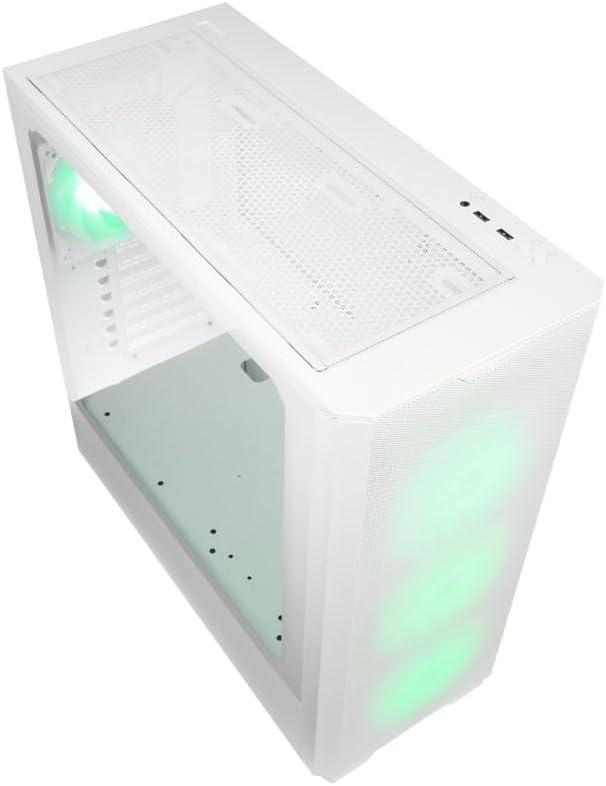
الشكل 4.1.2: قمة view of the case, showing the top mesh panel and front I/O ports.
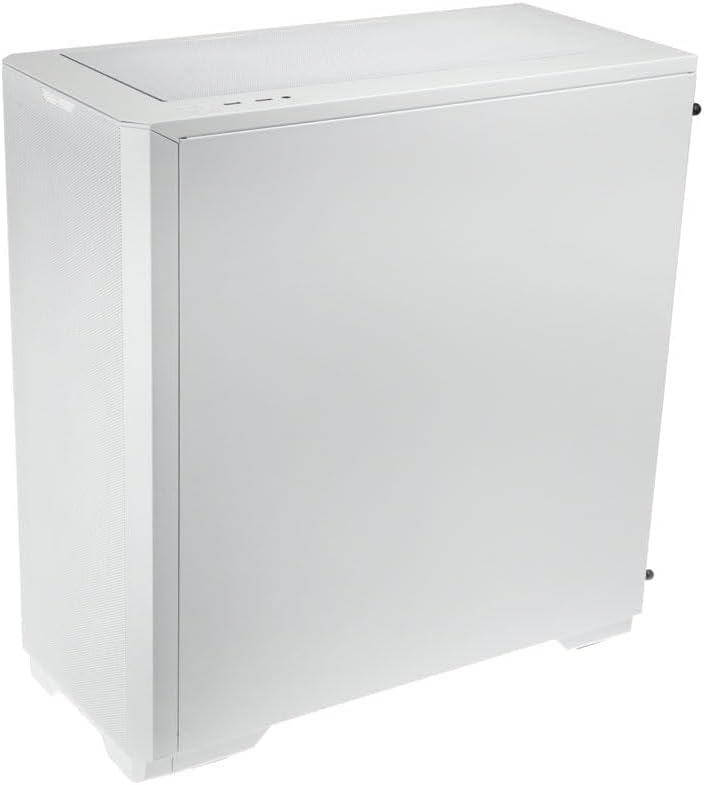
الشكل 4.1.3: الجانب الخلفي view of the case, illustrating the solid right side panel.

الشكل 4.1.4: Composite image showing the front, rear, and tempered glass side panel of the case.
4.2 منافذ الإدخال/الإخراج الأمامية

الشكل 4.2.1: Close-up of the top-mounted front I/O panel, featuring audio jacks, USB ports, and control buttons.
The front I/O panel typically includes:
- زر الطاقة
- زر إعادة الضبط
- منافذ USB 3.0 (×1)
- منافذ USB 2.0 (×2)
- مقابس صوت عالية الدقة (سماعة رأس/ميكروفون)
- ARGB Control Button (for pre-installed fans)
4.3 التصميم الداخلي

الشكل 4.3.1: الداخلية view of the case, showing the motherboard tray, front fan mounts, and PSU shroud.

الشكل 4.3.2: Another interior view, highlighting the rear fan mount and the spacious main chamber.

الشكل 4.3.3: Close-up of the pre-installed ARGB fans at the front of the case.

الشكل 4.3.4: View behind the motherboard tray, showing space for cable management and drive mounts.
5. دليل الإعداد والتثبيت
Follow these steps to install your PC components into the Kolink Unity Solar case.
5.1 إعداد القضية
- ضع العلبة على سطح مستوٍ وثابت.
- Remove the tempered glass side panel by unscrewing the thumbscrews at the rear and carefully pulling it away. Set it aside on a soft, non-abrasive surface.
- Remove the solid right side panel by unscrewing its thumbscrews and sliding it off.
5.2 تركيب اللوحة الأم
- قم بتركيب غطاء الإدخال/الإخراج (إن وجد) في الفتحة الخلفية للهيكل.
- Ensure the correct standoffs are installed for your motherboard form factor (ATX, Micro-ATX, Mini-ITX). Adjust or add standoffs as needed using the provided tools.
- Carefully align your motherboard with the standoffs and I/O shield.
- ثبّت اللوحة الأم باستخدام البراغي المرفقة. لا تفرط في إحكام ربطها.
5.3 تركيب وحدة إمداد الطاقة (PSU)
- حدد مكان تركيب وحدة تزويد الطاقة في الجزء الخلفي السفلي من الهيكل.
- Slide your PSU into the designated bay from the rear of the case.
- Align the PSU with the screw holes and secure it with the provided screws.
5.4 Storage Drive Installation (HDDs/SSDs)
The case supports multiple storage drives. Refer to the accessory box for specific mounting hardware.
- أقراص SSD مقاس 2.5 بوصة: Mount directly onto the SSD trays located behind the motherboard tray or on the PSU shroud. Secure with screws.
- محركات الأقراص الصلبة مقاس 3.5 بوصة: Install into the drive cage located under the PSU shroud. Slide the drive into the tray and secure it.
5.5 تركيب بطاقة الرسومات (GPU) وبطاقة التوسعة
- قم بإزالة أغطية فتحة PCIe الضرورية من الجزء الخلفي للعلبة.
- Insert your graphics card or other expansion cards into the appropriate PCIe slots on your motherboard.
- Secure the cards with the provided screws or retention clips.
5.6 إدارة الكابلات والوصلات
- Connect all necessary power cables from the PSU to your motherboard, CPU, GPU, and storage drives.
- Connect the front I/O cables (USB, Audio, Power/Reset switches, ARGB control) to their respective headers on the motherboard. Refer to your motherboard manual for header locations.
- Route cables through the cutouts and tie-down points behind the motherboard tray to maintain a clean interior and optimize airflow. Use the included cable ties.
- Ensure the pre-installed ARGB fans are connected to the integrated ARGB controller or directly to an ARGB header on your motherboard (if supported).
6. تشغيل إضاءة ARGB
The Kolink Unity Solar case comes with pre-installed ARGB fans. You can control their lighting effects in two ways:
- Case ARGB Button: Use the dedicated ARGB control button on the front I/O panel to cycle through various lighting modes and colors.
- برنامج اللوحة الأم: If your motherboard has a 3-pin 5V ARGB header and compatible software (e.g., ASUS Aura Sync, MSI Mystic Light, Gigabyte RGB Fusion), you can connect the case's ARGB controller to the motherboard and synchronize lighting effects with other components. Refer to your motherboard manual for instructions on ARGB header connection and software usage.
7. الصيانة
تساعد الصيانة الدورية على ضمان الأداء الأمثل وطول عمر مكونات جهاز الكمبيوتر الخاص بك.
- فلاتر الغبار: The case features removable dust filters on the front, top, and bottom. Periodically remove and clean these filters with compressed air or by rinsing them with water (ensure they are completely dry before reinstallation).
- التنظيف الداخلي: Use compressed air to remove dust from inside the case, especially from fan blades, heatsinks, and other components. Perform this cleaning in a well-ventilated area.
- التنظيف الخارجي: امسحي الأسطح الخارجية بقطعة ناعمة ، دamp القماش. تجنب المواد الكيميائية القاسية أو المنظفات الكاشطة.
8. استكشاف الأخطاء وإصلاحها
إذا واجهت مشكلات، راجع خطوات استكشاف الأخطاء وإصلاحها الشائعة التالية:
- جهاز الكمبيوتر لا يعمل: Double-check all power connections from the PSU to the motherboard, CPU, and GPU. Ensure the front panel power switch cable is correctly connected to the motherboard header. Verify the PSU switch is in the 'ON' position.
- Fans not spinning/ARGB not lighting up: Check fan power connections and ARGB connections. Ensure ARGB cables are connected to the correct 3-pin 5V ARGB headers (not 4-pin 12V RGB headers). If using the case controller, ensure it is powered.
- لا يوجد إخراج للعرض: Ensure your graphics card is properly seated in its PCIe slot and all necessary power cables are connected. Verify your monitor cable is connected to the graphics card, not the motherboard's integrated graphics port (unless you are using integrated graphics).
9. المواصفات
Key specifications for the Kolink Unity Solar ARGB Mesh Midi Tower Case:
| ميزة | مواصفة |
|---|---|
| ماركة | كولي |
| اسم الموديل | Unity Solar |
| رقم موديل العنصر | UNITYSOLARWHT |
| نوع الحالة | البرج الاوسط |
| لون | أبيض |
| التوافق مع اللوحة الأم | ATX و Micro-ATX و Mini-ITX |
| طريقة التبريد | هواء |
| نوع تركيب مصدر الطاقة | التركيب السفلي |
| عدد منافذ USB 2.0 | 2 |
| إجمالي منافذ USB | 2 (Note: Product description indicates 1x USB 3.0, 2x USB 2.0. Please verify with product packaging.) |
| Total Internal Bays | 4 (Mixed 2.5"/3.5" support) |
| وزن العنصر | 2.2 رطل |
10. الضمان والدعم
للحصول على معلومات الضمان والدعم الفني، يرجى الرجوع إلى موقع KOLINK الرسمي. webالموقع أو تواصل مع بائع التجزئة. احتفظ بإثبات الشراء لطلبات الضمان.


