1. المقدمة
Thank you for choosing the Trust Halyx 5-in-1 USB-C Hub. This manual provides essential information for the proper setup, operation, and maintenance of your device. This hub is designed to expand the connectivity of your PC, laptop, or MacBook Pro by adding four USB-C data ports and one USB-C Power Delivery (PD) port.
2. انتهى المنتجview
The Trust Halyx 5-in-1 USB-C Hub (Model 25136) features a durable aluminum housing and a compact design. It connects to your host device via an integrated 10cm USB-C cable.
2.1 الميزات الرئيسية
- اتصال بثمانية منافذ: Adds 4 USB-C data ports and 1 USB-C Power Delivery port.
- 100W USB-C PD Power Port: Allows pass-through charging for your laptop (additional charger required).
- نقل البيانات بسرعة عالية: Supports data transfer speeds up to 5 Gbps.
- تصميم متين: Constructed with an aluminum housing for enhanced durability.
- التوصيل والتشغيل: لا تتطلب معظم أنظمة التشغيل برامج تشغيل.
2.2 محتويات العبوة
- Trust Halyx 5-in-1 USB-C Hub
- دليل المستخدم (هذا المستند)

Image: The Trust Halyx 5-in-1 USB-C Hub showing its five convenient ports and integrated USB-C cable.

الصورة: تفصيلية view of the five USB-C ports on the Trust Halyx hub, including the Power Delivery port.
3. تعليمات الإعداد
Follow these steps to set up your Trust Halyx 5-in-1 USB-C Hub:
- الاتصال بجهاز المضيف: Plug the integrated USB-C cable of the hub into an available USB-C port on your PC, laptop, or MacBook Pro.
- توصيل الطاقة (اختياري): If you wish to charge your laptop through the hub, connect your laptop's USB-C power adapter to the dedicated 100W USB-C PD port on the hub. Note: An additional charger is required for pass-through charging.
- توصيل الأجهزة الطرفية: Plug your USB-C devices (e.g., external drives, keyboards, mice, other USB-C accessories) into the four USB-C data ports on the hub.
- تحقق من الاتصال: Your operating system should automatically detect the hub and connected devices. No additional drivers are typically needed.

Image: The Trust Halyx hub connected to a laptop, demonstrating how to plug in additional USB-C devices.

Image: The 100W USB-C Power Delivery port on the Trust Halyx hub, with a power cable connected for laptop charging.
4. تعليمات التشغيل
Once connected, the Trust Halyx hub operates as a direct extension of your computer's USB-C capabilities.
4.1 توصيل الأجهزة
- Simply plug your USB-C peripherals into any of the four available USB-C data ports.
- The hub supports data transfer speeds of up to 5 Gbps, suitable for most external storage devices, keyboards, mice, and other accessories.
4.2 Power Delivery Functionality
- The dedicated USB-C PD port allows you to charge your laptop while using the hub. Connect your laptop's original USB-C power adapter to this port.
- The hub supports up to 100W pass-through power delivery. Ensure your power adapter is compatible with your laptop's charging requirements.

Image: A complete workstation setup utilizing the Trust Halyx hub to connect various peripherals to a laptop and external monitor.
5. الصيانة والعناية
To ensure the longevity and optimal performance of your Trust Halyx USB-C Hub, follow these guidelines:
- تنظيف: استخدم قطعة قماش ناعمة وجافة لتنظيف محور العجلة. تجنب استخدام المنظفات السائلة أو المواد الكاشطة.
- تخزين: يُحفظ المحور في مكان بارد وجاف عند عدم استخدامه. حجمه الصغير يجعله مناسبًا للسفر.
- التعامل: Avoid dropping the hub or subjecting it to strong impacts. Do not bend the integrated cable excessively.
- درجة حرارة: Operate the hub within normal room temperatures. Avoid extreme heat or cold.
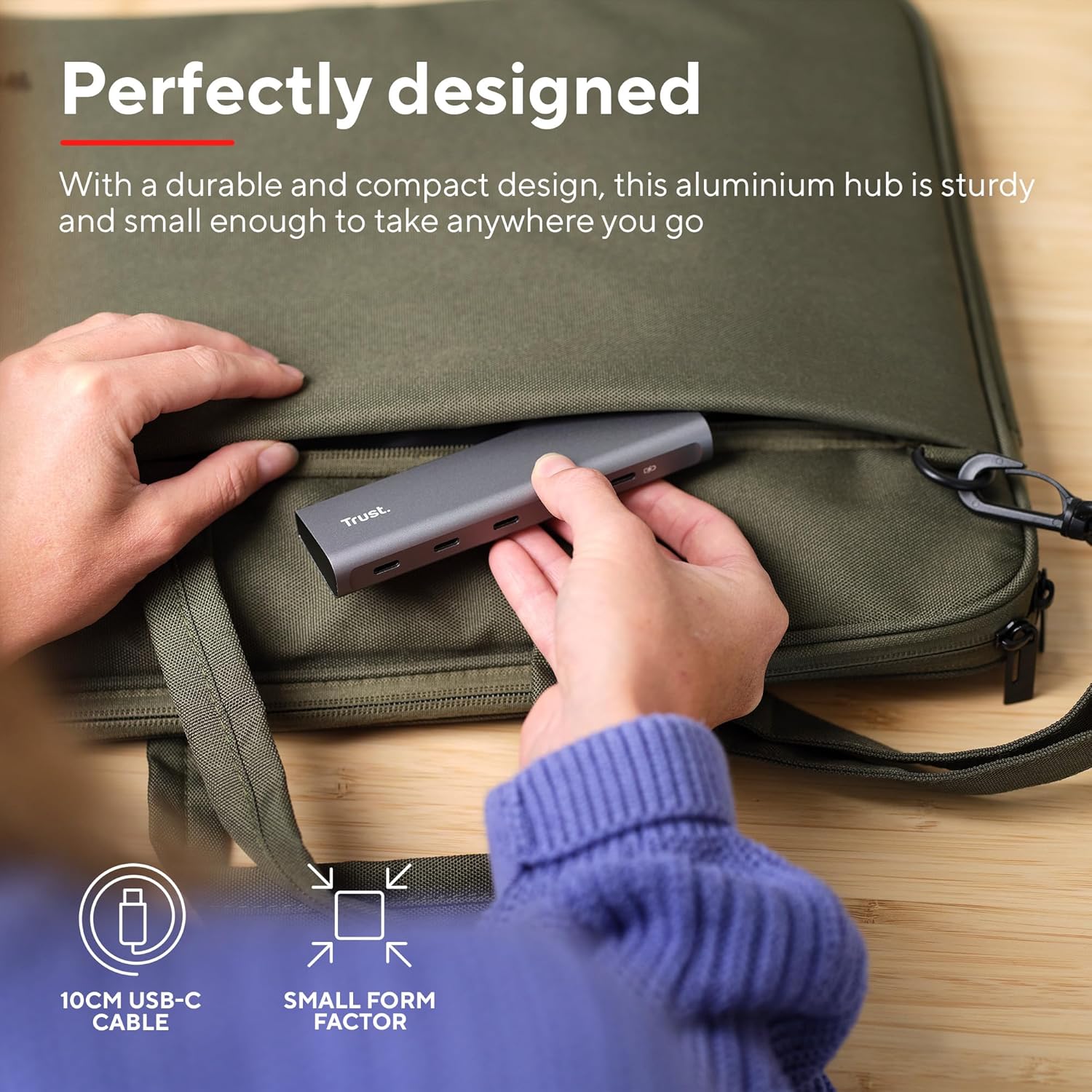
Image: The compact and durable design of the Trust Halyx hub, shown being placed into a laptop bag for portability.
6. استكشاف الأخطاء وإصلاحها
If you encounter issues with your Trust Halyx USB-C Hub, refer to the following common solutions:
6.1 Devices Not Detected
- التحقق من الاتصالات: Ensure the hub's USB-C cable is securely plugged into your host device and that peripherals are firmly connected to the hub.
- Restart Host Device: Sometimes, a simple restart of your computer can resolve detection issues.
- اختبار الأجهزة الطرفية مباشرة: Connect the peripheral directly to your computer's USB-C port (if available) to confirm it is functioning correctly.
- Try Different Port: If your computer has multiple USB-C ports, try connecting the hub to a different one.
6.2 Charging Not Working
- التحقق من محول الطاقة: Ensure your USB-C power adapter is correctly connected to the hub's PD port and is capable of providing sufficient power for your laptop.
- Check Laptop Compatibility: Confirm your laptop supports USB-C Power Delivery for charging.
- سلامة الكابل: Ensure the USB-C cable from your power adapter to the hub is not damaged.
6.3 نقل البيانات البطيء
- توافق الجهاز: Ensure the connected peripheral supports USB 3.0 (5 Gbps) speeds. Older USB 2.0 devices will operate at their native slower speeds.
- سرعة منفذ المضيف: Verify that the USB-C port on your computer supports USB 3.0 or higher data transfer rates.
- تجنب التحميل الزائد: While the hub provides multiple ports, extremely demanding devices might perform better when connected directly to the host device if possible.
7. المواصفات
| ميزة | التفاصيل |
|---|---|
| رقم الموديل | 25136 |
| ماركة | يثق |
| الاتصال | 1x USB-C Host Connector (integrated cable), 4x USB-C Data Ports, 1x USB-C Power Delivery Port |
| سرعة نقل البيانات | حتى 5 جيجابت في الثانية (USB 3.0) |
| توصيل الطاقة | شحن يصل إلى 100 واط |
| مواد الإسكان | الألومنيوم |
| طول الكابل | 10 سم |
| الأبعاد (الطول × العرض × الارتفاع) | 1.26 × 5 × 0.63 بوصة (32 × 127 × 16 مم) |
| وزن | 2.86 أونصة (81 جرام) |
| أنظمة التشغيل المتوافقة | Chrome OS, Windows 10 or 11, macOS 11, 12 or 13 |
8. الضمان والدعم
للحصول على معلومات الضمان والدعم الفني، يرجى الرجوع إلى موقع Trust الرسمي webالموقع الإلكتروني أو تواصل مع خدمة العملاء مباشرةً. احتفظ بإثبات الشراء لطلبات الضمان.
الدعم عبر الإنترنت: www.trust.com/support


