1. المقدمة
This manual provides comprehensive instructions for the setup, operation, and maintenance of your Xprinter XP-Q801K Thermal Receipt Printer. This printer is designed for efficient and reliable receipt printing in various business environments, featuring high-speed direct thermal printing and a USB interface for easy connectivity.

الشكل 1: الجبهة view of the Xprinter XP-Q801K Thermal Receipt Printer, showing the paper output slot and control buttons.
2. الإعداد
2.1 فك التعبئة
Carefully remove the printer and all accessories from the packaging. Verify that all components are present:
- طابعة إيصالات حرارية Xprinter XP-Q801K
- محول الطاقة
- كابل يو اس بي
- لفة ورق (بداية)
- دليل المستخدم (هذا المستند)
2.2 توصيل الطابعة
Before connecting, ensure the printer is powered off. Locate the ports on the rear of the printer.
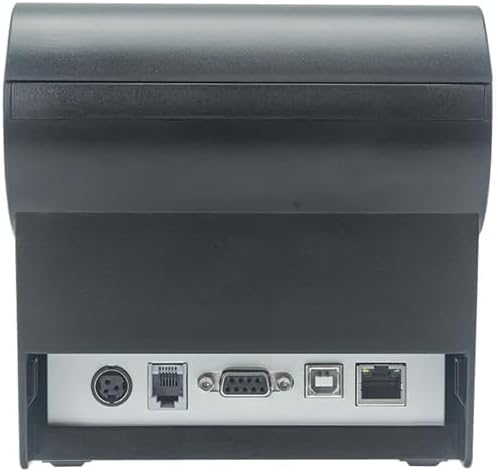
الشكل 2: خلفي view of the printer, highlighting the power, USB, and other interface ports.
- توصيل الطاقة: Insert the power adapter cable into the printer's power input port (DC 24V/2.5A) and plug the adapter into a suitable electrical outlet (AC 100-240V, 50-60Hz).
- توصيل يو اس بي: Connect one end of the provided USB cable to the USB port on the printer and the other end to an available USB port on your computer.
- Cash Drawer (Optional): If using a cash drawer, connect its cable to the cash drawer port (DC 24V/1A) on the printer.
2.3 Loading the Paper Roll
تستخدم الطابعة لفائف ورق حراري بعرض 80 مم.
- Open the paper cover by pushing the cover open button (usually located on the side or front).
- أدخل لفة الورق الحراري بحيث يكون سطح الطباعة مواجهًا لرأس الطباعة. تأكد من تثبيت اللفة بشكل صحيح في حجرة الورق.
- اسحب كمية صغيرة من الورق خارج القاطع.
- أغلق الغطاء الورقي بإحكام حتى تسمع صوت طقطقة عند تثبيته في مكانه.
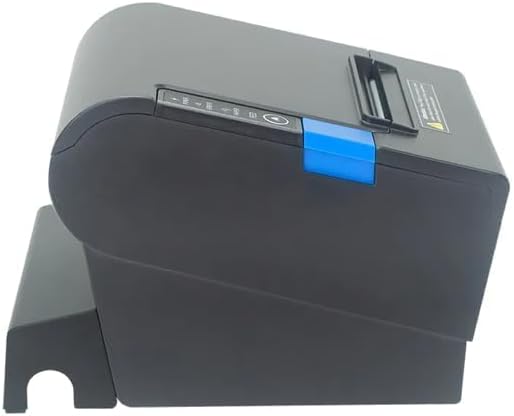
الشكل 3: الجانب view of the printer, illustrating the paper cover mechanism.
2.4 تثبيت برنامج التشغيل
The printer requires a driver to communicate with your computer. Drivers are typically available for Windows, Linux, Android, and Mac operating systems.
- For Windows users, the printer often supports plug-and-play installation or requires a specific Windows driver.
- For Linux, Android, and Mac, SDKs (Software Development Kits) are usually provided for integration.
يرجى الرجوع إلى الشركة المصنعة website or the included driver CD/USB drive for the latest drivers and installation instructions specific to your operating system.
3. تشغيل الطابعة
3.1 تشغيل/إيقاف التشغيل
Locate the power switch on the side or rear of the printer. Flip the switch to the 'ON' position to power on the printer. The 'POWER' indicator light will illuminate. Flip to 'OFF' to power down.
3.2 Indicator Lights and Buttons
The front panel typically features several indicator lights and buttons:
- قوة: يشير إلى أن الطابعة قيد التشغيل.
- خطأ: Illuminates or flashes to indicate an error condition (e.g., paper out, print head overheating, cutter error).
- الورق: Indicates that the paper roll is low or out.
- زر التغذية: Press to manually feed paper. Hold to perform a self-test print (if supported by model).
3.3 الطباعة الأساسية
Once the printer is connected and drivers are installed, you can print receipts from your POS software or application. Ensure the printer is selected as the default or active printer in your system settings.
The printer supports various print speeds up to 300 mm/s and automatic paper cutting after each print job.
4. الصيانة
تضمن الصيانة الدورية الأداء الأمثل وتطيل عمر طابعتك.
4.1 تنظيف رأس الطباعة
The print head should be cleaned regularly, especially if print quality degrades.
- أطفئ الطابعة وافصل كابل الطاقة.
- افتح الغطاء الورقي.
- استخدمي قطعة قطنية برفقampened with isopropyl alcohol (ethanol) to gently wipe the thermal elements of the print head.
- اترك رأس الطباعة يجف تمامًا قبل إغلاق الغطاء وإعادة توصيل الطاقة.
4.2 Cleaning the Cutter
Paper dust can accumulate around the cutter blade, affecting its performance.
- أطفئ الطابعة وافصل كابل الطاقة.
- Carefully remove any visible paper dust or debris from around the cutter blade using a soft brush or compressed air.
- Do not use liquids on the cutter.
4.3 التنظيف العام
امسح الجزء الخارجي من الطابعة بقطعة قماش ناعمة.amp قماش. تجنب استخدام المواد الكيميائية القاسية أو المنظفات الكاشطة.
5. استكشاف الأخطاء وإصلاحها
يتناول هذا القسم المشكلات الشائعة التي قد تواجهها مع طابعتك.
| مشكلة | السبب المحتمل | حل |
|---|---|---|
| الطابعة لا تعمل. | كابل الطاقة غير موصول؛ مأخذ الطاقة معطل؛ مفتاح الطاقة مطفأ. | Ensure power cable is securely connected. Test power outlet. Turn power switch to 'ON'. |
| ممنوع الطباعة. | Paper out; Paper loaded incorrectly; Driver not installed or incorrect; USB cable loose; Printer not selected. | Load new paper roll. Re-load paper correctly. Install/reinstall correct driver. Check USB connection. Select printer in software. |
| ERROR light is on/flashing. | Paper out; Paper jam; Print head overheating; Cutter error. | Load paper. Clear paper jam. Allow printer to cool down. Check cutter for obstructions. |
| جودة طباعة رديئة. | Dirty print head; Low quality paper; Old paper roll. | Clean the print head (see Section 4.1). Use high-quality thermal paper. Replace old paper rolls. |
إذا استمرت المشكلة بعد محاولة هذه الحلول، فيرجى الاتصال بدعم العملاء.
6. المواصفات
| ميزة | التفاصيل |
|---|---|
| طريقة الطباعة | حراري مباشر |
| عرض الورق | 80 ملم |
| سرعة الطباعة | 230 مم / ثانية ، 260 مم / ثانية ، 300 مم / ثانية |
| الواجهة | USB |
| تباعد السطور | 3.75 mm (adjustable by commands) |
| Character Size (ANK) | Font A: 1.5 × 3.0 mm (12 × 24 dots) Font B: 1.1 × 2.1 mm (9 × 17 dots) |
| Character Size (Chinese/Traditional Chinese) | 3.0 × 3.0 mm (24 × 24 dots) |
| أنواع الباركود | UPC-A / UPC-E / JAN13 (EAN13) / JAN8 (EAN8) / CODE39 / ITF / CODABAR / CODE93 / CODE128 |
| الباركود 2D | QR Code / PDF417 |
| NV Flash Memory | 256 كيلو بايت |
| طاقة الإدخال | أس شنومكس-شنومكسف، شنومكس-شنومكسهز |
| طاقة الإخراج | تيار مستمر 24 فولت/2.5 أمبير |
| مخرجات درج النقود | تيار مستمر 24 فولت/1 أمبير |
| وزن | 1.0 كجم |
| الأبعاد (D × W × H) | 194.5 × 145 × 146.4 ملم |
| درجة حرارة التشغيل | 0~45 درجة مئوية |
| رطوبة التشغيل | 10~80% رطوبة نسبية |
| كتر الحياة | 1.5 مليون تخفيضات |
| حياة رأس الطباعة | 150 كم |
| التوافق مع أنظمة التشغيل | Windows, Linux, Android, Mac |


