
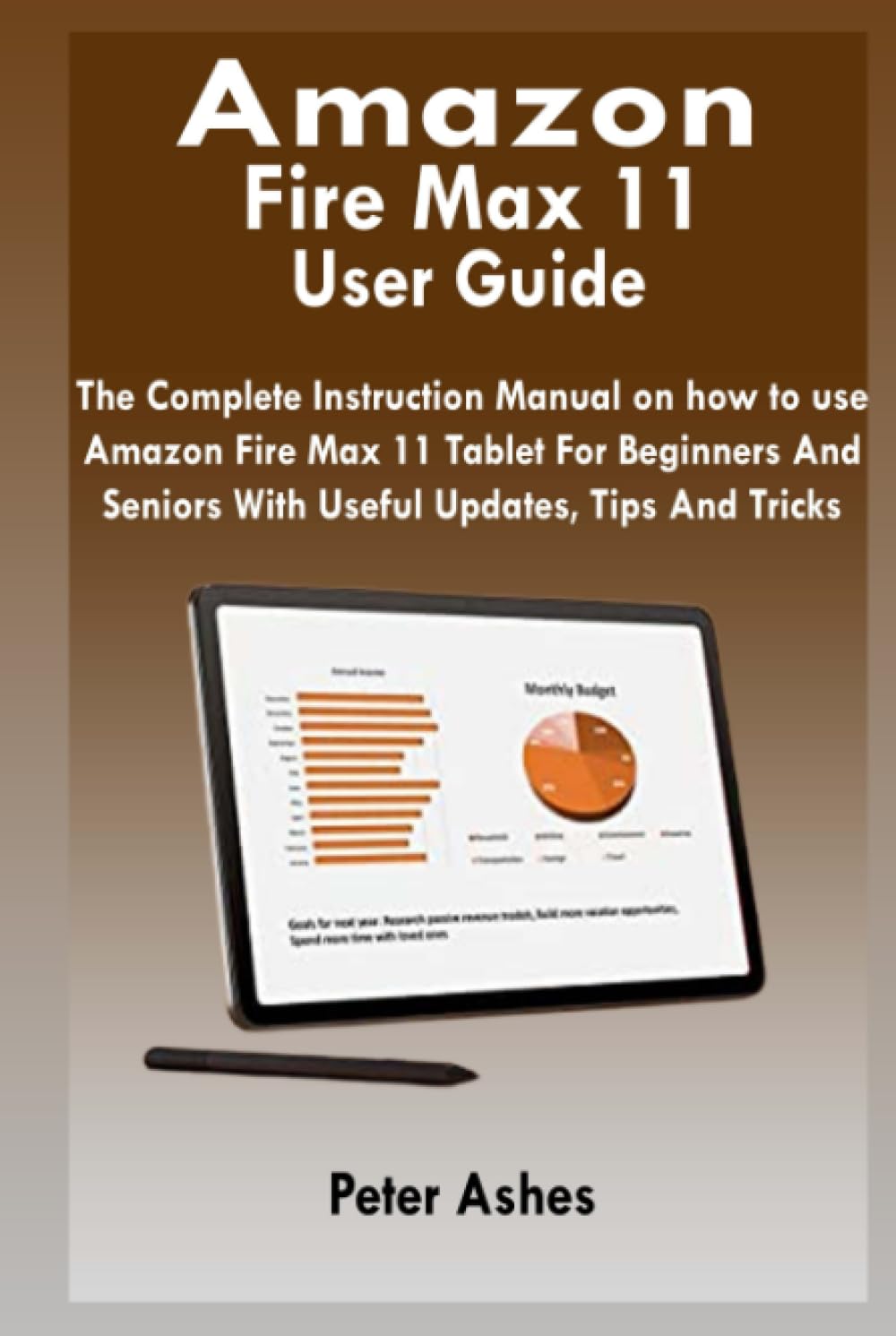
Introduction to Your Amazon Fire Max 11 Tablet
Welcome to the Amazon Fire Max 11, a powerful and versatile tablet designed for entertainment, productivity, and connectivity. This manual provides essential information to help you get started, operate, maintain, and troubleshoot your device. The Fire Max 11 features a larger display, enhanced performance, and extended battery life compared to previous models, offering a 50-percent performance boost for streaming, gaming, and app switching. It also supports Dolby Atmos for immersive audio and includes upgraded 8 MP cameras (front and rear) capable of 1080p HD video recording and calls.
1. الإعداد الأولي
Follow these steps to set up your new Amazon Fire Max 11 tablet for the first time.
- تشغيل الطاقة: اضغط مع الاستمرار على زر الطاقة الموجود على جانب الجهاز اللوحي حتى يظهر شعار أمازون.
- اختيار اللغة: Choose your preferred language from the list and tap "Continue".
- اتصال واي فاي: Select your Wi-Fi network from the available list and enter the password. Tap "Connect". Ensure a stable internet connection for initial setup.
- Amazon Account Setup: Sign in with your existing Amazon account credentials. If you don't have an account, you will be prompted to create one.
- المنطقة الزمنية والتاريخ: Confirm your time zone and date settings.
- Restore from Backup (Optional): If you have a previous Fire tablet, you may be prompted to restore settings and apps from a cloud backup.
- Install Google Play Store: While Fire tablets primarily use the Amazon Appstore, you can install the Google Play Store for a wider selection of apps. This typically involves downloading and installing specific APK files from a trusted source. (Note: This is an advanced procedure and not officially supported by Amazon. Proceed with caution.)
- Set up Parental Controls: To manage content access for children, navigate to Settings > Parental Controls and follow the on-screen instructions to create profiles and set restrictions.
- سويتش بروfiles: If multiple users share the tablet, you can switch between profiles from the lock screen or by swiping down from the top of the screen and tapping the profile رمز.
- الاتصال بالشاحن: For optimal performance and battery longevity, ensure your tablet is fully charged before extensive use. Use the provided USB-C cable and power adapter.
2. Operating Your Fire Max 11
This section covers various functions and features of your tablet.
2.1 Basic Navigation and Customization
- تخصيص اللغة: Change the system language by going to Settings > Device Options > Language & Keyboard > Language.
- Change Keyboard: Access keyboard settings via Settings > Device Options > Language & Keyboard > Current Keyboard to select or manage installed keyboards.
- Turn on Dark Mode: Reduce eye strain in low light by enabling Dark Mode. Go to Settings > Display > Dark Mode.
- عرض الوضع: Transform your Fire Max 11 into an Echo Show-like experience. Swipe down from the top, then tap the Show Mode icon. This allows for hands-free Alexa interactions.
2.2 Media and Reading
- View Reading Progress: When reading books, your progress is typically displayed at the bottom of the screen or accessible through the reading menu.
- Turn on Silk Reading View: For a distraction-free reading experience on web pages, use Silk Browser's Reading View feature. Look for the reader icon in the address bar.
- Switch to Private Browsing: In the Silk Browser, open the menu and select "New Private Tab" to browse without saving history or cookies.
- Borrow Library Books: Use the Libby app (if installed) to borrow e-books and audiobooks from your local library.
- Purchase Books: Browse and purchase books directly from the Kindle Store on your tablet.
- Transfer Books to a New Kindle: Books purchased from Amazon are automatically available on all your registered Kindle devices and apps. For non-Amazon content, you may need to transfer files manually via USB or cloud services.
2.3 Apps and Communication
- تثبيت التطبيقات: Download apps from the Amazon Appstore. If Google Play Store is installed, you can also use it.
- إلغاء تثبيت التطبيقات: To remove an app, press and hold its icon on the home screen, then drag it to the "Uninstall" option, or go to Settings > Apps & Notifications > See all apps.
- Make Skype Calls: Install the Skype app from the Appstore and sign in to make video or voice calls. The 8 MP front camera supports 1080p HD video calls.
- Install Libby/YouTube: بحث عن and install these apps from the Amazon Appstore or Google Play Store (if installed).
- Find Your Email Address: Your Amazon account email is typically used for device registration. For email apps, open the app to view configured accounts.
2.4 Alexa Features
- أليكسا بدون استخدام اليدين: Enable Alexa Hands-Free in Settings > Alexa to use voice commands without touching your tablet.
- Use Alexa for Reading: Ask Alexa to read books aloud from your Kindle library.
2.5 الميزات المتقدمة
- Remove Ads: Some Fire tablets display lock screen ads. These can often be removed by purchasing an ad-free version of the device or through a one-time payment in your Amazon account settings.
- Find Hidden Camera: The Fire Max 11 has an 8 MP front-facing camera and an 8 MP rear-facing camera. To access them, open the Camera app from your home screen or app library.
3. الصيانة
Proper maintenance ensures the longevity and optimal performance of your Fire Max 11 tablet.
- العناية بالبطارية:
- تجنب درجات الحرارة القصوى.
- لا تدع البطارية تنفد تماماً بشكل متكرر.
- استخدم الشاحن الأصلي أو شاحنًا متوافقًا معتمدًا.
- تنظيف الجهاز:
- استخدم قطعة قماش ناعمة وخالية من الوبر لتنظيف الشاشة والجسم.
- تجنب المواد الكاشطة أو المواد الكيميائية القاسية.
- بالنسبة للبقع العنيدة، استخدمي القليل منampفي القماش مع الماء.
- تحديثات البرامج:
- Ensure your tablet is connected to Wi-Fi and has sufficient battery.
- Check for updates regularly in Settings > Device Options > System Updates.
- Updates provide new features, security enhancements, and bug fixes.
- Back up Data with Amazon Cloud:
- Enable Device Backup in Settings > Device Options > Backup & Restore to automatically save your device settings, app data, and more to Amazon Cloud.
- Photos and videos can be backed up using Amazon Photos.
4. استكشاف المشكلات الشائعة وإصلاحها
If you encounter problems with your Fire Max 11, try these common solutions.
- الجهاز لا يستجيب:
- اضغط مع الاستمرار على زر الطاقة لمدة 20-40 ثانية لإعادة التشغيل القسري.
- تأكد من شحن الجهاز. قم بتوصيله بمصدر طاقة لمدة 30 دقيقة على الأقل.
- مشكلات الاتصال بشبكة Wi-Fi:
- قم بتشغيل وإيقاف تشغيل الواي فاي في Settings > Wireless & Bluetooth.
- أعد تشغيل جهاز توجيه Wi-Fi الخاص بك.
- انسى الشبكة وأعد الاتصال بها.
- تعطل التطبيقات أو تجميدها:
- Force close the app: Settings > Apps & Notifications > See all apps > [App Name] > Force Stop.
- مسح ذاكرة التخزين المؤقت للتطبيق: Settings > Apps & Notifications > See all apps > [App Name] > Storage & Cache > Clear Cache.
- قم بإلغاء تثبيت التطبيق ثم إعادة تثبيته.
- الأداء البطيء:
- أغلق التطبيقات غير المستخدمة التي تعمل في الخلفية.
- مسح ذاكرة التخزين المؤقت للتطبيقات المستخدمة بكثرة.
- أعد تشغيل الجهاز اللوحي بانتظام.
- Ensure sufficient storage space.
- اعدادات المصنع:
As a last resort, a factory reset will erase all data and restore the tablet to its original settings. قم بعمل نسخة احتياطية لبياناتك قبل المتابعة. اذهب الى الإعدادات > خيارات الجهاز > إعادة ضبط المصنع.
5. المواصفات
Key technical specifications for the Amazon Fire Max 11 tablet.
| ميزة | التفاصيل |
|---|---|
| نموذج | فاير ماكس 11 |
| عرض | 11-inch display (specific resolution not provided, but implied larger than previous models) |
| الكاميرات | 8 MP Front, 8 MP Rear (supports up to 1080p HD video) |
| صوتي | دعم Dolby Atmos |
| أداء | 50-percent performance boost over older Fire tablets |
| ASIN | B0C91ZKSS8 |
| ISBN-13 (for manual reference) | 979-8399576039 |
| لغة | إنجليزي |
| تاريخ الافراج عنه | 23 يونيو 2023 |
Note: Specific internal storage, RAM, and processor details are not available in the provided data.
6. الضمان والدعم
For information regarding your Amazon Fire Max 11 tablet's warranty, please refer to the warranty documentation included with your device packaging or visit the official Amazon support webموقع.
If you require further assistance, technical support, or have questions not covered in this manual, please contact Amazon Customer Service:
- الدعم عبر الإنترنت: يزور دعم أجهزة أمازون
- خيارات الاتصال: Look for chat, email, or phone support options on the Amazon support page.