1. انتهى المنتجview
The Rapoo MT760L is a multi-device wireless mouse designed for versatility and comfort. It supports Bluetooth 5.0/3.0 and 2.4GHz wireless connections, allowing seamless switching between up to four devices. Key features include adjustable DPI settings, an ergonomic design, and M+ Cross-Computer Technology for enhanced workflow.

Image: The Rapoo MT760L wireless mouse, showcasing its ergonomic shape and the two included USB dongles.
محتويات الحزمة:
- 1 x Rapoo MT760L Wireless Mouse
- 1 x USB-C Charging Cable (USB-A to USB-C)
- 2 x USB Dongles
- 1 × دليل المستخدم (هذه الوثيقة)
2. الإعداد
2.1 شحن الماوس
Before initial use, fully charge the mouse. Connect the provided USB-C charging cable to the mouse's USB-C port and the other end to a USB power source (e.g., computer USB port, wall adapter). The green LED indicator will turn on during charging and turn off when fully charged. A full charge typically takes 3 hours and provides up to 90 days of usage, depending on frequency and device conditions.
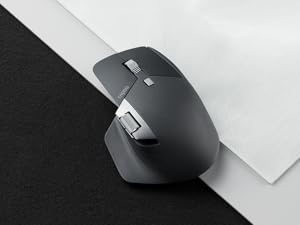
Image: The Rapoo MT760L mouse being charged via its USB-C port, illustrating the charging process and battery life.
2.2 Connecting via 2.4GHz USB Dongle
- Locate the USB dongle(s) stored in the magnetic absorption compartment at the bottom of the mouse.
- قم بتشغيل الماوس باستخدام مفتاح الطاقة الموجود في الجزء السفلي.
- Plug one of the USB dongles into an available USB-A port on your computer.
- The mouse should automatically connect. The 2.4G connection indicator LED will be off, indicating a successful connection.

Image: A step-by-step diagram illustrating how to pair the mouse using the 2.4GHz USB dongle, including turning on the mouse and plugging in the receiver.
2.3 Connecting via Bluetooth (BT 3.0/5.0)
The MT760L supports up to three Bluetooth connections.
- Turn on the MT760L mouse. The device light will start to blink rapidly.
- Press the device switch button (located on the bottom of the mouse) to select the desired Bluetooth channel (1, 2, or 3). The corresponding indicator LED will start to blink fast.
- Keep pressing the device switch button for at least 3 seconds to enter Bluetooth pairing mode. The selected channel's indicator LED will flash slowly.
- On your device (computer, laptop, cell phone, iPad), go to Bluetooth settings and search for available devices. Select "Rapoo MT760L" to connect.
- Once connected, the blinking will stop.
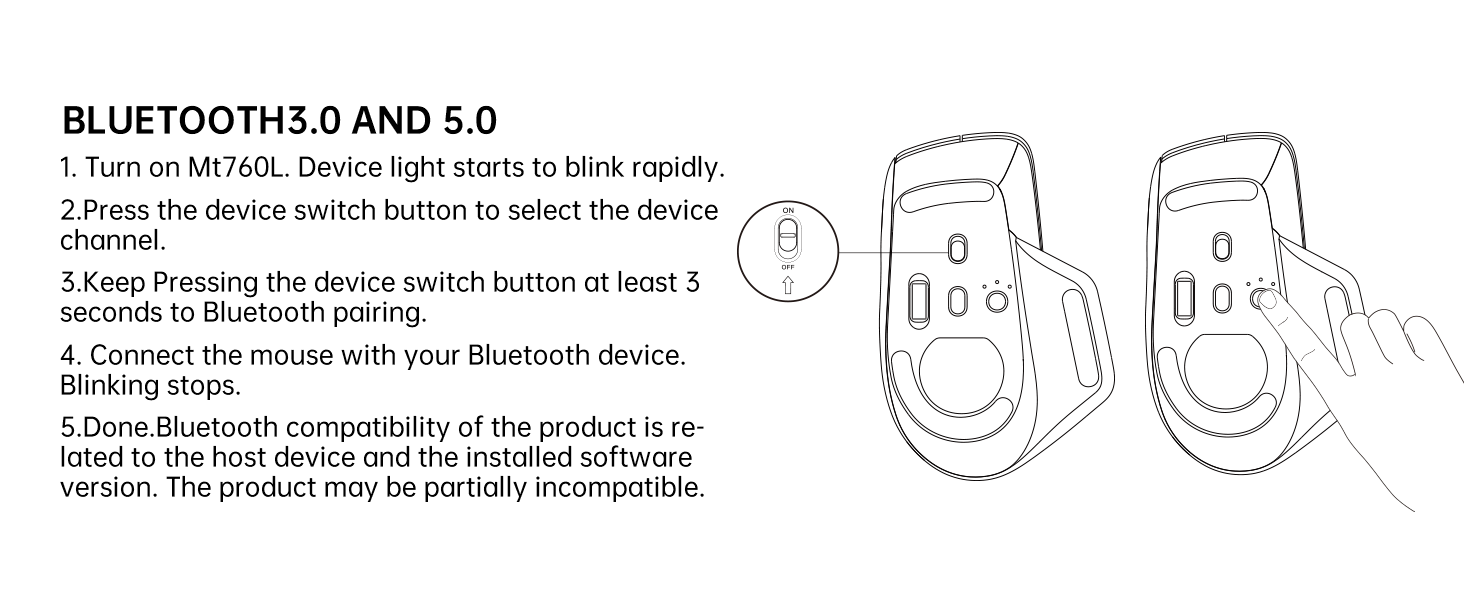
Image: A diagram illustrating the Bluetooth pairing process for the Rapoo MT760L, showing the device switch button and LED indicators.
2.4 M+ Cross-Computer Technology Setup
This feature allows seamless control and file transfer between multiple computers. It requires the installation of specific software and a shared network connection.
- Download and install the Rapoo M+ software from the official Rapoo webموقع (rapoo.com/search?kw=MT760) on all computers you wish to connect. This function is compatible with Windows systems only.
- Ensure all connected computers are on the same Wi-Fi or Ethernet network.
- Follow the instructions within the M+ software to configure cross-computer control and file transfer settings.
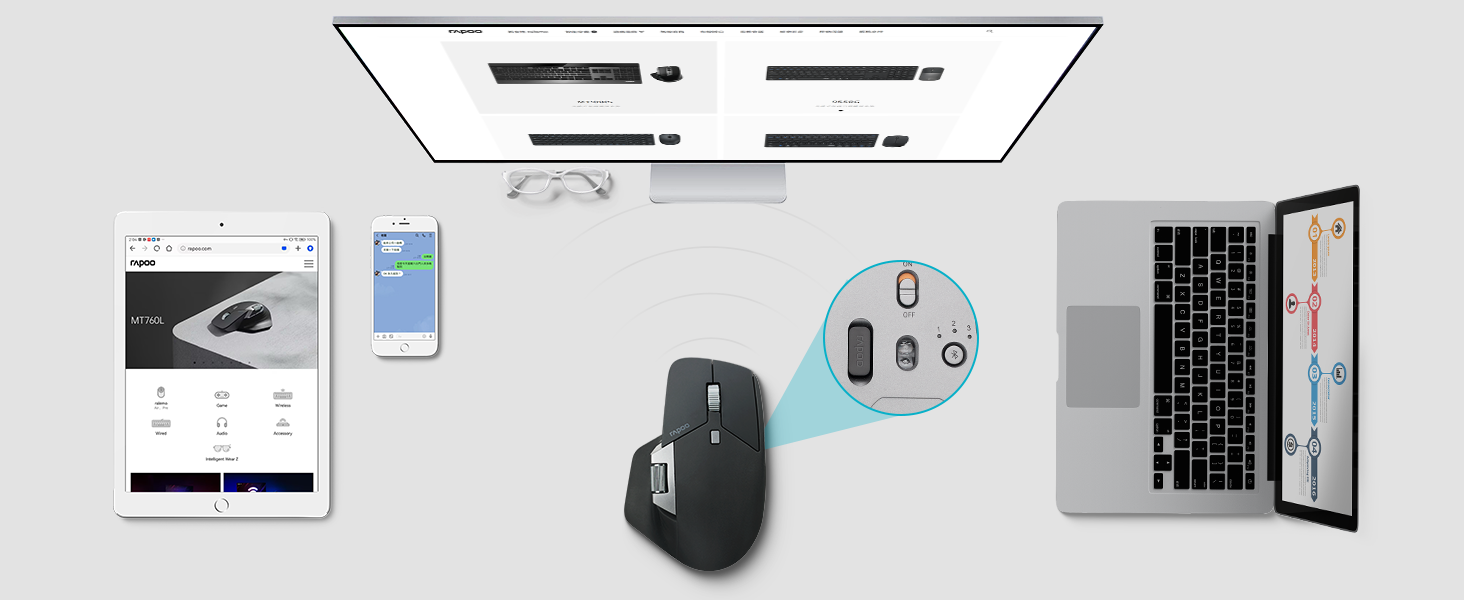
Image: An illustration demonstrating the M+ Cross-Computer Technology, showing a mouse controlling two separate computers and transferring fileبينهما.
3. تعليمات التشغيل
3.1 وظائف الأزرار
- أزرار النقر الأيسر/الأيمن: وظائف الفأرة الأساسية.
- Scroll Wheel (Center): Used for vertical scrolling.
- زر DPI: Located below the center scroll wheel. Press to cycle through DPI settings.
- عجلة التمرير الجانبية: Located on the left side. Used for horizontal scrolling in compatible applications.
- أزرار الأمام/الخلف: Located below the side scroll wheel. Used for navigation in web المتصفحات و file المستكشفون.

Image: The Rapoo MT760L mouse with labels indicating its 8 programmable buttons, including the main clicks, scroll wheels, and side buttons.
3.2 Adjusting DPI
The mouse offers four adjustable DPI (Dots Per Inch) levels: 600, 1200, 1600, and 3200. Press the DPI button to cycle through these settings. The green LED indicator will blink once for 600 DPI, twice for 1200 DPI, three times for 1600 DPI, and four times for 3200 DPI.

Image: A circular diagram illustrating the four adjustable DPI levels (600, 1200, 1600, 3200) available on the Rapoo MT760L mouse.
3.3 التبديل بين الأجهزة
To switch between connected Bluetooth devices, press the device switch button on the bottom of the mouse. The corresponding LED (1, 2, or 3) will illuminate to indicate the active connection. For 2.4GHz connections, if using M+ Cross-Computer Technology, simply move the cursor to the edge of the screen to switch between computers.

Image: The underside of the Rapoo MT760L mouse, highlighting the device switch button and the compartment for storing the USB dongle.
3.4 M+ Cross-Computer Technology Usage
Once configured with the M+ software, you can seamlessly move your mouse cursor from one computer screen to another by simply moving it to the edge of the display. This also enables direct transfer of text, images, and files between the connected computers (requires both computers to be on the same network).
3.5 توافق السطح
The MT760L utilizes a high-performance laser sensor, providing precise tracking on various surfaces such as wood, metal, cloth, plastic, and paper. It is not suitable for use on glass or mirror surfaces.

Image: The Rapoo MT760L mouse positioned on a textured surface, with icons indicating its compatibility with materials like wood, resin, leather, and paper.
4. الصيانة
4.1 التنظيف
لتنظيف الفأرة، استخدم قطعة قماش ناعمة وجافة. أما للأوساخ المستعصية، فاستخدم قطعة قماش مبللة قليلاً.amp cloth can be used, ensuring no moisture enters the device. Avoid using harsh chemicals or abrasive materials.
4.2 العناية بالبطارية
The mouse is equipped with an 800mAh Li-Po rechargeable battery. To prolong battery life, avoid exposing the mouse to extreme temperatures. Charge the mouse when the low power indicator (green LED blinks) is active.
5. استكشاف الأخطاء وإصلاحها
- الماوس غير متصل:
Ensure the mouse is powered on. For 2.4GHz, check if the USB dongle is securely plugged into the computer. For Bluetooth, verify the mouse is in pairing mode and selected on your device's Bluetooth settings. Try re-pairing the mouse. - Erratic scrolling:
Ensure the mouse sensor is clean. If using M+ software, ensure it is updated to the latest version. Try re-pairing the mouse or connecting to a different USB port/Bluetooth channel. - M+ Cross-Computer Technology not working:
Confirm that the Rapoo M+ software is installed on all computers and that all computers are connected to the same network (Wi-Fi or Ethernet). Ensure the software is running and configured correctly. - DPI لا يتغير:
Press the DPI button firmly. Observe the green LED indicator for feedback on DPI level changes. - الأزرار لا تستجيب:
Check battery level. If the issue persists, try re-pairing the mouse or restarting your computer.
6. المواصفات
| ميزة | التفاصيل |
|---|---|
| رقم الموديل | إم تي 760 إل |
| أبعاد المنتج | 3.94 × 3.15 × 1.97 بوصة (100 × 80 × 50 مم) |
| وزن العنصر | 3.53 أونصة (100 جرام) |
| تكنولوجيا الاتصال | Bluetooth 5.0/3.0, 2.4GHz Wireless |
| كشف الحركة | الليزر |
| قابل للتعديل DPI | 600، 1200، 1600، 3200 |
| أزرار قابلة للبرمجة | 8 |
| نوع البطارية | 800mAh Lithium Polymer (Li-Po) |
| منفذ الشحن | يو اس بي-سي |
| عمر البطارية | مدة تصل إلى 90 أيام (تختلف حسب الاستخدام) |
| المميزات الخاصة | Ergonomic Design, Portable, Rechargeable, M+ Cross-Computer Technology, Side Scroll Wheel |

Image: The Rapoo MT760L mouse shown with its physical dimensions and compatibility icons for Windows, Mac OS, and Android operating systems.
7. الضمان والدعم
7.1 معلومات الضمان
For detailed warranty information, please refer to the product packaging or visit the official Rapoo webقد تختلف شروط وأحكام الضمان حسب المنطقة.
7.2 Technical Support and Drivers
For technical assistance, driver downloads, and software updates (including M+ software), please visit the official Rapoo support webموقع:


