1. المقدمة
The MARKLIFE P50 Label Maker Machine is a mini portable Bluetooth thermal label printer designed for a wide range of labeling needs. It utilizes thermal printing technology, supporting black and white printing, and is ideal for creating labels for addresses, clothing, jewelry, retail barcodes, small businesses, home organization, and office use. This manual provides comprehensive instructions for setting up, operating, and maintaining your P50 label maker.

Image: The MARKLIFE P50 label maker shown with different types of labels, including a "Thank You" label, a "Grapefruit Juice" label, and rolls of white gap, circle gap, and clear gap labels. An example label shows "Wireless Printer Built-in firewall SUPPORT WDS,WPS 123456".
2. ماذا يوجد في الصندوق
Upon unboxing your MARKLIFE P50 Label Maker, verify that all components are present:
- آلة صنع الملصقات MARKLIFE P50
- Labels (typically includes 3 tapes: 1.57"x1.18" white gap, 2"x2" circle gap, and 1.57"x0.79" transparent gap labels)
- كابل شحن USB-C
3. دليل الإعداد
3.1 شحن الجهاز
The P50 label maker features a built-in 1200mAh rechargeable battery for portable use. Before first use, ensure the device is fully charged.
- Connect the provided USB-C charging cable to the charging port on the label maker.
- قم بتوصيل الطرف الآخر من الكابل بمحول طاقة USB متوافق (غير متضمن) أو بمنفذ USB الخاص بالكمبيوتر.
- The charging indicator light will show the charging status. Refer to the device's LED indicator guide for specific light behaviors (e.g., solid light for charging, off when fully charged).
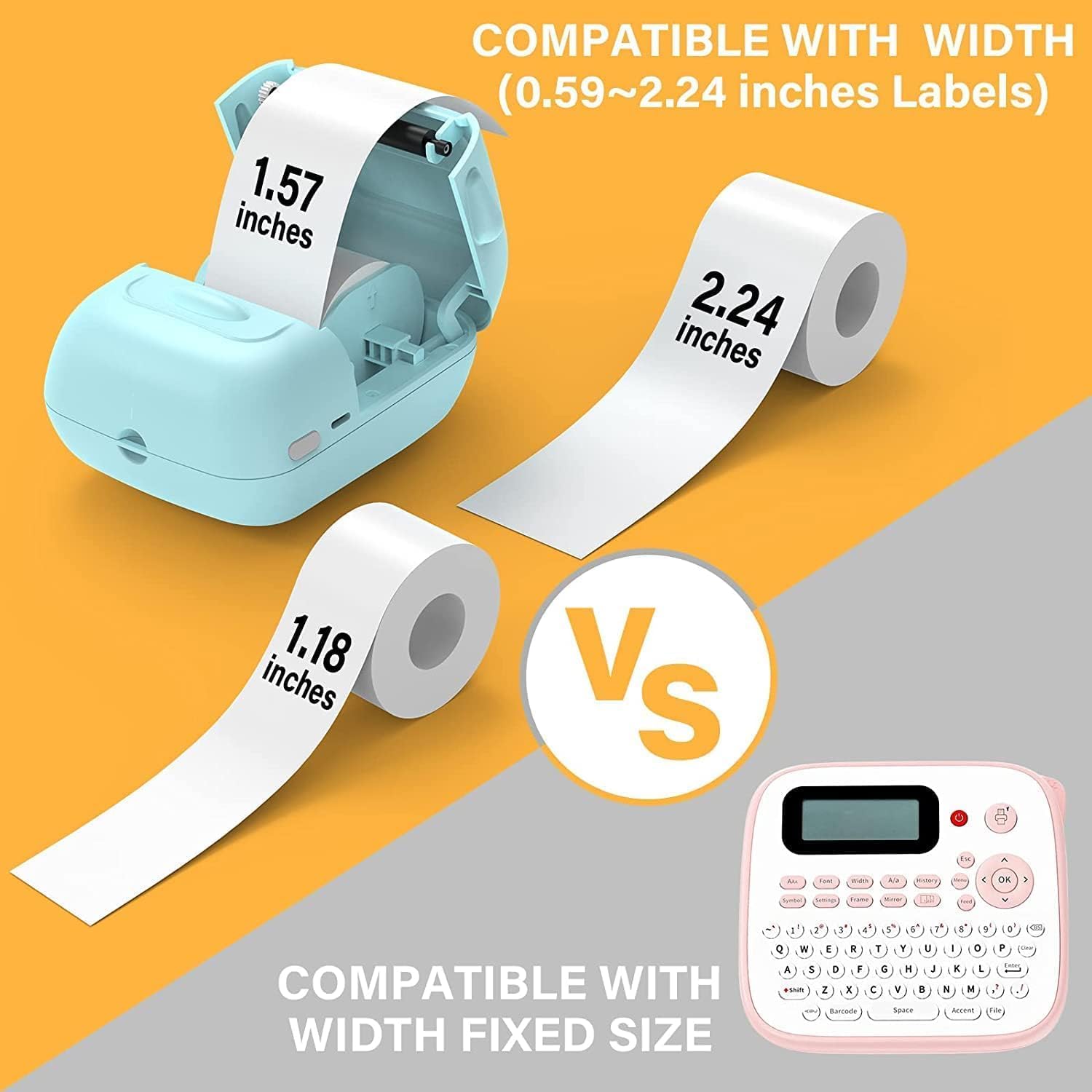
Image: A person placing the compact MARKLIFE P50 label maker into a handbag, highlighting its portability. Icons indicate "Portable", "Built-in 1200mAh Battery", and "Type-c Charging".
3.2 تحميل الملصقات
The P50 label maker supports label widths ranging from 0.59 inches to 2.24 inches. Ensure you use compatible thermal labels.
- افتح غطاء حجرة الملصقات على الجهاز.
- Insert the label roll with the printing surface facing upwards, ensuring the roll is properly seated in the compartment.
- Pull a small portion of the label paper out of the slot, extending it slightly beyond the cutting edge.
- Close the label compartment cover firmly until it clicks into place. The printer will automatically detect the label size.

Image: Three rolls of labels are displayed, illustrating the different sizes available: 1.57"x0.78" (40x20mm) clear gap, 1.57"x1.18" (40x30mm) white gap, and 2"x2" (50x50mm) circle gap labels. The image emphasizes that these rolls "Meet More Needs".
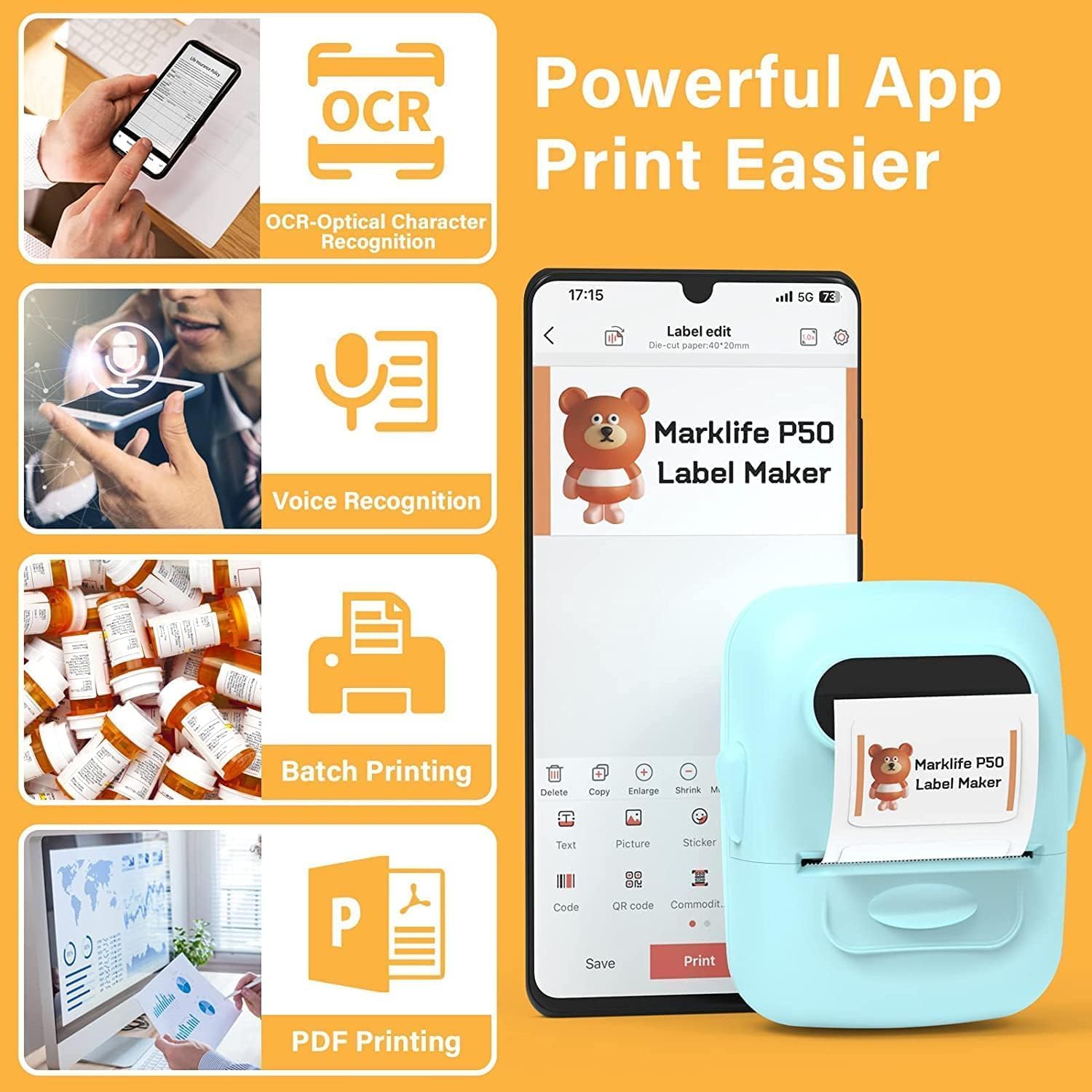
Image: The MARKLIFE P50 label maker is shown with a roll of labels, indicating compatibility with widths from 0.59 to 2.24 inches. It contrasts with a traditional label maker that has a fixed label size.
3.3 Connecting to Your Device (Smartphone/PC)
The P50 label maker offers wireless connectivity via Bluetooth for smartphones and USB connection for Windows PCs.
3.3.1 Smartphone Connection (Bluetooth)
- Download the "Marklife" application from your smartphone's app store (available for Android and iOS).
- تأكد من تمكين Bluetooth على هاتفك الذكي.
- Turn on the P50 label maker.
- Open the Marklife app. The app will automatically search for and connect to the label maker via Bluetooth 4.0 within approximately 33 feet.
3.3.2 PC Connection (USB)
For Windows PC users, online software is available. Refer to the official MARKLIFE website or the app's help section for download and installation instructions for the PC software.
4. تعليمات التشغيل
4.1 Marklife App Features
The Marklife app provides a powerful and user-friendly interface for label creation:
- التعرف الضوئي على الحروف (OCR): Scan text from images to convert it into editable text for your labels.
- التعرف على الصوت: Convert spoken words into text for quick label input.
- طباعة الدُفعات: Print multiple copies of the same label efficiently.
- PDF Printing: Print labels directly from PDF documents.
- Image Insertion: Insert your own photos or images onto labels.
- Barcode/QR Code Generation: Scan existing barcodes to generate new ones or create custom QR codes.
- القوالب: Access a variety of pre-designed templates for different label types (clothing, price, cable, jewelry, address, ingredients, etc.).

Image: The MARKLIFE P50 label maker is shown printing a long strip of barcode labels, demonstrating its "Batch Printing" capability. An example barcode shown is "123456".

Image: A smartphone screen displays the Marklife app interface, highlighting features such as OCR (Optical Character Recognition), Voice Recognition, Batch Printing, and PDF Printing. The P50 label maker is shown next to the phone, printing a label.
4.2 Creating and Printing Labels
- صمم ملصقك: Open the Marklife app and select a template or start a new design. Use the various editing tools to add text, images, barcodes, and other elements.
- ضبط الإعدادات: Before printing, you can adjust print density and photo quality settings within the app to enhance the print job.
- مطبعة: Once your design is complete, tap the "Print" button in the app. The label maker will quickly print your label.
- قطع الملصق: Manually tear or cut the printed label from the printer's output slot.

Image: The MARKLIFE P50 label maker is shown printing a clothing tag with "NAME DRESS SIZE:16S/64A PRICE: $7.00" and a barcode "0123456789005". Other examples include labels on handmade soap and bakery items, demonstrating diverse applications.
5. الصيانة
Proper maintenance ensures the longevity and optimal performance of your MARKLIFE P50 Label Maker.
- تنظيف رأس الطباعة: نظف رأس الطباعة الحرارية بانتظام بقطعة قماش ناعمة وخالية من الوبر.ampened with isopropyl alcohol. Ensure the device is off and cool before cleaning.
- تنظيف الجزء الخارجي: امسح الجزء الخارجي من الجهاز بقطعة قماش ناعمة وجافة. تجنب استخدام المنظفات الكاشطة أو المذيبات.
- تخزين الملصقات: Store thermal labels in a cool, dry place away from direct sunlight and heat to prevent premature fading or damage.
- العناية بالبطارية: For long-term storage, charge the battery to about 50% and store in a cool, dry place. Recharge every few months to maintain battery health.
6. استكشاف الأخطاء وإصلاحها
If you encounter issues with your P50 label maker, refer to the following common problems and solutions:
| مشكلة | السبب المحتمل | حل |
|---|---|---|
| الطابعة لا تعمل. | بطارية منخفضة أو لا يوجد شحن. | Connect the device to a power source using the USB-C cable and charge it. |
| لا يمكن الاتصال عبر البلوتوث. | Bluetooth is off on phone, app not open, or printer is too far. | Ensure Bluetooth is enabled on your phone, the Marklife app is open, and the printer is within 33 feet. Restart both devices if necessary. |
| الملصقات فارغة أو باهتة. | Label roll inserted incorrectly (upside down) or print head is dirty. | Re-insert the label roll with the printing surface facing up. Clean the thermal print head as described in the Maintenance section. |
| Labels are misaligned or partially printed. | Label roll not properly seated or sliding within the compartment. | Open the label compartment, ensure the roll is pushed to the right and seated firmly. Close the cover. The printer should auto-calibrate. If issues persist, try re-calibrating via the app if available. |
| App crashes or requires frequent restarts for printing. | Software glitch or app cache issue. | Force close the Marklife app and reopen it. Clear the app's cache or reinstall the app if the problem persists. Ensure your phone's operating system is up to date. |
7. المواصفات
| ميزة | التفاصيل |
|---|---|
| ماركة | ماركلايف |
| اسم الموديل | P50 LABEL PRINTER |
| تكنولوجيا الطباعة | حراري |
| تكنولوجيا الاتصال | بلوتوث، يو اس بي |
| الحد الأقصى لحجم الوسائط | 2 inches (compatible with 0.59" - 2.24" width labels) |
| أقصى دقة طباعة بالأبيض والأسود | 300 نقطة في البوصة |
| مخرجات الطابعة | أحادي اللون (أبيض وأسود) |
| طريقة التحكم | تطبيق (أندرويد، iOS) |
| ميزة خاصة | Lightweight, Portable, Scan function via app |
| وزن العنصر | 1.39 رطل |
| أبعاد المنتج | 4 بوصة عمق × 3 بوصة عرض × 2 بوصة ارتفاع |
| بطارية | Built-in 1200mAh (rechargeable via USB-C) |
8. الضمان والدعم
MARKLIFE products are manufactured to high-quality standards. For warranty information, technical support, or service inquiries, please contact MARKLIFE customer support directly. Details can typically be found on the official MARKLIFE website or within the Marklife application's help section.
يرجى الاحتفاظ بإثبات الشراء الخاص بك لاستخدامه في أي مطالبات بالضمان.


