1. المقدمة
Thank you for choosing the CUPEISI CP20 Android 15 Tablet. This manual provides essential information for setting up, operating, and maintaining your device. Please read it thoroughly to ensure optimal performance and longevity of your tablet.
2. ماذا يوجد في الصندوق
تأكد من وجود جميع العناصر في الحزمة الخاصة بك:
- CUPEISI CP20 Android 15 Tablet
- لوحة المفاتيح اللاسلكية
- Foldable Protective Cover
- ماوس البلوتوث
- قلم
- كابل من النوع C
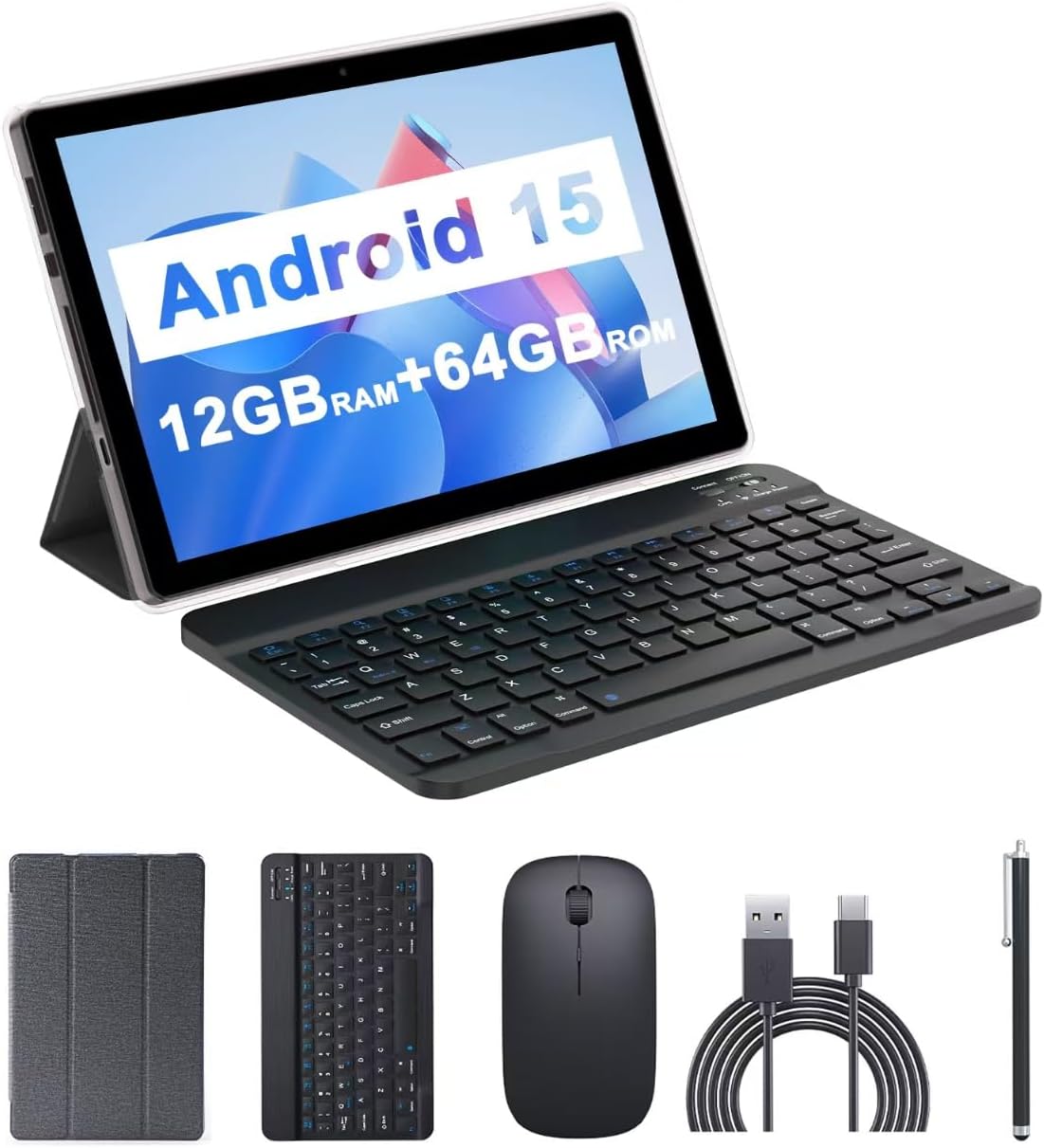
Image: The CUPEISI CP20 Tablet alongside its accessories, including the wireless keyboard, Bluetooth mouse, stylus, and foldable protective cover.
3. ميزات المنتج ومكوناته
The CUPEISI CP20 Tablet is designed for versatility and performance, offering a seamless user experience for both work and entertainment.
3.1 الميزات الرئيسية
- نظام التشغيل: Stable Android 15.0 system.
- المعالج: Built-in 1.8GHz Quad-core CPU for efficient multitasking.
- تخزين الذاكرة: 12GB RAM (4GB+8GB expansion) and 64GB ROM, expandable up to 1TB via microSD card.
- عرض: Stunning 10.1-inch 1280x800 IPS HD touch screen for immersive visuals and eye protection.
- بطارية: Powered by a 6000mAh battery, providing approximately 6 hours of regular operation and up to 12 hours of standby time. Charges via 5V2A Type-C port.
- الكاميرات: 8MP rear camera with auto-focus and flash, and a 2MP front camera for clear video calls and photos.
- الاتصال: Supports 5G WiFi 6 and Bluetooth 5.0.
- وظيفة 2 في 1: Transforms into a laptop or computer mode with the included Bluetooth keyboard, wireless mouse, and foldable protective case.

الصورة: أكثر منview of the tablet's core specifications and features.
3.2 المكونات المادية
Familiarize yourself with the tablet's physical layout:
- زر الطاقة: يوجد على الجانب، ويستخدم لتشغيل/إيقاف تشغيل الجهاز اللوحي أو لتنبيه/إسبات الشاشة.
- أزرار التحكم في الصوت: اضبط مستويات الصوت.
- ميناء من النوع C: للشحن ونقل البيانات.
- فتحة بطاقة TF/SIM: أدخل بطاقة microSD لتوسيع مساحة التخزين.
- الكاميرا الأمامية: لإجراء مكالمات الفيديو والتقاط صور السيلفي.
- Rear Camera & Flash: للحصول على صور وفيديوهات عالية الجودة.
- المتحدثون: Two speakers for audio output.

Image: Labeled diagram of the tablet's ports and buttons.
4. دليل الإعداد
4.1 الشحن الأولي
Before first use, fully charge your tablet. Connect the Type-C cable to the tablet's charging port and the other end to a compatible power adapter (5V2A recommended). The battery indicator will show charging status.
4.2 تشغيل/إيقاف التشغيل
- لتشغيل: اضغط مع الاستمرار على زر التشغيل حتى تضيء الشاشة.
- لإيقاف التشغيل: Press and hold the Power Button, then select 'Power off' from the options that appear on the screen.
- لإعادة التشغيل: Press and hold the Power Button, then select 'Restart'.
4.3 الاتصال بشبكة Wi-Fi
- اذهب الى إعدادات > الشبكات والانترنت > واي فاي.
- قم بتشغيل Wi-Fi.
- حدد شبكة Wi-Fi المطلوبة من القائمة.
- أدخل كلمة المرور إذا طُلب منك ذلك، ثم انقر فوق يتصل.
4.4 Pairing Bluetooth Accessories
To use the wireless keyboard and Bluetooth mouse, they must be paired with your tablet.
- تأكد من شحن لوحة المفاتيح والماوس وتشغيلهما.
- على جهازك اللوحي، انتقل إلى إعدادات > الأجهزة المتصلة > بلوتوث.
- قم بتشغيل البلوتوث.
- The tablet will scan for available devices. Select the keyboard or mouse from the list.
- اتبع أي مطالبات تظهر على الشاشة لإكمال عملية الاقتران.

Image: Instructions for connecting the wireless keyboard and mouse via Bluetooth.
4.5 إدخال بطاقة MicroSD
To expand storage, insert a microSD card (up to 1TB) into the TF/SIM card slot. Ensure the tablet is powered off before inserting or removing the card.
5. تشغيل جهازك اللوحي
5.1 الملاحة الأساسية
Navigate the Android interface using touch gestures:
- مقبض: حدد عنصرًا أو افتح تطبيقًا.
- انتقاد: التمرير خلال الصفحات أو القوائم.
- الضغط للتكبير: تكبير أو تصغير المحتوى.
- الضغط لفترة طويلة: الوصول إلى القوائم السياقية أو نقل الأيقونات.
5.2 Using Keyboard and Mouse
Once paired, the keyboard and mouse function similarly to a laptop. The keyboard allows for efficient typing, while the mouse provides precise cursor control, enhancing productivity.

Image: The tablet in laptop mode, demonstrating its use for productivity tasks.
5.3 استخدام الكاميرا
Open the Camera app to capture photos and videos. Switch between the 2MP front camera and the 8MP rear camera as needed. The rear camera features auto-focus and flash for improved image quality.

Image: Demonstrating the tablet's front and rear camera functionality for video calls and photography.
5.4 App Installation and Management
Download and install applications from the Google Play Store. To manage installed apps, go to إعدادات > التطبيقات.

Image: The tablet running Android 15 OS, showing popular applications like YouTube, Google Play, and Netflix.
6. الصيانة
6.1 التنظيف
استخدم قطعة قماش ناعمة وخالية من الوبر لتنظيف شاشة وجسم الجهاز اللوحي. تجنب استخدام المواد الكيميائية القاسية أو المواد الكاشطة. لإزالة البقع العنيدة، افركها برفق.ampانقع قطعة القماش في الماء أو في منظف الشاشة المخصص للإلكترونيات.
6.2 تحديثات البرامج
تحقق بانتظام من وجود تحديثات للبرامج وقم بتثبيتها لضمان حصول جهازك اللوحي على أحدث الميزات والتصحيحات الأمنية وتحسينات الأداء. انتقل إلى إعدادات > نظام > تحديث النظام.
6.3 إدارة التخزين
To maintain optimal performance, periodically review and manage your tablet's storage. Delete unnecessary fileقم بإلغاء تثبيت التطبيقات غير المستخدمة ونقل الوسائط الكبيرة files to external storage (microSD card) if applicable. Go to إعدادات > تخزين ل view الاستخدام وتوفير المساحة.
7. استكشاف الأخطاء وإصلاحها
This section addresses common issues you might encounter with your CUPEISI CP20 Tablet.
7.1 الجهاز اللوحي لا يعمل
- تأكد من شحن الجهاز اللوحي بشكل كافٍ. قم بتوصيله بالشاحن لمدة 30 دقيقة على الأقل.
- قم بإعادة التشغيل القسري بالضغط مع الاستمرار على زر الطاقة لمدة 10-15 ثانية.
7.2 الأداء البطيء
- أغلق التطبيقات غير المستخدمة التي تعمل في الخلفية.
- Clear cached data for apps (Settings > Apps > [App Name] > Storage & cache > Clear cache).
- تأكد من وجود مساحة تخزين مجانية كافية.
- أعد تشغيل الجهاز اللوحي بشكل دوري.
7.3 مشاكل اتصال Wi-Fi
- قم بإيقاف تشغيل الواي فاي ثم تشغيله في الإعدادات.
- أعد تشغيل جهاز توجيه Wi-Fi الخاص بك.
- Forget the network and reconnect (Settings > Network & internet > Wi-Fi > [Network Name] > Forget).
7.4 استنزاف سريع للبطارية
- تقليل سطوع الشاشة.
- قم بتعطيل Wi-Fi وBluetooth وGPS عند عدم استخدامها.
- تحديد تحديث التطبيقات في الخلفية.
- تحقق من استخدام البطارية في الإعدادات > البطارية لتحديد التطبيقات التي تستهلك الكثير من الطاقة.
8. المواصفات
| ميزة | مواصفة |
|---|---|
| ماركة | كوبيسي |
| اسم الموديل | CP20 |
| نظام التشغيل | أندرويد 15 |
| حجم الشاشة | 10 بوصة |
| دقة الشاشة | 1280 x 800 pixels (IPS HD) |
| المعالج | معالج رباعي النواة بسرعة 1.8 جيجاهرتز |
| كبش | 12 GB (4GB+8GB expansion) |
| حجم ذاكرة الفلاش | 64 جيجا بايت |
| تخزين قابل للتوسيع | تصل سعتها إلى 1 تيرابايت (بطاقة microSD) |
| مؤخرة Webقرار الكاميرا | 8 ميجا بكسل |
| دقة الكاميرا الأمامية | 2 ميجا بكسل |
| نوع لاسلكي | 802.11ax (5G WiFi 6) |
| بلوتوث | بلوتوث 5.0 |
| سعة البطارية | 6000mAh ليثيوم بوليمر |
| متوسط عمر البطارية | 8 ساعة |
| وزن العنصر | 1 رطل |
| أبعاد المنتج | 9.7 × 6.5 × 0.3 بوصة |
9. الضمان والدعم
For warranty information and technical support, please refer to the documentation included with your purchase or visit the official CUPEISI webالموقع. احتفظ بإثبات الشراء الخاص بك لتقديم مطالبات الضمان.
If you encounter issues not covered in this manual, please contact CUPEISI customer service for assistance.


