1. المقدمة
This manual provides essential information for setting up, operating, and maintaining your Beelink Mini S13 Mini PC. Please read it thoroughly before using the device to ensure proper function and longevity.

Image: The Beelink Mini S13 Mini PC in a typical desktop setup.
2. محتويات العبوة
تأكد من وجود جميع العناصر في العبوة:
- 1 x Beelink Mini S13 N150 Mini PC
- 1 × دليل المستخدم
- 1 × كابل HDMI
- 1 × محول الطاقة
- 1 x Wall-mounted Bracket

Image: Contents of the Beelink Mini S13 package.
3. تعليمات الإعداد
3.1 Connecting the Mini PC
- الاتصال بشاشة العرض: Use the provided HDMI cable to connect the Mini PC to your monitor or TV. The Mini S13 supports dual 4K 60Hz displays.
- توصيل الأجهزة الطرفية: Plug in your USB keyboard, mouse, and any other USB devices into the available USB 3.2 Gen2 ports.
- الاتصال بالشبكة: For wired internet, connect an Ethernet cable to the 2.5G LAN port. For wireless internet, the device supports WiFi 6.
- توصيل الطاقة: قم بتوصيل محول الطاقة بمقبس التيار المستمر الموجود على جهاز الكمبيوتر الصغير، ثم قم بتوصيله بمأخذ الطاقة.
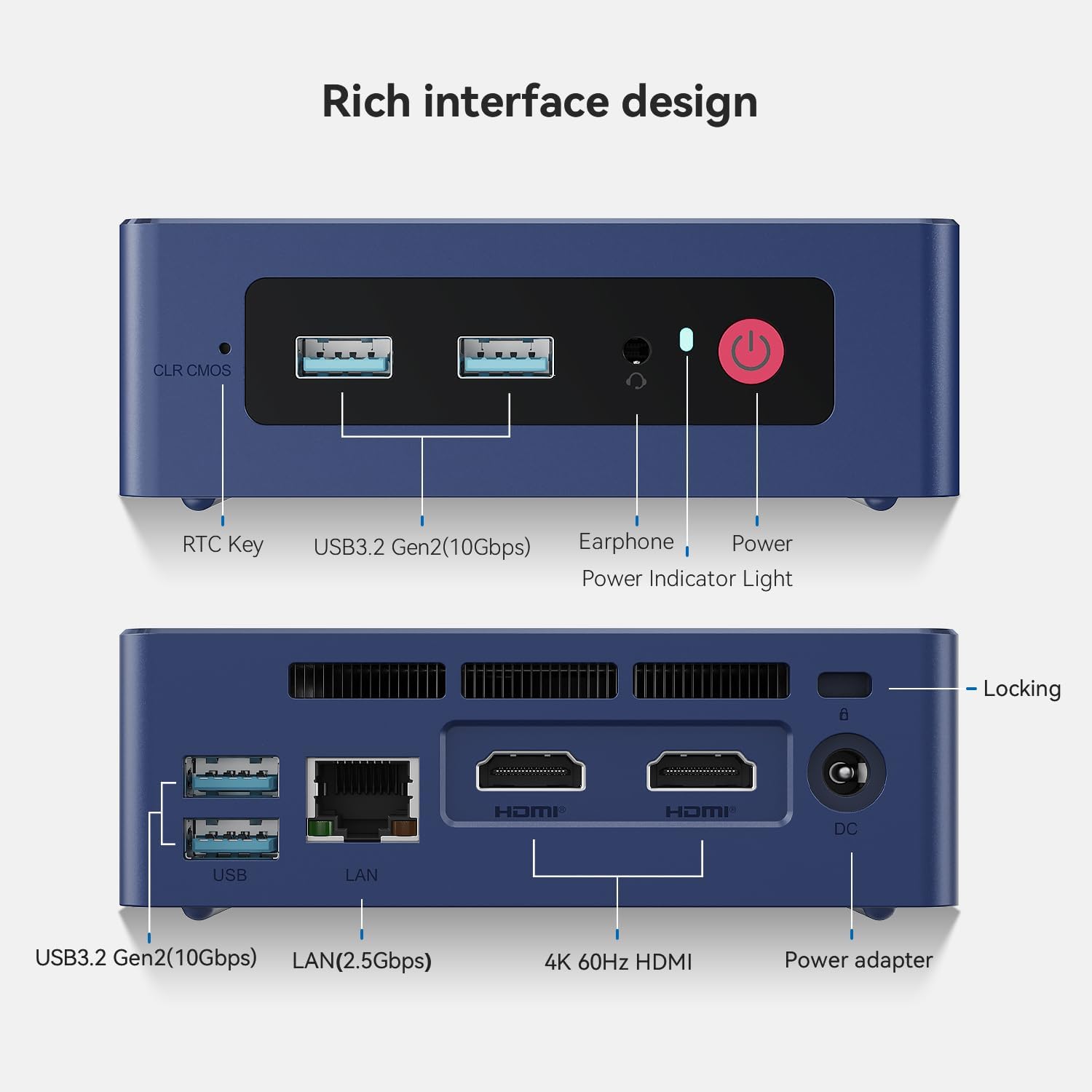
Image: Front and rear interfaces of the Mini S13.
3.2 التمهيد الأول
- اضغط على زر التشغيل الموجود في مقدمة جهاز الكمبيوتر الصغير. سيضيء مؤشر الطاقة.
- Follow the on-screen instructions to complete the initial operating system setup.
3.3 التركيب على الحائط
The included wall-mounted bracket allows you to attach the Mini PC to the back of a VESA-compatible monitor or to a wall. Secure the bracket using appropriate screws, then slide the Mini PC into place.
4. تعليمات التشغيل
4.1 تشغيل/إيقاف التشغيل
- تشغيل الطاقة: اضغط على زر الطاقة.
- إيقاف التشغيل: Use the operating system's shutdown function. Alternatively, press and hold the power button for 5 seconds to force a shutdown (use only when necessary).
4.2 إعداد العرض المزدوج
The Mini PC supports connecting two displays simultaneously via its two HDMI ports. This feature enhances multitasking and productivity.

Image: Dual-screen display setup for enhanced work efficiency.
4.3 الاتصال بالشبكة
- شبكة سلكية: Connect an Ethernet cable to the 2.5G LAN port for high-speed wired internet access.
- الشبكة اللاسلكية (WiFi 6): Access network settings in your operating system to connect to available WiFi 6 networks.
- بلوتوث شنومكس: Pair Bluetooth devices such as keyboards, mice, or headphones through your operating system's Bluetooth settings.

Image: Wireless connectivity features including WiFi 6 and Bluetooth 5.2.
4.4 توسيع التخزين
The Mini PC comes with a 512GB SATA3 SSD and supports dual-channel storage expansion up to 4TB. You can add or upgrade M.2 SSDs (NVMe 2280 or SATA3 SSDs) in the available slots.

Image: Dual SSD high-speed storage slots for expansion.
5. الصيانة
5.1 التنظيف
- قم بتنظيف الجزء الخارجي من جهاز الكمبيوتر الصغير بانتظام باستخدام قطعة قماش ناعمة وجافة.
- Ensure ventilation openings are free from dust and debris to maintain optimal airflow. Use compressed air if necessary.
5.2 نظام التبريد
The Mini S13 features a silent fan and heat sink system designed for efficient cooling. Avoid blocking the air vents to prevent overheating and ensure stable performance.

Image: CPU silent fan and heat sink system.
5.3 تحديثات البرامج
Keep your operating system and drivers updated to ensure system stability, security, and optimal performance.
6. استكشاف الأخطاء وإصلاحها
- لا يوجد عرض:
- Check HDMI cable connections to both the Mini PC and the monitor.
- تأكد من تشغيل الشاشة وضبطها على مصدر الإدخال الصحيح.
- حاول استخدام كابل HDMI أو شاشة أخرى إذا كانت متاحة.
- لا يوجد طاقة:
- Verify the power adapter is securely connected to the Mini PC and a working power outlet.
- تأكد من الضغط على زر الطاقة بقوة.
- مشاكل الاتصال بالشبكة:
- بالنسبة للاتصالات السلكية، تحقق من حالة كابل الإيثرنت وجهاز التوجيه.
- For wireless connections, ensure WiFi is enabled in the operating system and you are connected to the correct network with the correct password.
- أعد تشغيل جهاز التوجيه/المودم الخاص بك.
- System Slowdown/Overheating:
- Ensure the Mini PC's ventilation openings are not blocked.
- أغلق التطبيقات غير الضرورية التي تعمل في الخلفية.
- Check for excessive dust accumulation and clean as described in the Maintenance section.
7. المواصفات
| ميزة | التفاصيل |
|---|---|
| المعالج | 13th Gen Intel Alder Lake-N150 (4C/4T, up to 3.6GHz) |
| الرسومات | Intel UHD Graphics 24EUs 1000MHz |
| كبش | 12GB LPDDR5 4800MT/s |
| تخزين | 512GB SATA3 SSD (Expandable up to 4TB dual-channel) |
| عرض الناتج | منفذان HDMI (بحد أقصى 4K 60Hz)، دعم الشاشة المزدوجة |
| منافذ USB | 4 منافذ USB 3.2 Gen2 (10 جيجابت في الثانية) |
| شبكة | 2.5G LAN, WiFi 6 (802.11ax), Bluetooth 5.2 |
| صوتي | 1 x 3.5mm Phone Jack (Two-in-One) |
| مدخلات الطاقة | 5.5*2.5 DC Jack, 12V/3A Adapter |
| أبعاد | 4.52 × 4.01 × 1.54 بوصة (115 × 102 × 39 مم) |
| نظام التشغيل | OS (Pre-installed Windows 11 Home typically) |
| مميزات اضافية | RTC Key, CLR CMOS Button, Wake On LAN, Auto Power ON |
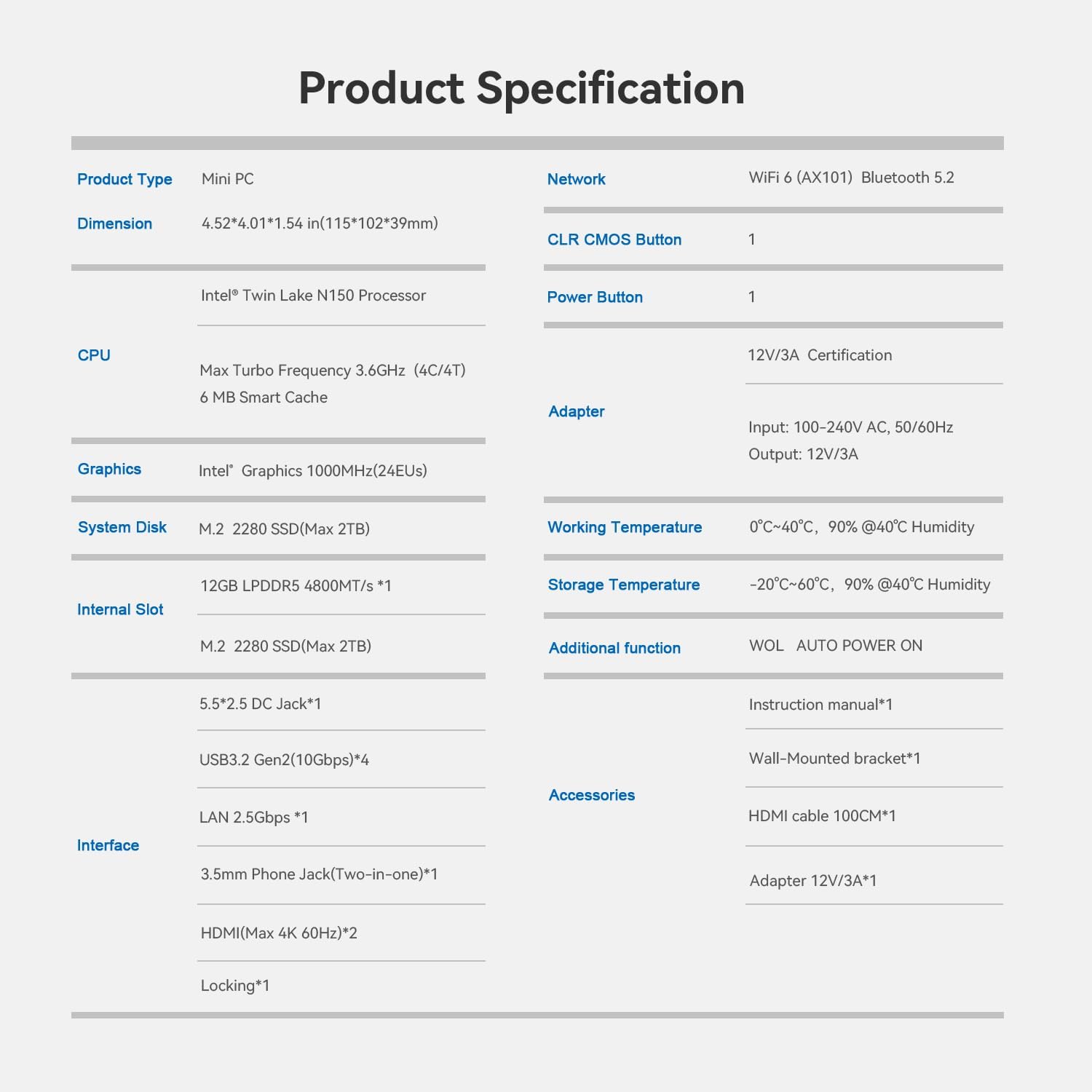
Image: Product Specification Table.
8. الضمان والدعم
Beelink provides customer support and warranty services for its products. For specific warranty details and support inquiries, please refer to the following:
- ضمان: Typically includes a 1-year free maintenance period.
- الدعم الفني: Lifetime technical support is generally provided.
- خدمة العملاء: 7 days a week, 24 hours a day customer service.
- الإرجاعات: Products are typically eligible for refund/replacement within 30 days of purchase.
For assistance, you can contact Beelink support through the platform where you purchased the product (e.g., Amazon's 'Your Account' -> 'Your Orders' -> 'Click Get Help').

Image: Beelink After-Sales Service Information.


