1. انتهى المنتجview
The Phomemo M220 is a portable Bluetooth thermal label printer designed for various labeling needs in home, office, and small business environments. It supports a range of label widths and offers versatile printing options through its dedicated mobile and desktop applications.
المميزات الرئيسية:
- Supports label widths from 0.78'' to 3.14'' (not compatible with 4x6 shipping labels).
- تصميم مدمج وخفيف الوزن لسهولة الحمل.
- Prints barcodes, QR codes, addresses, text, images, and various icons.
- Built-in 2200 mAh rechargeable battery with up to 4 hours of continuous use and 2 months standby.
- Thermal printing technology eliminates the need for ink or toner.
- Compatible with Android, iOS, Chrome OS, Linux, Windows, and macOS devices.
- Connects via Bluetooth (for mobile) or USB (for computers).
ماذا يوجد في الصندوق:
- صانع الملصقات Phomemo M220
- كابل شحن USB
- 3 Rolls of Labels (1.97'' x 1.18'', 1.97'' x 3.14'', 2.76'' x 3.14'')
- دليل المستخدم

Image: Phomemo M220 Label Maker with various label rolls and sampالعلامات التجارية.
2. دليل الإعداد
2.1. تحميل العلامات
- Press the side button to open the label compartment.
- Remove any existing label roll and its holder.
- Insert a new label roll onto the holder, ensuring the labels face upwards.
- Place the loaded holder back into the compartment.
- Pull a small portion of the label paper out through the printer slot.
- Close the compartment lid firmly until it clicks. The printer will automatically adjust the label.

Image: Phomemo M220 Label Maker demonstrating different label sizes it supports.
2.2. تشغيل / إيقاف التشغيل
- To power on: Long press the power button for 3 seconds until the display lights up.
- To power off: Long press the power button again until the display turns off.
2.3. Connecting to the App (Phone/Tablet)
- Download the 'Print Master' app from your device's app store (Android/iOS).
- Ensure your M220 label maker is powered on and your phone/tablet's Bluetooth is enabled.
- Open the 'Print Master' app. The app will automatically search for and connect to the M220 printer.
- Once connected, select the desired label size within the app to begin editing.

Image: Phomemo M220 Label Maker demonstrating Bluetooth wireless connectivity with a smartphone.
Video: Official Phomemo guide on how to use the M220 Label Maker, including app connection steps.
2.4. Connecting to a Computer (Laptop/PC)
- Check your computer's operating system (OS) and download the correct M220 driver and the 'Labelife' app from the official Phomemo webموقع.
- استخدم كابل بيانات USB المرفق لتوصيل جهاز طباعة الملصقات M220 بجهاز الكمبيوتر الخاص بك.
- Open the 'Labelife' app, select the label size, edit your content, and choose M220 from the printer list to print.

Image: Phomemo M220 Label Maker connected to a laptop via USB cable for printing.
3. تعليمات التشغيل
3.1. Creating Labels with the App
The 'Print Master' app offers a wide range of customization options for your labels:
- نص: Add custom text, choose from over 30 fonts, and adjust size, alignment, and style.
- Barcodes & QR Codes: Generate and print various barcode and QR code formats.
- الأيقونات والقوالب: Access over 400 icons and pre-designed templates for quick label creation.
- الصور: Insert your own images or photos onto labels.
- Borders & Shapes: Add decorative borders and shapes to enhance your labels.
- اللغات: The app supports 15 languages for diverse user needs.

Image: The Print Master app showcasing its powerful multi-function editing capabilities.
3.2. طباعة الملصقات
- After designing your label in the app, click the 'Print' button.
- Review الطباعة المسبقةview to ensure the layout is correct.
- Confirm the number of copies and initiate printing.
- Once printed, gently tear off the label from the printer's output slot.
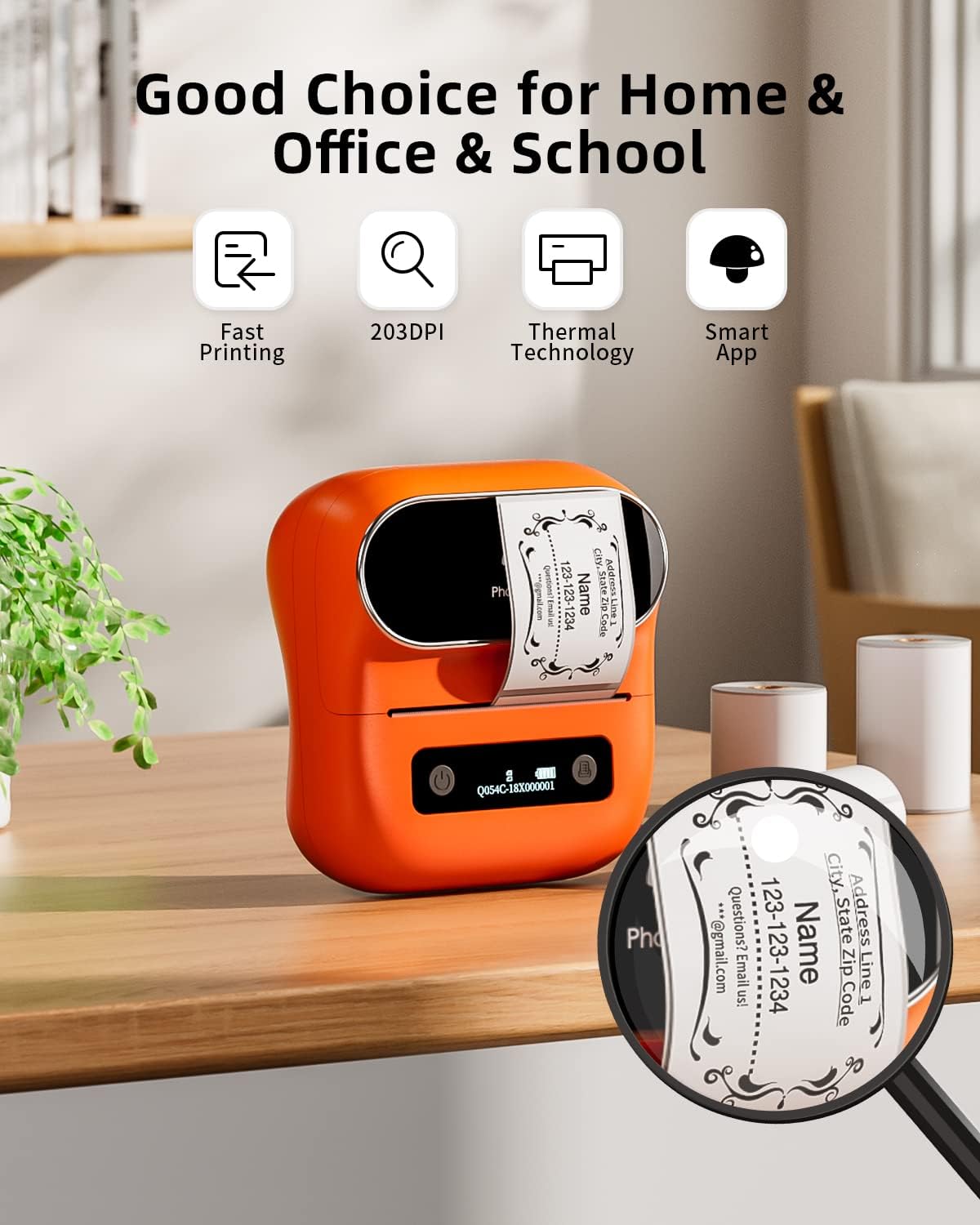
Image: Phomemo M220 Label Maker in operation, printing a customized label.
4. الصيانة
4.1. البطارية والشحن
- The M220 features a built-in 2200 mAh rechargeable battery.
- A full charge provides approximately 4 hours of continuous printing.
- The printer can remain on standby for at least 2 months.
- Charge the device using the provided USB-C cable. The display will indicate charging status.
4.2. Thermal Printing Technology
- The M220 uses thermal printing, meaning no ink, toner, or ribbon is required.
- Ensure you use compatible thermal labels for optimal print quality.

Image: Advanced thermal printing technology of the Phomemo M220, emphasizing no ink requirement.
5. استكشاف الأخطاء وإصلاحها
- الطابعة لا تتصل: Ensure Bluetooth is enabled on your device and the printer is powered on. Restart both the app and the printer if issues persist.
- جودة الطباعة رديئة: Check if the label roll is inserted correctly and the labels are thermal compatible. Ensure the printer head is clean (refer to the full manual for cleaning instructions).
- الملصقات لا تعمل: Open the label compartment and ensure the label roll is properly seated and a portion of the label is extended through the slot.
- مشاكل التطبيق: Try restarting the app or reinstalling it. Check for app updates.
6. المواصفات
| ميزة | التفاصيل |
|---|---|
| أبعاد المنتج | 7.9 بوصة عمق × 5.9 بوصة عرض × 2.9 بوصة ارتفاع |
| تكنولوجيا الاتصال | بلوتوث، منفذ USB من النوع C |
| تكنولوجيا الطباعة | حراري |
| الحد الأقصى لحجم الوسائط | 80mm (3.14'') |
| دقة الطباعة القصوى | 203 نقطة في البوصة |
| سعة البطارية | 2200 مللي أمبير ليثيوم بوليمر |
| وزن العنصر | 14.1 أونصة (400 جرامًا) |
| الأجهزة المتوافقة | Android & iOS Phone/Tablet, Chrome OS, Linux, Windows, macOS |
7. الضمان والدعم
The Phomemo M220 Label Maker comes with a ضمان مدى الحياة.
For further assistance, please visit the official Phomemo webقم بزيارة الموقع أو اتصل بدعم العملاء:
- Webموقع: www.phomemo.com
- بائع: Phomemo-YQ


