1. المقدمة
Thank you for choosing the Cherry KW 9100 Slim Wireless Rechargeable Keyboard. This extra-slim, low-profile keyboard is designed for Mac computers, offering versatile connectivity options and a comfortable typing experience. This manual provides essential information for setting up, operating, maintaining, and troubleshooting your new keyboard.
The keyboard features dual wireless connectivity (Bluetooth and 2.4 GHz wireless USB receiver), allowing you to easily switch between devices. It incorporates high-quality CHERRY SC scissor technology for quiet and precise keystrokes, and includes AES-128 encryption for secure data transmission. The integrated rechargeable battery provides weeks of use on a single charge, and the keyboard can be charged while in use via the included USB-A to USB-C cable.

Image 1.1: The Cherry KW 9100 Slim Wireless Rechargeable Keyboard, showcasing its full layout and slim profile.
2. معلومات السلامة
- Do not expose the keyboard to liquids, excessive moisture, or extreme temperatures.
- تجنب إسقاط لوحة المفاتيح أو تعريضها لصدمات قوية.
- أبقِ لوحة المفاتيح بعيدة عن المجالات المغناطيسية القوية.
- لا تحاول تفكيك لوحة المفاتيح أو تعديلها. سيؤدي ذلك إلى إلغاء الضمان.
- استخدم فقط كابل USB-A إلى USB-C المرفق للشحن.
3. محتويات العبوة
تأكد من وجود جميع العناصر في الحزمة الخاصة بك:
- Cherry KW 9100 Slim Wireless Rechargeable Keyboard
- كابل USB-A إلى USB-C
- مستقبل USB لاسلكي بتردد 2.4 جيجاهرتز
- Magnetic Strip (for angle adjustment)
- دليل المستخدم (هذا المستند)
4. الإعداد
4.1. شحن لوحة المفاتيح
Before first use, or when the battery indicator shows low power, connect the keyboard to a USB power source (e.g., computer USB port, USB wall adapter) using the provided USB-A to USB-C cable. The keyboard can be used while charging.
4.2. Connecting via 2.4 GHz Wireless USB Receiver
- Locate the 2.4 GHz wireless USB receiver.
- Insert the USB receiver into an available USB-A port on your Mac computer.
- On the keyboard, slide the connectivity switch (located on the side) to the 'RF' position.
- ينبغي أن تتصل لوحة المفاتيح بجهاز الكمبيوتر الخاص بك تلقائيًا.
4.3. الاتصال عبر البلوتوث
Ensure your Mac computer has Bluetooth 4.0 or higher.
- On the keyboard, slide the connectivity switch (located on the side) to the 'BT' position.
- على جهاز Mac ، انتقل إلى إعدادات النظام (أو تفضيلات النظام) > بلوتوث.
- تأكد من تشغيل Bluetooth.
- The keyboard should appear in the list of discoverable devices (e.g., "CHERRY KW 9100"). Select it to pair.
- اتبع أي مطالبات تظهر على الشاشة لإكمال عملية الاقتران.

الصورة 4.1: الجانب view of the keyboard, highlighting the RF/BT connectivity switch and the USB-C charging port.
4.4. ضبط زاوية لوحة المفاتيح
The keyboard includes a removable magnetic strip that can be attached to the underside to adjust the typing angle for improved ergonomics. Simply attach the strip to the designated area on the bottom of the keyboard.
5. تشغيل لوحة المفاتيح
5.1. Switching Between Connectivity Modes
Use the slide switch on the side of the keyboard to toggle between 'RF' (2.4 GHz wireless) and 'BT' (Bluetooth) modes. This allows you to seamlessly switch between two connected devices, for example, a laptop via Bluetooth and a desktop PC via the USB receiver.
5.2. Key Functions and Mac Layout
The keyboard features a Mac-specific layout, including Command, Option, and Control keys. The function keys (F1-F15) provide quick access to various system functions such as brightness, media control, and volume. Some function keys may require pressing the 'Fn' key simultaneously depending on your Mac's system settings.
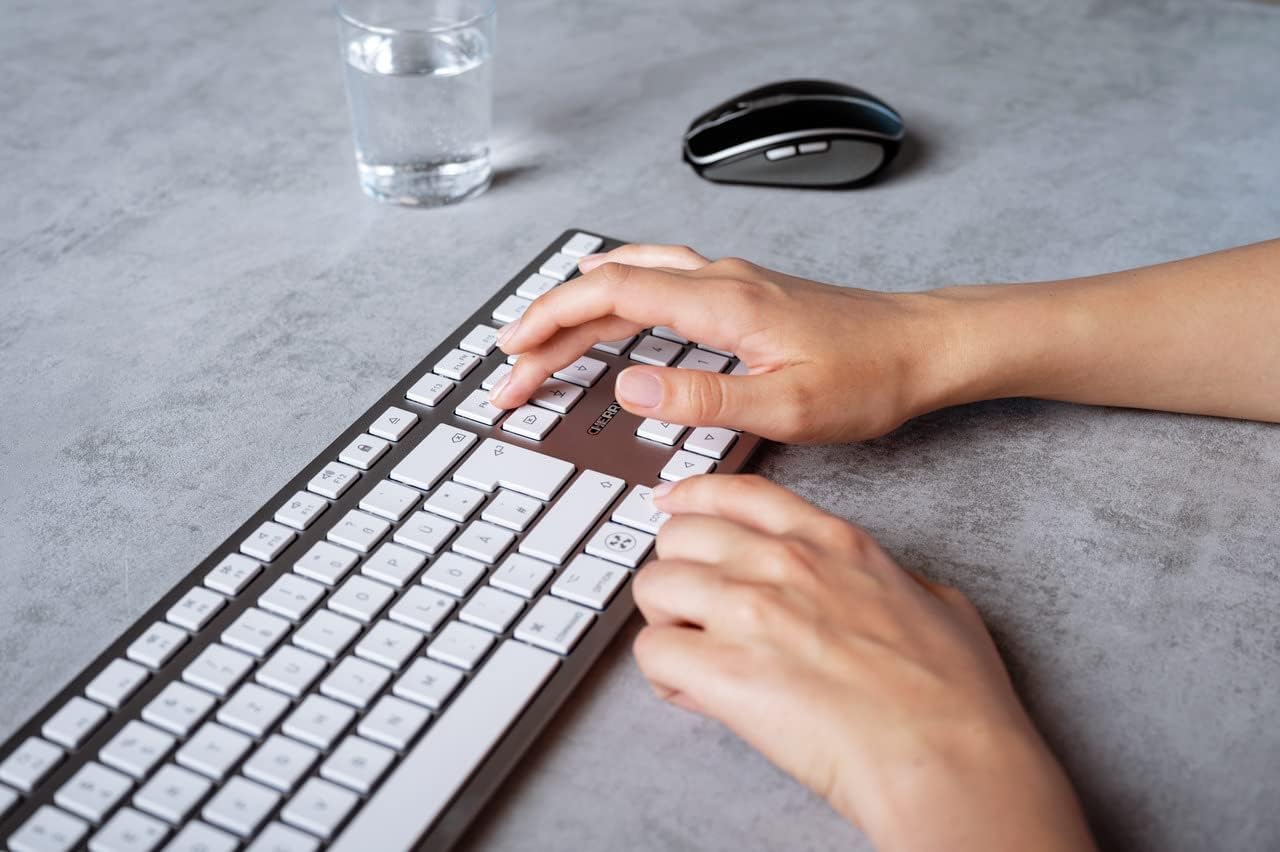
Image 5.1: A user typing on the Cherry KW 9100 keyboard, demonstrating its ergonomic design and key spacing.
5.3. إدارة الطاقة
To conserve battery life, the keyboard will enter a sleep mode after a period of inactivity. To wake it up, simply press any key. The keyboard will reconnect automatically to the last active device.
6. الصيانة
6.1. التنظيف
لتنظيف لوحة المفاتيح، امسح السطح برفق بقطعة قماش ناعمة وخالية من الوبر. لإزالة الأوساخ المستعصية، افركها قليلاً.ampen the cloth with water or a mild, non-abrasive cleaning solution. Ensure no liquid enters the keyboard. Do not use harsh chemicals or abrasive materials.
6.2. التخزين
When not in use for extended periods, store the keyboard in a dry, cool place. It is recommended to fully charge the battery before long-term storage.
7. استكشاف الأخطاء وإصلاحها
| مشكلة | السبب المحتمل | حل |
|---|---|---|
| Keyboard not connecting via 2.4 GHz. | USB receiver not properly inserted; keyboard switch in 'BT' mode; low battery. | Ensure receiver is fully inserted. Slide keyboard switch to 'RF'. Charge the keyboard. Try a different USB port. |
| لوحة المفاتيح غير متصلة عبر البلوتوث. | Keyboard switch in 'RF' mode; Bluetooth off on Mac; low battery; pairing issue. | Slide keyboard switch to 'BT'. Ensure Bluetooth is enabled on your Mac. Charge the keyboard. Remove and re-pair the keyboard in Mac's Bluetooth settings. |
| المفاتيح لا تستجيب أو تتأخر في الاستجابة. | انخفاض مستوى البطارية؛ تداخل؛ لوحة المفاتيح في وضع السكون. | Charge the keyboard. Move closer to the receiver/Mac. Press any key to wake the keyboard. |
| Function keys (F1-F15) not working as expected. | System settings; 'Fn' key usage. | Check your Mac's Keyboard settings (System Settings > Keyboard) for function key behavior. Try pressing the 'Fn' key simultaneously with the desired function key. |
| يتم استنزاف البطارية بسرعة. | Frequent use; keyboard not entering sleep mode. | Ensure the keyboard is allowed to enter sleep mode when idle. Fully charge the keyboard. |
8. المواصفات
| ميزة | التفاصيل |
|---|---|
| رقم الموديل | JK-9110US-1 |
| ماركة | الكرز |
| تكنولوجيا الاتصال | Bluetooth, USB-A (for receiver), USB-C (for charging) |
| الأجهزة المتوافقة | Mac computers with Bluetooth 4.0 or higher and USB-A connections |
| وصف لوحة المفاتيح | منخفضة المواليةfile, extra-slim, wireless, scissor-switch keyboard with adjustable angle and rechargeable battery |
| ميزة خاصة | Magnetic (for angle adjustment), Travel |
| لون | فضي |
| مادة | المعدن والبلاستيك |
| أبعاد المنتج | 17.32 × 5.12 × 0.59 بوصة (44 × 13 × 1.5 سم) |
| وزن العنصر | 1.94 رطل (0.88 كجم) |
| الشركة المصنعة | الكرز |
9. الضمان والدعم
Your Cherry KW 9100 Slim Wireless Rechargeable Keyboard is covered by a manufacturer's warranty. For detailed warranty information, technical support, or service inquiries, please visit the official Cherry webالموقع أو تواصل مع خدمة العملاء مباشرةً. احتفظ بإثبات الشراء لطلبات الضمان.
الدعم عبر الإنترنت: www.cherry.de


