1. المقدمة
شكرا لك على الشراءasing the Yifeng Wireless Keyboard. This keyboard offers versatile connectivity options, supporting both 2.4 GHz USB wireless and Bluetooth connections. It is designed for multi-device use, allowing simultaneous pairing with up to four devices and quick switching between them. Featuring a comfortable scissor-switch mechanism and an integrated stand, it enhances productivity across various platforms including Windows, iOS, and Android devices.
2. معلومات السلامة
- لا تعرض لوحة المفاتيح للسوائل أو درجات الحرارة العالية.
- Avoid disassembling or attempting to repair the device yourself.
- يحفظ بعيدًا عن متناول الأطفال.
- استخدم فقط كابل USB المرفق للشحن.
3. محتويات العبوة
يرجى التأكد من وجود جميع العناصر:
- Yifeng Wireless Keyboard
- كابل شحن USB
- 2.4 GHz USB Receiver (may be stored in the keyboard's battery compartment)
- دليل المستخدم (هذا المستند)
4. الإعداد
4.1. 2.4 GHz USB Wireless Connection
- Locate the 2.4 GHz USB receiver. It is often stored in a dedicated slot on the keyboard.
- قم بتوصيل جهاز الاستقبال USB بمنفذ USB المتاح على الكمبيوتر أو الجهاز الخاص بك.
- Turn on the keyboard using the power switch (usually located on the side or back).
- The keyboard should automatically connect to your device. If not, press the dedicated 2.4GHz connection key (often labeled with a '4' or '2.4G' icon) to activate pairing mode.
4.2. اتصال بلوتوث
- تأكد من شحن لوحة المفاتيح وتشغيلها.
- Press and hold one of the Bluetooth channel keys (e.g., بلوتوث 1, بلوتوث 2، أو بلوتوث 3) for 3-5 seconds until the indicator light flashes, indicating pairing mode.
- على جهازك (جهاز لوحي، هاتف ذكي، كمبيوتر شخصي)، انتقل إلى إعدادات البلوتوث وقم بتمكين البلوتوث.
- بحث عن available devices. The keyboard should appear as "Yifeng Keyboard" or similar.
- Select the keyboard to pair. Follow any on-screen prompts, such as entering a pairing code.
- بمجرد الاقتران، سيتوقف ضوء المؤشر عن الوميض وسيظل ثابتًا لعدة ثوانٍ.
4.3. Multi-Device Pairing
This keyboard supports connecting up to 4 devices simultaneously: one via 2.4 GHz USB and three via Bluetooth. Follow the steps above to pair each device to a different channel (2.4GHz, Bluetooth 1, Bluetooth 2, Bluetooth 3).
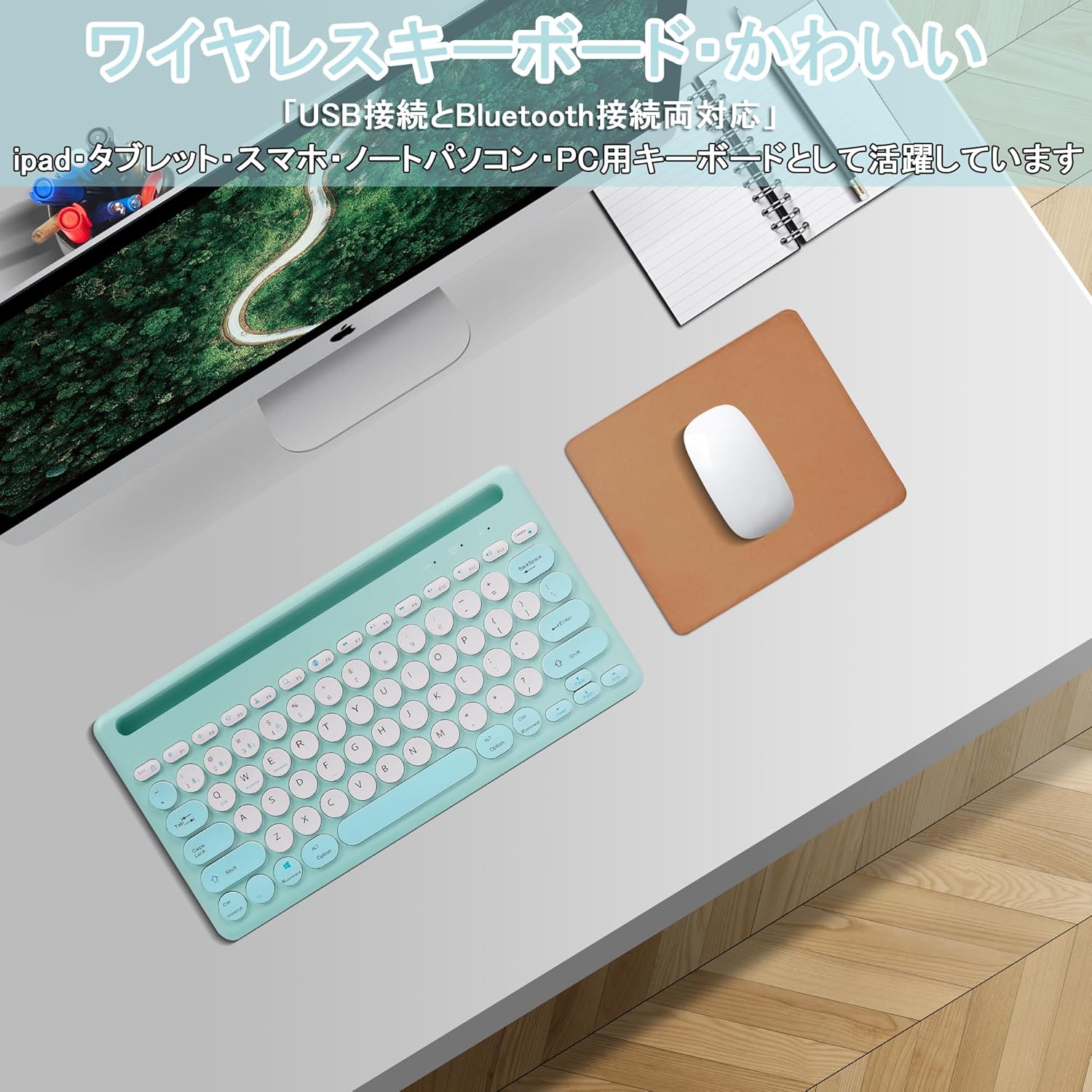
Image: The Yifeng Wireless Keyboard connected to a tablet, smartphone, and laptop, demonstrating its multi-device pairing capability.
5. تعليمات التشغيل
5.1. التبديل بين الأجهزة المتصلة
To switch between your paired devices, simply press the corresponding connection key:
- يضعط بلوتوث 1 to switch to the first Bluetooth device.
- يضعط بلوتوث 2 to switch to the second Bluetooth device.
- يضعط بلوتوث 3 to switch to the third Bluetooth device.
- اضغط على 2.4 جيجاهرتز key (often labeled with a '4' or '2.4G' icon) to switch to the USB wireless device.
5.2. System Compatibility Switching
The keyboard supports Windows, iOS, and Android operating systems. Use the dedicated system keys to optimize key functions for your current device:
- يضعط Fn + Q للـ iOS.
- يضعط Fn + W للاندرويد.
- يضعط Fn + E لنظام التشغيل Windows.
5.3. شحن لوحة المفاتيح
The keyboard features a built-in rechargeable lithium-ion battery. A single full charge provides approximately 30 days of continuous use.
- Connect the included USB charging cable to the charging port on the keyboard.
- قم بتوصيل الطرف الآخر من كابل USB بمصدر طاقة USB (على سبيل المثال، منفذ USB في الكمبيوتر، أو محول حائط USB).
- سيضيء مؤشر الشحن أثناء الشحن وينطفئ عند اكتمال الشحن.

Image: The Yifeng Wireless Keyboard connected to a power strip via its USB charging cable, indicating the rechargeable feature.
5.4. استخدام الحامل المدمج
The keyboard includes an integrated stand slot at the top, designed to hold your tablet or smartphone upright. This allows for comfortable viewing and typing, making it ideal for document creation, chatting, or watching media while commenting.
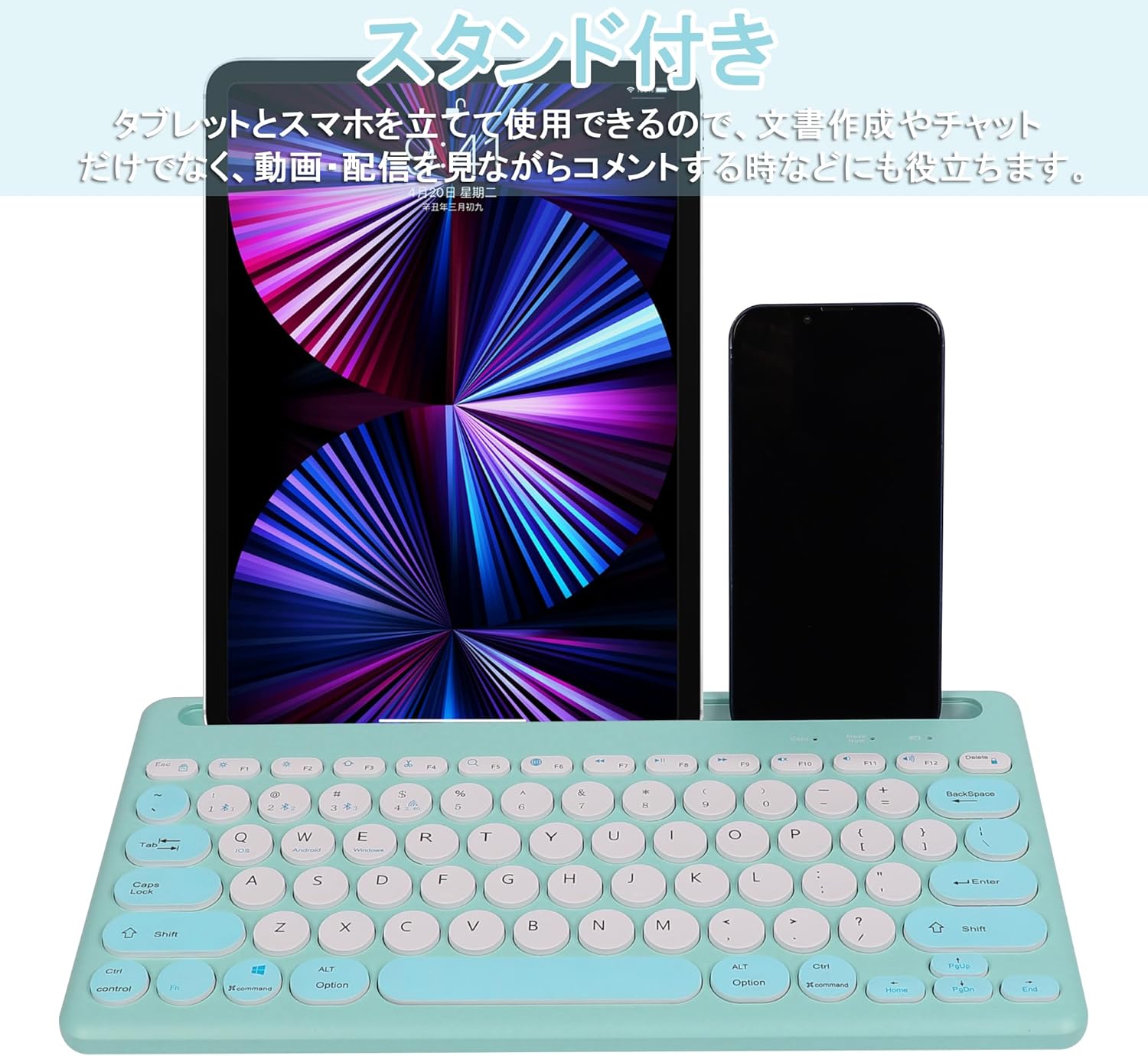
Image: The Yifeng Wireless Keyboard with a tablet and smartphone securely positioned in its integrated stand, demonstrating its utility for multi-device setups.
6. الصيانة
- Clean the keyboard regularly with a soft, dry cloth. For stubborn dirt, a slightly damp يمكن استخدام قطعة قماش، مما يضمن عدم دخول الرطوبة إلى لوحة المفاتيح.
- تجنب استخدام المواد الكيميائية القاسية أو المنظفات الكاشطة.
- Store the keyboard in a cool, dry place when not in use.
- The keyboard features anti-slip pads on the back for stable use. Ensure these pads are clean and intact for optimal stability.

Image: The underside of the Yifeng Wireless Keyboard, highlighting the four anti-slip pads designed for stable placement on various surfaces.
7. استكشاف الأخطاء وإصلاحها
7.1. عدم اتصال لوحة المفاتيح
- التحقق من الطاقة: تأكد من تشغيل لوحة المفاتيح ووجود شحنة كافية في البطارية.
- بصلح: For Bluetooth, delete the keyboard from your device's Bluetooth list and attempt to pair again. For 2.4 GHz USB, try plugging the receiver into a different USB port.
- تبديل القنوات: Ensure you have selected the correct channel (Bluetooth 1/2/3 or 2.4GHz) for your device.
- جهاز البلوتوث: Verify that Bluetooth is enabled on your device and that it is discoverable.
7.2. المفاتيح لا تستجيب
- مستوى البطارية: قم بإعادة شحن لوحة المفاتيح إذا كانت البطارية منخفضة.
- وضع النظام: Ensure the keyboard is set to the correct operating system mode (Windows, iOS, Android) using Fn + Q/W/E.
- تدخل: قرّب لوحة المفاتيح من جهازك وابعدها عن الأجهزة اللاسلكية الأخرى التي قد تسبب تداخلاً.
7.3. مشاكل الشحن
- فحص الكابل: Ensure the USB charging cable is securely connected to both the keyboard and the power source.
- مصدر الطاقة: جرب منفذ USB مختلفًا أو محول حائط مختلفًا.
- مؤشر الضوء: If the charging indicator light does not turn on, the cable or power source may be faulty.
8. المواصفات
| ماركة | Yifeng |
| رقم الموديل | AMWS0584A-L |
| تكنولوجيا الاتصال | Bluetooth, 2.4 GHz Wireless (USB) |
| الأجهزة المتوافقة | Tablets, Smartphones, PCs, Laptops (Windows, iOS, Android) |
| تخطيط لوحة المفاتيح | لوحة مفاتيح QWERTY (التخطيط الأمريكي) |
| الآلية الرئيسية | مفتاح المقص |
| ميزة خاصة | Rechargeable, Integrated Stand, Multi-Pairing (4 devices) |
| نوع البطارية | 1 بطارية ليثيوم أيون (متضمنة) |
| عمر البطارية | Approx. 30 days (per charge) |
| أبعاد | 33.7 × 16.7 × 2.9 سم |
| وزن | 820 جرام |
| المكونات المضمنة | كابل يو اس بي |
9. الضمان والدعم
يأتي هذا المنتج مع ضمان جودة لمدة عام from the date of purchase. In case of initial defects or malfunctions occurring within the warranty period, we offer return or exchange services.
Should you encounter any issues or require assistance, please contact us directly through your purchase platform:
- اذهب الى سجل الطلبات.
- Select the order for this product.
- انقر على تواصل مع البائع.
Our support team will be happy to assist you.


