1. المقدمة
This manual provides detailed instructions for the setup, operation, maintenance, and troubleshooting of your XPPen Deco MW Bluetooth Wireless Graphics Tablet. Please read this guide thoroughly to ensure optimal performance and longevity of your device.

الصورة: من أعلى إلى أسفل view of the XPPen Deco MW Bluetooth Wireless Graphics Tablet, showcasing its sleek black design and the prominent Bluetooth logo.
2. ماذا يوجد في الصندوق
تأكد من وجود جميع العناصر في عبوة المنتج الخاص بك:
- 1x XP-PEN Deco MW Graphics Drawing Tablet
- شنومكس دونغل
- 1x USB A to USB-C Cable
- 1x X3 Elite Stylus
- 1x USB A to USB-C OTG Adapter
- 1x USB A to Micro USB OTG Adapter
- 10x Pen Nibs
- 1 × دليل المستخدم
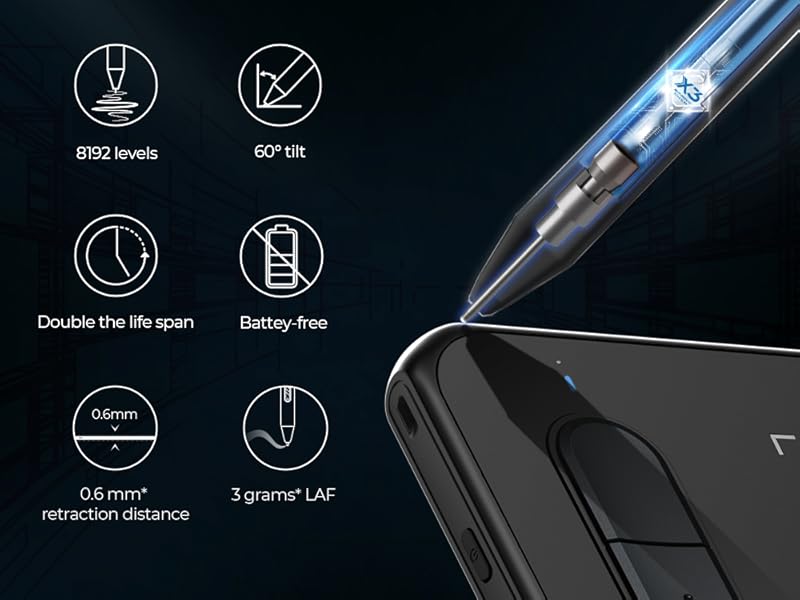
Image: A visual representation of the items included in the XPPen Deco MW package, including the tablet, stylus, cables, adapters, and replacement nibs.
3. الإعداد
3.1 تثبيت برنامج التشغيل
Before using your Deco MW tablet, it is essential to install the latest drivers from the official XP-Pen webموقع. يزور www.xp-pen.com, navigate to the 'Support' section, and then select the 'Download' tab. Choose 'Deco Series Pen Tablet' and locate your specific model (Deco MW) to download the appropriate driver for your operating system.
تثبيت برنامج تشغيل ويندوز:
Video: This tutorial demonstrates the step-by-step process for installing the Deco Series Pen Tablet driver on a Windows operating system, including downloading from the official website and following installation prompts.
تثبيت برنامج تشغيل نظام ماك:
Video: This tutorial provides instructions for installing the Deco Series Pen Tablet driver on a Mac operating system, detailing the download process and necessary security and privacy settings adjustments.
3.2 طرق الاتصال
The Deco MW tablet offers multiple connection options for flexibility:
- اتصال سلكي: Connect the tablet directly to your computer using the provided USB A to USB-C cable.
- Bluetooth Dongle Connection: Insert the Bluetooth dongle into an available USB port on your computer. The tablet will automatically connect.
- اتصال بلوتوث لاسلكي: For direct Bluetooth pairing, long-press the top-left shortcut key on the tablet for 3 seconds to enter pairing mode. Then, enable Bluetooth on your computer or mobile device and select 'Deco MW' from the list of available devices.

Image: An illustration showing the three available connection methods: direct USB cable, Bluetooth dongle, and wireless Bluetooth pairing, connecting the tablet to a laptop.
Video: This video provides a connection tutorial for the Deco Series, demonstrating how to establish a connection between the tablet and a computer using various methods.
3.3 توافق النظام والبرمجيات
The Deco MW tablet offers broad compatibility with various operating systems and creative software:
- أنظمة التشغيل: Windows 7/8/10/11, Mac OS X 10.10 (or later), Android 6.0 (or later), Chrome OS 88 (or later), and Linux systems.
- البرامج المتوافقة: Works with most major art software, including Photoshop, Illustrator, SAI, GIMP, Krita, MediBang Paint, FireAlpaca, Blender, and more.

Image: An illustration depicting the XPPen Deco MW's compatibility with multiple operating systems (Windows, Mac OS, Linux, Chrome OS, Android) and creative software applications.

Image: This image illustrates the tablet's compatibility with mobile devices, showing connections via OTG adapters and listing compatible mobile applications like FlipaClip, MediBang Paint Pro, and ibisPaint.

Image: A visual showing the XPPen Deco MW connected wirelessly to an iPhone, highlighting its compatibility with ibisPaint (iOS version 9.1.0 or later) on iOS 12.0 and iPad OS 13.1 or later.
4. Operating Your Graphics Tablet
4.1 X3 Smart Chip Stylus
The Deco MW is equipped with the X3-Smart-Chip Stylus, designed for an enhanced drawing experience. Key features include:
- Faster Response: Improved speed in pen input.
- أداء مستقر: Consistent and reliable operation.
- تحديد المواقع بدقة: Accurate tracking for detailed work.
- 8192 مستويات حساسية الضغط: Allows for fine control over line thickness and opacity.
- 60-Degree Tilt Function: Enables natural shading and brush effects.
- خالية من البطارية: No need for charging the stylus.
- Low Initial Activation Force (IAF): Responds to minimal pressure for sensitive strokes.
- Shorter Retraction Distance: Provides a more pen-like feel.

الصورة: لقطة مقربة view of the X3 Smart Chip Stylus, highlighting its internal components and key features such as 8192 pressure levels, 60-degree tilt, and battery-free design.
Video: This video introduces the X3 Smart Chip, explaining its technology and how it enhances the performance of the stylus for drawing tablets.
فيديو: فيديو قصير يعرضasing the X3 Stylus, emphasizing its sharp, precise, and stable performance during use.
4.2 مفاتيح اختصار قابلة للتخصيص
The Deco MW tablet features eight customizable shortcut keys. These keys can be programmed to various functions or shortcut combinations, effectively replacing a computer keyboard for common commands. Tactile bumps on the keys aid in quick identification, improving workflow efficiency.

Image: A close-up of the XPPen Deco MW tablet, highlighting the eight shortcut keys on the side and illustrating their potential functions.
4.3 Setting Work Area and Rotation
The driver software allows you to define the active work area of the tablet and adjust its rotation to suit your preference. This ensures comfortable and efficient use, whether you are left-handed or right-handed, or prefer a specific orientation.
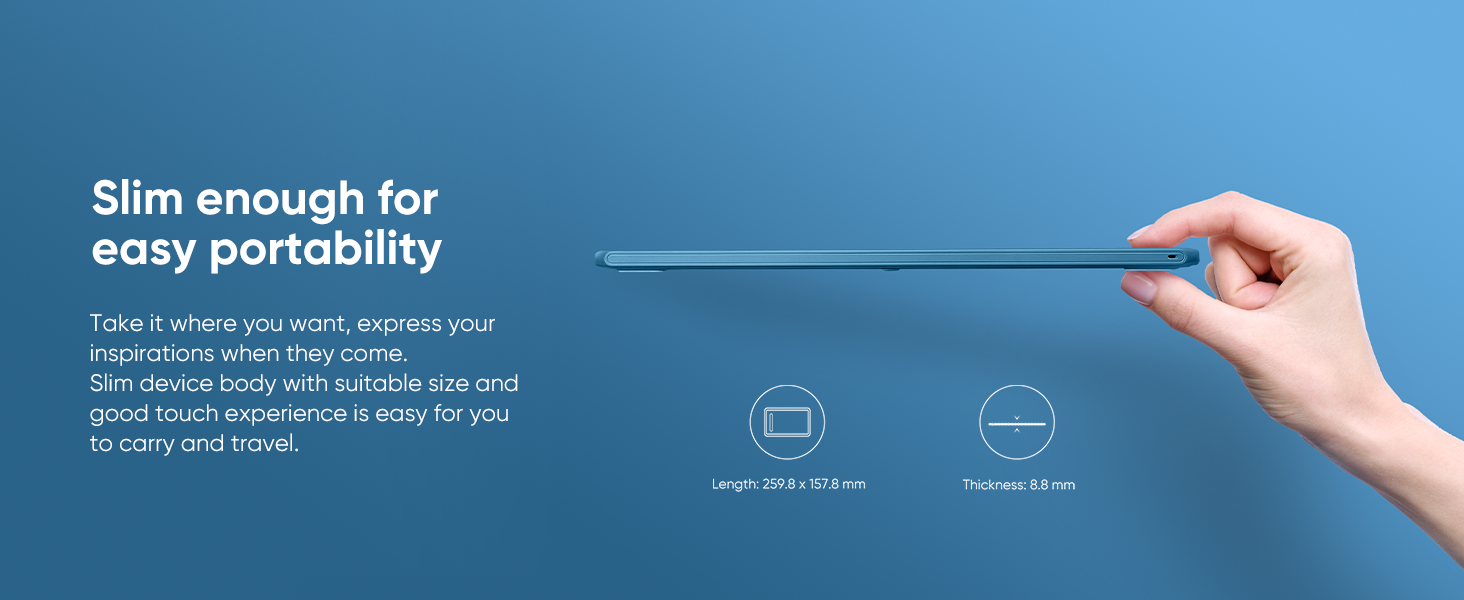
Image: An illustration detailing the slim design and dimensions of the XPPen Deco MW, including its work area of 8x5 inches, emphasizing its portability.
5. الصيانة
To maintain your XPPen Deco MW Graphics Tablet in optimal condition, follow these guidelines:
- تنظيف: Use a soft, dry cloth to clean the tablet surface and stylus. Avoid using harsh chemicals, abrasive cleaners, or excessive moisture, as these can damage the device.
- تخزين: When not in use, store the tablet and stylus in a clean, dry place away from direct sunlight, extreme temperatures, and humidity. Protect the stylus nib from damage.
- استبدال طرف القلم: The tablet comes with 10 replacement pen nibs. If the stylus nib becomes worn, gently pull out the old nib with the provided nib remover tool and insert a new one.
- العناية بالكابلات: تجنب ثني أو لف كابل USB بشكل مفرط لمنع حدوث تلف داخلي.
6. استكشاف الأخطاء وإصلاحها
If you encounter issues with your Deco MW tablet, refer to the following common solutions:
- No Pen Pressure/Stylus Not Responding:
- Ensure the driver is correctly installed and updated. Reinstall the driver if necessary (refer to Section 3.1).
- Check if the stylus nib is properly inserted or needs replacement.
- Verify that the tablet is securely connected via cable or Bluetooth.
- Close any conflicting software that might interfere with the tablet driver.
- Connection Issues (Bluetooth):
- Ensure Bluetooth is enabled on your device and the tablet is in pairing mode.
- Remove previous pairings and attempt to reconnect.
- Try connecting via USB cable or Bluetooth dongle to rule out direct Bluetooth issues.
- Inaccurate Cursor Movement:
- Recalibrate the work area in the tablet driver settings.
- Ensure there are no electromagnetic interferences near the tablet.
- Shortcut Keys Not Working:
- Check the shortcut key settings in the tablet driver to ensure they are correctly programmed.
- Verify that the driver is running in the background.
For further assistance, visit the official XP-Pen website's support section or contact customer service.
7. المواصفات
| ميزة | التفاصيل |
|---|---|
| أبعاد المنتج | 10.35 × 6.3 × 0.23 بوصة |
| وزن العنصر | 1.46 رطل |
| حساسية الضغط | 8192 مستويات |
| نظام التشغيل | Windows 7/8/10/11, Mac OS X 10.10 (or later), Android 6.0 (or later), Chrome OS 88 (or later), Linux |
| تكنولوجيا الاتصال | بلوتوث |
| البطاريات | مطلوب بطارية ليثيوم بوليمر واحدة (متضمنة) |
8. الضمان والدعم
Your XPPen Deco MW Graphics Tablet comes with a 1 Year Protection Plan. XPPen is committed to providing lifetime service for its products. For detailed terms and conditions regarding support, returns, and refunds, please refer to the official XPPen webالموقع أو الاتصال بخدمة العملاء.
If you have any questions about the product or require support, you can get in touch with XPPen Technology via Amazon Message or through their official webموقع.


