1. المقدمة
The ACT AC7049 Dual Monitor Docking Station transforms your laptop into a complete workstation. This versatile 11-in-1 docking station allows you to connect up to two Full HD displays (max. 2048 x 1152 resolution) to your laptop via HDMI, using a single USB-C/A cable. It expands your laptop's connectivity with a Gigabit LAN port, microphone and headphone jacks, and six additional USB ports. Featuring DisplayLink® technology, it ensures advanced screen display on both MacOS and Windows computers.
2. الميزات الرئيسية
- دعم الشاشة المزدوجة: Connect up to two external displays with HDMI ports, supporting resolutions up to 2048x1152@60Hz.
- التوافق العالمي: Works with laptops featuring a USB-C or USB-A 3.2 Gen1 (USB 3.0) port, compatible with MacOS and Windows thanks to DisplayLink technology.
- اتصال واسع النطاق: Includes 2x HDMI, 1x Gigabit Ethernet, 3x USB-A 3.2 Gen 1 (one with fast charging), 4x USB-A 2.0, and 3.5mm audio jacks for microphone and headphones.
- التوظيف المرن: Designed for both vertical and horizontal placement to optimize desk space and port accessibility.
- منفذ شحن USB: Dedicated USB port for charging smartphones and tablets.
3. محتويات العبوة
يرجى التحقق من الحزمة للعناصر التالية:
- ACT AC7049 Docking Station
- USB-C/A 3.2 Gen1 Connection Cable (USB-A to USB-C)
- محول الطاقة
- موقف عمودي
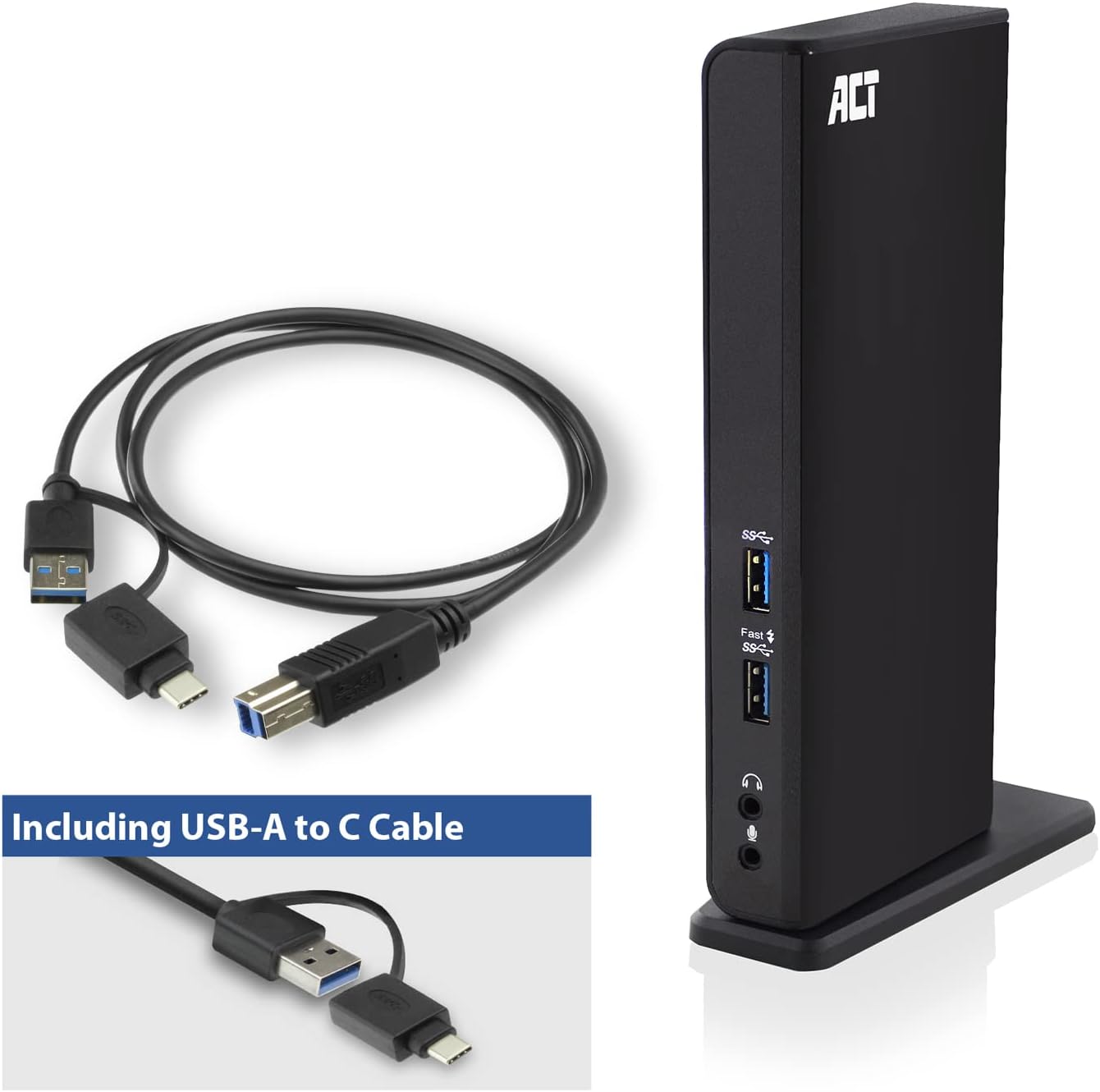
Image: The ACT AC7049 Docking Station shown with its included USB-A to USB-C connection cable and power adapter, highlighting the components provided in the package.
4. دليل الإعداد
4.1. توصيل محول الطاقة
- Connect the power adapter to the DC 5V input port on the back of the AC7049 docking station.
- Plug the power adapter into a wall outlet. The docking station will power on.
4.2. Connecting to Your Laptop
- Use the provided USB-C/A 3.2 Gen1 connection cable. Connect the USB-B end to the corresponding port on the docking station.
- Connect the other end (USB-A or USB-C, depending on your laptop's port) to an available USB 3.2 Gen1 (USB 3.0) or USB-C port on your laptop.
4.3. تثبيت برنامج التشغيل (DisplayLink)
The AC7049 utilizes DisplayLink technology for extended monitor functionality. Drivers are typically installed automatically on most operating systems. If not, please follow these steps:
- قم بزيارة موقع DisplayLink الرسمي webموقع (www.displaylink.com/downloads.) to download the latest drivers for your operating system (Windows or MacOS).
- Install the downloaded driver package and follow the on-screen instructions.
- أعد تشغيل الكمبيوتر إذا طُلب منك ذلك.

Image: The official DisplayLink 'Plug and Display' logo, indicating the technology used for multi-monitor support.
5. تعليمات التشغيل
5.1. Connecting External Displays
- Connect your HDMI monitors to the two HDMI ports on the back of the docking station.
- Once connected, your operating system should detect the new displays. You can configure display settings (extend, mirror, primary display) through your computer's display settings.

Image: A visual representation of the docking station enabling both 'Mirror your content' and 'Extend your content' display modes across a laptop and two external monitors.
5.2. توصيل الأجهزة الطرفية USB
- منافذ USB الأمامية: Two USB-A 3.2 Gen1 ports (one with fast charging capability) are located on the front for easy access to frequently used devices like USB drives, smartphones, or tablets.
- Rear USB Ports: Four USB-A 2.0 ports are located on the back for connecting peripherals such as keyboards, mice, printers, or other less frequently connected devices.
5.3. اتصال الشبكة
Connect an Ethernet cable from your router or network switch to the Gigabit Ethernet port on the docking station. Your laptop will automatically gain wired network access.
5.4. اتصالات الصوت
Connect your headphones and/or microphone to the dedicated 3.5mm audio jacks on the front of the docking station.

Image: An isometric diagram showcasing the comprehensive connectivity of the ACT AC7049, demonstrating how a laptop, two monitors, a keyboard, mouse, network cable, headphones, and a smartphone can all be connected simultaneously.
6. خيارات التنسيب
The ACT AC7049 docking station offers flexible placement options to suit your workspace:
- الوضع العمودي: Use the included stand to position the docking station vertically. This saves desk space and provides easy access to all ports.
- التنسيب الأفقي: The docking station can also be placed horizontally if preferred.

Image: The ACT AC7049 Docking Station positioned vertically on its stand, highlighting its compact design and accessible ports.
7. الصيانة
To ensure optimal performance and longevity of your ACT AC7049 Docking Station, follow these maintenance guidelines:
- تنظيف: استخدم قطعة قماش ناعمة وجافة لتنظيف الجزء الخارجي من قاعدة الشحن. تجنب استخدام المنظفات السائلة أو البخاخات، لأنها قد تُلحق الضرر بالجهاز.
- تهوية: تأكد من وضع محطة الإرساء في منطقة جيدة التهوية لمنع ارتفاع درجة حرارتها. لا تسد أي فتحات تهوية.
- تخزين: عند عدم استخدام محطة الإرساء لفترات طويلة، قم بتخزينها في مكان بارد وجاف بعيدًا عن أشعة الشمس المباشرة ودرجات الحرارة القصوى.
- إدارة الكابلات: Keep cables organized and free from kinks or excessive bending to prevent damage to the cables and ports.
8. استكشاف الأخطاء وإصلاحها
If you encounter issues with your ACT AC7049 Docking Station, please refer to the following common troubleshooting steps:
- لا يوجد إخراج للعرض:
- Ensure the docking station is powered on and correctly connected to your laptop.
- تأكد من توصيل كابلات HDMI بشكل آمن بكل من محطة الإرساء والشاشات.
- Check your laptop's display settings to ensure the external monitors are detected and configured correctly (e.g., extended or mirrored).
- Reinstall or update the DisplayLink drivers from www.displaylink.com/downloads..
- حاول توصيل شاشة واحدة في كل مرة لعزل المشكلة.
- أجهزة USB لا تعمل:
- Ensure the docking station is properly connected to your laptop and powered.
- Try connecting the USB device directly to your laptop to confirm it is functional.
- Connect the USB device to a different USB port on the docking station.
- أعد تشغيل الكمبيوتر المحمول الخاص بك.
- لا يوجد اتصال بالشبكة:
- تأكد من توصيل كابل الإيثرنت بشكل آمن بكل من محطة الإرساء وجهاز التوجيه/المحول الخاص بك.
- Check your laptop's network settings to ensure the wired connection is enabled.
- اختبر كابل الإيثرنت بجهاز آخر إن أمكن.
- الصوت لا يعمل:
- Ensure headphones/microphone are fully plugged into the correct 3.5mm jacks.
- Check your laptop's sound settings to ensure the docking station's audio output/input is selected as the default device.
9. المواصفات
| ميزة | مواصفة |
|---|---|
| رقم الموديل | ايه سي 7049 |
| ماركة | يمثل |
| لون | أسود |
| تكنولوجيا الاتصال | يو إس بي-A، يو إس بي-C |
| مخرج الفيديو | 2 x HDMI (Max. 2048 x 1152 @ 60Hz) |
| منافذ USB | 3 x USB-A 3.2 Gen 1 (5Gbps, 1x Fast Charging), 4 x USB-A 2.0 (480Mbps) |
| منفذ الشبكة | منفذ إيثرنت جيجابت واحد (RJ45) |
| منافذ الصوت | 1 x 3.5mm Headphone Jack, 1 x 3.5mm Microphone Jack |
| الأجهزة المتوافقة | Laptop, Computer (with USB 3.2 Gen1 / USB 3.0 or USB-C port) |
| دعم نظام التشغيل | Windows, MacOS (via DisplayLink) |
| الأبعاد (الطول × العرض × الارتفاع) | 10.9 × 6 × 18.1 سم (تقريبًا) |
| وزن العنصر | 317 جرام |
10. الضمان والدعم
ACT products are designed for reliability and adhere to international standards and EU legislation. The ACT AC7049 Docking Station comes with a manufacturer's warranty, typically ranging from 2 to 5 years. For specific warranty details and support, please refer to the official ACT webالموقع أو اتصل بتاجر التجزئة الخاص بك.
For technical support or further inquiries, please visit the official ACT connectivity webموقع: www.act-connectivity.com


