1. المقدمة
This manual provides comprehensive instructions for the setup, operation, and maintenance of your Tera 9200-Wired Omnidirectional Desktop Barcode Scanner. This device is designed for efficient and hands-free scanning of 1D, 2D, and QR barcodes in various environments such as retail stores, warehouses, and offices.
2. انتهى المنتجview
The Tera 9200-Wired scanner is a high-performance, plug-and-play device engineered for reliability and ease of use. Its omnidirectional scanning capability allows for quick and accurate barcode reading from various angles.
2.1 الميزات الرئيسية
- التوصيل والتشغيل: No driver or software installation required. Simply connect the USB cable to your computer, POS system, or cash register.
- المسح الضوئي بدون استخدام اليدين: Designed as a desktop platform scanner, it allows for convenient, hands-free operation, improving efficiency for both cashiers and customers.
- تصميم مستقر: Equipped with four small non-slip pads on the bottom and an internal iron slab, ensuring stability during operation.
- التوافق الواسع: Compatible with various operating systems including Windows XP, Windows 7, Windows 8, Windows 10, Android, and Linux. Works with PCs, laptops, iPads, and smartphones.
- Multi-Language Keyboard Support: Supports keyboard layouts for US, UK, German, French, Italian, Spanish, Japanese, and more.
- Powerful Decoding Ability: Capable of reading a wide range of 1D and 2D barcodes, including those that are reflective, smudged, damaged, or fuzzy.
2.2 محتويات العبوة
- Tera 9200-Wired Desktop Barcode Scanner
- USB 2.0 Data Cable (integrated)
- دليل التعليمات (هذا المستند)
2.3 مخطط المنتج

الشكل 2.3.1: الجبهة view of the Tera 9200-Wired Desktop Barcode Scanner, showing its compact, black and white design with the scanning window.
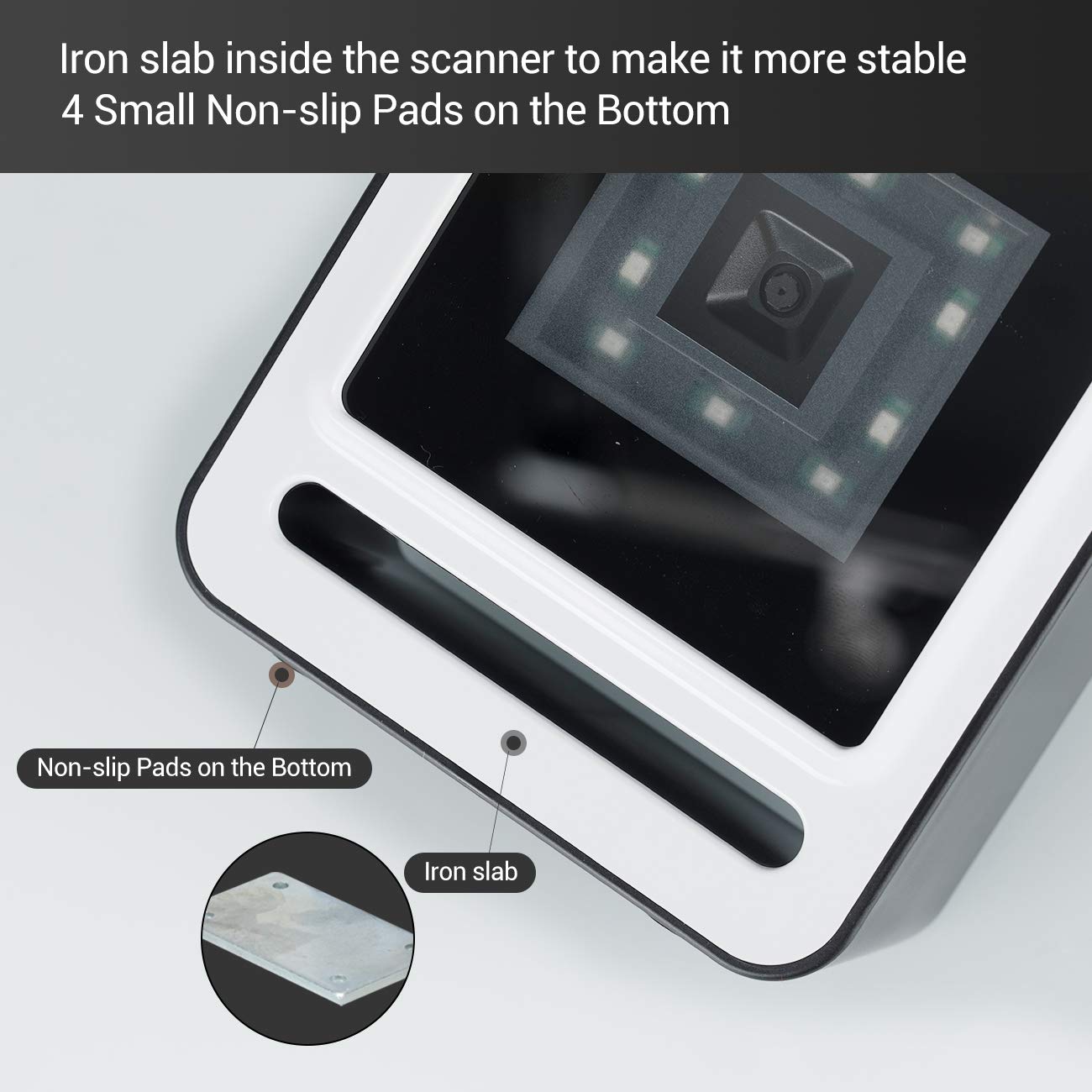
الشكل 2.3.2: الصورة عن قرب view of the scanner's base, highlighting the four non-slip pads and the internal iron slab designed for enhanced stability.
3. الإعداد
The Tera 9200-Wired barcode scanner is designed for quick and easy setup, requiring no special drivers or software installation.
- فك حزمة الماسح الضوئي: قم بإزالة الماسح الضوئي من عبوته بعناية.
- قم بتوصيل كبل USB: Insert the integrated USB 2.0 data cable into an available USB port on your computer, POS system, or cash register.
- التعرف على النظام: The operating system will automatically detect and configure the scanner. This process typically takes a few seconds.
- جاهز للاستخدام: Once recognized, the scanner is ready for immediate use.

Figure 3.1: The scanner connected via USB to a laptop, demonstrating its plug-and-play functionality and compatibility with Windows, Android, and Linux systems, as well as PCs, laptops, iPads, and phones.
4. تعليمات التشغيل
The Tera 9200-Wired scanner offers hands-free operation for efficient barcode reading.
4.1 المسح الأساسي
- Position the Item: Place the barcode of the item directly in front of the scanner's window.
- المسح التلقائي: The scanner will automatically detect the barcode and emit a successful scan indication (e.g., a beep or light change).
- نقل البيانات: The scanned data will be transmitted to your connected device (computer, POS system) as if typed via a keyboard.

Figure 4.1: A smartphone displaying a QR code being scanned by the Tera 9200-Wired scanner, illustrating its hands-free capability for digital barcodes.
4.2 أنواع الباركود المدعومة
The scanner supports a wide array of 1D and 2D barcode symbologies:
- 1D Decode Capability: Codabar, Code 11, Code93, MSI, Code 128, UCC/EAN-128, Code 39, EAN-8, EAN-13, UPC-A, ISBN, Industrial 25, Interleaved 25, Standard 25, 2/5 Matrix.
- 2D Decode Capability: QR Code, PDF417, Data Matrix, Aztec code, Maxi Code.

Figure 4.2: Visual representation of the scanner's advanced decoding capabilities, showing its ability to read challenging barcodes such as reflective, smudged, damaged, and fuzzy ones.
4.3 Advanced Settings (via Configuration Codes)
The scanner can be configured for various settings by scanning specific configuration barcodes (not provided in this manual, refer to a separate programming guide if available from manufacturer). These settings may include:
- لغة لوحة المفاتيح: Adjust the output keyboard language to match your system (e.g., US, UK, German, French, Italian, Spanish, Japanese).
- منفذ COM الظاهري: Enable virtual COM port mode for specific software applications.
- البادئة/اللاحقة: أضف أحرفًا مخصصة قبل أو بعد البيانات الممسوحة ضوئيًا.
- إخفاء الأحرف: Configure the scanner to hide certain characters from the output.
- إعداد الصوت: Adjust the volume of the scan confirmation beep.

Figure 4.3: The scanner illustrating its support for multiple keyboard languages, including English, Spanish, German, Japanese, French, and Italian, allowing for versatile international use.
5. الصيانة
تضمن الصيانة المناسبة طول عمر وأداء مثالي لجهاز مسح الباركود الخاص بك.
- تنظيف نافذة المسح الضوئي: نظّف نافذة المسح الضوئي بانتظام بقطعة قماش ناعمة وخالية من الوبر. لإزالة البقع الصعبة، امسحها برفق.ampاغسل قطعة القماش بالماء أو بمنظف لطيف غير كاشط. لا تستخدم مواد كيميائية قاسية أو مواد كاشطة.
- النظافة العامة: امسح الجزء الخارجي من الماسح الضوئي بقطعة قماش جافة أو مبللة قليلاًamp قطعة قماش لإزالة الغبار والأوساخ.
- تجنب الظروف القاسية: Do not expose the scanner to extreme temperatures, humidity, or direct sunlight for prolonged periods.
- التعامل معها بحذر: تجنب إسقاط الماسح الضوئي أو تعريضه لصدمات قوية.
6. استكشاف الأخطاء وإصلاحها
If you encounter issues with your Tera 9200-Wired scanner, refer to the following common problems and solutions:
| مشكلة | السبب المحتمل | حل |
|---|---|---|
| الماسح الضوئي لا يعمل. | كابل USB غير متصل بشكل صحيح أو منفذ USB معيب. | Ensure the USB cable is securely plugged into both the scanner and the computer. Try a different USB port. |
| الماسح الضوئي لا يقرأ الباركود. | Barcode is damaged, smudged, or poorly printed. نافذة الماسح الضوئي متسخة. تم تمكين رمز الباركود غير الصحيح. | Try scanning a different, known-good barcode. Clean the scanning window. Ensure the barcode type is supported and enabled (if configurable). |
| البيانات الممسوحة ضوئيا غير صحيحة أو غير كاملة. | Keyboard language mismatch. Data format settings incorrect. | Verify your computer's keyboard language matches the scanner's setting. Check for any prefix/suffix settings. |
| يصدر الماسح الضوئي صوت تنبيه ولكن لا يتم إرسال أي بيانات. | التطبيق غير مُفعّل أو لا يقبل المدخلات. | Ensure the cursor is in the correct input field of your application (e.g., notepad, word processor, POS software). |
7. المواصفات
| ميزة | التفاصيل |
|---|---|
| ماركة | تيرا |
| نموذج | 9200-سلكي |
| يكتب | 1D 2D QR Omnidirectional Desktop Barcode Scanner |
| الاتصال | USB 2.0 سلكي |
| إمكانية فك التشفير (أحادي البعد) | كودابار، كود 11، كود 93، إم إس آي، كود 128، يو سي سي/إي إيه إن-128، كود 39، إي إيه إن-8، إي إيه إن-13، يو بي سي-إيه، آي إس بي إن، صناعي 25، متداخل 25، قياسي 25، مصفوفة 2/5 |
| إمكانية فك التشفير (أحادي البعد) | QR Code, PDF417, Data Matrix, Aztec code, Maxi Code |
| التوافق | Windows XP/7/8/10, Android, Linux (PC, Laptops, iPad, Phone) |
| لغات لوحة المفاتيح | US, UK, German, French, Italian, Spanish, Japanese, etc. |
| أبعاد الحزمة | 18.21 × 12.29 × 8.61 سم |
| وزن العنصر | 449 جرام |
| البطاريات المطلوبة | لا |
8. الضمان والدعم
For warranty information and technical support, please refer to the documentation provided with your purchase or contact Tera customer service directly. Keep your purchase receipt as proof of purchase for warranty claims.
For the most up-to-date support resources, visit the official Tera webموقع.


