1. المقدمة
This manual provides essential information for setting up, operating, and maintaining your TECLAST X11 2-in-1 Laptop/Tablet. The TECLAST X11 is a versatile device designed to function as both a portable tablet and a compact laptop, running on Windows 10 Home. It features a 10.1-inch Full HD display, an Intel N4020 processor, 6GB RAM, and 128GB of internal storage.
2. ماذا يوجد في الصندوق
- TECLAST X11 Tablet
- محول الطاقة
- كابل يو اس بي
- دليل المستخدم (هذا المستند)
Note: The keyboard and stylus pen are sold separately and are not included in the standard package.
3. انتهى المنتجview
3.1 الميزات الرئيسية
- تصميم 2 في 1: يمكنك التبديل بسلاسة بين وضع الجهاز اللوحي ووضع الكمبيوتر المحمول.
- عرض: 10.1-inch IPS Full HD (1920x1200) touchscreen.
- المعالج: Intel Gemini Lake Reflash N4020 CPU (up to 2.8GHz).
- تخزين الذاكرة: 6GB RAM, 128GB eMMC ROM (expandable up to 256GB via TF card).
- نظام التشغيل: نظام التشغيل Windows 10 Home مثبت مسبقًا.
- الاتصال: Dual-band 2.4G/5G WiFi, Bluetooth 4.2.
- الكاميرات: كاميرا خلفية بدقة 5 ميجابكسل، وكاميرا أمامية بدقة 2 ميجابكسل.
- الموانئ: USB 3.0, Mini-HDMI, Headphone Jack, DC Port.
- مسنده: Adjustable U-shaped kickstand (0° to 145°).
3.2 تخطيط الجهاز
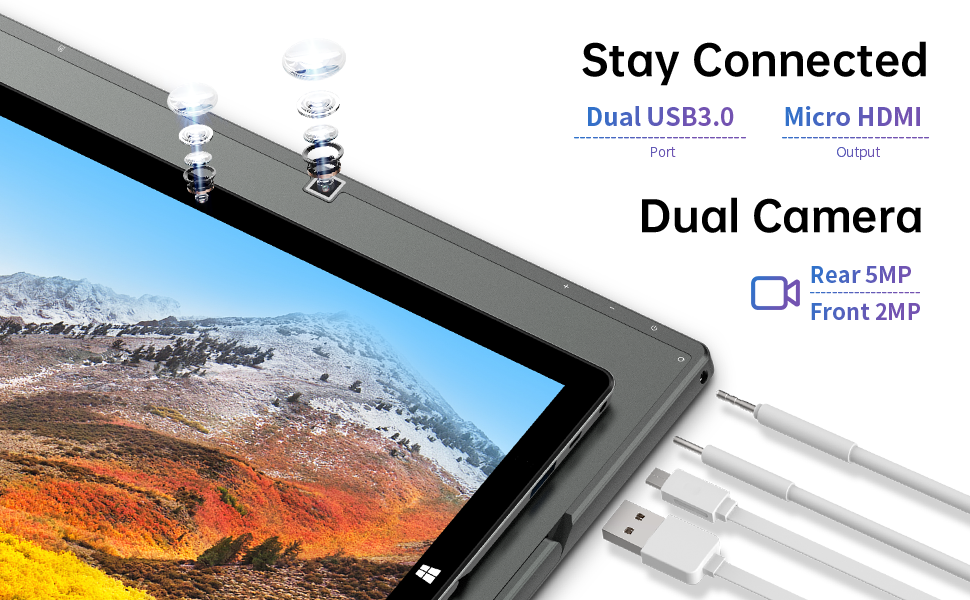
الصورة: الجانب view of the TECLAST X11 tablet highlighting the USB 3.0 port, Micro HDMI output, and front/rear cameras.

الصورة: مفصلة view of the TECLAST X11's side ports, including USB 3.0, Mini-HDMI, DC power input, and headphone jack.
4. الإعداد
4.1 الشحن الأولي
Before first use, fully charge your TECLAST X11 tablet. Connect the provided power adapter to the DC port on the device and plug it into a power outlet. The charging indicator will illuminate.
4.2 تشغيل/إيقاف التشغيل
- لتشغيل: اضغط مع الاستمرار على زر التشغيل حتى تضيء الشاشة.
- لإيقاف التشغيل: Press and hold the Power button, then select "Shut down" from the on-screen options. Alternatively, go to Start Menu > Power > Shut down.
- وضع السكون: Briefly press the Power button to put the device into sleep mode or wake it up.
4.3 الإعداد الأولي لنظام التشغيل Windows
Upon first power-on, follow the on-screen instructions to complete the Windows 10 setup process. This includes selecting your region, language, connecting to a Wi-Fi network, and creating a user account.
5. تعليمات التشغيل
5.1 التبديل بين الأوضاع
The TECLAST X11 is designed for flexibility, allowing you to switch between tablet and laptop modes.
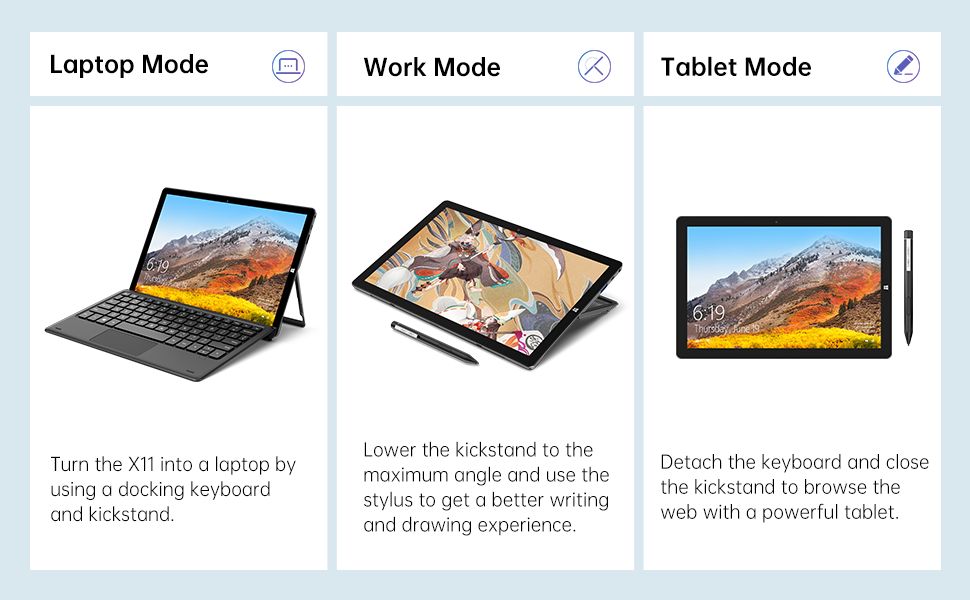
Image: The TECLAST X11 in laptop mode with the keyboard attached and kickstand deployed.
وضع الكمبيوتر المحمول: Attach the magnetic docking keyboard and deploy the integrated kickstand. The device will automatically detect the keyboard and switch to laptop interface.

Image: A user holding the TECLAST X11 in tablet mode, interacting with the touchscreen.
وضع الجهاز اللوحي: Detach the keyboard. The device will automatically switch to tablet mode, optimizing the interface for touch input.

الصورة: الخلفية view of the TECLAST X11 showing the adjustable kickstand extended.
استخدام المسند: The integrated U-shaped kickstand can be adjusted from 0° to 145° for comfortable viewزوايا الكتابة أو الطباعة.
5.2 استخدام شاشة اللمس
The 10.1-inch IPS display supports 10-point multi-touch. Use standard touch gestures for navigation, zooming, and interaction with applications.
5.3 External Connectivity
- يو اس بي 3.0: Connect external devices such as USB drives, mice, or printers.
- Mini-HDMI: قم بتوصيله بشاشة خارجية أو تلفزيون لعرض أكبر.
- بلوتوث شنومكس: Pair with Bluetooth-enabled accessories like headphones or speakers.
- واي فاي: Connect to wireless networks for internet access. Supports 2.4G and 5G bands.
5.4 عرض فيديو
Video: An official TECLAST video demonstrating the features and versatility of the X11 Windows tablet with its detachable keyboard and various usage scenarios.
6. الصيانة
6.1 تنظيف الجهاز
- استخدم قطعة قماش ناعمة وخالية من الوبر لتنظيف الشاشة والأسطح الخارجية.
- بالنسبة للعلامات العنيدة، د قليلاًampامسح قطعة القماش بالماء أو بمحلول تنظيف آمن للشاشات.
- تجنب استخدام المواد الكيميائية القاسية، أو المواد الكاشطة، أو الرطوبة الزائدة.
6.2 العناية بالبطارية
- لإطالة عمر البطارية، تجنب درجات الحرارة القصوى.
- لا تترك الجهاز مشحونًا بالكامل أو فارغًا بالكامل لفترات طويلة.
- استخدم فقط الشاحن الأصلي أو المتوافق المعتمد.
6.3 تحديثات البرامج
Regularly check for and install Windows updates to ensure optimal performance, security, and access to the latest features. Go to Start Menu > Settings > Update & Security > Windows Update.
7. استكشاف الأخطاء وإصلاحها
| مشكلة | الحل المحتمل |
|---|---|
| الجهاز لا يعمل | Ensure the device is charged. Connect the power adapter and try again. If unresponsive, press and hold the Power button for 10-15 seconds to perform a hard reset. |
| مشاكل اتصال Wi-Fi | Check if Wi-Fi is enabled in Windows settings. Restart your router and the tablet. Ensure you are within range of the Wi-Fi signal. |
| لوحة المفاتيح لا تستجيب | Ensure the keyboard is securely attached to the magnetic docking port. Restart the tablet. Verify that the keyboard was purchased separately and is compatible. |
| الأداء البطيء | Close unnecessary applications. Check for Windows updates. Ensure sufficient free storage space. Run a disk cleanup. |
| لا تعمل خاصية تدوير الشاشة | Check if auto-rotate is enabled in Windows Action Center (swipe in from the right edge of the screen or click the icon in the taskbar). |
8. المواصفات
| ميزة | التفاصيل |
|---|---|
| اسم الموديل | X11 2-in-1 Tablet |
| حجم الشاشة | 10.1 بوصة |
| دقة الشاشة | 1920 × 1200 بكسل (FHD IPS) |
| المعالج | Intel Gemini Lake Reflash N4020 (1.1GHz - 2.8GHz) |
| كبش | 6 جيجا بايت DDR4 SDRAM |
| القرص الصلب | 128 GB eMMC (expandable up to 256GB via TF card) |
| بطاقة الرسوميات | بطاقة رسومات Intel UHD 600 المتكاملة |
| نظام التشغيل | ويندوز 10 هوم |
| نوع لاسلكي | Bluetooth 4.2, Dual-band WiFi (2.4G + 5G) |
| مؤخرة Webقرار الكاميرا | 5 ميجا بكسل |
| أمام Webقرار الكاميرا | 2 ميجا بكسل |
| الموانئ | USB 3.0, Mini-HDMI, Headphone Jack, DC Port |
| وزن العنصر | 2.31 رطل (حوالي 1.05 كجم) |
| البطاريات | 1 بطارية ليثيوم بوليمر (متضمنة) |
9. الضمان والدعم
TECLAST provides a خدمة الضمان لمدة 12 شهرًا for the X11 2-in-1 Laptop/Tablet. If you encounter any issues or have questions regarding your device, please contact TECLAST customer support. Refer to the contact information provided with your product packaging or visit the official TECLAST webموقع للحصول على تفاصيل الدعم.


