1. المقدمة
This manual provides comprehensive instructions for the HP LaserJet MFP M140w, a compact multifunction monochrome laser printer designed for efficient printing, scanning, and copying. It features Wi-Fi, Wi-Fi Direct, and USB 2.0 connectivity, offering a print speed of up to 20 pages per minute (ppm).

الصورة 1.1: الجبهة view of the HP LaserJet MFP M140w printer.
2. معلومات السلامة
يرجى قراءة جميع تعليمات السلامة قبل استخدام الطابعة لتجنب التلف أو الإصابة. احتفظ بهذا الدليل للرجوع إليه مستقبلاً.
- ضع الطابعة على سطح مستوٍ وثابت.
- تأكد من التهوية المناسبة حول الطابعة.
- استخدم فقط سلك الطاقة المرفق مع الطابعة.
- لا تعرض الطابعة للماء أو الرطوبة الزائدة.
- احتفظ بيديك بعيدًا عن الأجزاء المتحركة أثناء التشغيل.
- Only use original HP toner cartridges to ensure optimal performance and avoid potential damage.
3. محتويات العبوة
تأكد من وجود جميع العناصر في العبوة:
- طابعة HP LaserJet MFP M140w
- Original HP Toner Cartridge
- سلك الطاقة
- دليل الإعداد
4. الإعداد
4.1 التفريغ والتنسيب
- قم بإزالة الطابعة من عبوتها وإزالة جميع الأشرطة الواقية ومواد التغليف.
- ضع الطابعة على سطح مستوٍ وثابت.
4.2 تركيب خرطوشة الحبر
- افتح باب الوصول إلى الحبر.
- أخرج خرطوشة الحبر الجديدة من عبوتها وقم برجها برفق لتوزيع الحبر.
- Insert the cartridge into the printer until it clicks into place.
- أغلق باب الوصول إلى الحبر.
4.3 تحميل الورق
- اسحب درج الإدخال للخارج.
- Adjust the paper guides to the correct paper size (e.g., A4).
- Load up to 150 sheets of paper into the input tray.
- ادفع درج الإدخال مرة أخرى إلى داخل الطابعة.

Image 4.1: The printer with paper loaded and ready for use.
4.4 توصيل الطاقة
- قم بتوصيل سلك الطاقة بالطابعة ثم بمأخذ الحائط.
- اضغط على زر الطاقة لتشغيل الطابعة.
4.5 تثبيت البرنامج والاتصال به
For full functionality, install the HP Smart App on your computer or mobile device. The app guides you through connecting the printer to your network.
- اتصال واي فاي: The printer supports dual-band Wi-Fi with automatic reset. Follow the on-screen instructions in the HP Smart App to connect to your wireless network.
- واي فاي مباشر: This feature allows direct connection from your mobile device to the printer without a router. Consult the HP Smart App for setup.
- يو اس بي 2.0: Connect the printer directly to your computer using a USB 2.0 cable (not included).
- بلوتوث: The printer supports Bluetooth connectivity for certain functions.
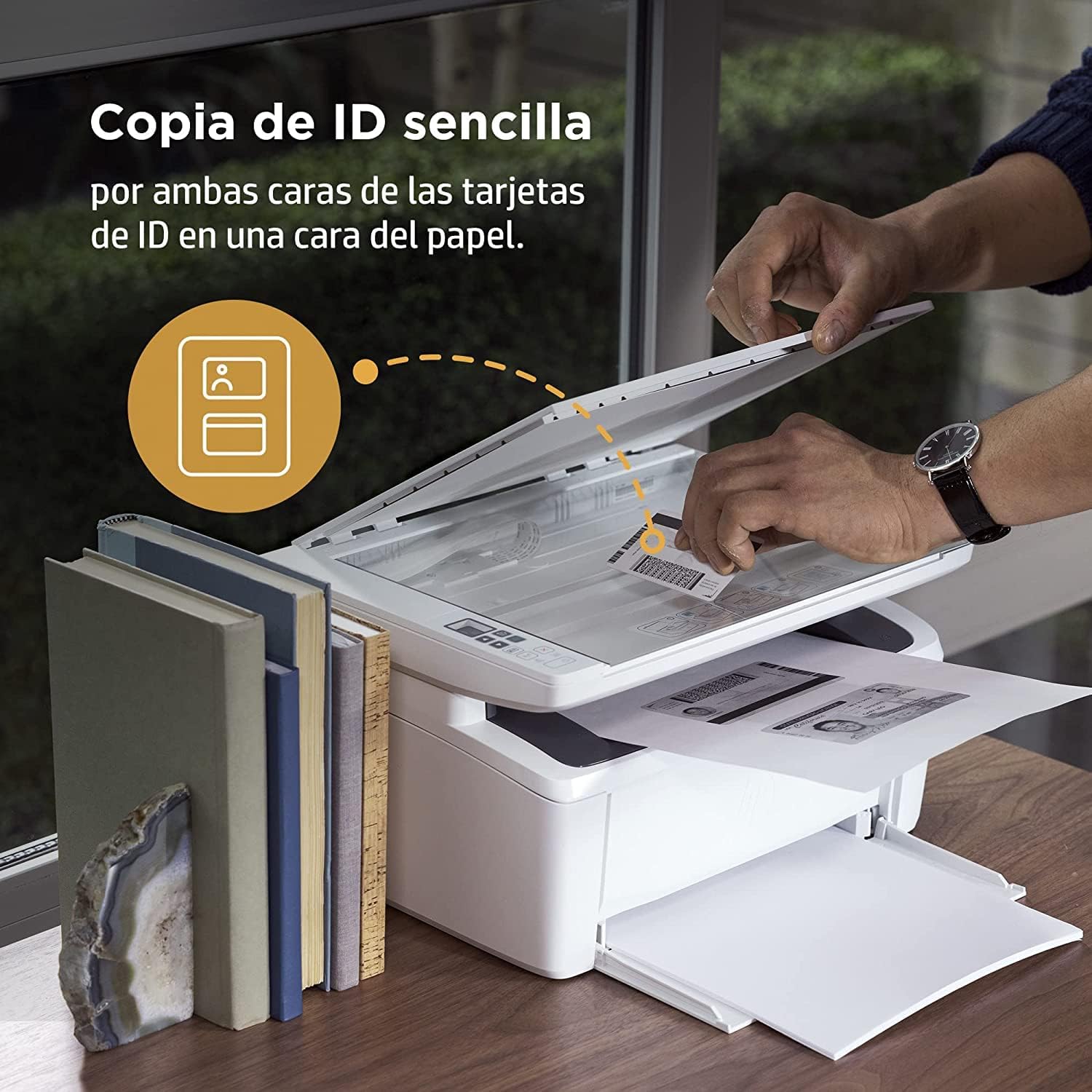
Image 4.2: The compact HP LaserJet MFP M140w printer with a mobile device displaying the HP Smart App interface.
5. تعليمات التشغيل
5.1 الطباعة
The HP LaserJet MFP M140w prints at speeds up to 20 ppm in monochrome. It supports A4 paper size.
- من جهاز الكمبيوتر: Select the HP LaserJet MFP M140w from your printer list in any application. Adjust print settings as needed (e.g., paper size, quality).
- From a Mobile Device (HP Smart App): استخدم تطبيق HP Smart App لطباعة المستندات والصور بسهولة مباشرة من هاتفك الذكي أو جهازك اللوحي.
- الطباعة اليدوية على الوجهين: For two-sided printing, the printer supports manual duplex. Follow the prompts on your computer or the HP Smart App to reinsert the paper to print the second side.
5.2 المسح
The printer features a flatbed scanner for digitizing documents and images.
- ارفع غطاء الماسح الضوئي.
- Place the document face down on the scanner glass, aligning it with the guides.
- أغلق غطاء الماسح الضوئي.
- Initiate the scan from your computer or the HP Smart App. You can choose scan settings such as resolution and file شكل.
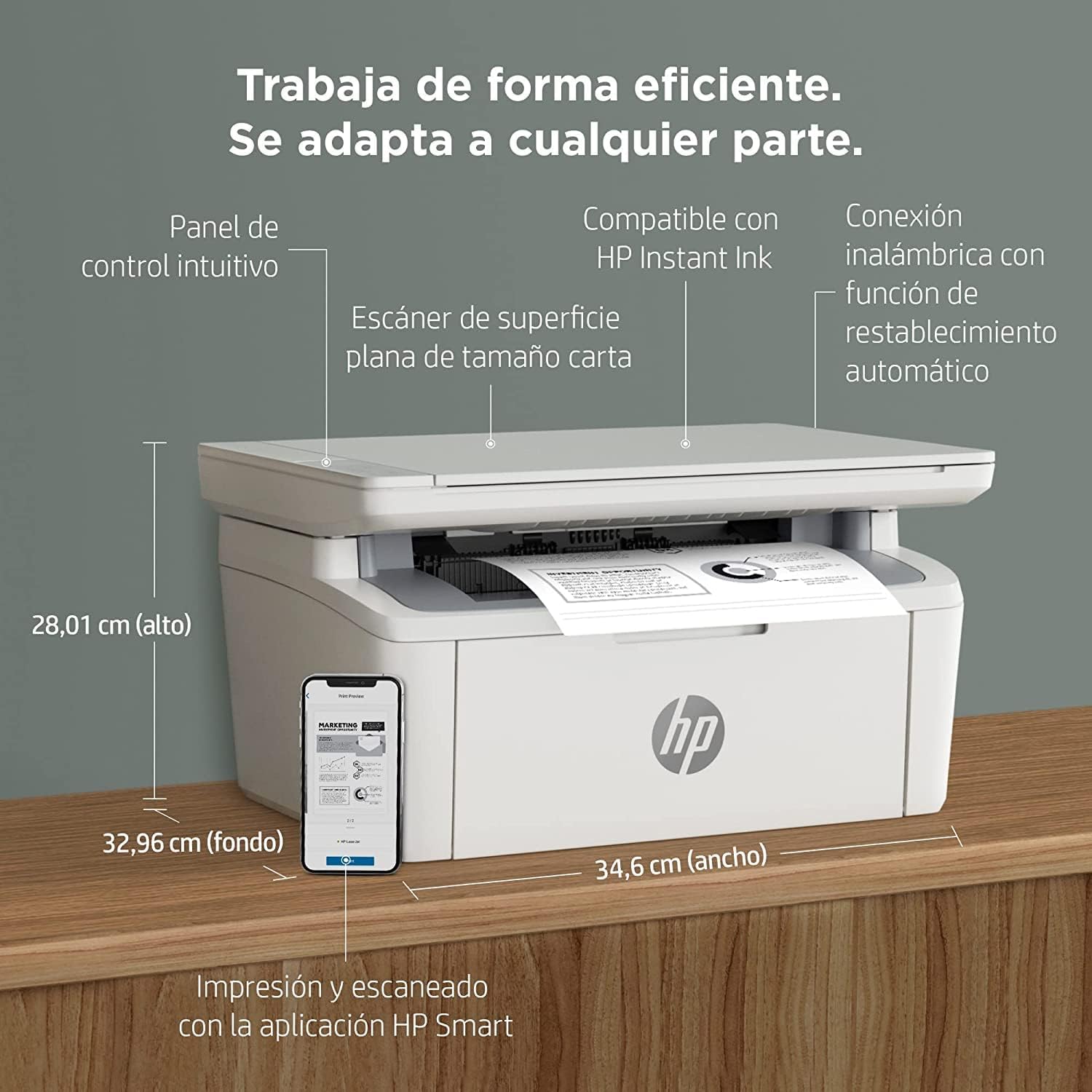
Image 5.1: Using the scanner for ID card copying.
5.3 النسخ
The printer can make up to 150 copies per job.
- ضع المستند الأصلي على زجاج الماسح الضوئي.
- Use the control panel on the printer or the HP Smart App to select the number of copies and start the copying process.
- ID Copy Function: This feature allows you to copy both sides of an ID card onto a single side of paper. Follow the instructions on the printer's control panel or the HP Smart App.
6. الصيانة
6.1 استبدال خرطوشة الحبر
When the toner level is low, replace the cartridge with an original HP 142A Black (W1420A) toner cartridge. Using non-HP cartridges may void your warranty and affect print quality.
- افتح باب الوصول إلى الحبر.
- قم بإزالة خرطوشة الحبر القديمة.
- Unpack the new HP 142A toner cartridge and gently shake it.
- قم بإدخال الخرطوشة الجديدة حتى يتم قفلها في مكانها.
- أغلق باب الوصول إلى الحبر.
6.2 تنظيف الطابعة
يساعد التنظيف المنتظم على الحفاظ على جودة الطباعة وإطالة عمر الطابعة.
- امسح الجزء الخارجي من الطابعة بقطعة قماش ناعمة وخالية من الوبر.
- نظف زجاج الماسح الضوئي بقطعة قماش ناعمةampتم تنظيفها بمنظف الزجاج (ضع المنظف على قطعة قماش، وليس مباشرة على الزجاج).
- Refer to the HP Smart App or HP support website for specific cleaning instructions for internal components.
6.3 تحديثات البرامج الثابتة
HP periodically releases firmware updates to improve printer performance and security. Ensure your printer is connected to the internet and check for updates via the HP Smart App or the printer's embedded web الخادم.
7. استكشاف الأخطاء وإصلاحها
يتناول هذا القسم المشكلات الشائعة التي قد تواجهها مع طابعة HP LaserJet MFP M140w الخاصة بك.
7.1 مشاكل الاتصال
- لم يتم العثور على الطابعة على الشبكة: Ensure the printer is powered on and connected to the correct Wi-Fi network. Use the HP Smart App's troubleshooting tools or try resetting the Wi-Fi connection on the printer.
- Wi-Fi connection drops: The printer features dual-band Wi-Fi with automatic reset. If issues persist, ensure your router is functioning correctly and the printer is within range.
- لم يتم التعرف على اتصال USB: تأكد من توصيل كابل USB بإحكام بكل من الطابعة والكمبيوتر. جرب منفذ USB أو كابلًا آخر.
7.2 مشاكل الطباعة
- لا يوجد مخرج طباعة: Check if the printer is online and there are no error messages. Ensure paper is loaded correctly and the toner cartridge is installed.
- جودة الطباعة رديئة: Replace the toner cartridge if it's low. Ensure you are using original HP toner. Clean the printer if necessary.
- انحشار الورق: Follow the instructions on the printer's display or in the HP Smart App to clear any jammed paper. Ensure paper is loaded correctly and not overfilled.
7.3 Scanning/Copying Issues
- Scanner not responding: Ensure the scanner lid is fully closed and the document is placed correctly. Restart the printer and your computer/mobile device.
- Poor scan/copy quality: Clean the scanner glass. Ensure the original document is clean and flat.
7.4 Toner Cartridge Issues
The printer is designed to work exclusively with original HP toner cartridges. Firmware updates may affect the functionality of non-HP cartridges. If you experience issues with a non-HP cartridge, replace it with an original HP cartridge.
8. المواصفات
| ميزة | مواصفة |
|---|---|
| اسم الموديل | M140w |
| رقم موديل المنتج | 7MD72F |
| الوظائف | طباعة ومسح ضوئي ونسخ |
| تقنية الطباعة | الليزر |
| مخرجات الطباعة | أحادي اللون |
| سرعة الطباعة (أحادية اللون) | تصل إلى 20 جزء في المليون |
| أقصى دقة طباعة (أبيض وأسود) | 1200 نقطة في البوصة |
| الطباعة على الوجهين | يدوي |
| نوع الماسح الضوئي | شاحنة مسطحة |
| الحد الأقصى لسعة ورقة الإدخال | 150 ورقات |
| Max Copies per Run | 150 |
| الاتصال | Wi-Fi (Dual-band, auto-reset), Wi-Fi Direct, USB 2.0, Bluetooth |
| سرعة المعالج | 500 ميجا هرتز |
| ذاكرة | 64 ميجا بايت |
| أنظمة التشغيل المتوافقة | Mac OS 10.15 Catalina (and later), Android |
| الأبعاد (العرض × العمق × الارتفاع) | 34.6 × 32.96 × 28.01 سم (تقريبًا) |
| وزن | 5.4 كجم |
| استهلاك الطاقة | 60 Kilowatts (operating), 3600.0 Watts (peak) |
| حبر متوافق | HP 142A Black (W1420A) |
9. الضمان والدعم
9.1 معلومات الضمان
The product includes a 2-year availability of spare parts in the EU. For specific warranty terms and conditions, please refer to the documentation provided with your printer or visit the official HP support webموقع.
9.2 تحديثات البرامج
Software updates are guaranteed until April 13, 2030. These updates ensure continued functionality and security for your printer.
9.3 دعم العملاء
للحصول على مزيد من المساعدة أو الدعم الفني أو للوصول إلى موارد إضافية، يرجى زيارة موقع دعم HP الرسمي website or use the HP Smart App. The HP Smart App provides guided troubleshooting and access to support documentation.
يمكنك العثور على مزيد من المعلومات والدعم في دعم HP Webموقع.