1. انتهى المنتجview
The HUAWEI WiFi AX2 is a high-performance wireless router designed to provide fast and reliable internet connectivity throughout your home. It supports Wi-Fi 6 technology, offering speeds up to 1500 Mbps, with a 5GHz band supporting up to 1201 Mbps and a 2.4GHz band supporting up to 300 Mbps. This router features HarmonyOS Mesh+ for seamless multi-router setups, comprehensive parental controls, and an advanced antenna design for stable connections.
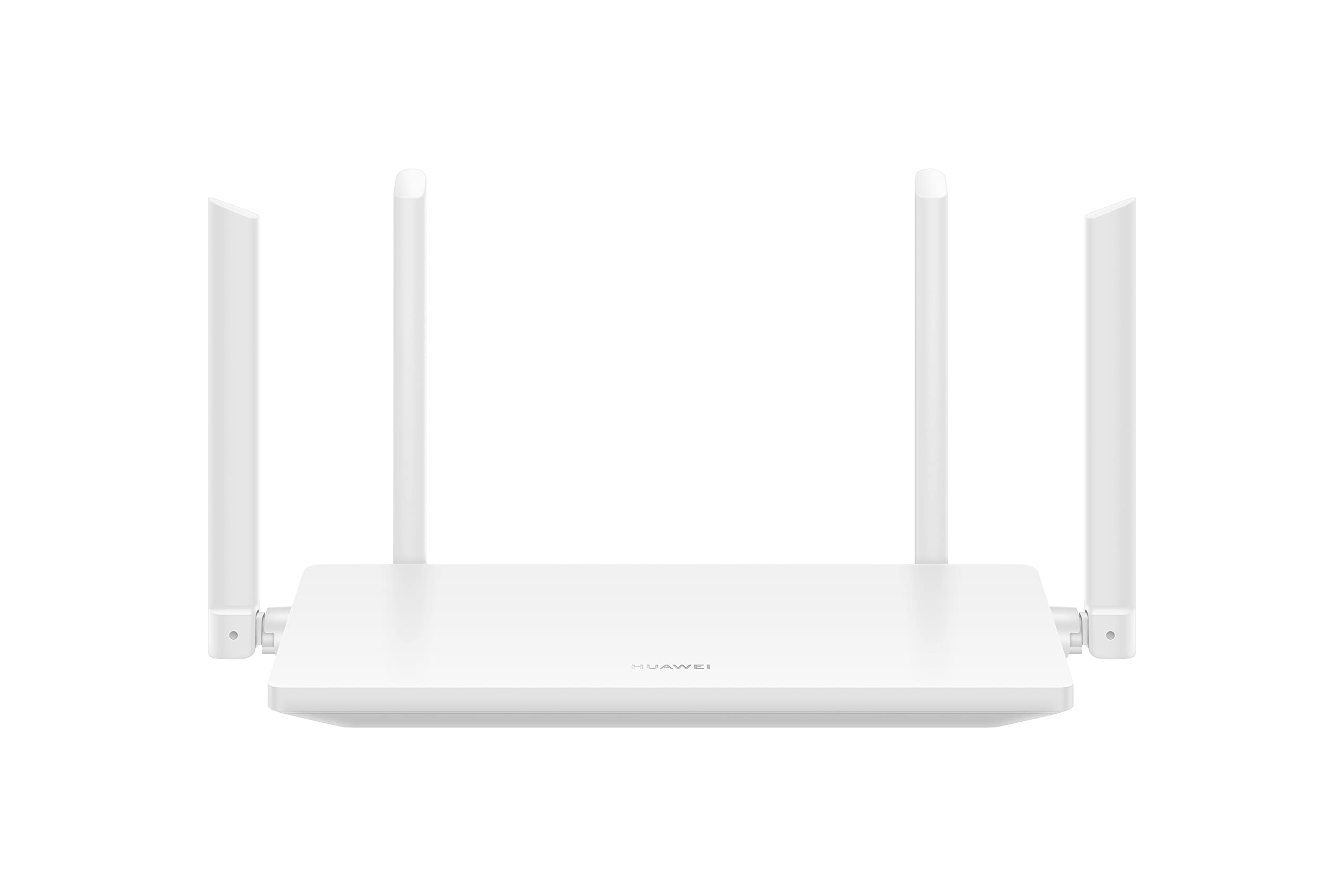
الصورة 1.1: الجبهة view of the HUAWEI WiFi AX2 Wireless Router, showing its sleek white design and four external antennas.
2. محتويات العبوة
قبل البدء في عملية التركيب، يرجى التأكد من وجود جميع العناصر في العبوة:
- HUAWEI WiFi AX2 Wireless Router (WS7001-20)
- محول الطاقة
- كابل إيثرنت
- دليل البدء السريع
- بطاقة الضمان
3. تعليمات الإعداد
Follow these steps to set up your HUAWEI WiFi AX2 Router:
- قم بتوصيل محول الطاقة: Plug the power adapter into the router's power port and then into a wall outlet. The power indicator light on the router should turn on.
- الاتصال بالإنترنت: Connect one end of the Ethernet cable to the WAN port (usually labeled 'WAN' or a globe icon) on your router and the other end to your modem's LAN port.
- قم بتوصيل أجهزتك:
- الاتصال السلكي: Connect your computer or other network devices to any of the LAN ports (labeled 1, 2, 3) on the router using an Ethernet cable.
- الاتصال اللاسلكي: On your Wi-Fi enabled device (smartphone, tablet, laptop), search for the Wi-Fi network name (SSID) printed on the label at the bottom of your router. Select it and enter the Wi-Fi password (also on the label).
- الوصول إلى Web-based Management Page: افتح web تصفح الإنترنت على جهاز متصل وادخل 192.168.3.1 in the address bar. Follow the on-screen instructions to complete the initial setup, including setting up your Wi-Fi name and password.
- Download the HUAWEI AI Life App: For easier management and advanced features, download the HUAWEI AI Life app from your device's app store. Use the app to configure settings, manage connected devices, and utilize parental controls.

الصورة 3.1: خلفي view of the HUAWEI WiFi AX2 Router, showing the power port, three LAN/WAN ports, and the WPS/Reset button.
4. تعليمات التشغيل
4.1 Dual-Band Automatic Switching
The HUAWEI WiFi AX2 operates on both 2.4GHz and 5GHz bands simultaneously. It intelligently switches your devices between these bands to ensure optimal connection quality and speed at all times. This means you don't need to manually select between 2.4GHz and 5GHz networks.
4.2 HarmonyOS Mesh+
If you have multiple HUAWEI routers that support HarmonyOS Mesh+, you can group them under a single Wi-Fi name. This creates a unified mesh network, allowing your devices to automatically switch between routers as you move around your home, ensuring continuous and strong Wi-Fi coverage.
4.3 Comprehensive Parental Control
Manage your family's internet usage with the built-in parental control features. Through the HUAWEI AI Life app, you can:
- حظر الوصول إلى المحتوى غير المناسب webالمواقع.
- Limit internet access time for specific devices.
- View internet usage statistics for connected devices.
5. الصيانة
لضمان الأداء الأمثل وطول عمر جهاز التوجيه الخاص بك، ضع في اعتبارك نصائح الصيانة التالية:
- الموقع: Place the router in a central location, away from obstructions, large metal objects, and other electronic devices that may cause interference. Ensure adequate ventilation around the router.
- تحديثات البرامج الثابتة: Regularly check for and install firmware updates through the HUAWEI AI Life app or the web-based management page. Updates often include performance improvements and security patches.
- إعادة التشغيل: إذا واجهت مشكلات في الشبكة، فحاول إعادة تشغيل جهاز التوجيه عن طريق فصل محول الطاقة لمدة 10 ثوانٍ ثم توصيله مرة أخرى.
- تنظيف: حافظ على نظافة جهاز التوجيه وخلوه من الغبار. استخدم قطعة قماش ناعمة وجافة لمسح السطح الخارجي. لا تستخدم المنظفات السائلة.

الصورة 5.1: الجانب view of the HUAWEI WiFi AX2 Router, highlighting the ventilation slots for proper heat dissipation.
6. استكشاف الأخطاء وإصلاحها
If you encounter issues with your HUAWEI WiFi AX2 Router, refer to the following common problems and solutions:
| مشكلة | السبب المحتمل | حل |
|---|---|---|
| لا يوجد اتصال بالإنترنت | Incorrect cable connection, modem issue, or incorrect router settings. | Check that the Ethernet cable is securely connected to the WAN port and your modem. Reboot both the modem and the router. Verify internet settings via the web-based management page or AI Life app. |
| سرعة الواي فاي بطيئة | Interference, too many connected devices, outdated firmware, or poor router placement. | Ensure the router is placed optimally (see Maintenance section). Reduce the number of active devices. Update router firmware. Consider if your internet service provider (ISP) speed is the bottleneck. |
| ينقطع اتصال الواي فاي بشكل متكرر | Signal interference, distance from router, or channel congestion. | Move closer to the router. Check for sources of interference (e.g., microwaves, cordless phones). Use the AI Life app to analyze Wi-Fi channels and switch to a less congested one. |
| لا يمكن الوصول إلى صفحة إعدادات جهاز التوجيه | عنوان IP غير صحيح، أو الجهاز غير متصل بالموجه، أو مشكلة في المتصفح. | Ensure your device is connected to the router's Wi-Fi or via an Ethernet cable. Verify you are entering 192.168.3.1 correctly. Try a different web المتصفح. |
If the problem persists, perform a factory reset by pressing and holding the WPS/Reset button on the back of the router for approximately 10 seconds until the indicator light flashes. Note that a factory reset will erase all your custom settings.
7. المواصفات
| ميزة | التفاصيل |
|---|---|
| ماركة | هواوي |
| اسم الموديل | WS7001-20 |
| رقم موديل العنصر | WS7001-20 |
| أبعاد المنتج | 25.76 × 16.35 × 2.9 سم |
| وزن العنصر | 580 جرام |
| نوع لاسلكي | 802.11ax (واي فاي 6) |
| فئة نطاق التردد | النطاق المزدوج (2.4 جيجاهرتز و 5 جيجاهرتز) |
| تكنولوجيا الاتصال | واي فاي |
| نظام التشغيل | نظام تشغيل الراوتر |
| عدد المنافذ | 3 (LAN/WAN auto-sensing) |
| المميزات الخاصة | وضع نقطة الوصول |
| الأجهزة المتوافقة | الهاتف الذكي والكمبيوتر اللوحي |
| الاستخدامات الموصى بها للمنتج | بيت |
| البطاريات المتضمنة | لا |
| تاريخ أول توفر | 7 سبتمبر 2023 |
8. الضمان والدعم
8.1 معلومات الضمان
For detailed warranty information, please refer to the warranty card included in your product package or visit the official HUAWEI webقد تختلف شروط وأحكام الضمان حسب المنطقة والتاجر.
8.2 الدعم الفني
If you require further assistance or have technical questions not covered in this manual, please contact HUAWEI customer support. You can find contact details on the official HUAWEI website or through the HUAWEI AI Life app.


