لوجيتك C930s برو HD Webدليل المستخدم كام
نموذج: شنومكس-شنومكس
العلامة التجارية: لوجيتك
1. دليل الإعداد
1.1 محتويات الصندوق
- Webكاميرا مع كابل USB-A بطول 5 أقدام (1.5 م)
- مصراع الخصوصية الحاقه
- وثائق المستخدم

Image: The Logitech C930s Pro HD Webcam, its attached USB-A cable, the detachable privacy shutter, and user documentation are neatly arranged, showing all included components.
1.2 ربط جهازك Webكاميرا
The Logitech C930s Pro HD Webcam is designed for easy plug-and-play setup. Follow these steps to connect your webكام:
- Unfold the universal mounting clip on the webكام.
- ضع webcam on your monitor, laptop, or a tripod. Ensure the clip is securely resting on the top edge of your display, with the front lip flush with the screen.
- قم بتوصيل كابل USB-A من webcam into an available USB port on your computer (PC or Mac).
- ال webcam should be automatically recognized by your operating system (Windows, macOS, ChromeOS) and ready for use with most video conferencing applications.

الصورة: واجهة واضحة view of the Logitech C930s Pro HD Webcam, highlighting its lens and sleek design, ready for mounting.
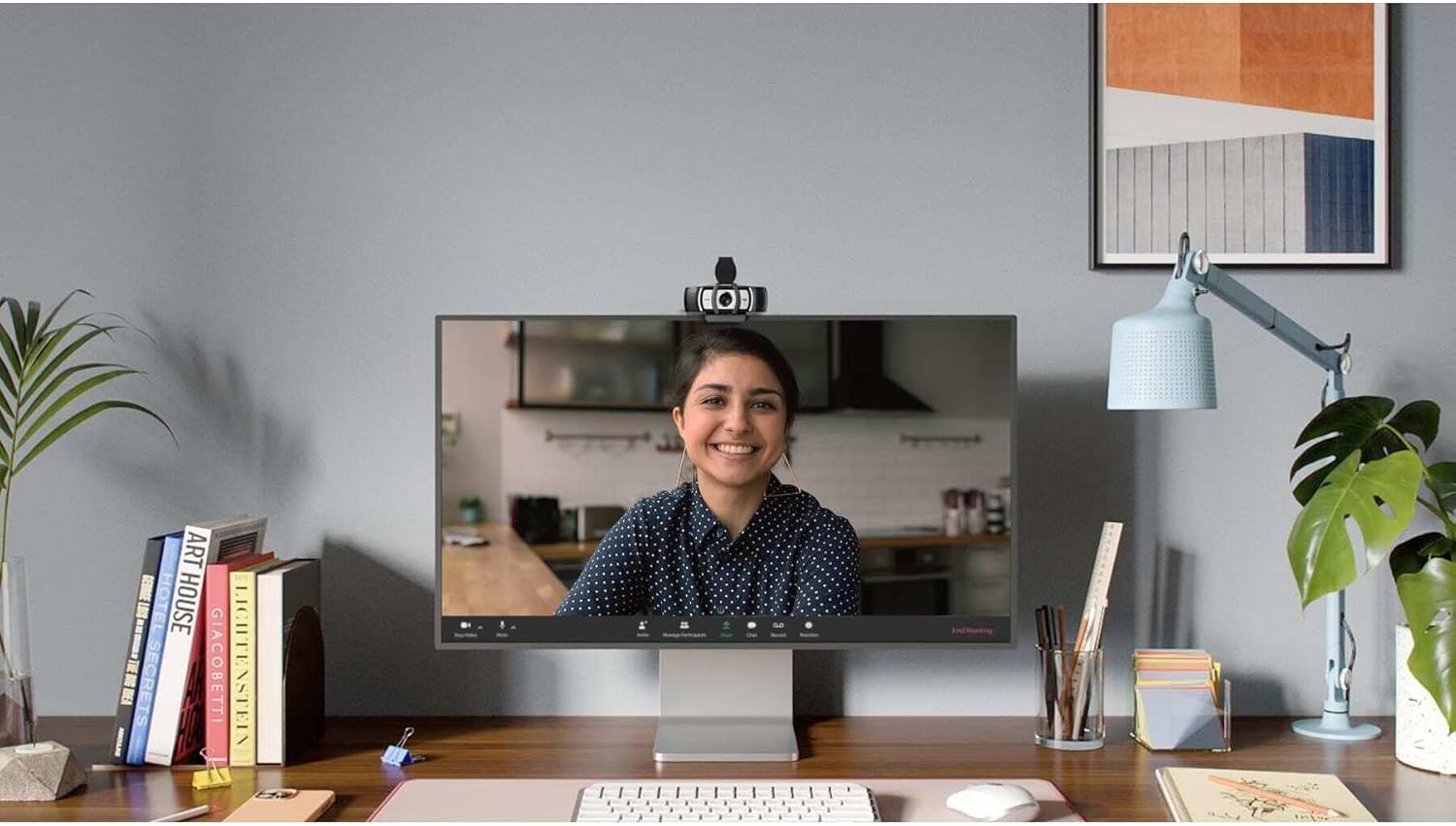
Image: The Logitech C930s Pro HD Webcam is shown mounted securely on top of a computer monitor, demonstrating its typical placement for video calls.
1.3 Installing Software (Optional)
For advanced features and customization, download and install the Logi Tune or G HUB software from the official Logitech webهذا البرنامج يسمح لك بـ:
- Adjust camera settings such as brightness, contrast, and white balance.
- Utilize 4x HD zoom, pan, and tilt capabilities.
- Receive automated firmware updates.
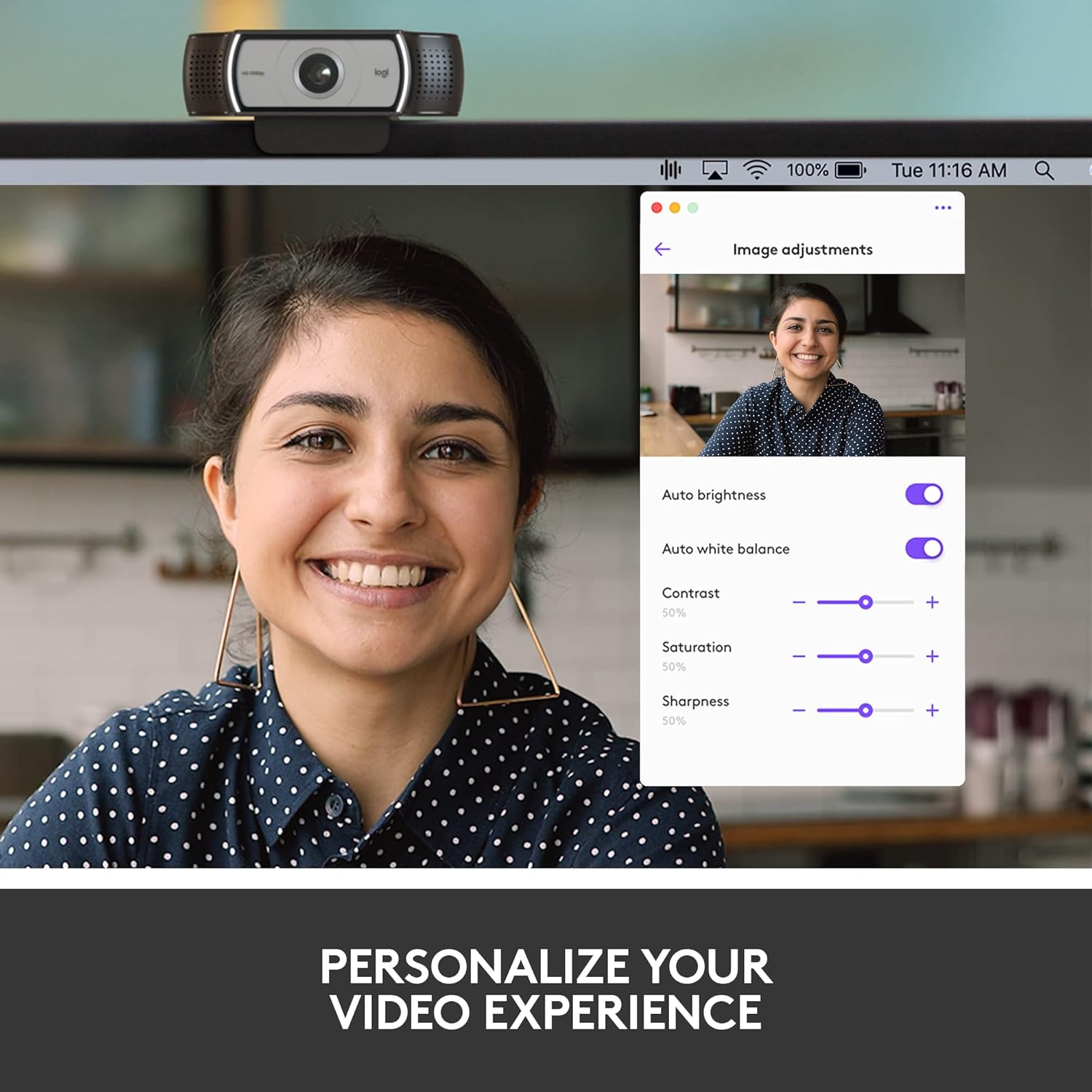
Image: A screenshot of the Logi Tune software interface, showing various image adjustment options like auto brightness, white balance, contrast, saturation, and sharpness, allowing users to personalize their video experience.
2. تشغيل Webكاميرا
2.1 Video Quality Features
The C930s Pro HD Webcam is equipped with features to ensure high-quality video output:
- فيديو عالي الدقة 1080 بكسل: Delivers crystal-clear video calls at 1080p resolution.
- تقنية رايت لايت 2: Automatically adjusts lighting to compensate for low light or backlighting, ensuring you look your best.
- Wide 90° Field of View: Allows you to include more of your surroundings or multiple participants in the frame.
- Up to 60 Frames Per Second (fps): Provides smooth and vivid recordings, ideal for dynamic presentations or streaming.

Image: A person smiling during a video call, with text overlay stating "1080P LETS YOU LOOK YOUR BEST ON VIDEO CALLS", illustrating the high-definition video capability.
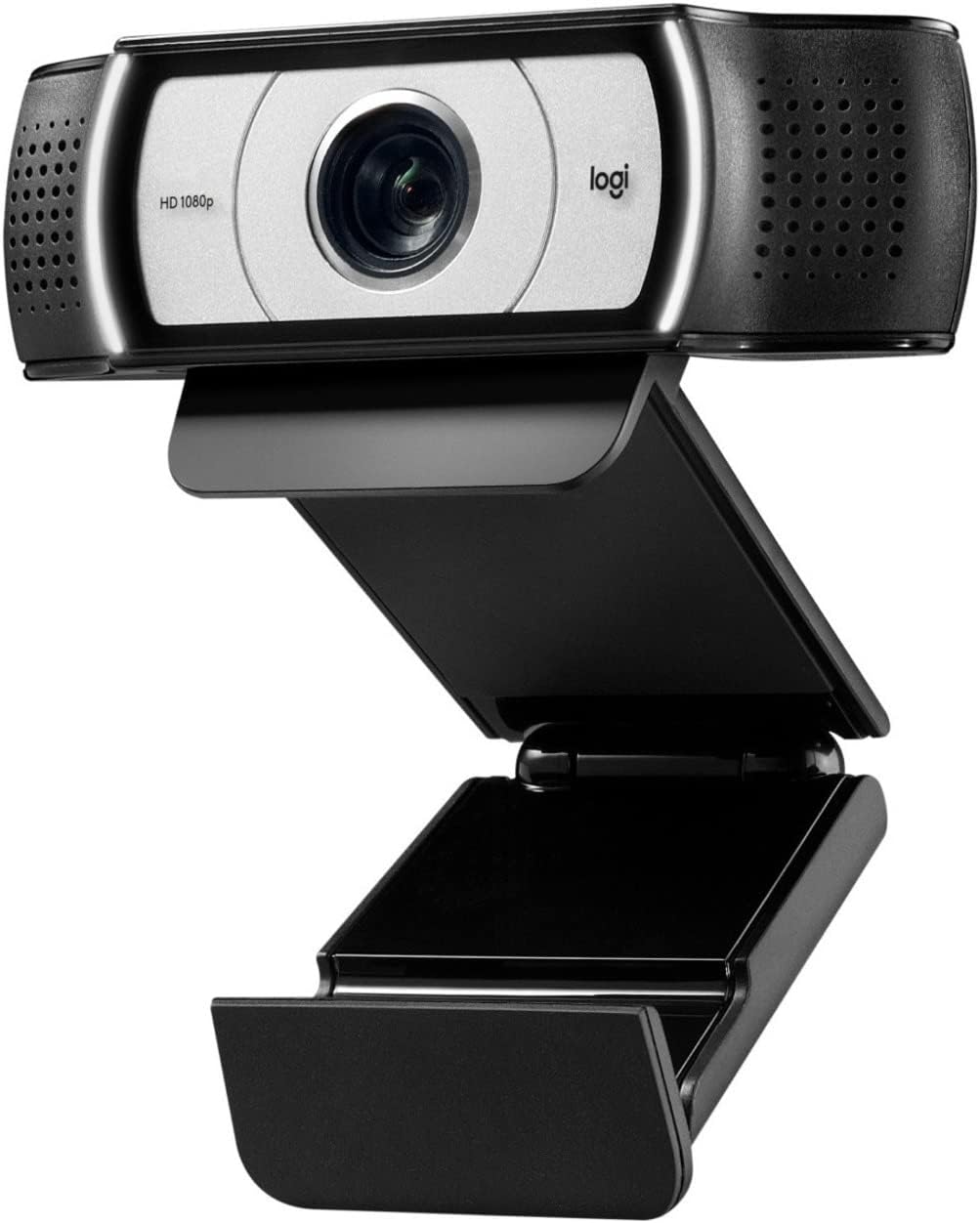
Image: A side-by-side comparison showing a person's face, with one side appearing darker and the other brighter, accompanied by text "HD RESOLUTION WITH AUTO LIGHT CORRECTION", demonstrating the webcam's ability to improve image quality in various lighting conditions.

Image: A person's face with white bracket lines around it, indicating the ability to "FRAME YOURSELF PERFECTLY" using the webcam's field of view and zoom features.

Image: A computer screen displaying a business graph, with text overlay "UP TO 60 FPS HIGH FRAME RATE", indicating the webcam's capability for smooth video capture.
2.2 ميزات الصوت
The C930s Pro HD Webcam ensures clear audio capture:
- Dual Omnidirectional Mics: Capture your voice clearly from up to one meter away, making conversations natural and easy to hear.

Image: The Logitech C930s Pro HD Webcam with stylized sound waves emanating from its sides, accompanied by the text "COMMUNICATE WITH EXCEPTIONAL CLARITY", highlighting its dual microphone capability.
2.3 Using the Privacy Shutter
The attachable privacy shutter provides physical security for your webكام:
- To cover the lens, simply flip the shutter down.
- To expose the lens for use, flip the shutter up.

Image: A detailed diagram of the Logitech C930s Pro HD Webcam, pointing out key features such as the attachable privacy shade, ultra-wide 90° dFOV, dual mics, auto light correction, and versatile mounting options.
3. الصيانة
To ensure the longevity and optimal performance of your Logitech C930s Pro HD Webاتبع إرشادات الصيانة التالية للكاميرا:
- تنظيف العدسة: Gently wipe the lens with a soft, lint-free cloth. Avoid using abrasive cleaners or solvents that could damage the lens coating.
- تنظيف الجسم: استخدمي قطعة قماش ناعمةamp قطعة قماش لتنظيف الجزء الخارجي من webالكاميرا. لا تغمرها webلا تستخدم الماء أو الرطوبة الزائدة.
- تخزين: When not in use, especially during transport, use the privacy shutter to protect the lens from dust and scratches. Store the webضع الكاميرا في مكان بارد وجاف.
- العناية بالكابلات: تجنب الانحناءات الحادة أو الانثناءات في كابل USB لمنع حدوث تلف داخلي.
4. استكشاف الأخطاء وإصلاحها
If you encounter issues with your Logitech C930s Pro HD Webجرب الحلول التالية يا كام:
| مشكلة | الحل المحتمل |
|---|---|
| لا يوجد فيديو أو صورة |
|
| جودة الصورة رديئة (ضبابية، داكنة، حبيبية) |
|
| لا يوجد صوت أو جودة الصوت رديئة |
|
| Webلم يتم التعرف على الكاميرا بواسطة الكمبيوتر |
|
لمزيد من التفاصيل حول استكشاف الأخطاء وإصلاحها، يرجى الرجوع إلى الموقع الرسمي دليل المستخدم (PDF).
5. المواصفات
| ميزة | التفاصيل |
|---|---|
| ماركة | لوجيتك |
| مسلسل | لوجيتك C930s برو HD Webكاميرا |
| رقم موديل العنصر | 960-001403 |
| أقصى دقة للشاشة | FHD (1080 بكسل) |
| دقة التقاط الفيديو | 1080 بكسل |
| منصة الأجهزة | Mac, PC, Laptop |
| وزن العنصر | 5.7 أونصات |
| أبعاد المنتج (الطول × العرض × الارتفاع) | 2.8 × 3.7 × 1.69 بوصة |
| لون | أسود / فضي |
| مؤخرة Webقرار الكاميرا | 2 ميجا بكسل |
| تقنية مستشعر الصور | آخر |
| الطول البؤري الأقصى | 1 |
| الفتحة القصوى | 2 ف |
| نوع ذاكرة فلاش | SD |
| تنسيق التقاط الفيديو | إم بي 4 |
| تنسيق الصوت المدعوم | ام بي 3، ايه ايه سي |
| حجم الشاشة | 2.4 بوصة |
| تكنولوجيا الاتصال | USB |
6. الضمان والدعم
6.1 ضمان المنتج
The Logitech C930s Pro HD Webتأتي الكاميرا مع ضمان محدود للأجهزة لمدة 1 سنوات من تاريخ الشراء. يغطي هذا الضمان عيوب المواد والصناعة في ظل الاستخدام العادي.
For full terms and conditions of the warranty, please refer to the documentation included with your product or visit the official Logitech support webموقع.
6.2 دعم العملاء
For technical assistance, product registration, or to access the latest drivers and software, please visit the official Logitech support webالموقع. يمكنك أيضاً العثور هناك على الأسئلة الشائعة ومنتديات المجتمع.
دليل المستخدم الشامل بصيغة PDF متاح للتنزيل: لوجيتك C930s برو HD Webcam User Manual (PDF).


