StarTech.com 2 Port Dual Monitor HDMI KVM Switch
Model: SV231DHU34K6
1. المقدمة
This instruction manual provides detailed information on the installation, operation, and maintenance of your StarTech.com 2 Port Dual Monitor HDMI KVM Switch. This device allows you to control two computers from a single set of peripherals, including two HDMI monitors, a keyboard, a mouse, and other USB devices, supporting resolutions up to 4K at 60Hz.
2. معلومات السلامة
يرجى قراءة جميع التعليمات وفهمها جيداً قبل استخدام هذا المنتج. قد يؤدي عدم اتباع هذه التعليمات إلى التعرض لصدمة كهربائية أو حريق أو إصابة خطيرة.
- المخاطر الكهربائية: Do not use damaged or frayed cables. Exposed wires can lead to electric shocks. Ensure all cables are properly connected and secured to prevent accidental disconnection.
- تراكم الحرارة: Overloaded or tightly bundled cables can overheat and pose a fire hazard. Ensure adequate ventilation and avoid bundling power cables.
- ضرر: افصل المحولات دائمًا من خلال الإمساك بالقابس وليس السلك. قد يؤدي سحب السلك إلى كشف الأسلاك الكهربائية، مما قد يتسبب في حدوث صدمات كهربائية أو حروق.
3. انتهى المنتجview
The StarTech.com SV231DHU34K6 KVM switch is designed to streamline your workspace by enabling control of two computers with dual 4K HDMI displays and shared USB peripherals. Its robust steel housing ensures durability.
3.1. الميزات الرئيسية
- Supports dual 4K (3840 x 2160) resolution at 60Hz per monitor.
- HDMI 2.0, HDCP 2.2, and HDR10 support.
- Integrated 2-port USB 3.0 Hub (5Gbps) for sharing peripherals.
- Four USB 2.0 HID ports for keyboard and mouse.
- Hotkey and front-panel push-button switching.
- EDID and HDCP signal emulation for fast, seamless switching.
- Supports stereo analog and 7.1 digital audio.
- OS Independent compatibility (Windows, Mac, Linux).
3.2. اللوحة الأمامية

الشكل 1: تخطيط اللوحة الأمامية
- HID USB Port: For connecting a keyboard or mouse.
- 5G USB Port: لتوصيل أجهزة USB 3.0 عالية السرعة.
- Computer Selection Buttons (1, 2): Press to switch to the corresponding computer.
- حدد زر: Used for various functions, including auto-scan activation.
3.3. اللوحة الخلفية
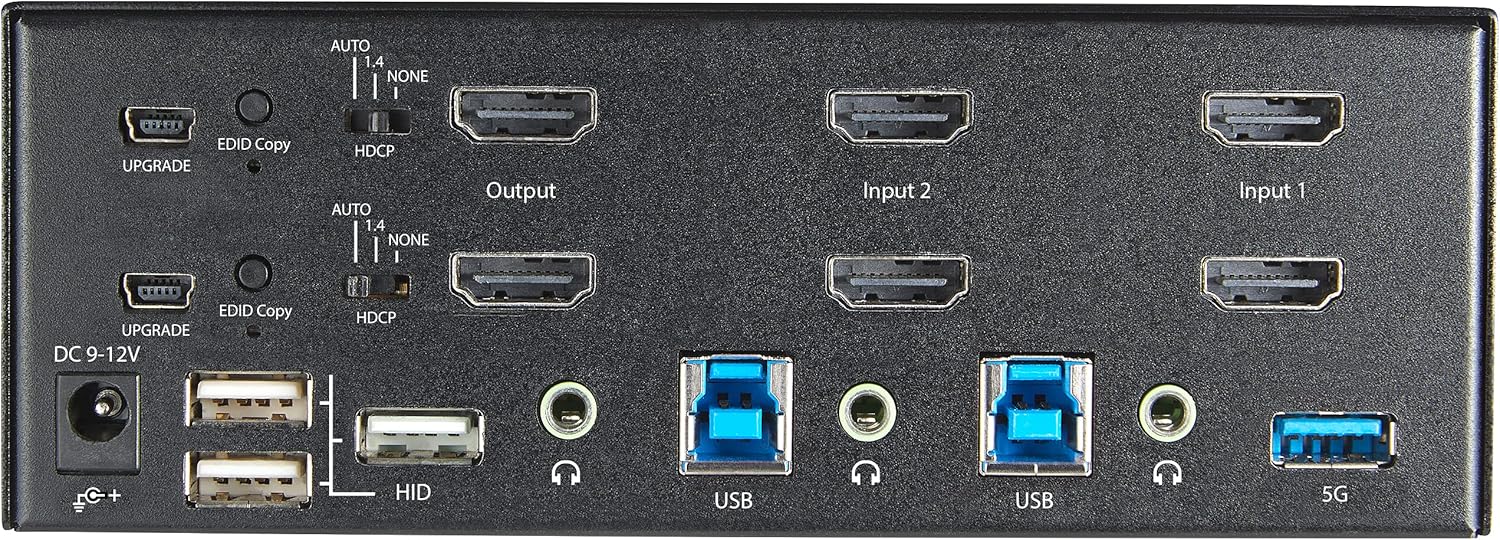
الشكل 2: تخطيط اللوحة الخلفية
- مدخل الطاقة DC 9-12V: قم بتوصيل محول الطاقة المرفق.
- UPGRADE Port: للحصول على تحديثات البرامج الثابتة.
- EDID Copy Button/Switch: Manages Extended Display Identification Data.
- تبديل HDCP: Manages High-bandwidth Digital Content Protection.
- Output (HDMI): Connect to your monitors.
- Input 1/Input 2 (HDMI): Connect to the HDMI outputs of your computers.
- USB (النوع ب): Connect to the USB 3.0 ports of your computers.
- HID USB Ports (Type-A): For additional keyboard/mouse connections or other low-power USB devices.
- Audio Jacks (3.5mm): For connecting speakers/headphones and microphones.
- 5G USB Port (Type-A): لتوصيل أجهزة USB 3.0 عالية السرعة.
4. الإعداد
4.1. ماذا يوجد في الصندوق
- 1 x KVM Switch (SV231DHU34K6)
- 1 × محول طاقة عالمي (NA / JP ، الاتحاد الأوروبي ، المملكة المتحدة ، ANZ)
- شنومكس x قدم مطاطية
- 1 × دليل البدء السريع
Note: HDMI cables, USB 3.0 Type-A to Type-B cables, and audio cables are not included and must be purchased separately.
4.2. تعليمات الاتصال
Follow these steps to connect your KVM switch:
- ربط الشاشات: Connect your two HDMI monitors to the 'Output' HDMI ports on the rear panel of the KVM switch.
- Connect Computers (HDMI): Connect the HDMI outputs from Computer 1 to the 'Input 1' HDMI ports on the KVM switch. Repeat for Computer 2 and 'Input 2'. Ensure both HDMI outputs from each computer are connected for dual monitor support.
- Connect Computers (USB): Connect the USB 3.0 Type-B ports on the KVM switch to the USB 3.0 Type-A ports on Computer 1 and Computer 2 using appropriate USB 3.0 cables. These connections enable keyboard, mouse, and USB hub functionality.
- توصيل الأجهزة الطرفية:
- Connect your keyboard and mouse to the 'HID' USB ports on the front or rear panel.
- Connect other USB devices (e.g., printer, scanner, webcam) to the '5G' USB 3.0 ports on the front or rear panel.
- توصيل الصوت (اختياري): If desired, connect your speakers/headphones and microphone to the 3.5mm audio jacks on the rear panel.
- توصيل الطاقة: Connect the included universal power adapter to the 'DC 9-12V' power input on the rear panel, then plug it into a power outlet. The KVM switch will power on automatically.

Figure 3: KVM Switch with Ports for Connection
5. تشغيل مفتاح KVM
5.1. التبديل بين أجهزة الكمبيوتر
You can switch between connected computers using either the front-panel push buttons or hotkey commands.
- Front-Panel Buttons: Press the '1' or '2' button on the front panel to directly switch to Computer 1 or Computer 2, respectively.
- التبديل بين المفاتيح السريعة: Use keyboard hotkey combinations to switch computers. The default hotkey sequence is typically Scroll Lock, Scroll Lock, [1 or 2]. Refer to the Quick-Start Guide for a complete list of hotkey commands and customization options. A buzzer sound confirms the switch.
5.2. EDID and HDCP Emulation
The KVM switch includes EDID (Extended Display Identification Data) and HDCP (High-bandwidth Digital Content Protection) signal emulation. This feature ensures that your monitors remain synced and desktop settings are maintained when switching between computers, preventing display resolution changes or window rearrangement.
5.3. وظائف موزع USB
The integrated USB 3.0 hub allows you to share two USB 3.0 peripherals (connected to the 5G ports) and four USB 2.0 HID peripherals (connected to the HID ports) between the connected computers. Devices connected to these ports will function as if directly connected to the currently selected host computer.
5.4. دعم الصوت
The KVM switch supports both digital audio (via HDMI, 7.1 Channel Audio) and separate 3.5mm stereo analog audio (2 Channel Audio). Ensure your displays and sources support the desired audio format for full compatibility.
6. الصيانة
لضمان طول عمر مفتاح KVM الخاص بك وأدائه الأمثل، اتبع إرشادات الصيانة التالية:
- تنظيف: استخدم قطعة قماش ناعمة وجافة لتنظيف الجزء الخارجي من الجهاز. لا تستخدم المنظفات السائلة أو البخاخات.
- تهوية: Ensure the KVM switch is placed in a well-ventilated area. Do not block any ventilation openings.
- إدارة الكابلات: Keep cables organized and untangled to prevent damage and ensure proper airflow. Avoid excessive bending or crimping of cables.
- تخزين: عند عدم استخدام الجهاز لفترات طويلة، قم بتخزينه في مكان بارد وجاف بعيدًا عن أشعة الشمس المباشرة ودرجات الحرارة القصوى.
7. استكشاف الأخطاء وإصلاحها
إذا واجهت مشاكل مع مفتاح KVM الخاص بك، فراجع المشاكل والحلول الشائعة التالية:
- لا يوجد عرض أو دقة غير صحيحة:
- Ensure all HDMI cables are securely connected to both the KVM switch and your computers/monitors.
- Verify that your HDMI cables are rated for 4K 60Hz if you are using 4K displays. Longer cables (e.g., over 3m/10ft) may require higher quality or active cables.
- Check the display settings on your computers to ensure they are configured for the correct resolution and refresh rate.
- Try power cycling the KVM switch and monitors.
- لوحة المفاتيح/الماوس لا تستجيب:
- Ensure the USB Type-B cables are securely connected from the KVM switch to your computers.
- Verify that your keyboard and mouse are connected to the designated HID USB ports.
- حاول توصيل لوحة المفاتيح/الماوس مباشرة بالكمبيوتر للتأكد من أنهما يعملان بشكل صحيح.
- Some specialized keyboards/mice with advanced features may require direct connection or specific drivers.
- لم يتم اكتشاف أجهزة USB:
- Ensure the USB Type-B cables are connected from the KVM switch to your computers.
- Verify that the USB device is connected to the appropriate 5G USB 3.0 port.
- Some high-power USB devices may require an external power source or a powered USB hub connected to the KVM's 5G port.
- مشاكل الصوت:
- Check all 3.5mm audio cable connections.
- Verify audio output settings on your computers.
- Ensure your monitors or audio devices support the HDMI audio format being sent.
- Slow Switching Time:
- The KVM switch is designed for fast switching. If experiencing delays, ensure EDID and HDCP emulation are functioning correctly.
- تأكد من أن جميع الكابلات ذات جودة جيدة ومثبتة بشكل صحيح.
If the problem persists after attempting these solutions, please contact StarTech.com technical support.
8. المواصفات
| فئة | مواصفة |
|---|---|
| رقم الموديل | SV231DHU34K6 |
| منافذ KVM | 2 |
| Monitors Supported | 2 |
| نوع الفيديو | اتش دي ام اي 2.0 |
| القرارات المدعومة | تصل إلى 3840 × 2160 عند 60 هرتز |
| HDCP الدعم | بروتوكول حماية المحتوى عالي الوضوح 2.2 |
| دعم HDR | النطاق الديناميكي العالي 10 |
| موزع يو اس بي | 2 منافذ USB 3.0 (5 جيجابت في الثانية) |
| منافذ USB HID | 4 منافذ يو اس بي 2.0 |
| دعم الصوت | HDMI (7.1 Channel), Analog Stereo (3.5mm) |
| اختيار المنفذ | Push Button, Hotkeys |
| مادة | فُولاَذ |
| لون | أسود |
| أبعاد المنتج (الطول × العرض × الارتفاع) | 6.3 × 3.9 × 2.3 بوصة (16.0 × 10.0 × 5.8 سم) |
| وزن المنتج | 1.8 رطل (0.8 كجم) |
| مصدر الطاقة | محول التيار المتردد (مضمن) |
| حجم الإدخالtage | 100 - 240 AC |
| استهلاك الطاقة | 36 واط |
| درجة حرارة التشغيل | 0 إلى 40 (32 ℉ إلى 104) |
| درجة حرارة التخزين | -10 درجة مئوية إلى 60 درجة مئوية (14 درجة فهرنهايت إلى 140 درجة فهرنهايت) |
| رطوبة | 0% إلى 80% رطوبة نسبية (بدون تكاثف) |
9. الضمان والدعم
This StarTech.com KVM Switch (Model: SV231DHU34K6) is backed by a ضمان لمدة 2 سنوات. StarTech.com also provides دعم فني مجاني مدى الحياةللحصول على المساعدة الفنية أو لتقديم مطالبات الضمان، يرجى زيارة الموقع الرسمي StarTech.com webالموقع أو الاتصال بفريق دعم العملاء.
لمزيد من المعلومات، قم بزيارة: www.startech.com


