المنتج انتهىview
The Poly Studio E70 is an intelligent camera designed for large conference rooms, offering exceptional video quality and advanced features for hybrid work environments. It incorporates dual 4K sensors and Poly DirectorAI technology to provide an immersive video experience, including speaker tracking and group framing capabilities. The camera is engineered to ensure participants appear clear and natural, enhancing remote collaboration.

أمام view of the Poly Studio E70 Intelligent Camera, showcasing its dual lenses and sleek design.
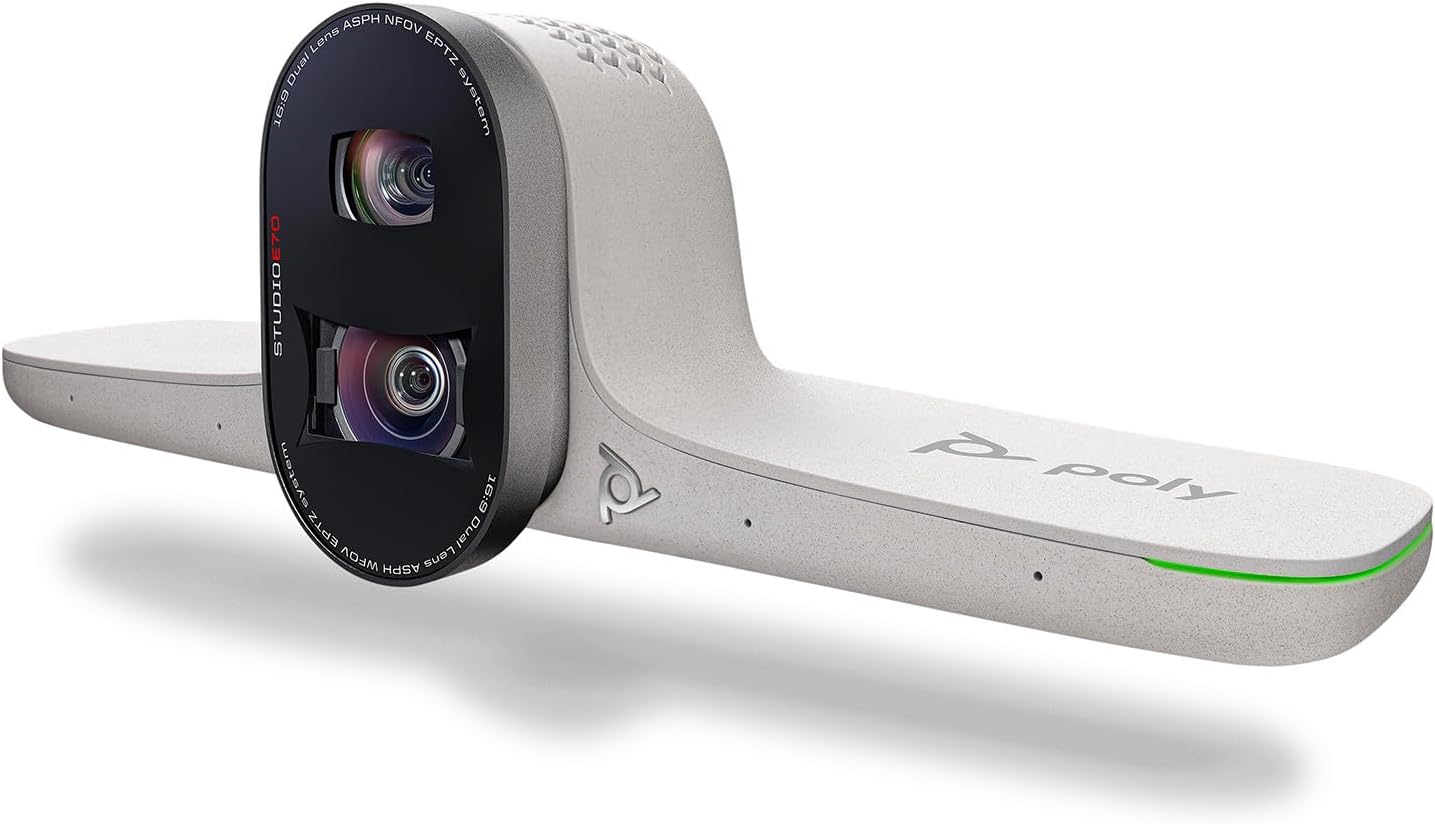
بزاوية view of the Poly Studio E70 Intelligent Camera, highlighting its modern aesthetic and integrated design.
ماذا يوجد في الصندوق
The Poly Studio E70 package includes the following components:
- Poly Studio E70 Intelligent Camera
- كابل USB من النوع C
- كابل إيثرنت
يثبت
Follow these steps to set up your Poly Studio E70 Intelligent Camera:
- تركيب الكاميرا: Position the Poly Studio E70 camera securely on top of your display or a suitable mounting surface in your conference room. Ensure it has a clear line of sight to all participants.
- ربط الطاقة والشبكة: The Poly Studio E70 requires Power Over Ethernet (POE). Connect one end of the provided Ethernet cable to the POE-enabled network port on the camera and the other end to a POE-enabled network switch or injector.
- الاتصال بالنظام: The Poly Studio E70 works with Poly G7500 or Poly Microsoft Teams Room systems (sold separately). Connect the camera to your compatible system using the appropriate cables and follow the system's instructions for camera integration.
- الترتيب الأولي: For initial setup and management, utilize Poly Lens Desktop for Windows or the cloud-based Poly Lens device management software. These tools allow for firmware updates, configuration adjustments, and monitoring.

The Poly Studio E70 camera mounted on a display in a conference room setting.

مؤخرة view of the Poly Studio E70, showing the connectivity ports including the Ethernet port for POE.
تشغيل الكاميرا
The Poly Studio E70 is designed for intelligent and automated video conferencing. Key operational features include:
- Dual 4K Lenses: The camera features two 4K lenses that capture high-resolution video, ensuring clear and detailed images of meeting participants.
- Poly DirectorAI Technology: This advanced AI technology powers features such as speaker tracking and group framing.
- تتبع المتحدث: The camera automatically focuses on the active speaker, ensuring they are clearly visible to remote participants.
- Group Framing: The camera intelligently frames all participants in the room, adjusting the view as people enter or leave.
- Integrated Electronic Privacy Shutter: For enhanced security and privacy, the camera includes a motorized privacy shutter that can be activated when the camera is not in use.
- Management with Poly Lens: Use Poly Lens software for ongoing management, including adjusting camera settings, monitoring device status, and deploying firmware updates.

تفصيلية view of the Poly Studio E70's dual 4K lenses.
صيانة
Proper maintenance ensures the longevity and optimal performance of your Poly Studio E70 camera:
- تنظيف: Gently wipe the camera lenses and exterior with a soft, dry, lint-free cloth. Avoid using abrasive cleaners, solvents, or aerosol sprays directly on the device.
- تحديثات البرامج الثابتة: Regularly check for and install firmware updates via Poly Lens. Updates often include performance improvements, new features, and security enhancements.
- الظروف البيئية: Operate the camera within recommended temperature and humidity ranges to prevent damage. Avoid exposing the camera to extreme temperatures or direct sunlight.
استكشاف الأخطاء وإصلاحها
If you encounter issues with your Poly Studio E70, consider the following troubleshooting steps:
- لا يوجد مخرج فيديو:
- Ensure the Ethernet cable is securely connected and the network provides Power Over Ethernet (POE).
- Verify that the camera is properly connected to your Poly G7500 or Microsoft Teams Room system.
- Check the privacy shutter status; ensure it is open.
- جودة الفيديو رديئة:
- نظف عدسات الكاميرا بقطعة قماش ناعمة وخالية من الوبر.
- Ensure adequate lighting in the conference room.
- Check network bandwidth and stability.
- Speaker Tracking/Group Framing Issues:
- Ensure the camera is positioned correctly and has an unobstructed view من الغرفة.
- Verify that Poly DirectorAI features are enabled and configured correctly in Poly Lens.
- مشاكل الاتصال:
- Restart the camera by disconnecting and reconnecting the POE cable.
- Check network settings and ensure the camera has a valid IP address.
For more detailed troubleshooting, refer to the Poly Lens application or the official Poly support webموقع.
تحديد
| ميزة | التفاصيل |
|---|---|
| ماركة | بولي (بلنترونيكس + بوليكوم) |
| مسلسل | بولي ستوديو E70 |
| رقم الموديل | 2200-87090-001 |
| وزن العنصر | 4.4 رطل |
| أبعاد المنتج | 14.4 × 5 × 11 بوصة |
| تقنية مستشعر الصور | سيموس |
| دقة التقاط الفيديو | 4K |
| الفتحة القصوى | 20 ف |
| نوع ذاكرة فلاش | ذاكرة فلاش داخلية |
| تنسيق التقاط الفيديو | إم بي 4 |
| تنسيق الصوت المدعوم | AAC، MP3، PCM |
| تكنولوجيا الاتصال | إيثرنت |
| ميزة خاصة | Poly DirectorAI technology with speaker tracking, group framing, and privacy shutter |
معلومات الضمان
The Poly Studio E70 Intelligent Camera is covered by Poly's standard product warranty. For specific details regarding the warranty period, coverage, and terms and conditions, please refer to the warranty documentation included with your purchase or visit the official Poly website. Extended protection plans may also be available from your reseller.
يدعم
For further assistance, technical support, or to access additional resources for your Poly Studio E70 Intelligent Camera, please utilize the following options:
- Poly Lens Software: Use the Poly Lens desktop application or cloud service for device management, diagnostics, and firmware updates.
- الدعم عبر الإنترنت: Visit the official Poly support website for comprehensive documentation, FAQs, and troubleshooting guides.
- اتصل بالدعم: If you require direct assistance, contact Poly customer support through the channels provided on their webموقع.
For the latest information and support, always refer to the official Poly resources.


