مقدمة
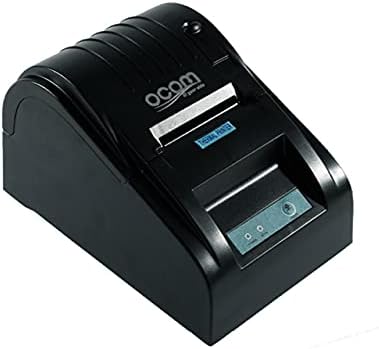
This image shows the OCOM OCPP-585A-U-B Thermal Receipt Printer from a slightly elevated front-right angle. The printer is black with a sleek, compact design. The paper output slot is visible at the top, and the control panel with 'POWER' and 'MODE' indicators is located on the front.
This manual provides detailed instructions for the OCOM OCPP-585A-U-B Thermal Receipt Printer. Please read this manual carefully before using the printer to ensure proper operation and longevity.
دليل الإعداد
1. فك التعبئة
Carefully remove the printer and all accessories from the packaging. Verify that all components are present: printer unit, power adapter, USB cable, and a roll of thermal paper.
2. تحميل الورق الحراري
- Open the paper cover by pushing the cover open button (usually located on the side or front).
- Insert the thermal paper roll into the paper compartment, ensuring the printing side of the paper faces the print head. The paper should feed smoothly from the bottom of the roll.
- Pull out a small length of paper beyond the paper exit slot.
- أغلق الغطاء الورقي بإحكام حتى تسمع صوت طقطقة عند تثبيته في مكانه.
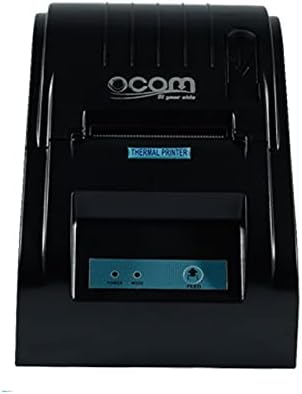
This image displays the OCOM OCPP-585A-U-B Thermal Receipt Printer from a direct top-down perspective. The paper compartment is visible, showing a thermal paper roll correctly inserted. The 'THERMAL PRINTER' label and the control panel with 'POWER' and 'MODE' indicators are clearly visible.
3. توصيل الطابعة
- Connect the power adapter to the printer's power input port and then plug it into a power outlet.
- Connect the USB cable to the printer's USB port and the other end to your computer or POS system.
- Press the power button to turn on the printer. The power indicator light should illuminate.
تعليمات التشغيل
الطباعة الأساسية
Once connected and powered on, the printer is ready to receive print commands from your connected device. Ensure the correct printer driver is installed on your computer/POS system.
- افتح المستند أو التطبيق الذي ترغب في الطباعة منه.
- Select 'Print' from the file قائمة طعام.
- Choose 'OCOM OCPP-585A-U-B' as your printer.
- Adjust print settings if necessary (e.g., paper size, print quality).
- انقر فوق "طباعة".
Self-Test Print
To perform a self-test print, ensure the printer is off. Hold down the 'FEED' button (if available, or a combination of buttons as per specific model) while turning on the printer. Release the button once printing begins. This will print a configuration page, confirming basic printer functionality.
صيانة
تنظيف رأس الطباعة
Regular cleaning of the print head ensures optimal print quality and extends printer life.
- قم بإيقاف تشغيل الطابعة وافصل سلك الطاقة.
- افتح الغطاء الورقي.
- استخدمي قطعة قطنية برفقampened with isopropyl alcohol to gently wipe the thermal print head (the dark strip inside the printer).
- اترك رأس الطباعة يجف تمامًا قبل إغلاق الغطاء وتشغيل الطابعة.
Cleaning the Paper Path
قم بإزالة أي غبار أو شوائب ورقية من مسار الورق باستخدام فرشاة ناعمة أو هواء مضغوط.
استكشاف الأخطاء وإصلاحها
| مشكلة | السبب المحتمل | حل |
|---|---|---|
| الطابعة لا تعمل | Power cable loose; Power outlet faulty | تحقق من توصيلات الطاقة؛ جرب منفذًا كهربائيًا مختلفًا |
| لا يوجد مخرج طباعة | Paper loaded incorrectly; Out of paper; Driver not installed/selected | Reload paper correctly; Replace paper roll; Install/select correct printer driver |
| Faint or blank print | Thermal paper loaded upside down; Print head dirty; Paper quality issue | Flip paper roll; Clean print head; Try new thermal paper |
| الطابعة غير متصلة بالإنترنت | USB cable disconnected; Printer driver issue | Reconnect USB cable; Reinstall printer driver |
تحديد
| ميزة | التفاصيل |
|---|---|
| أول تاريخ متاح | 2021 يونيو 20 |
| الشركة المصنعة | OCOM |
| ASIN | B097LSGP62 |
| رقم موديل العنصر | OCPP-585-U-B |
| العلامة التجارية | OCOM |
| تكنولوجيا الاتصال | USB |
| تكنولوجيا الطابعة | حراري |
| لون | أسود |
| اسم الموديل | OCPP 585 U B |
| وسائل الإعلام المطبوعة | العلامات |
| نوع الماسح الضوئي | إيصال |
الضمان والدعم
This OCOM printer typically comes with a standard manufacturer's warranty. Please refer to the warranty card included with your product for specific terms and conditions, or visit the official OCOM webموقع للحصول على معلومات الضمان التفصيلية.
For technical support, driver downloads, or further assistance, please visit the OCOM official support website or contact their customer service. Keep your model number (OCPP-585A-U-B) and purchase details ready when seeking support.


