1. المقدمة
The HUAWEI MateStation B515 is a compact and powerful desktop PC designed for various computing tasks, from office work to multimedia consumption. It features an AMD Ryzen 5 4600G processor with integrated Radeon Graphics, 8GB of RAM, and a fast 256GB NVMe SSD, providing efficient performance and quick responsiveness. This manual provides essential information for setting up, operating, maintaining, and troubleshooting your MateStation B515.
2. معلومات السلامة
- اقرأ جميع التعليمات بعناية قبل استخدام الجهاز.
- لا تعرض الجهاز لدرجات حرارة شديدة أو رطوبة أو أشعة الشمس المباشرة.
- تأكد من التهوية المناسبة لمنع ارتفاع درجة الحرارة. لا تسد فتحات التهوية.
- Use only the power adapter and cables provided or approved by HUAWEI.
- تجنب وضع أشياء ثقيلة على الجهاز.
- لا تحاول تفكيك الجهاز أو إصلاحه بنفسك. اتصل بفنيي الصيانة المعتمدين للحصول على المساعدة.
- أبقِ الجهاز بعيداً عن السوائل والمواد المسببة للتآكل.
3. محتويات العبوة
تأكد من وجود جميع العناصر في العبوة:
- HUAWEI MateStation B515 Desktop PC
- محول الطاقة والكابل
- Wired Keyboard (may vary by region)
- Wired Mouse (may vary by region)
- دليل البدء السريع / بطاقة الضمان
4. انتهى المنتجview
4.1 اللوحة الأمامية

Figure 1: Front Panel of MateStation B515
توفر اللوحة الأمامية إمكانية الوصول بسهولة إلى المنافذ وأدوات التحكم الأساسية:
- زر الطاقة: اضغط لتشغيل الكمبيوتر أو إيقاف تشغيله.
- منفذ USB-A: لتوصيل أجهزة USB.
- منفذ USB-C: لتوصيل أجهزة USB-C.
- مقبس سماعة الرأس/الميكروفون: لإدخال/إخراج الصوت.
4.2 اللوحة الخلفية

الشكل 2: توصيل اللوحة الخلفية
The rear panel houses the main connectivity options:
- منفذ HDMI: للتوصيل بشاشة أو جهاز عرض.
- منفذ VGA: للاتصال بالشاشات أو أجهزة العرض القديمة.
- USB-A Ports (Multiple): For connecting various USB peripherals.
- منفذ إيثرنت (RJ45): للاتصال بالشبكة السلكية.
- مقابس الصوت: Line-in, Line-out, Microphone.
- Serial (COM) Port: For legacy device connectivity.
- مدخلات الطاقة: لتوصيل كابل الطاقة.
4.3 الجانب View والتهوية

Figure 3: Side Ventilation
The side panel features ventilation grilles designed to ensure optimal airflow and heat dissipation, maintaining stable performance even under heavy loads.
4.4 Complete Setup Example
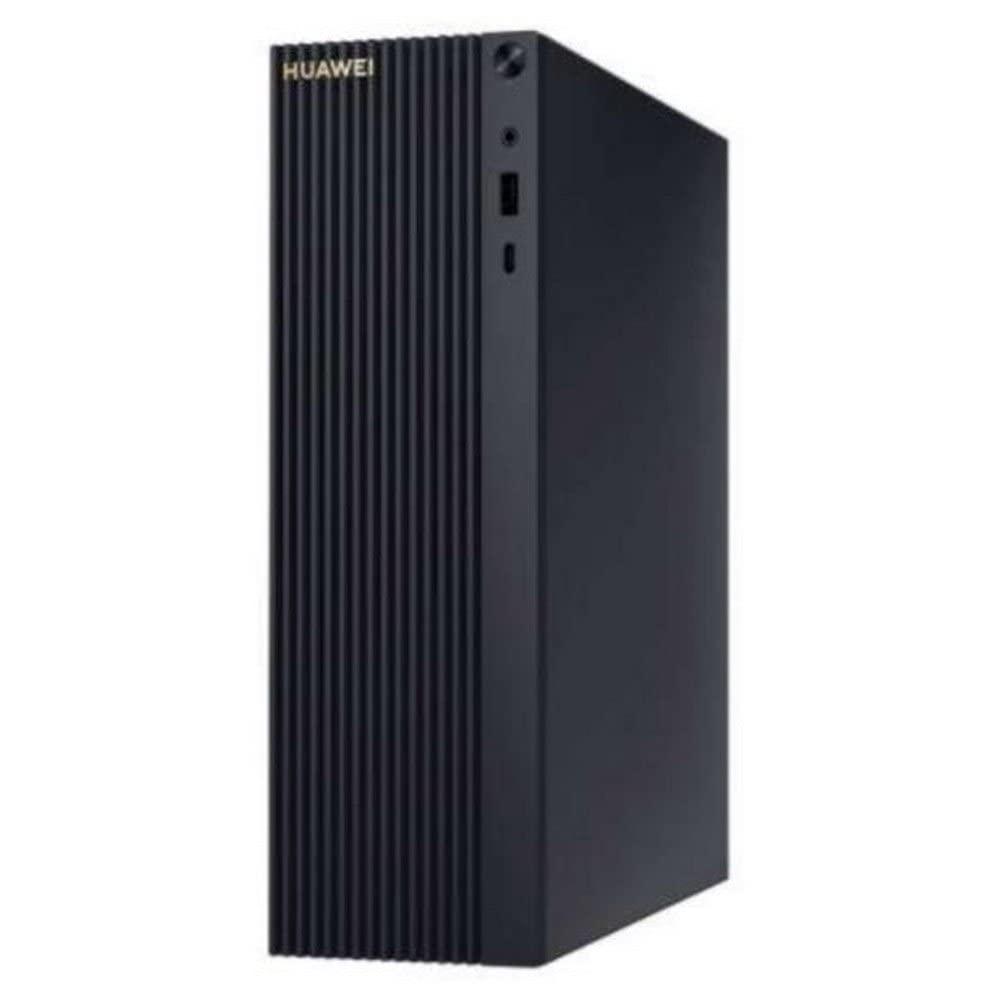
Figure 4: MateStation B515 in a typical desktop environment
This image illustrates a typical setup of the MateStation B515, connected to a monitor and peripherals, ready for use.
5. تعليمات الإعداد
5.1 توصيل الأجهزة الطرفية
- توصيل الشاشة: Use an HDMI or VGA cable to connect your monitor to the corresponding port on the rear panel of the MateStation B515.
- ربط لوحة المفاتيح والماوس: Plug the USB cables of your keyboard and mouse into any available USB-A ports on the front or rear panel.
- ربط الشبكة (اختياري): For a wired internet connection, connect an Ethernet cable from your router or modem to the RJ45 port on the rear panel. Alternatively, the device supports Wi-Fi.
- توصيل الصوت (اختياري): If using external speakers or a headset, connect them to the appropriate audio jacks on the front or rear panel.
5.2 التشغيل
- توصيل الطاقة: Plug the power cable into the power input on the rear panel of the MateStation B515, then plug the other end into a power outlet.
- تشغيل الطاقة: Press the power button located on the front panel of the PC. The power indicator light will illuminate.
5.3 الإعداد الأولي لنظام التشغيل Windows
Upon first boot, the system will guide you through the Windows 10 Pro setup process. Follow the on-screen instructions to configure language, region, network settings, user accounts, and other preferences. Ensure you have an active internet connection for updates and account synchronization.
6. تعليمات التشغيل
6.1 التشغيل الأساسي
- Starting the PC: اضغط على زر الطاقة.
- اغلاق: انقر فوق زر البدء في نظام التشغيل Windows، ثم حدد الطاقة > إيقاف التشغيل.
- إعادة التشغيل: انقر فوق زر البدء في نظام التشغيل Windows، ثم حدد الطاقة > إعادة التشغيل.
- وضع السكون: انقر فوق زر البدء في نظام التشغيل Windows، ثم حدد الطاقة > السكون.
6.2 HUAWEI Share
The HUAWEI MateStation B515 supports HUAWEI Share, allowing seamless interaction with compatible HUAWEI smartphones. This feature enables you to:
- Multi-screen Collaboration: Project your phone screen onto the PC for easier file transfer, editing, and app usage.
- File نقل: Quickly transfer photos, videos, and documents between your phone and PC.
- Cross-device Editing: يحرر files from your phone directly on the MateStation B515, with changes automatically saved to your phone.
To use HUAWEI Share, ensure your HUAWEI smartphone supports the feature and follow the on-screen instructions provided by the HUAWEI PC Manager software on your MateStation B515.
7. الصيانة
7.1 نظام التبريد
The MateStation B515 features a specially designed cooling system with custom air circulation channels to efficiently dissipate heat from the processor and other components. This ensures stable performance and quiet operation.
- Ensure that the ventilation openings on the device are not obstructed.
- Place the PC on a flat, stable surface with adequate space around it for airflow.
7.2 التنظيف
- Before cleaning, power off the PC and disconnect it from the power outlet.
- Use a soft, dry, lint-free cloth to wipe the exterior surfaces of the PC.
- بالنسبة للبقع العنيدة، يتم وضع القليل منampاغمر قطعة القماش بالماء أو بمنظف معتدل غير كاشط.
- Do not spray liquids directly onto the PC.
- Use compressed air to gently clear dust from ventilation grilles, holding the can upright to prevent liquid discharge.
8. استكشاف الأخطاء وإصلاحها
If you encounter issues with your MateStation B515, try the following basic troubleshooting steps:
- لا يوجد طاقة: Ensure the power cable is securely connected to both the PC and the power outlet. Try a different power outlet.
- لا يوجد عرض: Check that the monitor cable (HDMI/VGA) is securely connected to both the PC and the monitor. Ensure the monitor is powered on and set to the correct input source.
- الأجهزة الطرفية لا تعمل: Try connecting the keyboard or mouse to a different USB port. Ensure drivers are up to date (check Windows Device Manager).
- الأداء البطيء: Close unnecessary applications. Check for background processes using Task Manager. Ensure Windows and drivers are updated. Consider running a disk cleanup.
- مشاكل الاتصال بالشبكة: For wired connections, check the Ethernet cable and router. For Wi-Fi, ensure the Wi-Fi adapter is enabled and you are connected to the correct network. Restart your router/modem.
If problems persist, consult the HUAWEI support webالموقع أو الاتصال بخدمة العملاء.
9. المواصفات
| ميزة | مواصفة |
|---|---|
| ماركة | هواوي |
| رقم الموديل | 53012CPF |
| نظام التشغيل | ويندوز 10 برو |
| نموذج وحدة المعالجة المركزية | أيه إم دي رايزن 5 4600G |
| سرعة وحدة المعالجة المركزية | 4.2 جيجاهرتز |
| معالج الرسوميات المساعد | Radeon Graphics (Integrated) |
| كبش | 8 جيجا بايت |
| تخزين | قرص SSD NVMe بسعة 256 جيجابايت |
| إجمالي منافذ USB | 6 |
| الاتصالات | بلوتوث ، واي فاي |
| المميزات الخاصة | وضع نقطة الوصول |
| نوع المنتج | كمبيوتر صغير |
| لون | Multicolour (Chassis is typically black/dark grey) |
| الشركة المصنعة | هواوي |
| بلد المنشأ | الصين |
10. الضمان والدعم
10.1 معلومات الضمان
The HUAWEI MateStation B515 typically comes with a manufacturer's warranty. Availability of spare parts is guaranteed for 2 years from the date of purchase. Please refer to your specific purchase documentation for detailed warranty terms and conditions.
10.2 تحديثات البرامج
Software updates for the device are guaranteed until April 13, 2030, ensuring continued security and feature enhancements for your Windows 10 Pro operating system.
10.3 دعم العملاء
For technical assistance, warranty claims, or further inquiries, please visit the official HUAWEI support website or contact your local HUAWEI customer service center. Keep your product model number (B515 or 53012CPF) and proof of purchase handy when contacting support.


