1. المقدمة
شكرا لك على الشراءasing the Rapoo N300 Optical Wired Gaming Mouse. This manual provides detailed instructions for setting up, operating, and maintaining your new mouse. Please read this manual thoroughly before use to ensure optimal performance and longevity of the product.
2. انتهى المنتجview
2.1 الميزات الرئيسية
- High-Precision Optical Tracking: Equipped with a 2000 DPI tracking engine for accurate and responsive cursor control.
- 6 أزرار: Includes left, right, scroll wheel, DPI switch, and two side buttons for enhanced functionality.
- 2D Anti-Slip Scroll Wheel: Provides precise scrolling and tactile feedback.
- تصميم بارع: Ergonomically designed for comfortable use by both left and right-handed users.
- اتصال USB سلكي: Ensures a stable and lag-free connection.
2.2 محتويات العبوة
- Rapoo N300 Optical Wired Gaming Mouse
- دليل المستخدم (هذا المستند)
2.3 مخطط المنتج

الشكل 1: قمة view of the Rapoo N300 mouse, showing the left and right click buttons, scroll wheel, and DPI switch button. The Rapoo logo is visible at the base.

الشكل 2: جانب view of the Rapoo N300 mouse, highlighting the two side buttons and the textured grip area for improved handling.
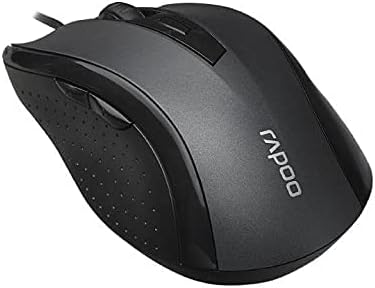
الشكل 3: بزاوية view of the Rapoo N300 mouse, showcasing its ergonomic contour and the placement of the scroll wheel and side buttons.

الشكل 4: قاع view of the Rapoo N300 mouse, displaying the optical sensor, product model number (N300), interface type (USB), and regulatory compliance markings.
3. تعليمات الإعداد
- توصيل الماوس: Locate an available USB port on your computer (desktop or laptop). Insert the USB connector of the Rapoo N300 mouse firmly into the USB port.
- تثبيت برنامج التشغيل: The Rapoo N300 mouse is a plug-and-play device. Your operating system (Windows XP, Windows 7, Linux, or newer versions) will automatically detect and install the necessary drivers. This process may take a few moments.
- تَحَقّق: Once the drivers are installed, the mouse cursor should become responsive. Move the mouse to confirm functionality.
No additional software installation is typically required for basic functionality.
4. تعليمات التشغيل
4.1 الوظائف الأساسية
- الزر الأيسر: Primary action, selection, opening items.
- انقر على اليمين: يفتح القوائم السياقية.
- عجلة التمرير: الوثائق المخطوطة و web pages vertically. Can also be pressed for middle-click functionality (application-dependent).
4.2 ضبط DPI
The Rapoo N300 features a dedicated DPI switch button, usually located behind the scroll wheel. Press this button to cycle through different DPI (Dots Per Inch) sensitivity settings. Each press will change the cursor speed, allowing you to adjust it to your preference for various tasks, from precise editing to fast-paced gaming.
4.3 الأزرار الجانبية
The two side buttons typically function as "Forward" and "Backward" in web المتصفحات و file explorers. Their functionality may be customizable through operating system settings or third-party software, if available.
5. الصيانة
- تنظيف: استخدم قطعة قماش ناعمة وجافة لمسح سطح الفأرة. لإزالة الأوساخ العنيدة، امسحها برفق.ampامسح بقطعة قماش مبللة بالماء أو بمحلول تنظيف خفيف. تجنب استخدام المواد الكيميائية القاسية أو المواد الكاشطة.
- أجهزة الاستشعار البصرية: Ensure the optical sensor on the bottom of the mouse remains clean and free of dust or debris for optimal tracking performance. Do not attempt to disassemble the mouse.
- العناية بالكابلات: تجنب الانحناءات الحادة أو السحب المفرط لكابل USB لمنع التلف.
6. استكشاف الأخطاء وإصلاحها
| مشكلة | الحل المحتمل |
|---|---|
| الماوس لا يستجيب |
|
| حركة المؤشر غير منتظمة أو متقطعة |
|
| زر DPI لا يغير الحساسية |
|
7. المواصفات
| ميزة | التفاصيل |
|---|---|
| نموذج | ن300 |
| Tracking Engine | بصري |
| نقطة لكل بوصة | تصل إلى 2000 نقطة في البوصة |
| عدد الأزرار | 6 (Left, Right, Scroll Wheel, DPI, Side Button 1, Side Button 2) |
| عجلة التمرير | 2D Anti-Slip |
| اتجاه اليد | ثنائي الاستخدام |
| نوع الواجهة | USB سلكي |
| توافق نظام التشغيل | Windows XP, Windows 7, Linux, and newer versions |
| لون | أسود |
| وزن العنصر | حوالي 100 جرام |
| الأبعاد (العبوة) | 15.4 × 8.4 × 4.2 سم |
8. الضمان والدعم
Rapoo products are designed for reliability and performance. For specific warranty information and support details, please refer to the warranty card included with your product or visit the official Rapoo webالموقع. احتفظ بإيصال الشراء الخاص بك كإثبات للشراء في حالة مطالبات الضمان.
For technical assistance or further inquiries, please contact Rapoo customer support through their official channels.


