1. المقدمة
This manual provides detailed instructions for the setup, operation, maintenance, and troubleshooting of your HP Sprocket Studio Plus 4x6 Instant Photo Printer. Please read this manual thoroughly before using the device to ensure optimal performance and longevity.
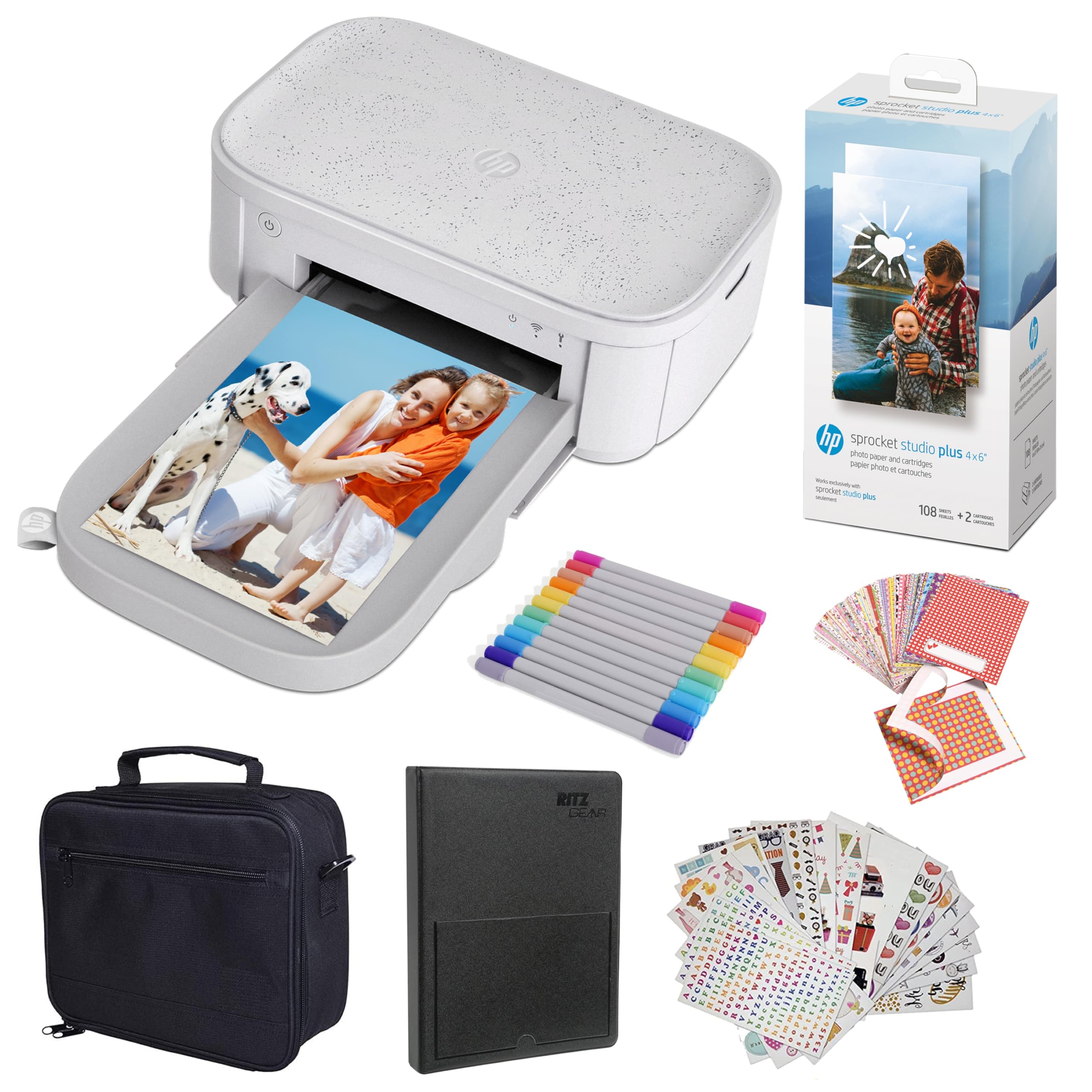
Image: The HP Sprocket Studio Plus 4x6 Instant Photo Printer, shown in white, with a smartphone displaying an image and a printed photo emerging from the printer.
2. ماذا يوجد في الصندوق
تأكد من وجود جميع العناصر في العبوة:
- HP Sprocket Studio Plus 4x6 Instant Photo Printer
- ألبوم الصور
- قضية
- Photo paper and cartridges
- العلامات
- Sticker sets
- محول الطاقة

Image: A pack of HP Sprocket Studio Plus 4x6 photo paper and two ink cartridges, ready for installation.
3. دليل الإعداد
3.1 التشغيل المبدئي
- قم بتوصيل محول الطاقة بالطابعة وبمأخذ الطاقة.
- Press and hold the power button on the printer to turn it on.
- Wait for the indicator lights to stabilize, indicating the printer is ready.
3.2 Loading Photo Paper and Cartridge
- افتح غطاء درج الورق.
- Insert the photo paper stack into the tray, glossy side up. Ensure the paper is aligned correctly.
- Open the cartridge compartment.
- Insert the ink cartridge until it clicks into place.
- أغلق كلا الغطاءين بشكل آمن.

الصورة: لقطة مقربة view demonstrating the correct way to insert the ink cartridge (1) and load photo paper (2) into the HP Sprocket Studio Plus printer.
3.3 Installing the HP Sprocket App
The HP Sprocket app is required to operate your printer. Download it from your device's app store (iOS or Android).
- لأجهزة iOS: بحث عن "HP Sprocket" in the Apple App Store.
- لأجهزة الأندرويد: بحث عن "HP Sprocket" in the Google Play Store.
- Install the app and follow the on-screen prompts.
3.4 توصيل الطابعة
Your HP Sprocket Studio Plus printer can connect via Wi-Fi or Hotspot mode. Refer to the video below for a visual guide on connecting your printer.
Video: This video demonstrates how to connect the HP Sprocket Studio Plus printer to your mobile device via Wi-Fi and Hotspot mode using the HP Sprocket app. It covers turning on the printer, navigating the app's printer management settings, and entering Wi-Fi credentials or the default hotspot password.
3.4.1 اتصال واي فاي
- تأكد من تشغيل الطابعة.
- Open the HP Sprocket app on your mobile device.
- Navigate to the main menu (usually a hamburger icon).
- Select "Manage Printers".
- Tap "Add New Printer".
- Select your printer from the list of available printers (e.g., "HP Sprocket Studio Plus OB78").
- The app will prompt you to connect the printer to your Wi-Fi network. Enter your Wi-Fi credentials (network name and password).
- Confirm the setup is complete.
3.4.2 Hotspot Mode Connection
Use Hotspot Mode if a Wi-Fi network is not available or for direct connection.
- تأكد من تشغيل الطابعة.
- Open the HP Sprocket app on your mobile device.
- انتقل إلى القائمة الرئيسية.
- Select "Manage Printers".
- Tap "Add New Printer".
- Select your printer from the list.
- When prompted to connect to Wi-Fi, select "No network available" or similar option to initiate Hotspot Mode.
- Go to your mobile device's Wi-Fi settings.
- Select the printer's direct Wi-Fi network (e.g., "DIRECT-6C-HPISPS").
- أدخل كلمة المرور الافتراضية: 12345678.
- Return to the HP Sprocket app and confirm the connection.
4. تشغيل الطابعة
4.1 طباعة الصور
- Open the HP Sprocket app.
- Select the photo(s) you wish to print from your gallery or social media accounts.
- Use the in-app editing tools to customize your photos (see section 4.2).
- اضغط على أيقونة الطباعة.
- Confirm print settings (e.g., number of copies).
- The printer will begin printing your photo(s).

Image: A smartphone screen showing the HP Sprocket app interface with a photo selected for printing, next to the HP Sprocket Studio Plus printer.
4.2 Customization Features
The HP Sprocket app offers various tools to enhance your photos before printing:
- المرشحات: Apply different visual effects to your photos.
- الإطارات: Add decorative borders around your images.
- الملصقات: Place digital stickers on your photos for a personalized touch.
- Collages: اجمع عدة صور في صورة واحدة مطبوعة.
- Photo IDs: Create passport-style photos.

Image: The HP Sprocket app displaying a collage feature, allowing users to arrange multiple photos into a single layout for printing.

Image: The HP Sprocket app interface showing options for creating photo IDs, with a portrait photo displayed on the screen.
4.3 Multi-User Support
Multiple users can connect to the HP Sprocket Studio Plus printer simultaneously, allowing for shared printing experiences.
5. الصيانة
5.1 Replacing Ink Cartridges and Photo Paper
The HP Sprocket Studio Plus uses dye-sublimation technology, requiring specific photo paper and cartridges. It is recommended to replace both the paper and cartridge at the same time, as they are designed to run out concurrently (approximately 108 sheets per cartridge).
- When the printer indicates low ink or paper, open the paper tray and cartridge compartment.
- Remove the used ink cartridge and empty paper stack.
- Insert a new HP Sprocket Studio Plus ink cartridge and a fresh stack of 4x6 photo paper.
- أغلق الأغطية بشكل آمن.

Image: A package of HP Sprocket Studio Plus 4x6 photo paper and cartridges, indicating it includes 108 sheets and 2 cartridges.
5.2 تنظيف الطابعة
To maintain print quality, periodically clean the exterior of the printer with a soft, dry cloth. Avoid using liquid cleaners directly on the printer.
6. استكشاف الأخطاء وإصلاحها
6.1 المشكلات والحلول الشائعة
- الطابعة غير متصلة بشبكة Wi-Fi:
- Ensure your Wi-Fi network is 2.4GHz, as the printer may not be compatible with 5GHz networks.
- تأكد من إدخال كلمة مرور شبكة الواي فاي بشكل صحيح.
- Restart both your printer and mobile device.
- Try connecting using Hotspot Mode as an alternative.
- انحشار الورق:
- Turn off the printer and carefully open the paper tray.
- Gently remove any jammed paper. Do not force it.
- تأكد من تحميل الورق بشكل صحيح وعدم ملئه بشكل زائد.
- أعد تشغيل الطابعة.
- جودة الطباعة رديئة:
- Check if the ink cartridge and photo paper are correctly installed and not expired.
- Ensure you are using genuine HP Sprocket Studio Plus photo paper and cartridges.
- Clean the printer as described in the maintenance section.
- الطابعة لا تستجيب:
- تأكد من تشغيل الطابعة وتوصيلها بمصدر طاقة.
- أعد تشغيل الطابعة.
- Check the app for any error messages or connection issues.
7. المواصفات
| ميزة | مواصفة |
|---|---|
| أبعاد المنتج | 6.65 بوصة عمق × 10.75 بوصة عرض × 2.68 بوصة ارتفاع |
| نوع وحدة التحكم | أندرويد، آي أو إس |
| الحد الأقصى لحجم الوسائط | 4 × 6 بوصات |
| وسائل الإعلام المطبوعة | ورق الصور اللامع |
| الحد الأقصى لسعة ورقة الإدخال | 80 ورقات |
| الأجهزة المتوافقة | الهواتف الذكية |
| أقصى دقة طباعة ملونة | [عالي] |
| أقصى دقة طباعة بالأبيض والأسود | 1200 نقطة في البوصة |
| الطباعة على الوجهين | لا |
| واجهة الأجهزة | بلوتوث |
| لون الحبر | ملون بالكامل |
| طريقة التحكم | برنامج |
| سلسلة الموديل | Sprocket Studio Plus |
| نوع حبر الطابعة | خرطوشة الحبر اللون |
| وزن العنصر | 1 رطل |
| تكنولوجيا الاتصال | بلوتوث |
| تكنولوجيا الطباعة | صبغ التسامي |
| ميزة خاصة | Network-Ready, Portable |
| لون | أبيض |
| الحد الأقصى لسرعة الطباعة (ملونة) | 1 جزء في المليون |
8. الضمان والدعم
8.1 معلومات الضمان
The HP Sprocket Studio Plus 4x6 Instant Photo Printer comes with a ضمان محدود لمدة سنة واحدةللاطلاع على الشروط والأحكام المحددة، يرجى الرجوع إلى وثائق الضمان المرفقة مع منتجك أو زيارة موقع دعم HP الرسمي. webموقع.
8.2 دعم العملاء
For further assistance, technical support, or to purchase replacement supplies, please visit the official HP support webيمكنك العثور على معلومات الاتصال على موقع HP الإلكتروني أو الاتصال بخدمة عملاء HP. webالموقع أو في عبوة منتجك.
- دعم HP Webموقع: www.hp.com/support