1. المقدمة
This manual provides detailed instructions for the installation, operation, and maintenance of your MoesGo Smart RF433 WiFi Wall Switch. This smart switch is designed for convenient control of your lighting, offering multiple control methods including touch, app, voice, and RF433 remote.
المميزات الرئيسية:
- No neutral wire required for installation.
- Supports 2.4GHz WiFi connectivity for Smart Life/Tuya App control.
- Compatible with Alexa and Google Home for hands-free voice control.
- RF433 frequency support for remote control (remote not included).
- Programmable timing schedules and countdowns.
- Relay status memory and backlight preferences.

Image 1.1: MoesGo Smart RF433 WiFi Wall Switch, showcasing its sleek design and "No neutral" indicator.
2. معلومات السلامة
WARNING: Electrical installation should only be performed by a qualified electrician. Always turn off power at the circuit breaker before installation or maintenance.
- Ensure the power supply is disconnected before handling any wiring.
- This device is designed for 2.4GHz Wi-Fi networks only. It is not compatible with 5.0GHz Wi-Fi.
- A capacitor is required for proper operation and must be connected to both ends of the bulb.
- Only use with certified bulbs that have a rated power of 5W or higher.
- This switch is not designed for use as a 3-way switch.
- The capacitor may produce a faint humming sound during operation. This is normal.
3. محتويات العبوة
يرجى التحقق من الحزمة للعناصر التالية:
- MoesGo Smart RF433 WiFi Wall Switch (1 unit)
- Capacitor (1 unit)
- براغي تثبيت (2 وحدات)
- دليل المستخدم (هذه الوثيقة)
4. المواصفات
| ميزة | التفاصيل |
|---|---|
| ماركة | مويزجو |
| رقم الموديل | WS-EU1-LB-N-MG |
| وضع التشغيل | تشغيل/إيقاف |
| نوع الاتصال | مغلق عادة |
| مادة | زجاج |
| نوع التركيب | حامل الحائط |
| تصنيف الحماية الدولية | IP65 |
| لون | أسود |
| الأبعاد (العبوة) | 11 × 10.2 × 5.1 سم |
| الوزن (الحزمة) | 193 جرام |

Image 4.1: Detailed dimensions of the MoesGo Smart Switch and a basic wiring diagram for single-wire installation with capacitor.
5. التثبيت والإعداد
5.1 قائمة التحقق قبل التثبيت
- Verify your Wi-Fi network is 2.4GHz. 5GHz networks are not supported.
- Ensure the bulbs connected to the switch have a rated power of 5W or higher.
- Confirm you are not attempting to install this as a 3-way switch.
- Have the included capacitor ready.
5.2 تعليمات الأسلاك
- إيقاف تشغيل الطاقة: حدد موقع قاطع الدائرة الكهربائية وافصل التيار الكهربائي عن المفتاح الذي تستبدله. تأكد من انقطاع التيار الكهربائي باستخدام مقياس الجهد.tagه اختبار.
- إزالة المفتاح القديم: Carefully remove your existing wall switch from the wall box.
- Connect Capacitor: The included capacitor is essential for stable operation with no neutral wire. Connect the capacitor across the two terminals of the light bulb (in parallel with the load). This helps prevent flickering and ensures proper functionality.
- قم بتوصيل المفتاح الذكي:
- Connect the live wire (L) from your electrical box to the 'L IN' terminal on the MoesGo switch.
- Connect the load wire (L1) going to your light fixture to the 'L OUT' terminal on the MoesGo switch.
- تأكد من أن جميع التوصيلات آمنة.
- تركيب المفتاح: Gently push the wired switch into the wall box and secure it with the provided screws. Attach the glass panel.
- اعادة الطاقة: قم بإعادة تشغيل الطاقة من قاطع الدائرة.

Image 5.1: Visual guide highlighting critical installation requirements: 2.4GHz Wi-Fi, minimum 5W bulb power, not for 3-way use, and no neutral wire needed.

Image 5.2: Illustration showing the capacitor and its importance for the MoesGo Smart Switch, indicating it should be connected to the bulb.
5.3 App Pairing (Smart Life/Tuya)
- تحميل التطبيق: قم بتنزيل تطبيق "Smart Life" أو "Tuya Smart" من متجر تطبيقات هاتفك الذكي (iOS أو Android).
- التسجيل/تسجيل الدخول: افتح التطبيق وقم بالتسجيل للحصول على حساب جديد أو قم بتسجيل الدخول باستخدام حساب موجود.
- الدخول في وضع الاقتران: On the MoesGo switch, press and hold the touch button for approximately 5-10 seconds until the indicator light starts blinking rapidly. This indicates it's in pairing mode.
- إضافة جهاز: In the app, tap the "+" icon (usually in the top right corner) to add a device. Select "Switch (Wi-Fi)" or "Wall Switch".
- تأكيد الوميض: Confirm that the indicator light on the switch is blinking rapidly in the app.
- أدخل تفاصيل Wi-Fi: أدخل اسم شبكة Wi-Fi 2.4GHz وكلمة المرور الخاصة بك.
- يتصل: The app will begin connecting to the switch. Once connected, the indicator light on the switch will stop blinking and remain solid.
- إعادة تسمية الجهاز: You can rename the switch in the app for easier identification (e.g., "Living Room Light").
6. التشغيل
The MoesGo Smart Switch offers multiple ways to control your lighting:
6.1 التحكم باللمس
Simply touch the designated area on the glass panel of the switch to turn the light ON or OFF. The touch control functions independently of app or voice commands.

Image 6.1: A hand touching the MoesGo Smart Switch, illustrating the touch control functionality.
6.2 التحكم في التطبيق (سمارت لايف/تويا)
Once paired with the Smart Life or Tuya Smart app, you can control your switch from anywhere with an internet connection.
- تشغيل/إيقاف عن بعد: Tap the switch icon in the app to turn the light ON or OFF.
- إعدادات حالة الترحيل: Access the switch settings in the app to configure the relay status after a power outage (ON/OFF/Remember last status). You can also adjust backlight preferences.
- التحكم في المشاركة: Share control of the switch with family members or friends through the app, allowing multiple users to manage the device.
- التحكم في المجموعة: Create groups within the app to control multiple smart switches simultaneously.

Image 6.2: Screenshot of the Smart Life/Tuya app interface showing options for setting relay status and backlight preferences for the MoesGo Smart Switch.
6.3 التحكم الصوتي (Alexa وGoogle Home)
Integrate your MoesGo Smart Switch with Amazon Alexa or Google Home for convenient hands-free voice control.
- ربط الحساب: In the Alexa or Google Home app, enable the "Smart Life" or "Tuya Smart" skill/service and link your account.
- اكتشاف الأجهزة: اطلب من أليكسا أو جوجل هوم اكتشاف أجهزة جديدة.
- الأوامر الصوتية: استخدم الأوامر مثل:
- "Alexa, turn on [Switch Name]"
- "Hey Google, turn off [Switch Name]"
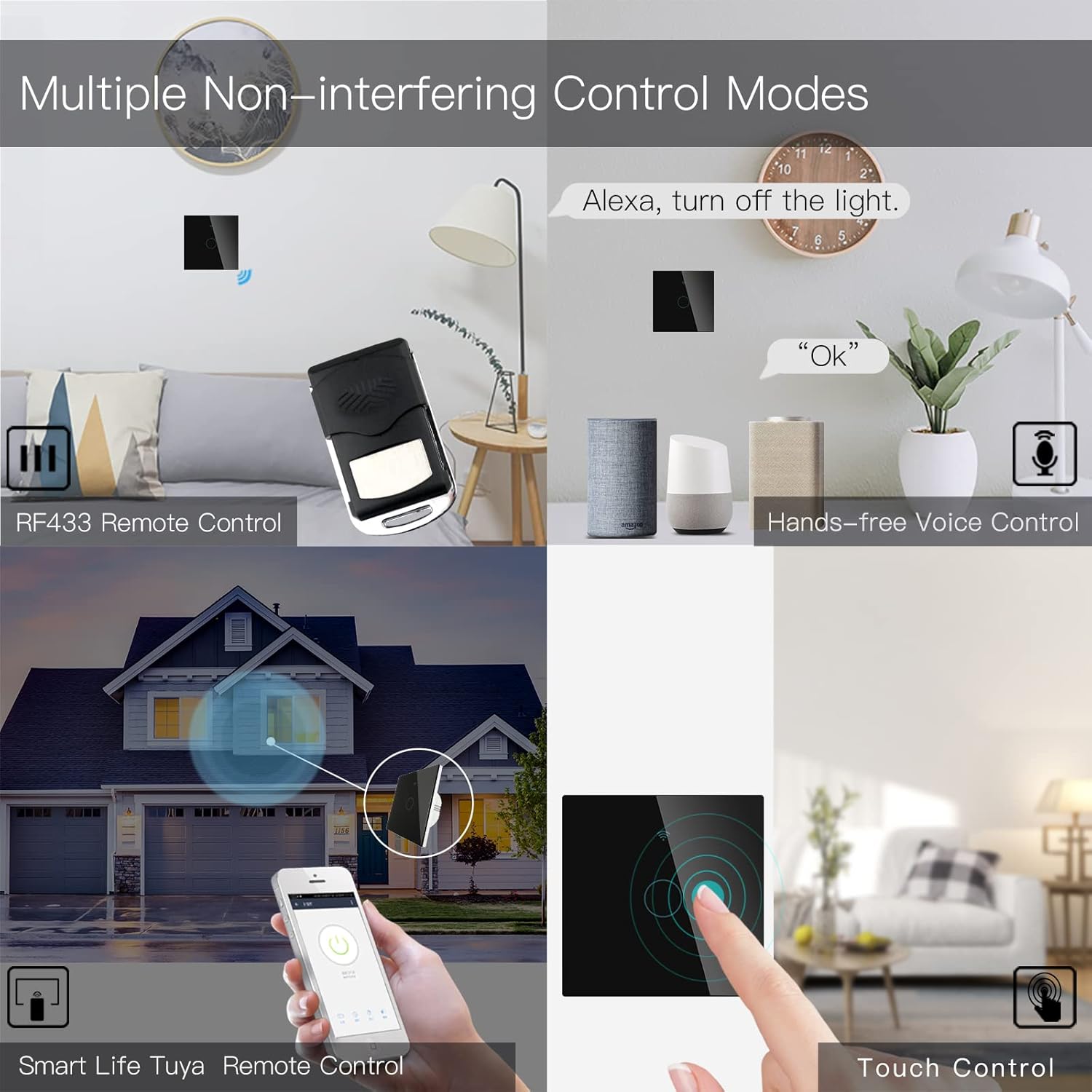
Image 6.3: Depiction of the MoesGo Smart Switch being controlled via voice commands using Amazon Alexa and Google Home devices.
6.4 جهاز تحكم عن بعد RF433
The switch supports RF433 frequency for remote control. An RF433 remote (not included) with 1527 encoding can be paired with the switch.
- أدخل وضع الاقتران اللاسلكي: In the Smart Life/Tuya app, navigate to the switch settings and find the "RF area" to enter pairing mode.
- زوج عن بعد: Press a button on your RF433 remote. Ensure a one-second delay between presses to avoid errors. The switch will confirm successful pairing.
6.5 Timing Schedules and Countdown
Utilize the Smart Life/Tuya app to set up automated schedules for your lights.
- الجداول الزمنية: Program specific times for the light to turn ON or OFF daily or on selected days of the week.
- العد التنازلي: Set a countdown timer for the light to turn OFF after a specified duration (e.g., 1, 5, 30 minutes, 1 hour).

الصورة 6.4: سابقample of setting a timing schedule in the Smart Life/Tuya app, showing lights turning on at 7:00 AM and off at 10:00 PM.
7. الصيانة
To maintain your MoesGo Smart Switch:
- تنظيف: Gently wipe the glass panel with a soft, dry cloth. Avoid abrasive cleaners or solvents.
- تحديثات البرامج الثابتة: قم بالتحقق بشكل دوري من تطبيق Smart Life/Tuya بحثًا عن تحديثات البرامج الثابتة المتاحة لضمان الأداء الأمثل والأمان.
8. استكشاف الأخطاء وإصلاحها
- المفتاح لا يستجيب:
- تأكد من أن قاطع الدائرة الكهربائية في وضع التشغيل.
- Ensure the wiring is correct and secure.
- Verify the capacitor is properly installed across the bulb terminals.
- وميض الضوء:
- This often indicates an issue with the capacitor installation or an incompatible bulb. Ensure the capacitor is correctly wired and the bulb meets the 5W minimum power requirement.
- لا يمكن الاتصال بشبكة Wi-Fi:
- تأكد من أن شبكة الواي فاي الخاصة بك تعمل بتردد 2.4 جيجاهرتز.
- Ensure the switch is in pairing mode (rapidly blinking indicator light).
- تأكد من صحة كلمة مرور شبكة الواي فاي الخاصة بك.
- Move the switch closer to your Wi-Fi router during pairing.
- Faint Humming Sound:
- A faint humming sound from the capacitor is normal for no-neutral switches. If the sound is loud or concerning, recheck the capacitor installation and bulb compatibility.
- RF433 Remote Pairing Issues:
- Ensure the switch is in RF pairing mode via the app.
- Press remote buttons with a one-second delay between presses.
- Verify the remote uses 1527 encoding.
9. الضمان والدعم
For warranty information and technical support, please refer to the official MoesGo webيمكنك الاطلاع على الموقع الإلكتروني أو الاتصال بخدمة العملاء مباشرةً. عادةً ما تتوفر التفاصيل على عبوة المنتج أو في المصادر الإلكترونية الرسمية للشركة المصنعة.


